Blog

+91-8171144903

1-855-257-5251

Products

×

Guide to connect various cloud platforms with Shoviv Cloud Drive Migrator

OneDrive (Personal or Business)

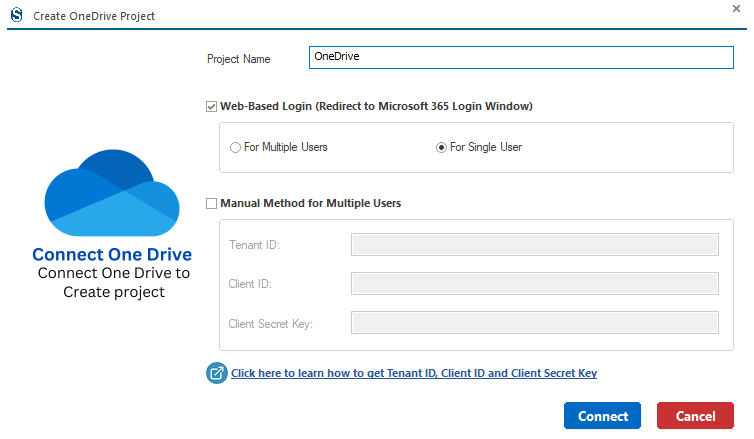
When you click Add Project, you’ll be presented with two connection options. In other words, you can connect OneDrive in two different ways: Web-Based Login(Redirect to Microsoft 365 Login Window) and Manual Method for Multiple Users.

Step 1: Project Name: Enter a Project Name

Web-Based Login(Redirect to Microsoft 365 Login Window)

  • For Multiple Users:- multiple users in your organization to connect their own Microsoft OneDrive accounts, but it typically requires an administrator account to set it up first.
  • For Single User:- to connect the OneDrive account for a single user.

Click Connect to complete the connection.

app registration
  • To sign in using the Web-Based Login (Redirect to Microsoft 365 Login Window) method, you will need to enter the required credentials and complete the verification step.
app registration
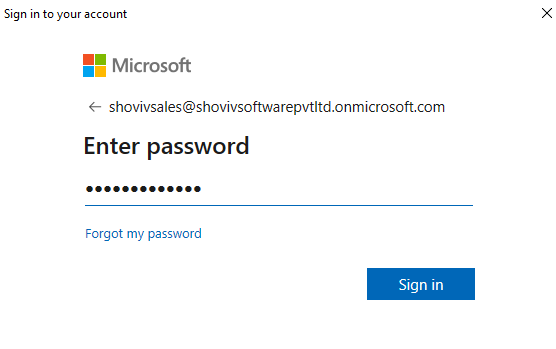
  • You will be redirected to the login page of Microsoft. Enter your email address and password to proceed.
app registration
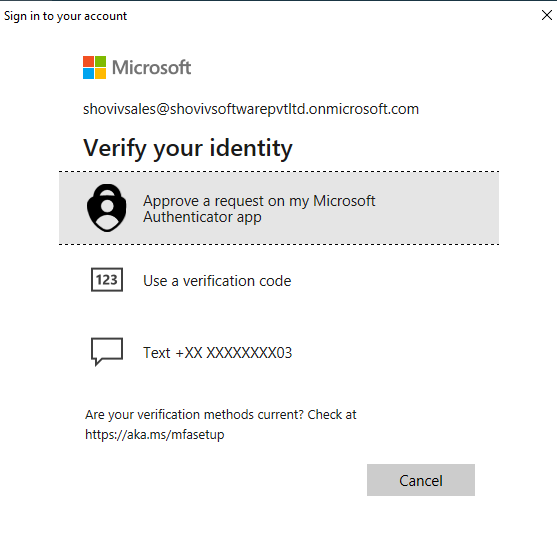
  • If Admin Account is enabled, complete the additional verification step as prompted.
app registration
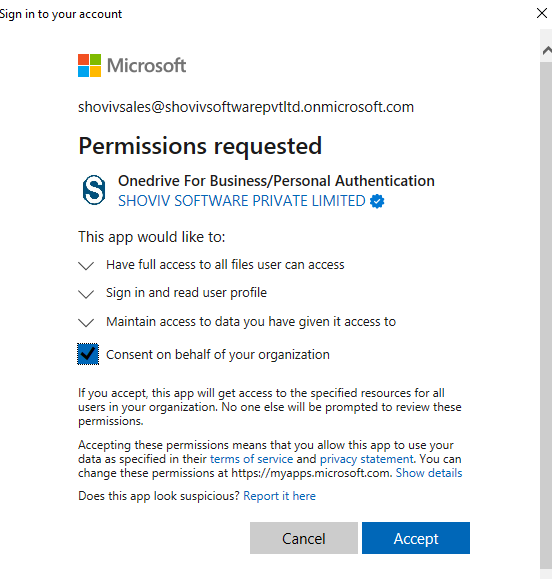
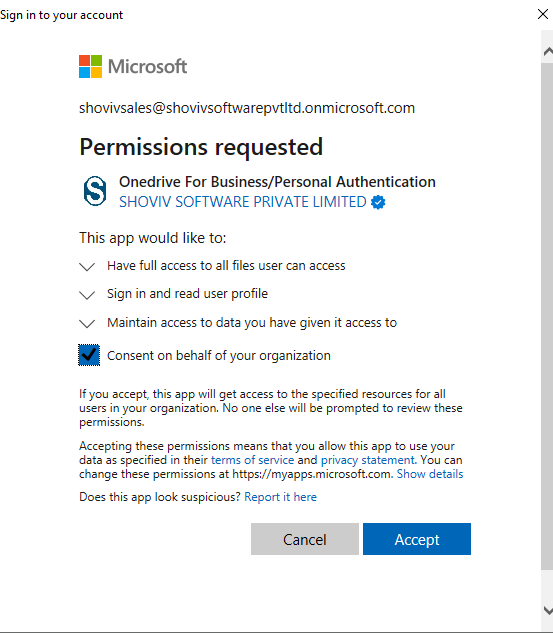
  • After verifying your identity, select the consent checkbox and grant the required permissions by clicking the Accept button.
app registration

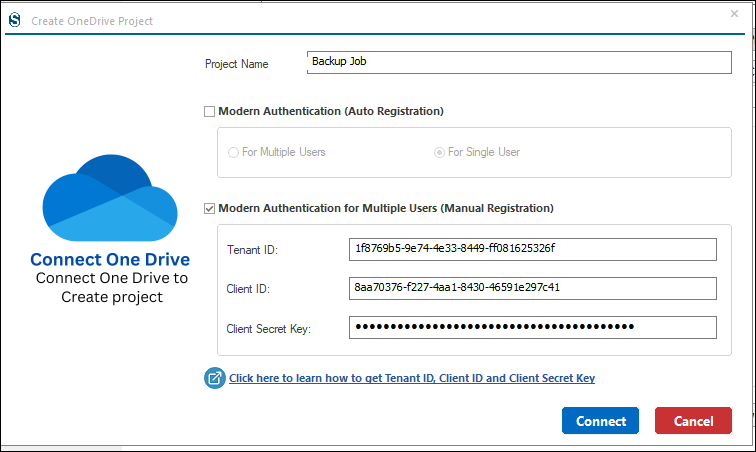
Manual Method for Multiple Users:-

  • Tenant ID: Enter the Tenant ID available in the Overview section of Microsoft Entra ID (formerly Azure Active Directory).
  • Client ID: Enter the Client ID (also known as the Application ID), which is available in the same Overview section below the Tenant ID.
  • Client Secret Key: Enter the client secret value from the Certificates & Secrets section of the registered application.

If you want to know how to get Tenant ID, Client ID and Client Secret Key:-
https://www.shoviv.com/technical-guide/generate-client-id-and-client-secret-key-for-onedrive.html

app registration
app registration
Google Shared Drive

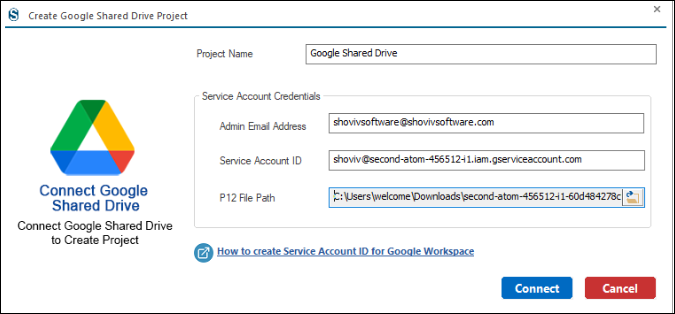
Step 1: Connect with the Google Shared Drive project connection, and enter the required details.

  • Project Name: Enter a name for the Google Drive migration project.
  • Email Address: Enter the email address of the Google Workspace user. For multiple Drive migrations, provide the email address of the global administrator.
  • Service Account ID: Enter the Service Account ID required to connect to Google Drive.
  • P12 File Path: Enter the file path of the P12 key file used to establish the connection with the user’s Google Drive account.

How to create service account ID for Google Workspace:
https://www.shoviv.com/technical-guide/add-service-account-id-and-p12-file-path-for-google-drive.html

service account

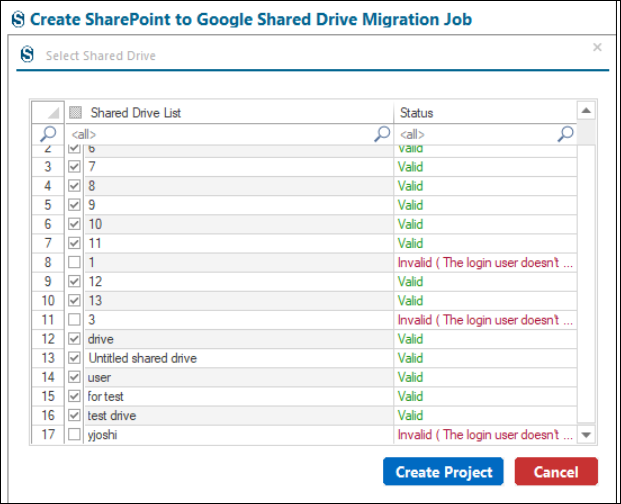
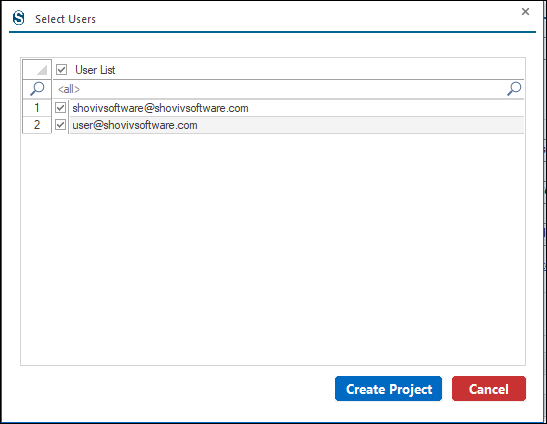
Step 2: Select drives from the list and then click on the Create Project.

  • Drives have the status Valid, meaning the logged-in user has access to them.
  • Drives that show Invalid (The login user doesn't ...)Valid, meaning the logged-in user doesn’t have permission to access those drives. This issue may be with The Owner of the shared Drive. To resolve this issue, contact the drive owner to request and verify proper access permissions.
service account
Google Drive

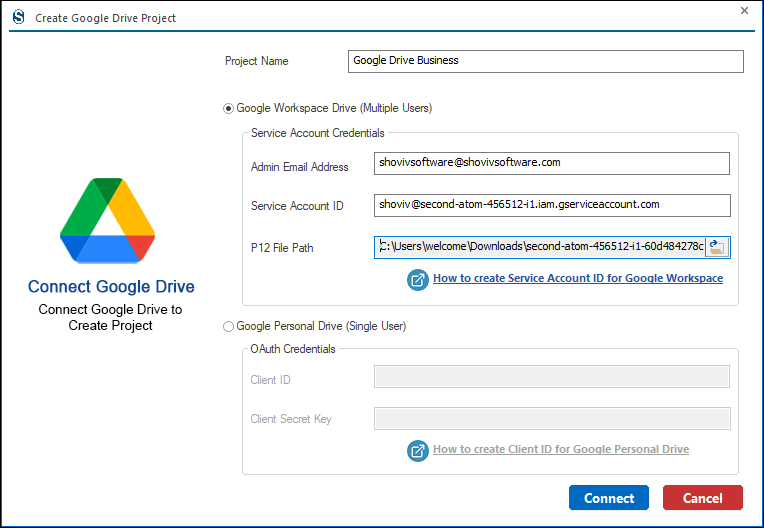
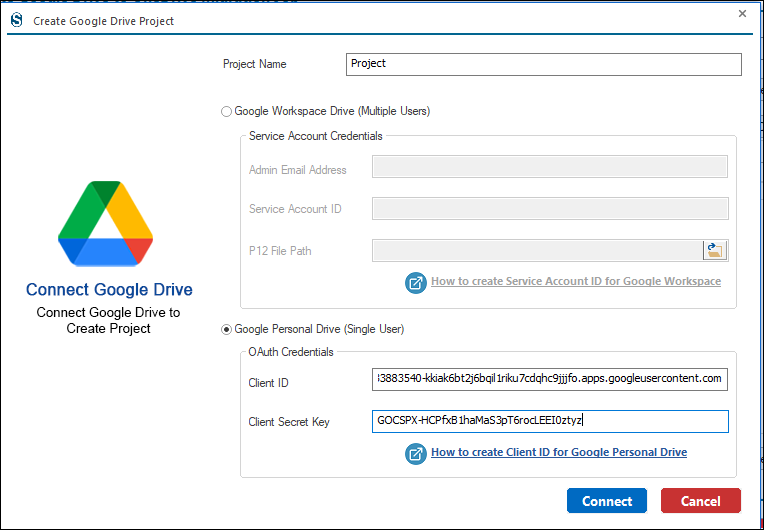
Step 1: When you click Add Project, you will see two available connection methods. This means Google Drive can be connected in two different ways: Google Workspace Drive (Multiple Users) or Google Personal Drive (Single User)

Google Workspace Drive (Multiple Users)

  • This method uses Service Account credentials and is suitable for migrating multiple users’ drives under a Google Workspace account.
  • Project Name: Enter a name for the Google Shared Drive migration project.
  • Email Address: Enter the email address of the Google Workspace user.
  • Service Account ID: Enter the Service Account ID required to connect to Google Shared Drive.
  • P12 File Path: Enter the file path for the P12 key file used to establish the connection with the user’s Google Drive account.
  • How to Create Service Account ID for Google Workspace:-
    https://www.shoviv.com/technical-guide/add-service-account-id-and-p12-file-path-for-google-drive.html

Step 2: Select Drives from the list and then hit the Create Project button.

Google Personal Drive (Single User)

  • This method uses OAuth authentication (Client ID and Client Secret Key) and is designed for connecting an individual Google Drive account.
  • Client ID:- Enter the Client ID generated from the Google Developer Console. The Client ID identifies the application requesting access to Google Drive.
  • Client Secret Key:- Enter the Client Secret Key associated with the Client ID. This key is used to authenticate the application securely.

There is also a help link “How to create Client ID for Google Personal Drive” that helps users generate these credentials:-
https://www.shoviv.com/technical-guide/create-client-id-and-secret-key-for-personal-google-drive.html

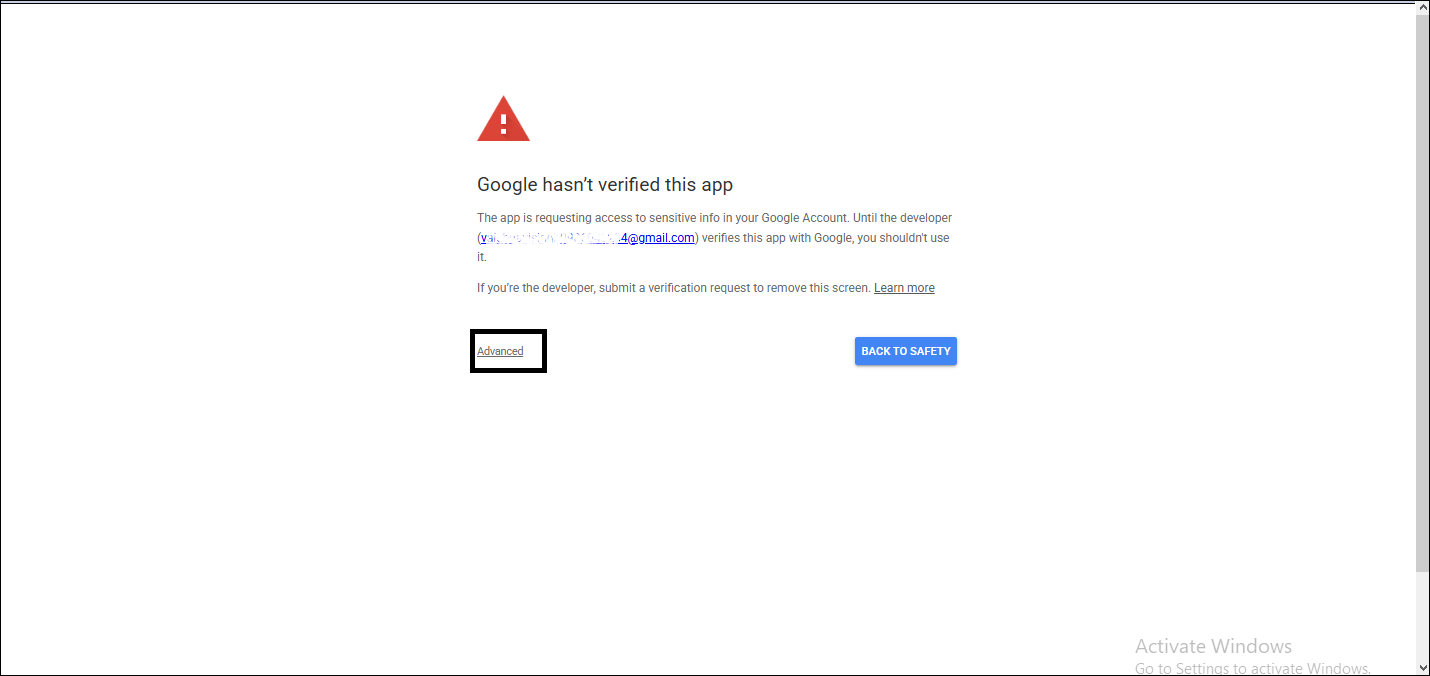
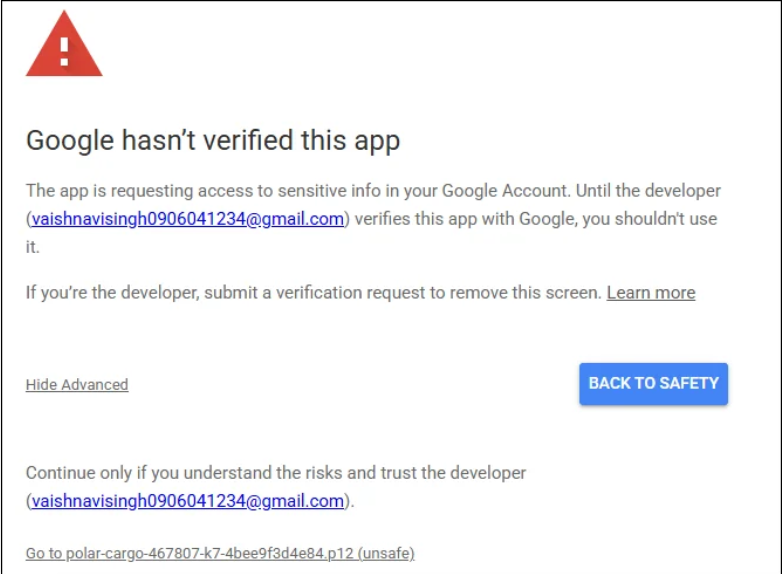
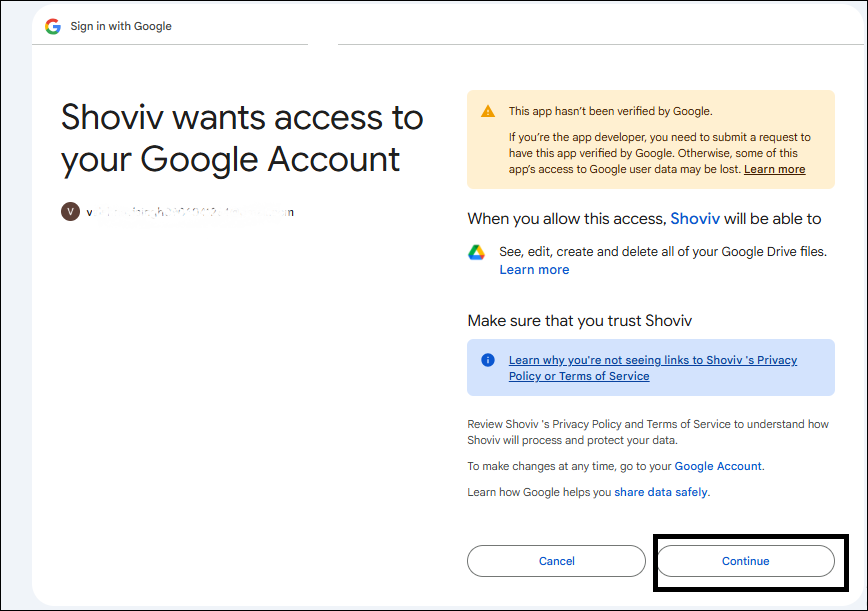
  • A new page will appear displaying a notification that Google has not yet verified the application. This message is shown because the app is requesting access to your Google account, but has not completed Google’s verification process.
  • Next, click on the Advanced option, and then choose Go to App Name to proceed with the connection.
  • Carefully review the information displayed on the screen, and then click the Continue button to proceed further.
  • In this window, you will receive a verification code After copying the code, you can close this window.
SharePoint Online

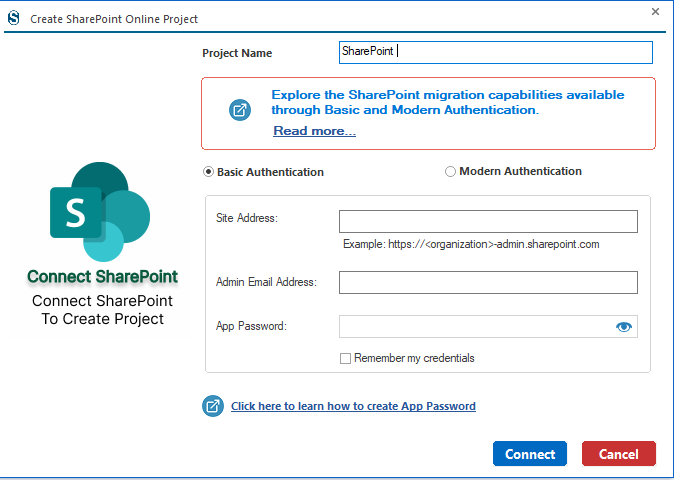
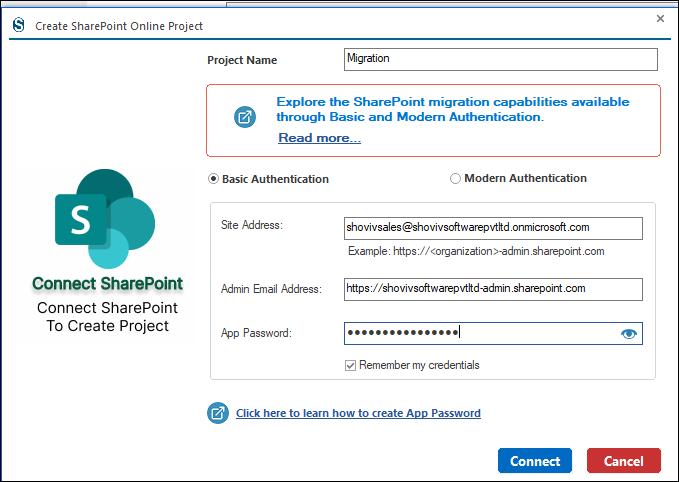
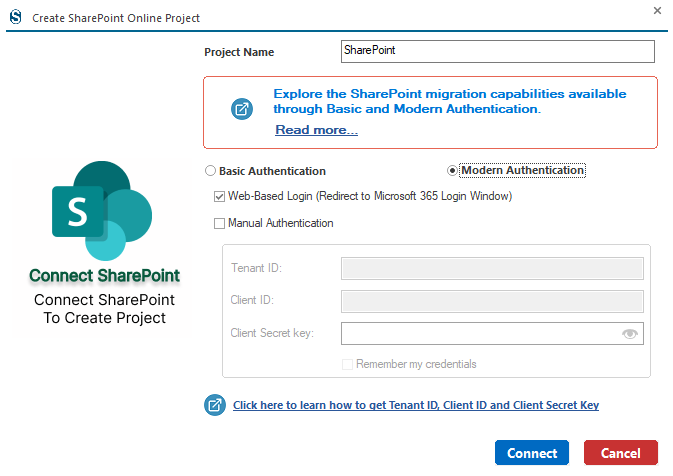
Step 1: The first step in migrating SharePoint is to create a connection between the migration software and SharePoint. To start the process, click on the Add Project button. After clicking the button, the Project Creation dialogue box will appear. This window contains several fields that must be filled in.

Basic Authentication

  • Site Address:- Enter the SharePoint Admin Site Address. For Example:- https://-admin.sharepoint.com.
  • Admin Email Address:- Enter the Admin Email Address of your SharePoint or Microsoft 365 account. The admin account must have the required permissions to access SharePoint data.
  • App Password:- Enter the App Password generated for the Microsoft account. App passwords are used when multi-factor authentication (MFA) is enabled. They allow secure access without using the normal account password.

Remember My Credentials: If you want the software to save the login credentials, enable the Remember my credentials option.

Click here to learn how to create an App Password:
https://www.shoviv.com/technical-guide/create-app-password-for-office-365.html

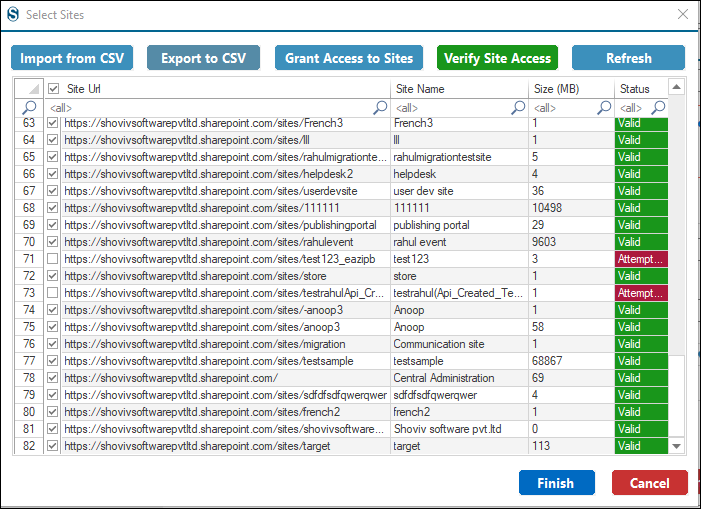
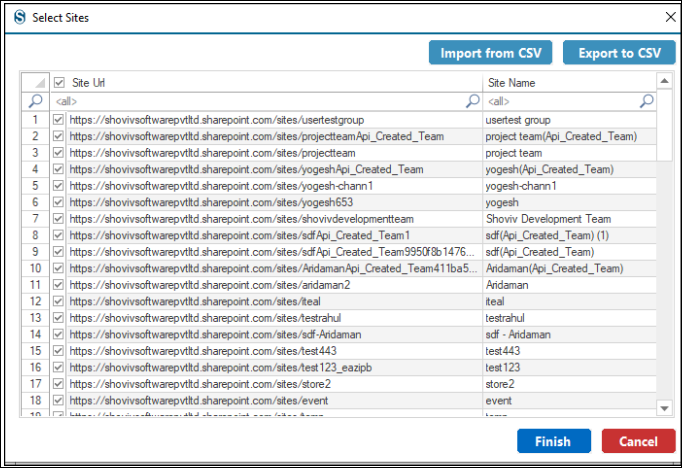
  • Select the sites from the list, and if you have a larger list for the selection, then you can do it with the help of the Import From CSV option.

Modern Authentication:-

Web-Based Login (Redirect to Microsoft 365 Login Window)

  • Select Web-Based Login if you want to authenticate through the Microsoft 365 login page.
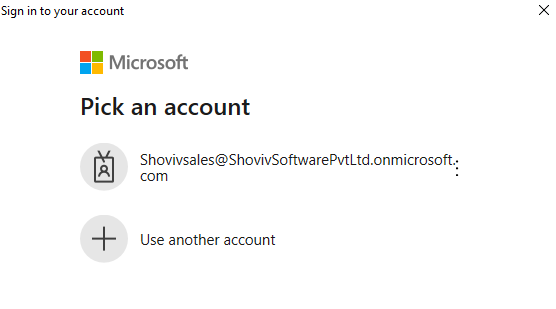
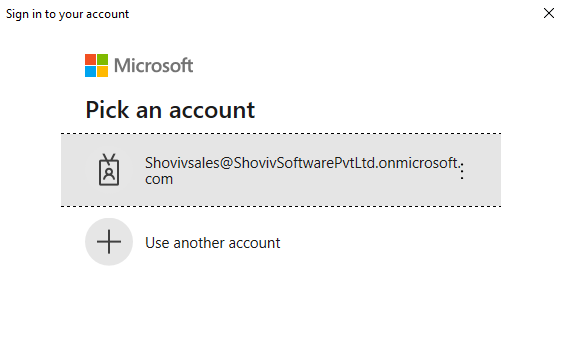
  • Select Microsoft 365 account to continue, or click Use another account to sign in with a different account.
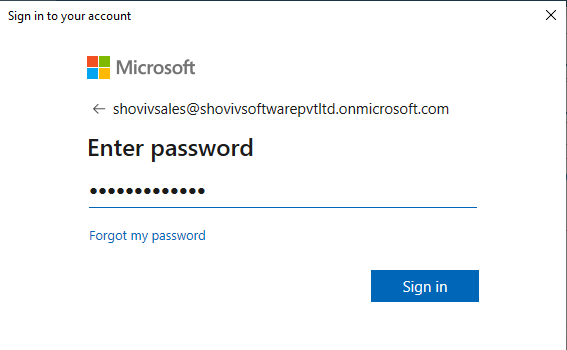
  • Enter the password for the selected Microsoft 365 account, then click Sign in to continue.
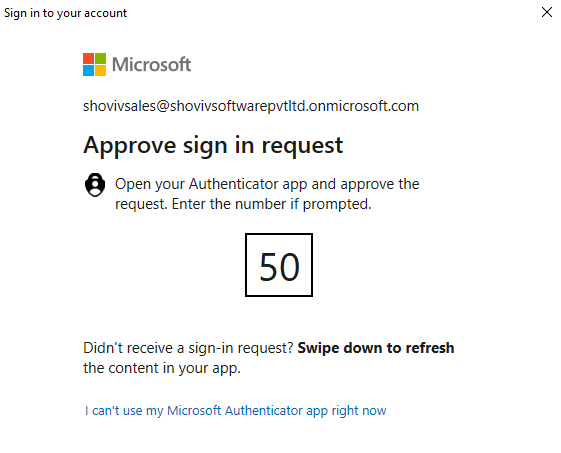
  • Approve the permission, and if you do not have the Microsoft Authentication now, then you can click on it and move forward by code or sms etc.
  • Click on the Accept button.

Manual Authentication:-
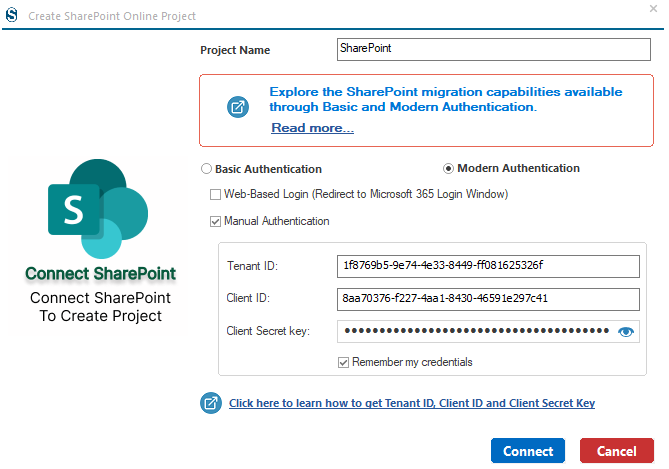
To log in using Modern Authentication, provide the following details:

  • Site Address: Enter the full URL of the SharePoint site you want to access.
  • Tenant ID: Enter the Tenant ID available in the Overview section of Azure Active Directory.
  • Client ID: The Client ID (also called Application ID) is available in the Overview section of Azure Active Directory, below the Tenant ID.
  • Client Secret Key: Enter the Client Secret Value created in the Certificates & Secrets section of the application registration.
  • For guidance on creating an App Password, click the provided link:
    https://www.shoviv.com/technical-guide/generate-client-id-and-client-secret-key-for-onedrive.html
  • Now, select the sites from the list, and if you want to add the larger sites, then you can add them with the help of the Import From CSV button.
Azure Blob Storage
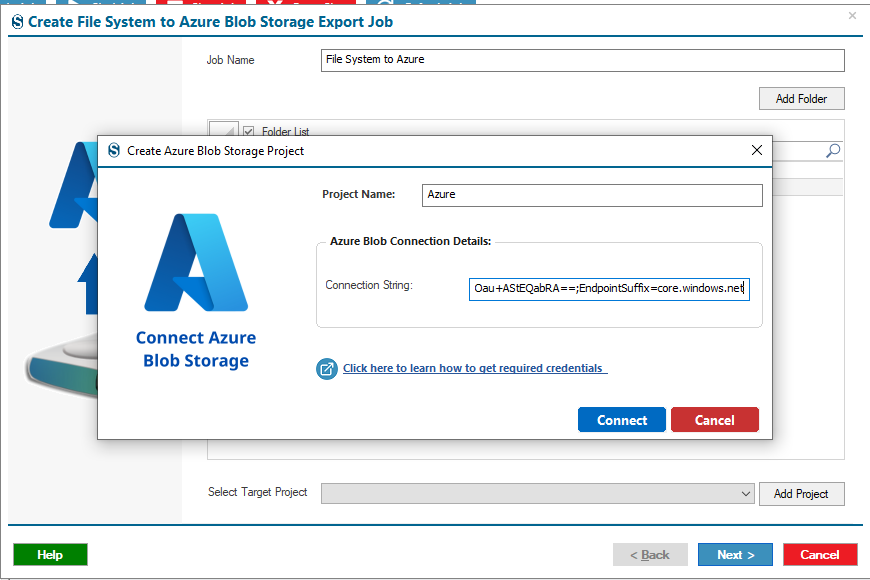
  • The first step in migrating Azure Blob Storage is to establish a connection between the migration software and SharePoint. To begin, click the Add Project button. After selecting this option, the Project Creation dialogue box will appear. This window includes several fields that need to be completed before continuing with the migration process.
  • Enter the Connection String and then hit the Connect button.
  • Click here to learn how to get required credentials:
    https://www.shoviv.com/technical-guide/how-to-get-azure-blob-storage-connection-string.html
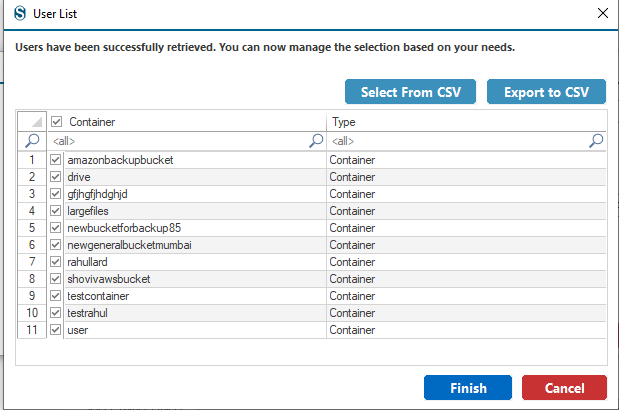
  • Select the containers from the list and if you have the larger list for the selection you can select the specific containers with the help of the Select From CSV button.
Box Personal
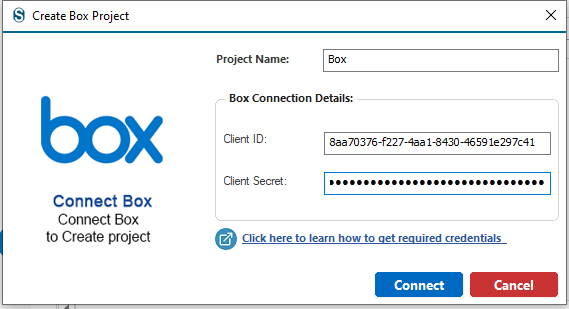
  • The initial step in migrating Box Personal is to create a connection between SharePoint and the migration software. Start by clicking the Add Project button. After doing so, the Project Creation window will appear, displaying several required fields that need to be filled out before moving forward with the migration process.
  • Project Name: Provide a project name
  • Client ID: You can locate the Client ID, also referred to as the Application ID, in the Overview page of Azure Active Directory.
  • Client Secret: In this field, enter the Client Secret that you created in the Certificates & Secrets area of the application registration.
  • Click here to learn how to get required credentials:
    https://www.shoviv.com/technical-guide/learn-to-connect-box.html
Box for Business
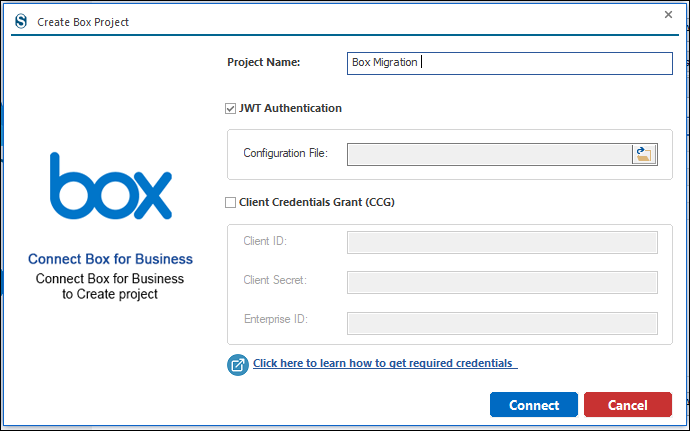
  • The first step in the Box Business migration process is to connect the migration tool to SharePoint. To begin, select the Add Project button. Once you click this option, the Project Creation dialogue window will open. This window contains several fields that must be completed before you can proceed with the migration.
  • Project Name: Enter the name of the Project.
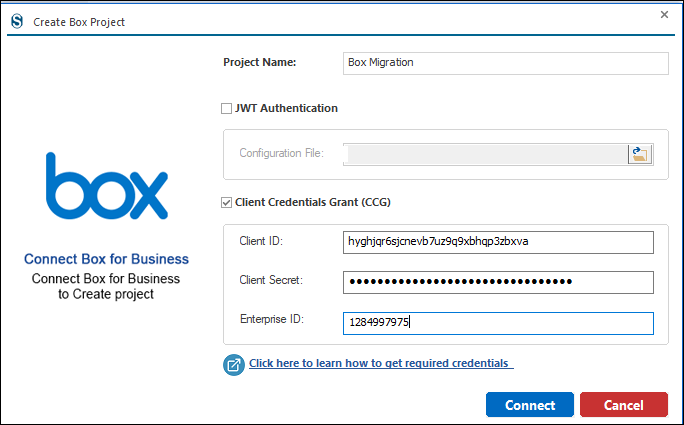
  • Business Box Account: You have the option to use either JWT Authentication or the Client Credentials Grant (CCG) approach.
  • JWT Authentication needs the JSON file for the authentication.

Client Credentials Grant:

  • Client ID: Enter the Client ID, also known as the Application ID, of the registered application in Azure Active Directory. This unique identifier allows the migration tool to connect to Box Business.
  • Client Secret: Enter the Client Secret value generated in the Certificates & Secrets section of the Azure application registration. This secret is used to authenticate the application when connecting to Box Business.
  • Enterprise ID: Enter the Enterprise ID, also called the Tenant ID, of your Azure Active Directory. This ID identifies the organization’s Azure environment where the Box Business resources are hosted.
  • For a better understanding of these credentials, you can refer to Shoviv’s Technical Guide:
    https://www.shoviv.com/technical-guide/learn-to-connect-box.html
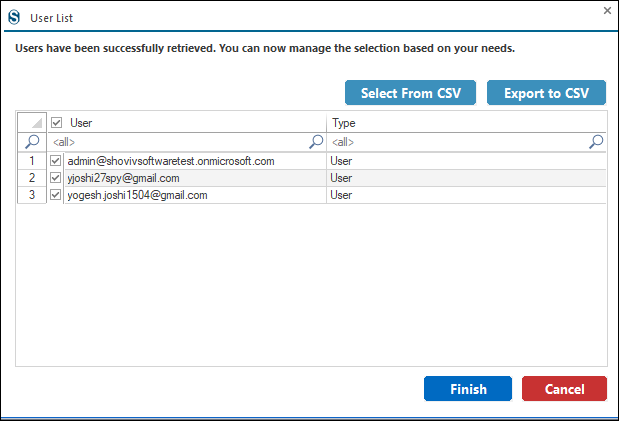
  • Now you need to select the users from the list, and if you have a larger list of selections, then you can select the specific users by clicking on the Select Users From CSV button.
S3-Compatible Storage
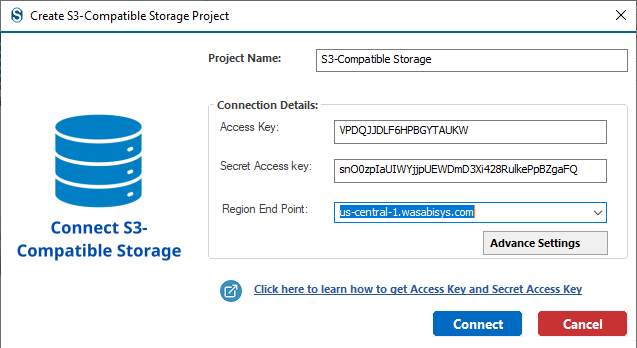
  • The first step in migrating S3-Compatible Storage is to establish a connection between the migration tool and the S3 storage system. To begin, click the Add Project button. After selecting this option, the Project Creation window will appear. This window contains several fields that must be completed before continuing with the migration process.
  • Project Name: Enter the name of the project in the field of the Project Name.
  • Access Key: Enter the Access Key provided by your S3-compatible storage service. This key acts as a public identifier used to authenticate and connect the migration tool to the storage account.
  • Access Secret Key: Enter the Secret Access Key associated with the Access Key. This key works like a password and is used together with the Access Key to authenticate access to the S3 storage securely.
  • Region End Point: Enter the Region Endpoint of your S3-compatible storage service. This specifies the server location or endpoint URL where the storage service is hosted and allows the migration tool to connect to the correct region.
  • Click here to learn how to get Access Key and Access Secret Key:
    https://www.shoviv.com//technical-guide/credential-setup-for-shoviv-S3-compatible-storage.html
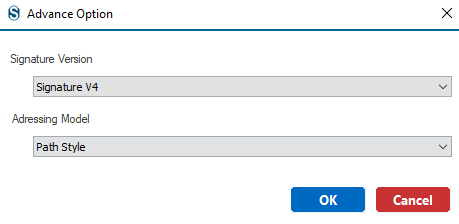
  • Click on the Advance Settings to adjust according to the bucket present in your S3 -Compatible Storage, Signature Version and Path Style with the help of the dropdown list. Click on the Ok button.
  • After entering the Connection Details, click on the Connect button.
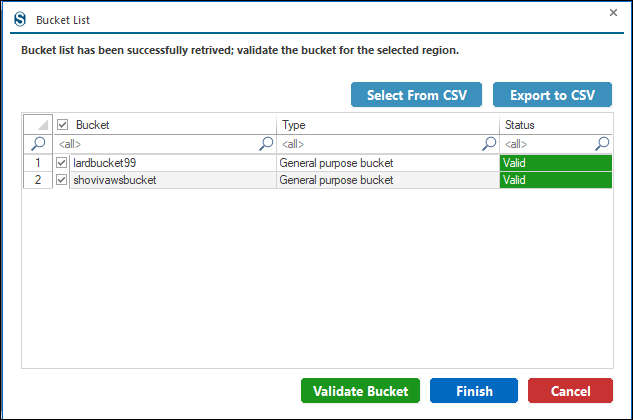
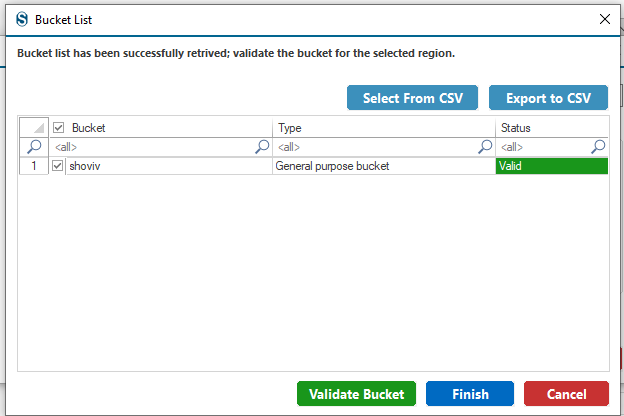
  • Next, select the buckets from the Bucket List and then click on the Finish button after Validate Bucket. In case you have a larger Bucket List for the selection, then you can select the specific bucket with the help of the Select From CSV button.
SharePoint On-Premises
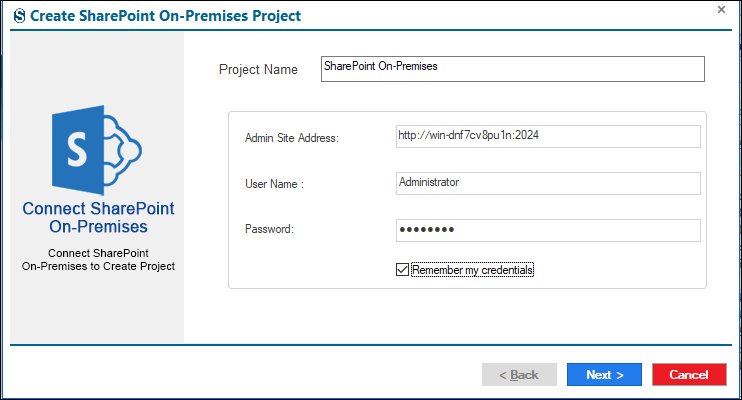
  • To begin migrating SharePoint On-Premises, first create a connection between the migration tool and the SharePoint environment. Click the Add Project button to start. The Project Creation window will then appear, where you must enter the required information before moving forward with the migration.
  • Project Name: Enter the name of the project in the field of the Project Name.
  • Admin Site Address: Enter the URL of the SharePoint On-Premises admin site. This address allows the migration tool to connect to the SharePoint server and manage the migration process.
  • User Name: Enter the username of the SharePoint administrator account that has permission to access and manage the SharePoint environment.
  • Password: Enter the password associated with the administrator username. This is required to authenticate and securely connect to the SharePoint server.

Remember my credentials: Select this option to save your login credentials, so you do not need to enter the username and password again when accessing the migration project later.

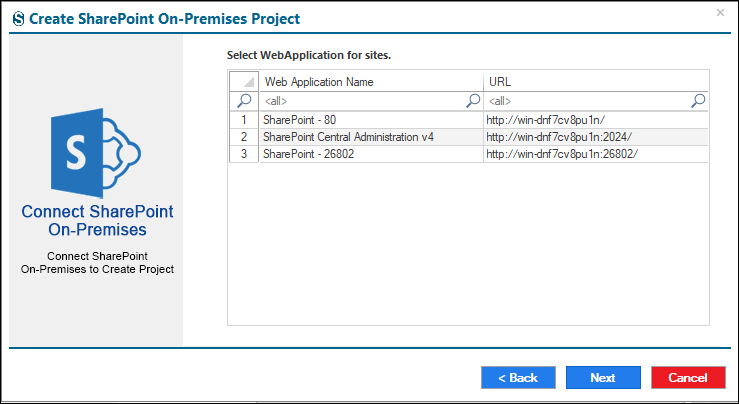
  • Now, you need to select the Web Application Name.
  • Select the Site URL and then click on the Next button.
Amazon S3
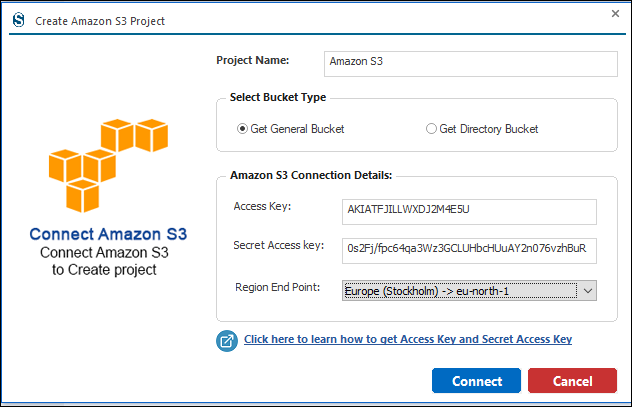
  • The first step in migrating data from Amazon S3 storage is to establish a connection between the migration tool and your S3 storage account. To begin, click the Add Project button. After selecting this option, the Project Creation window will appear. This window includes several fields that must be completed before proceeding with the migration process.
  • Project Name: Enter a name for your migration project in the Project Name field. This name helps you identify and manage the migration task.
  • Choose between the Directory and General Bucket. Choose General Bucket if you need the version history.
  • Access Key: Enter the Access Key ID provided by your Amazon S3 account. The Access Key ID acts as a public identifier that allows the migration tool to connect and authenticate with your S3 storage.
  • Secret Access Key: Enter the Secret Access Key associated with the Access Key ID. This key functions like a password and is used together with the Access Key ID to authenticate access to your Amazon S3 storage securely.
  • Region Endpoint: Enter the Amazon S3 Region Endpoint where your S3 bucket is hosted. This specifies the geographic server location (for example, us-east-1, ap-south-1, etc.) and allows the migration tool to connect to the correct Amazon S3 region.
  • Click here to learn how to obtain your Amazon S3 Access Key ID and Secret Access Key:
    https://www.shoviv.com/technical-guide/access-key-for-amazon-s3-connection.html
  • Next, select the buckets from the Bucket List and then click the Finish button after completing Validate Bucket. If you have a large Bucket List and want to select specific buckets quickly, you can use the Select From CSV button to import and choose the required buckets from a CSV file.

Note: If you have selected a Directory Bucket, bucket validation is not required, and you can proceed directly without performing the validation step.

Dropbox Personal
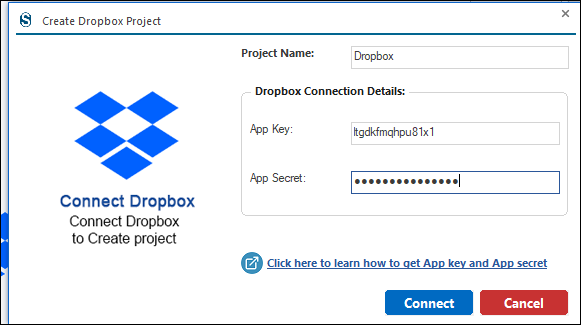
  • The first step in migrating data from Dropbox Personal is to establish a connection between the migration tool and your Dropbox account. To begin, click the Add Project button. After selecting this option, the Project Creation window will appear. This window includes several fields that must be completed before proceeding with the migration process.
  • Project Name: Enter a name for the migration project in the Project Name field. This helps you easily identify and manage the migration task.
  • App Key: The App Key is a unique public identifier generated when you create an application in the Dropbox developer console. It is used by the migration tool to identify the application that is requesting access to your Dropbox Personal account.
  • App Secret: The App Secret is a confidential key associated with the App Key. It acts like a secure password and is used together with the App Key to authenticate the application and establish a secure connection with the Dropbox API. This ensures that only authorized applications can access your Dropbox account data.

Click here to learn how to get App Key and App Secret:
https://www.shoviv.com/technical-guide/create-app-key-and-app-secret-for-dropbox-connection.html
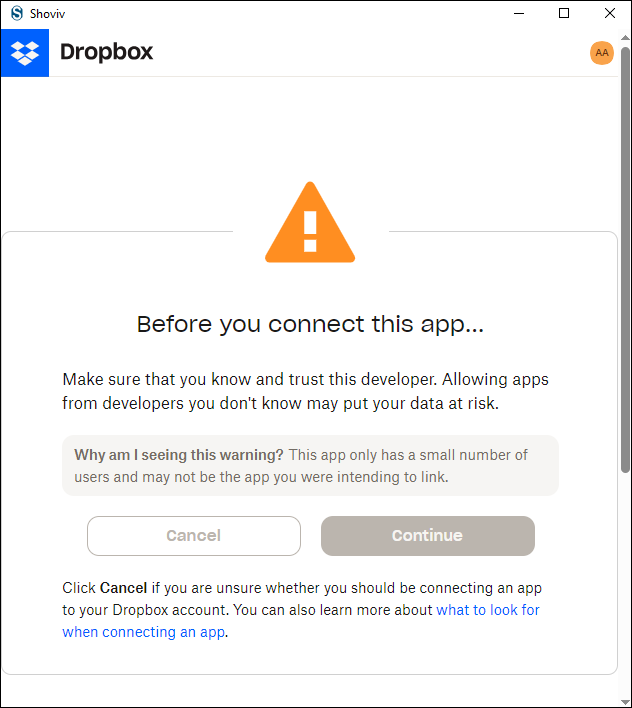
  • Another page opens where you need to enter your email Id and password, and then click on the Continue button.
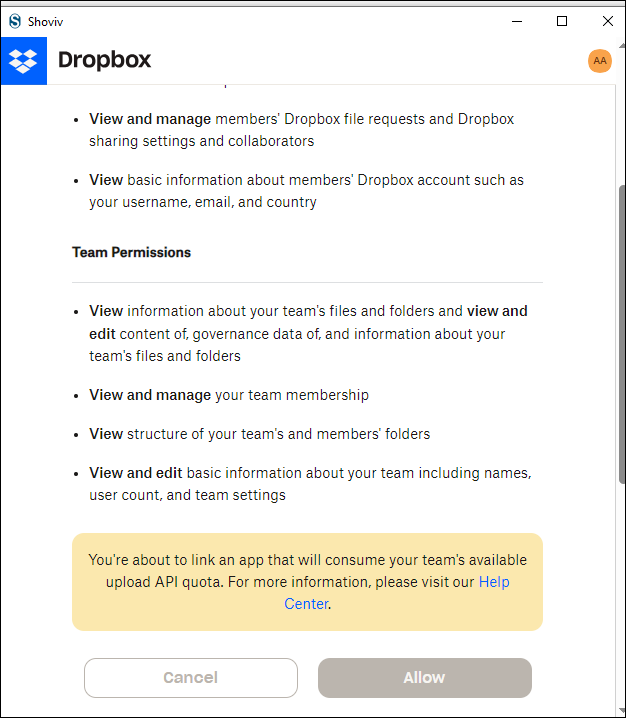
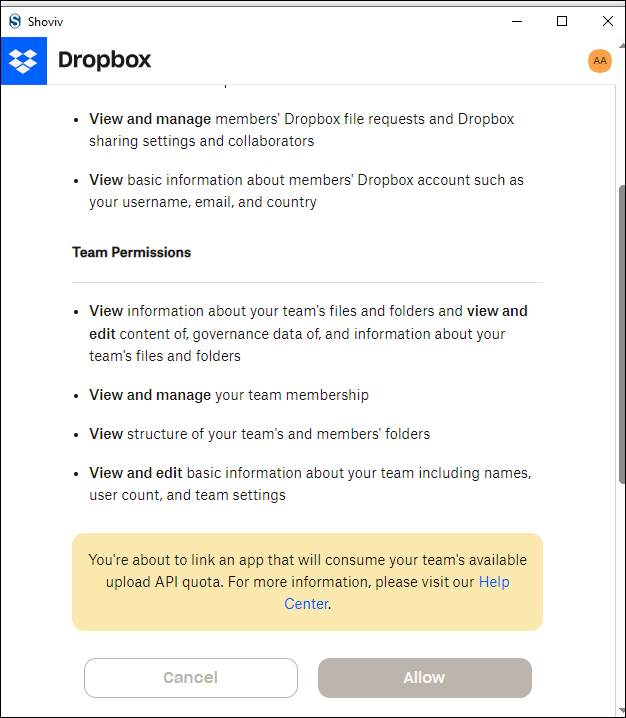
  • After clicking on the button, another page opens where you need to click on the Allow button.
Dropbox Business
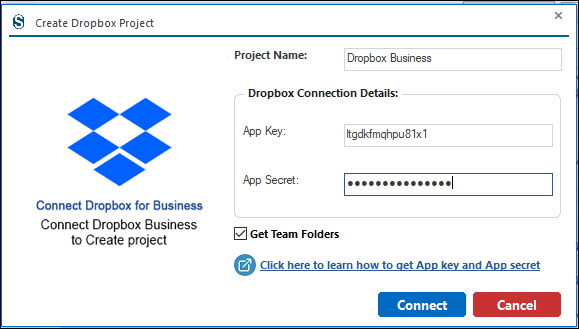
  • The first step in migrating data from Dropbox Business is to establish a connection between the migration tool and your Dropbox Business account. To begin, click the Add Project button. After selecting this option, the Project Creation window will appear. This window includes several fields that must be completed before proceeding with the migration process.
  • Project Name: Enter a name for the migration project in the Project Name field. This name helps you easily identify and manage the migration task.
  • App Key: Enter the App Key generated from your Dropbox Business app in the Dropbox Developer Console. This key is used to identify the application that is requesting access to your Dropbox Business account.
  • App Secret: Enter the App Secret associated with the App Key. This secret key works together with the App Key to securely authenticate the application and establish a connection with the Dropbox Business API.
  • Get Team Folder: Migrate the team folder by checking this option.

Click here to learn how to get App Key and App Secret:
https://www.shoviv.com/technical-guide/create-app-key-and-app-secret-for-dropbox-connection.html
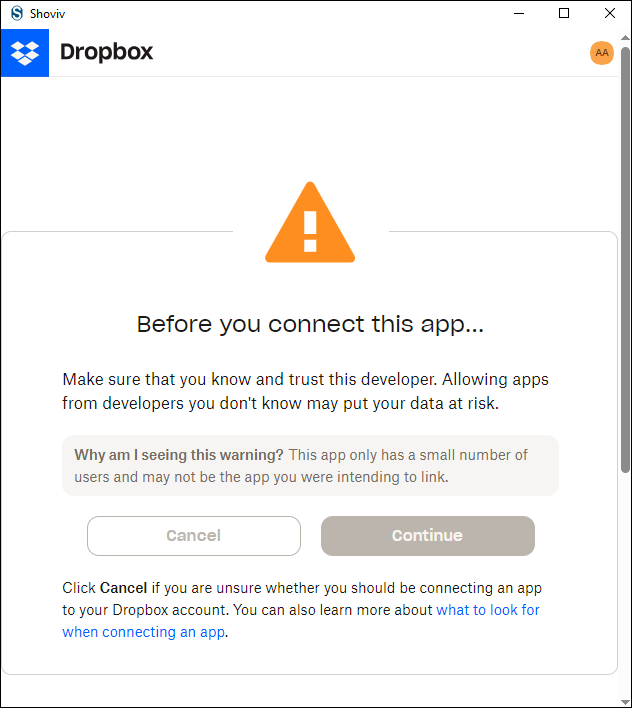
  • Another page opens where you need to enter your email Id and password, and then click on the Continue button.
  • After clicking on the button, another page opens where you need to click on the Allow button.
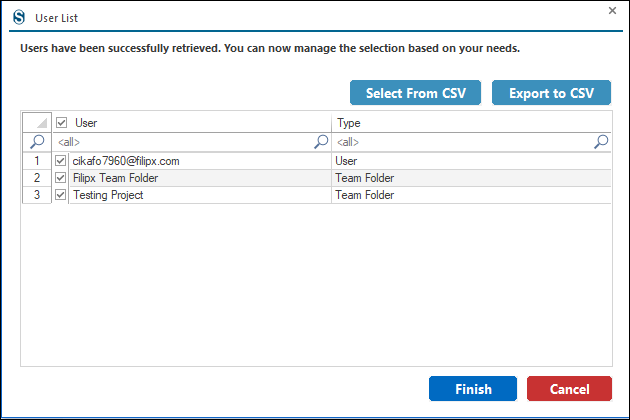
  • You need to select the users from the list, and if you want to add a larger list of users, you can add them with the help of the Import From CSV button.
Yandex Disk
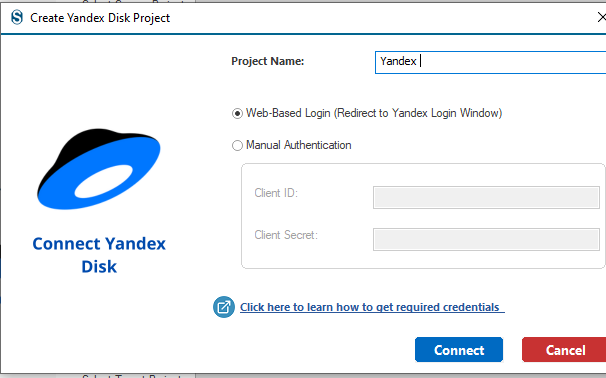
  • The first step in migrating data from Yandex Disk is to establish a connection between the migration tool and your Yandex Disk account. To begin, click the Add Project button. After selecting this option, the Project Creation window will appear. This window includes several fields that must be completed before proceeding with the migration process.
  • Project Name: Enter a name for the migration project in the Project Name field.
    This name helps you easily identify and manage the migration task.
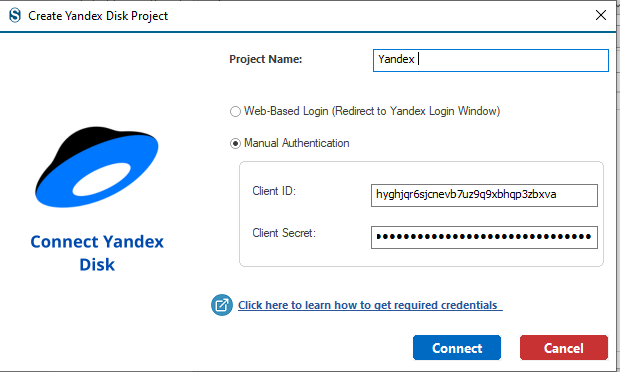
  • Choose between the Web-Based Login or Manual source authentication method.

Web- Based Login (Redirect to Yandex Login Window)

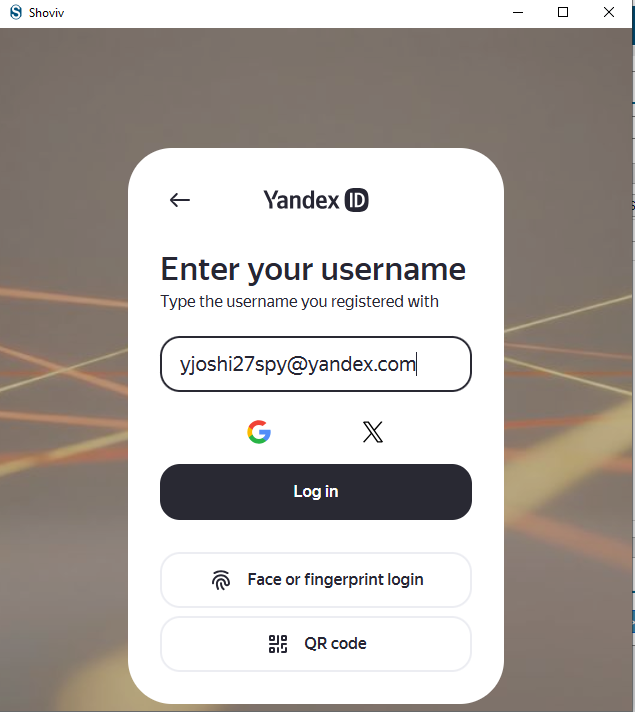
  • Click on the Connect button, and there is another page which is redirected to the Yandex ID login window. In this window, give the username or the address of the email associated with the Yandex Disk Account. Then click on the Log in button and complete the authentication process to connect to the source account successfully.
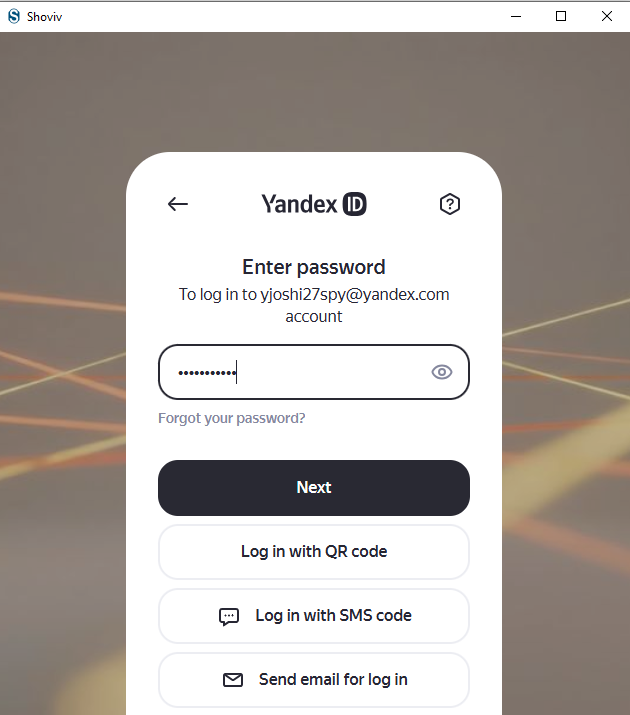
  • On the next screen of Yandex ID, you will be prompted to enter the password for the connected Yandex Disk account.
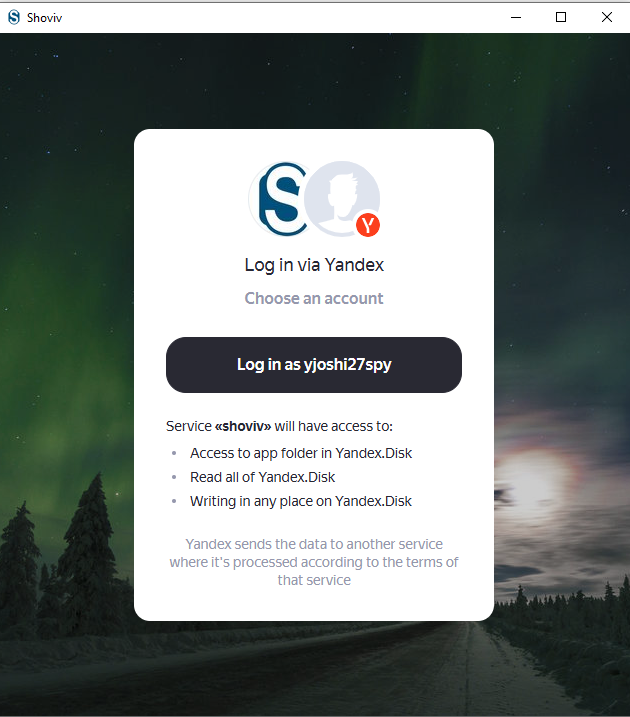
  • After successful authentication, a permission window will appear asking you to log in via Yandex and choose the required account. Click on Log in as [your account name] to grant access.

Manual Authentication

  • Client ID: Enter the Client ID generated from your Yandex application in the Yandex Developer Console. This ID is used to identify the application that is requesting access to your Yandex Disk account.
  • Client Secret: Enter the Client Secret associated with the Client ID. This secret key works like a password and is used together with the Client ID to securely authenticate the application and connect to the Yandex Disk service.
  • For a better understanding of these credentials, you can refer to Shoviv’s Technical Guide:
    https://www.shoviv.com/technical-guide/create-yandex-client-id-and-client-secret.html