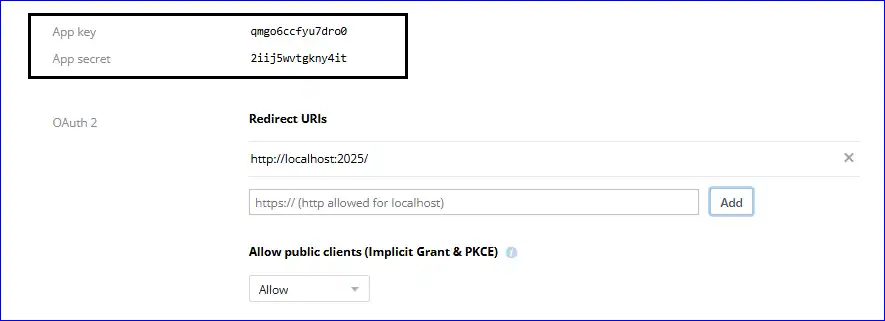
By Following the Steps Mentioned Below Create the App Key and App Secret:
1. Firstly, open the Dropbox developer page with the following link: https://www.dropbox.com/developers/
2. Now, click on the Create apps option.
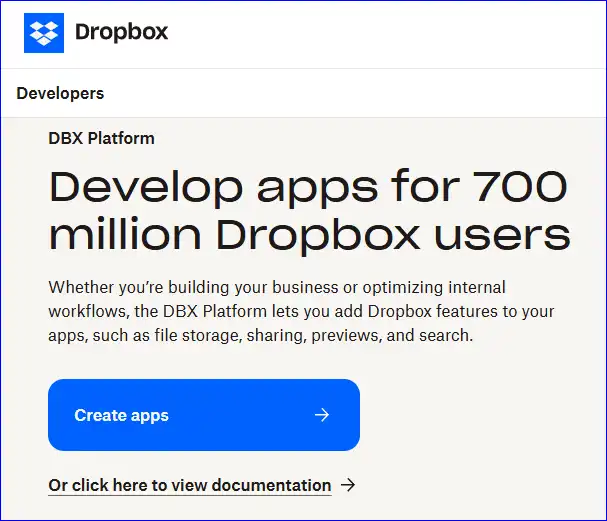
3. Sign in with the cloud administrator or application administrator credentials.
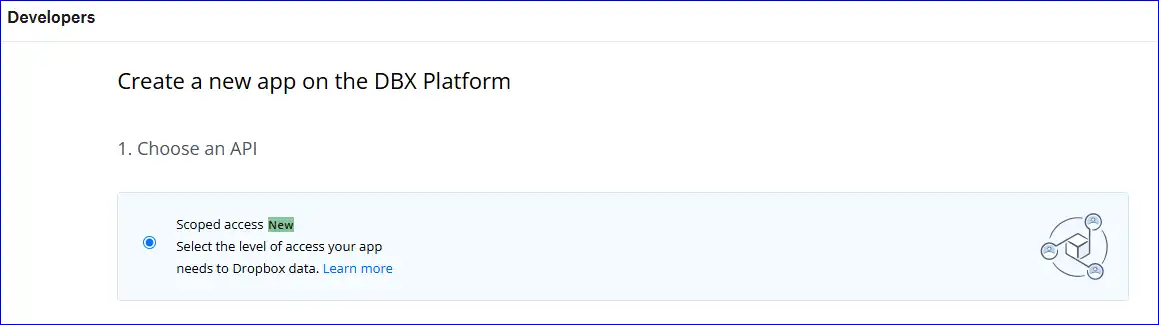
4. Go with the “Scoped Access New” and with the Choose an API Section, select the level of apps required to access the Dropbox data.
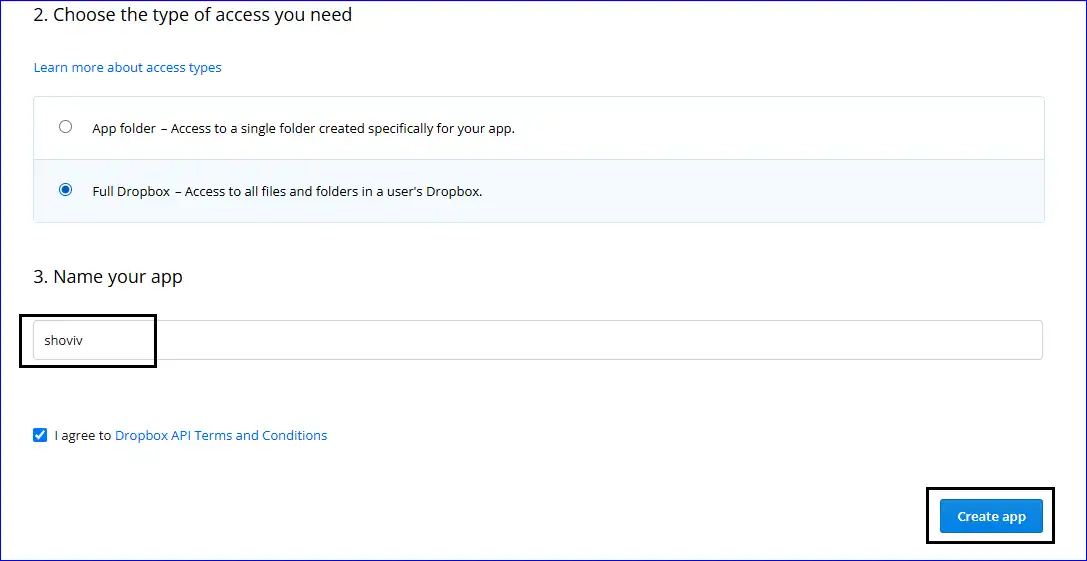
5. You must select “Full Dropbox- Access to all files and folders in a user’s Dropbox.” Now, enter the name of your App and click on the Create app button.
6. Hereafter, go with the Permission tab and add the permissions mentioned below:
Note - For the personal account, only Individual Scopes are required. For the Dropbox Business Account, Individual and Teams, both scopes are required.
Check Following Individual Scopes/Permissions for Individual and Business Account:
1. Under the Account Info, check the
2. In the Files and folders section,, check the
- files.metadata.write
- files.metadata.read
- files.content.write
- files.content.read
3. From the Collaboration section, check the
- sharing.write
- sharing.read
- file_requests.write
- file_requests.read
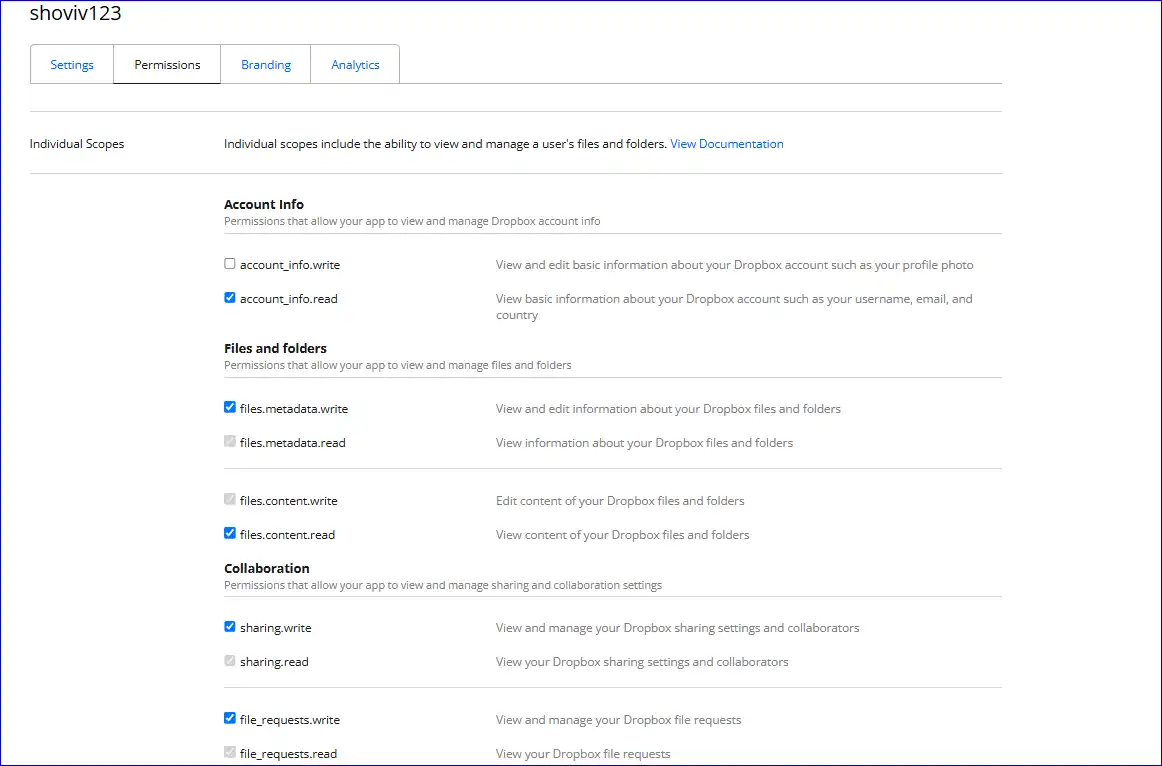
Must Check Following Teams Scopes/Permissions for Business Account:
1. In the Team section, check the
- team_info.write
- team_info.read
2. In the Team Data section, check the
3. In the Files section, check the
- team_data.team_space
- team_data.governance.write
- team_data.governance.read
- team_data.content.write
- team_data.content.read
- files.team_metadata.write
- files.team_metadata.read
- files.permanent_delete
4. In the Members section, check the
- members.write
- members.read
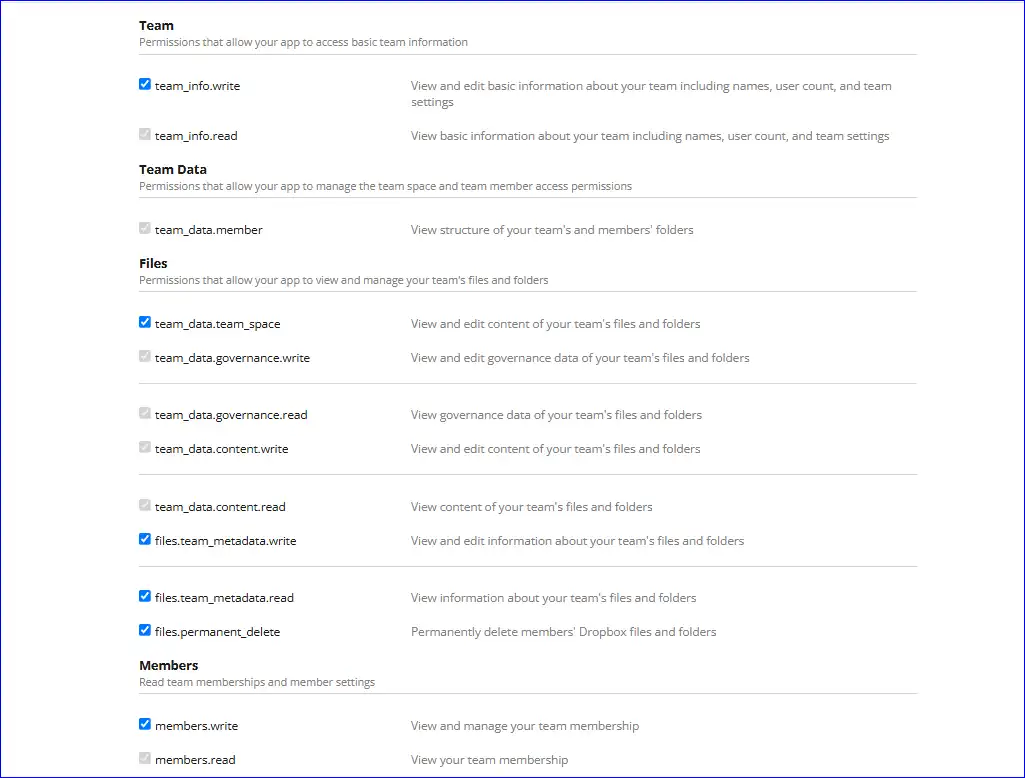
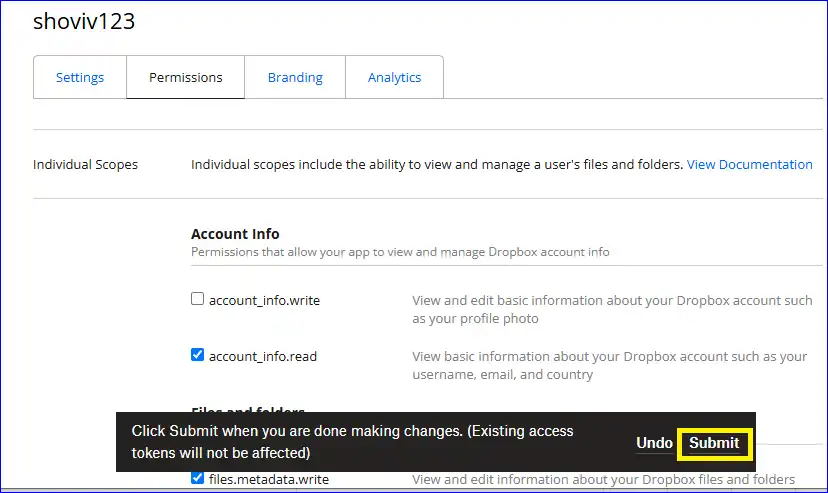
Once you have checked all the above-mentioned scopes, click on the “Submit” button.
- Now, from the ribbon bar, select the Settings tab
- For OAuth2 enter the URL: http://localhost:2025/ and click on Add.
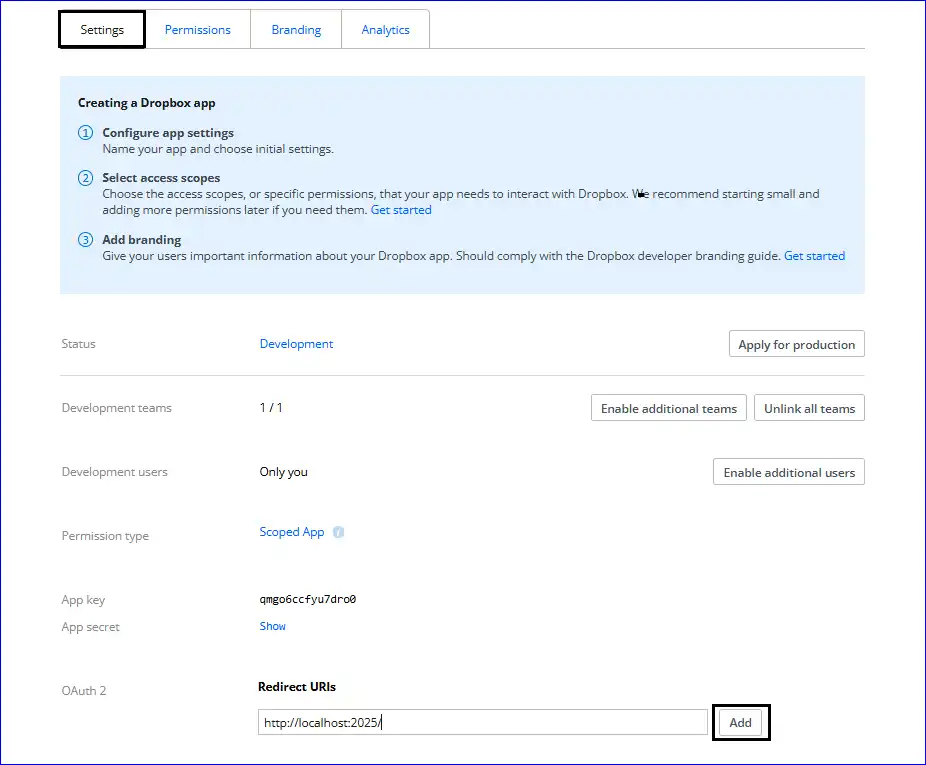
- Copy and save the generated App key and App secret for further use with the Shoviv Application.