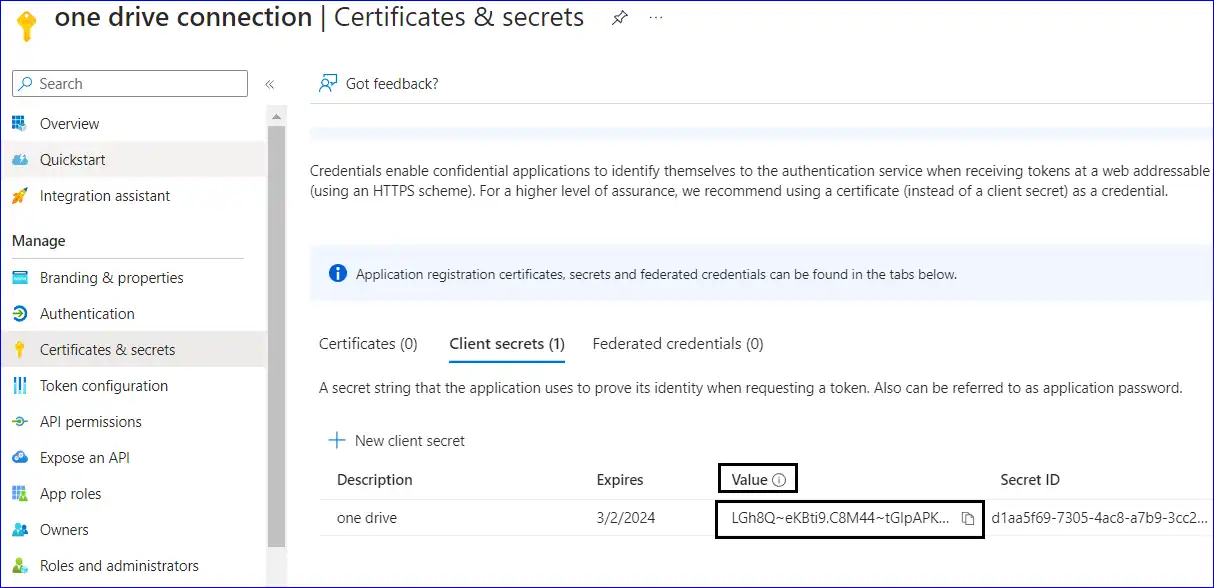
Follow the step-by-step procedure to create the Client ID as well as the Client secret key for OneDrive and SharePoint.
- First of all, you need to log in to the Microsoft Azure Portal and make yourself login with the admin credentials. From the left side menu, click on Azure Active Directory and then on App Registration. Once done, kindly click on New Registration.

- Here, assign the name, and after filling out the required details, kindly click on Register.

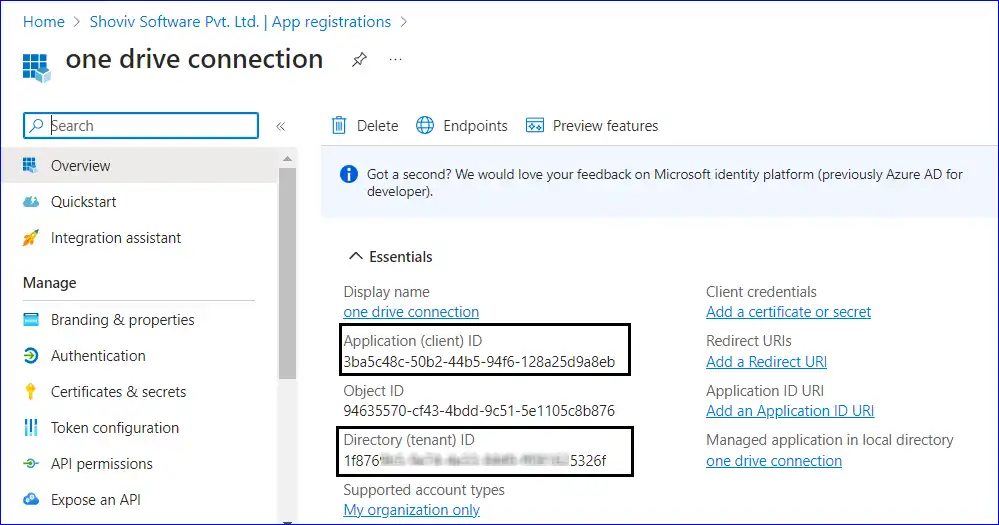
- Now, the users can see the screen that displays the Client ID and Tenant ID. Kindly move your mouse toward the Application Client ID, Tenant ID, and copy it to your clipboard.
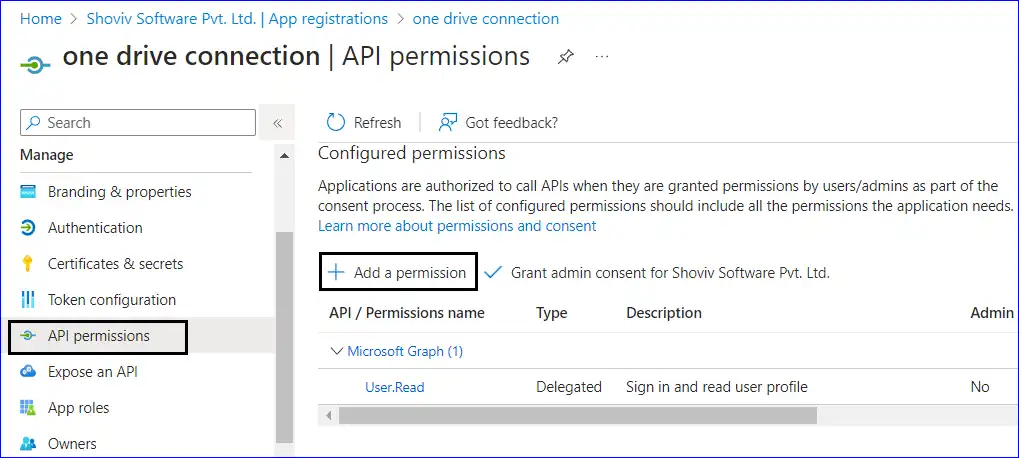
- Click the API Permissions option on the sidebar menu and select Add Permission.
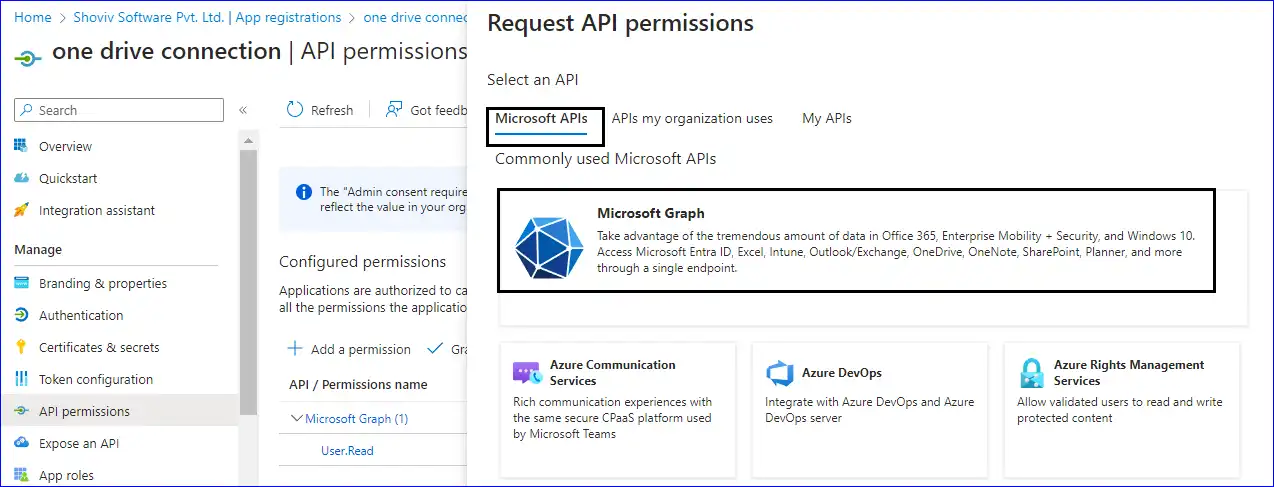
- Go to the API permissions to open the Request API permission window. Click on Microsoft API and choose Microsoft Graph.
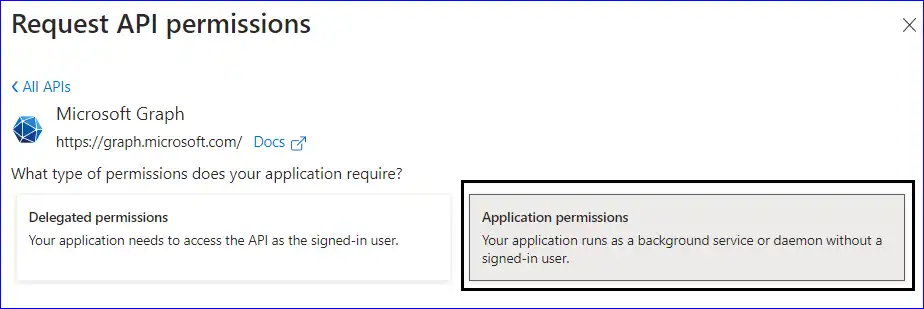
- You need to click on the Application permissions.
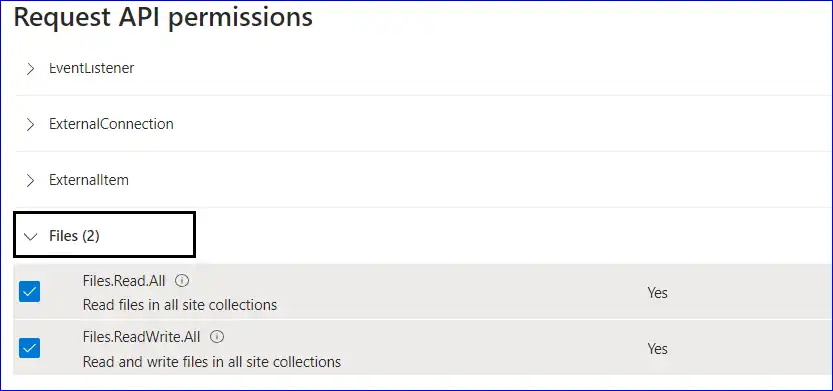
- Go to the files, select the two files shown in the image below and assign permission to them.
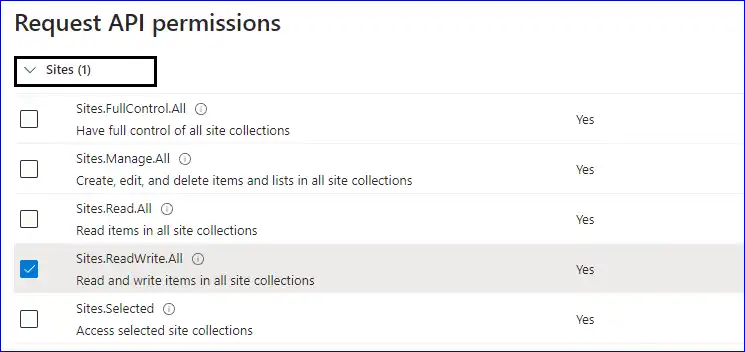
- For OneDrive, click on the Sites where you need to pick Sites.ReadWrite.All
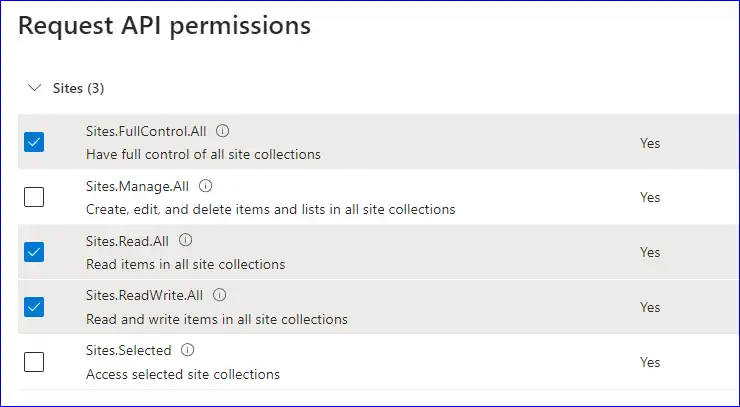
- For SharePoint, click on the Sites and select Sites.FullContol.All, Sites.Read.All, Sites.ReadWrite.All
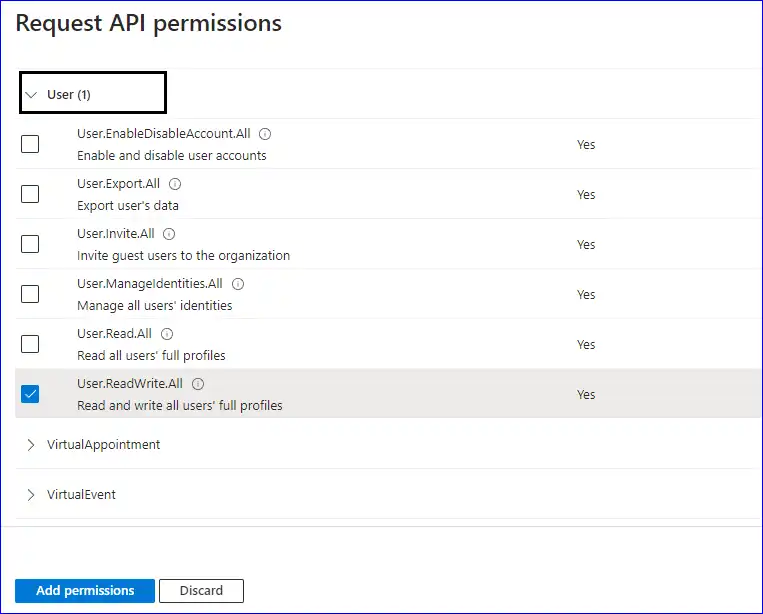
- It’s now turn to click on the user and select User.ReadWrite.All. After that click on Add permissions button.
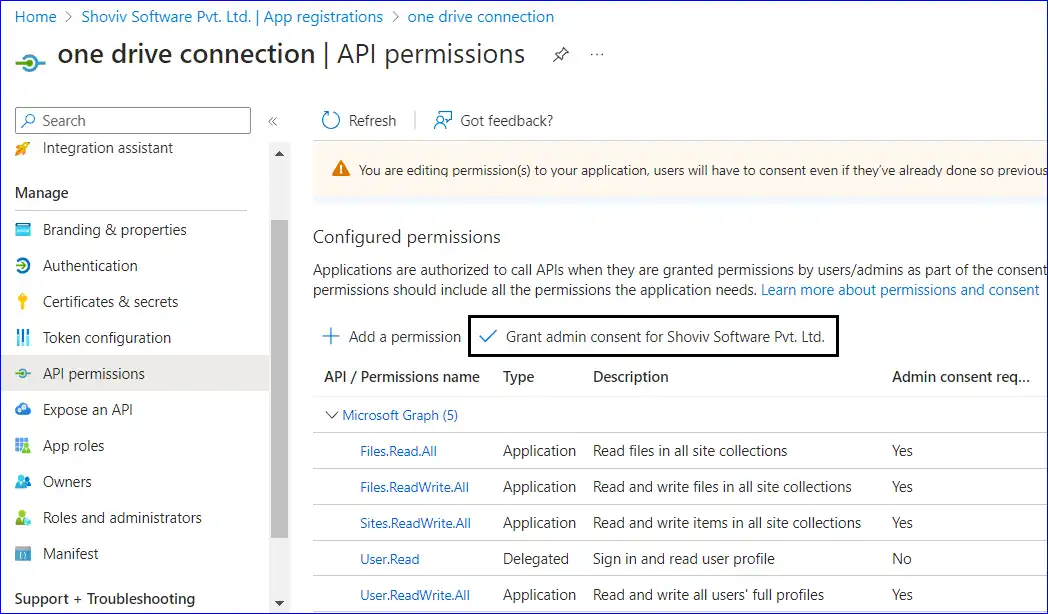
- Again, go to the API permissions and click on Grant admin consent.
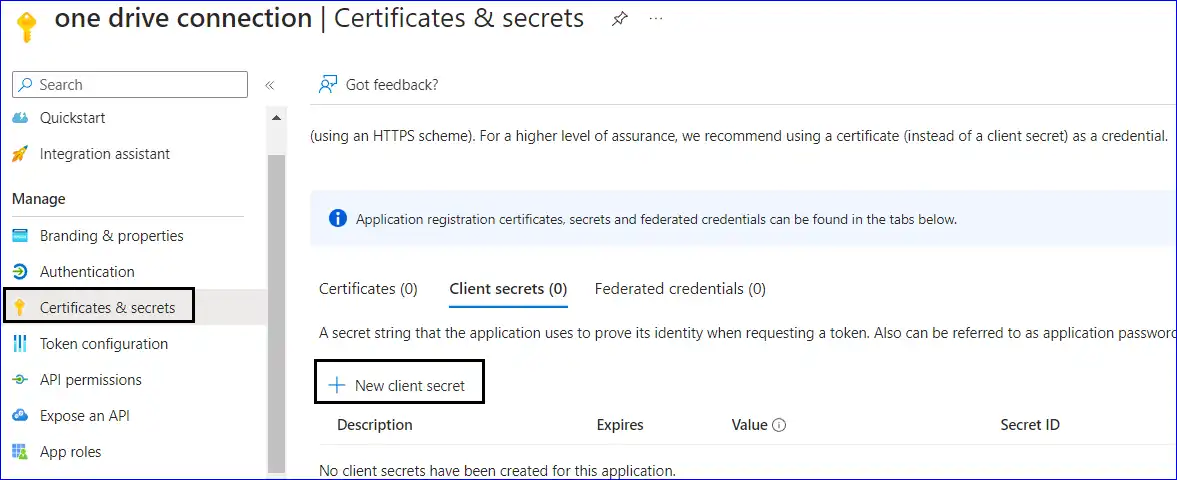
- Click on Certificate & Secrets>> Client secrets>>New client secret.
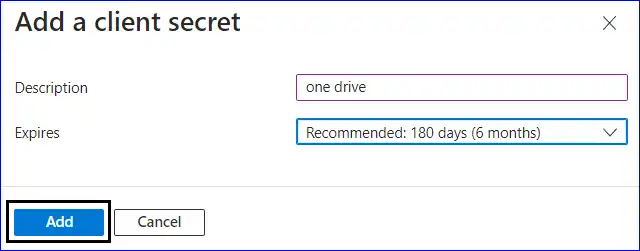
- Enter the name in the description and choose time period according to your requirement. In the end, click on the Add button.
- Move back to the certificate & secrets, where you will find the client secret key which you can save for future requirements.