Office 365 requires an app password in order to connect with a third-party application. Follow the listed step-by-step procedure to create an App password for Office 365.
Note:- You need to log in with the global admin credential in Office 365.
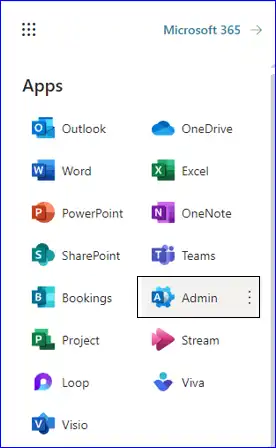
- Step 1: In the App section, click on the Admin option.
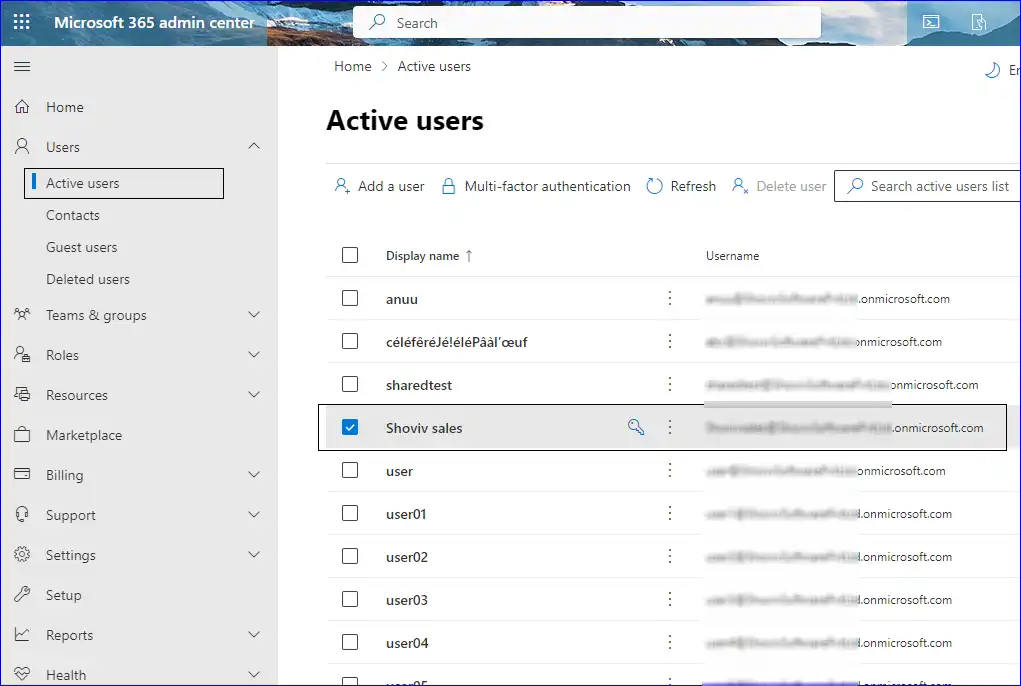
- Step 2: Click on Users, which will open up a drop-down list, and from there, select Active Users. After that select the admin.
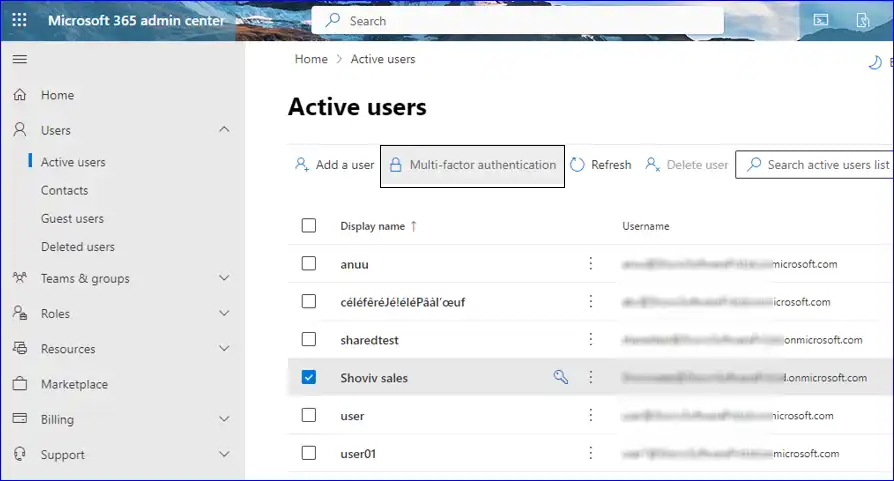
- Step 3: After selecting a user from the Active users list, kindly click on the Multi-factor authentication.
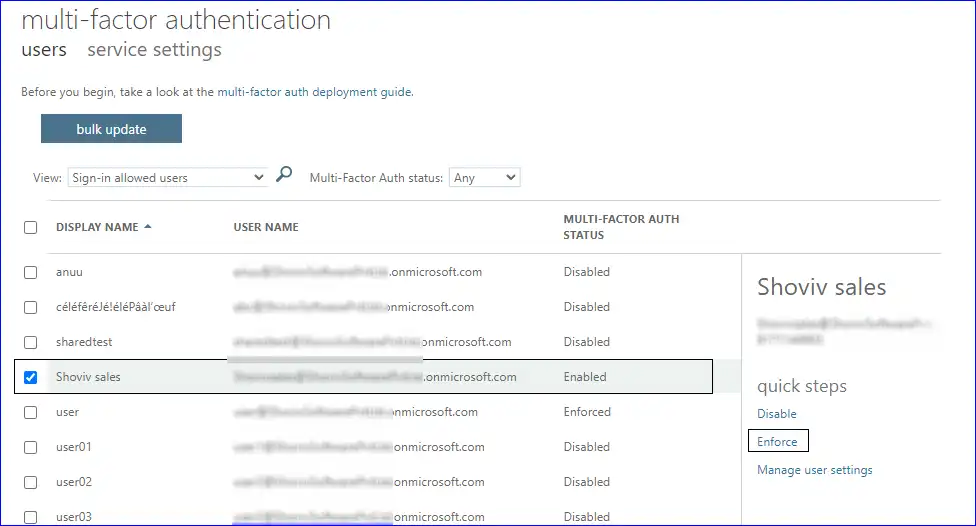
- Step 4: From the list showing active users, make sure to select the required users. After selecting, click on Enable.
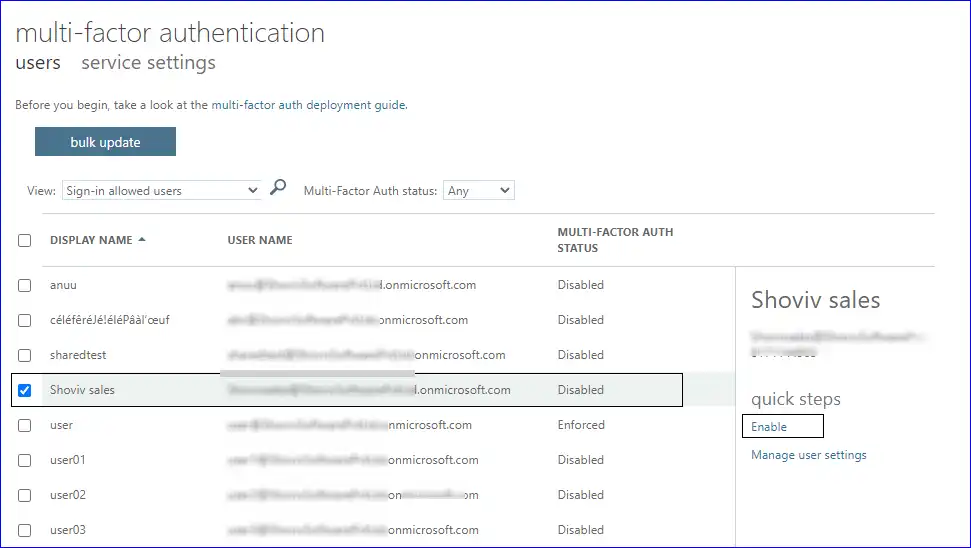
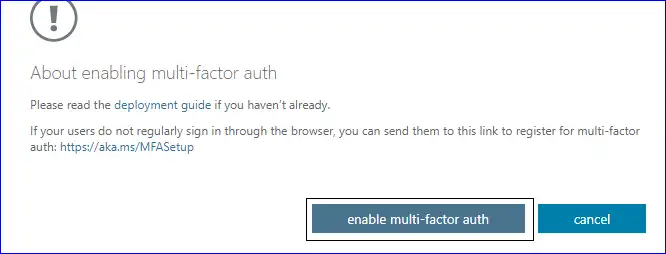
- Step 5: A new window will appear where you need to click on enable multi-factor authentication.
- Step 6: To enforce multi-factor authentication, select the users. After that, click on the Enforce button.
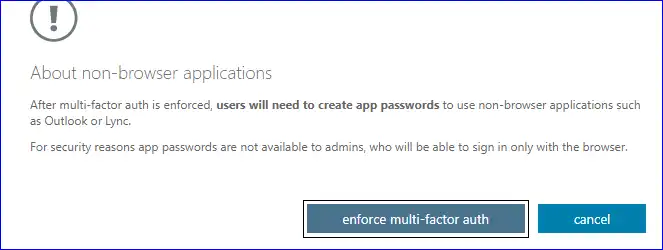
- Step 7: Click on enforce multi-factor authentication to continue.
Once you are able to successfully enable the MFA for Office 365, you are now required to create an app password from Office 365.
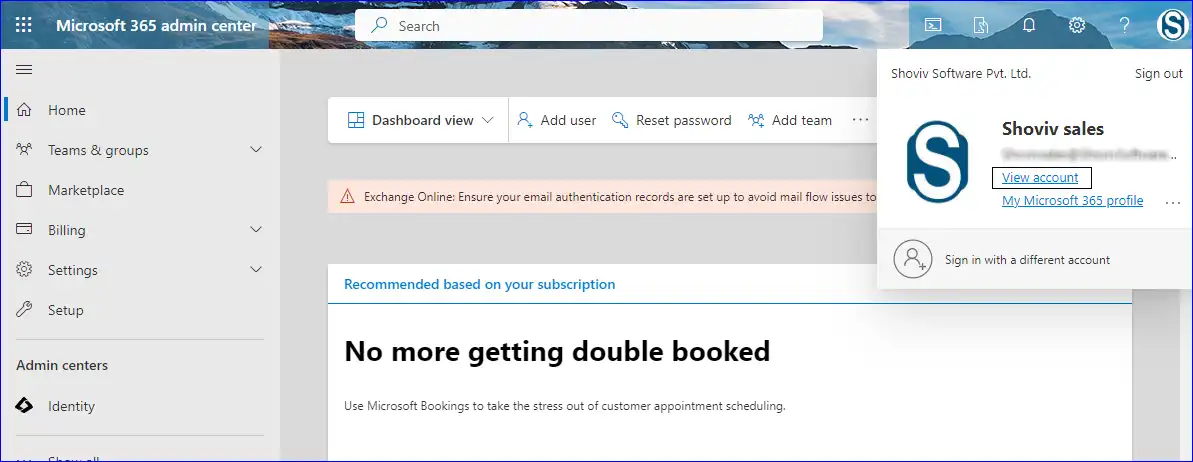
- Step 8: After logging into the Office 365 admin center, click on view account.
- Step 9: In the account section, click on the Security info.
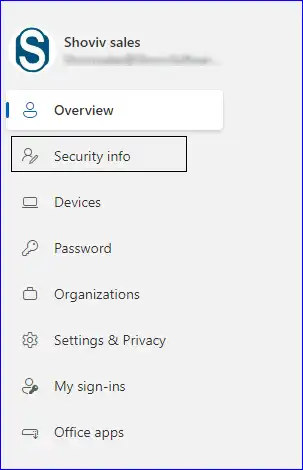
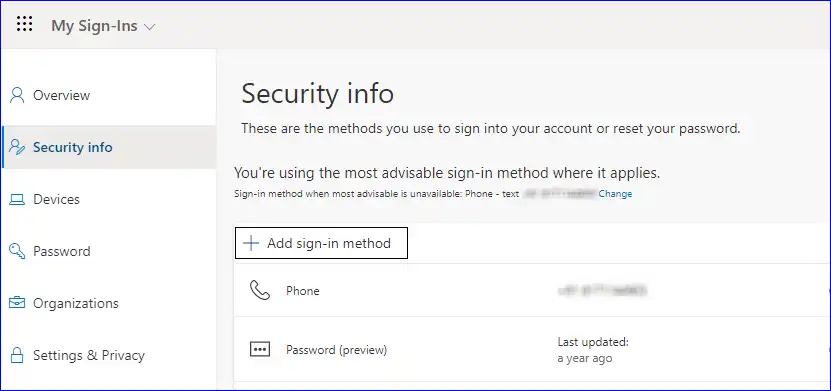
- Step 10: Click on the Security and then on Add sign-in method.
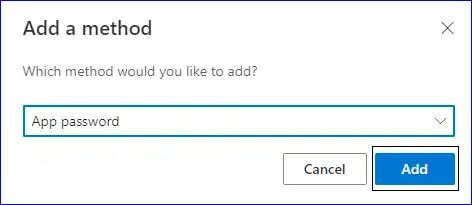
- Step 11: Now, the Add a method window will appear. Here, click on Choose a method, then from the list, choose App password and click on Add.
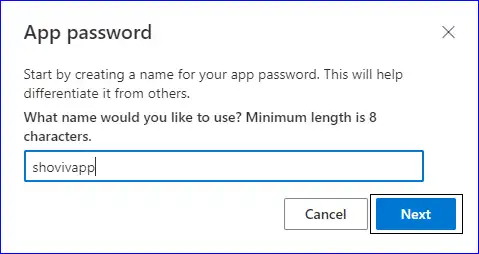
- Step 12: Kindly assign a name for the app password, which will help differentiate it from others.
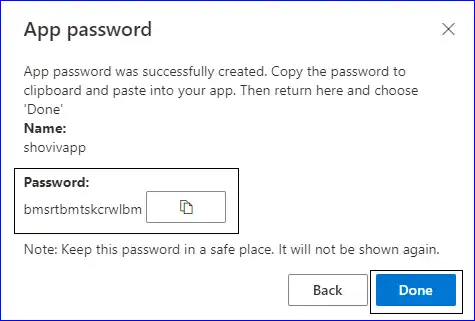
- Step 13: Now that the app password has been successfully created, users can copy it and save it for future usage. Once done, click on Done.
If you are getting any of the errors mentioned below, visit this link. https://www.shoviv.com/technical-guide/how-to-fix-sharepoint-online-connection-errors.html
- Failed to connect to SharePoint. Identity Client Runtime Library (IDCRL) did not get a response from the Login server.
- Failed to connect to SharePoint by using legacy authentication.
- The request failed. The remote server returned an error: 401 Unauthorized.
- Cannot contact website '' or the website does not support SharePoint Online credentials. The response status code is 'Unauthorized'.