Errors:
- Failed to connect to SharePoint. Identity Client Runtime Library (IDCRL) did not get a response from the Login server.
- Failed to connect to SharePoint by using legacy authentication.
- The request failed. The remote server returned an error: 401 Unauthorized.
- Cannot contact website '' or the website does not support SharePoint Online credentials. The response status code is 'Unauthorized'.
If you are getting any of the errors mentioned above, then read this article to resolve this issue.
Cause of the Error: In most cases, the error occurs due to the disabled legacy authentication protocols in the Microsoft 365 tenant. These protocols get automatically disabled when we enable Security updates in Entra ID (Azure Active Directory).
Steps to Disable Security Defaults in Entra ID:
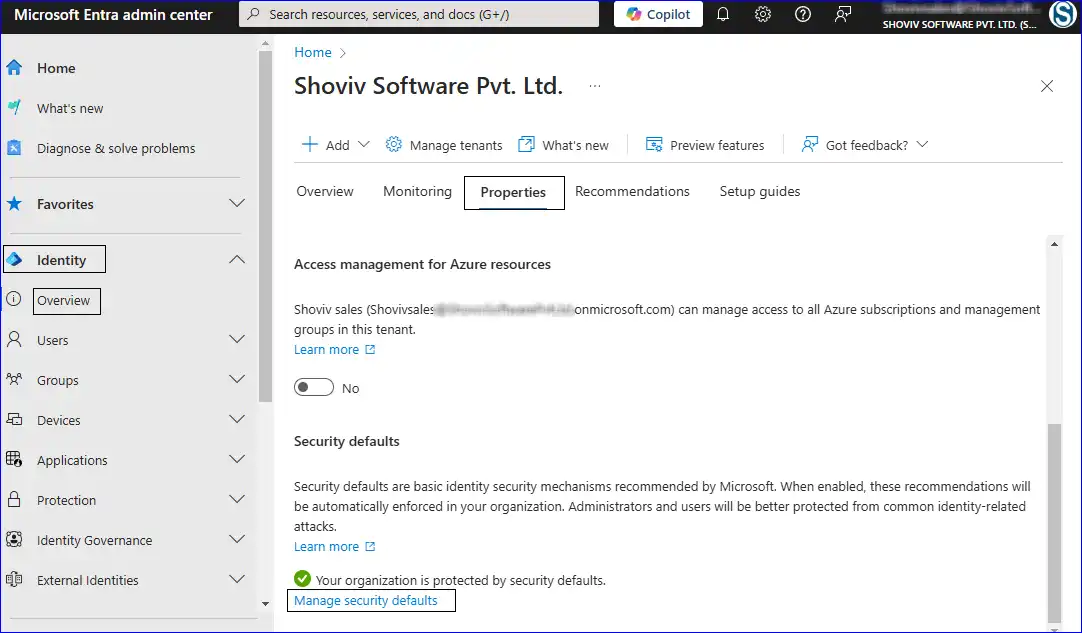
- Firstly, open the Microsoft Entra Admin Centre .
- In the left menu, click Identity/ Azure Active Directory >>Overview>>Properties tab and then Manage Security defaults.
- Set the Security defaults as the Disabled.
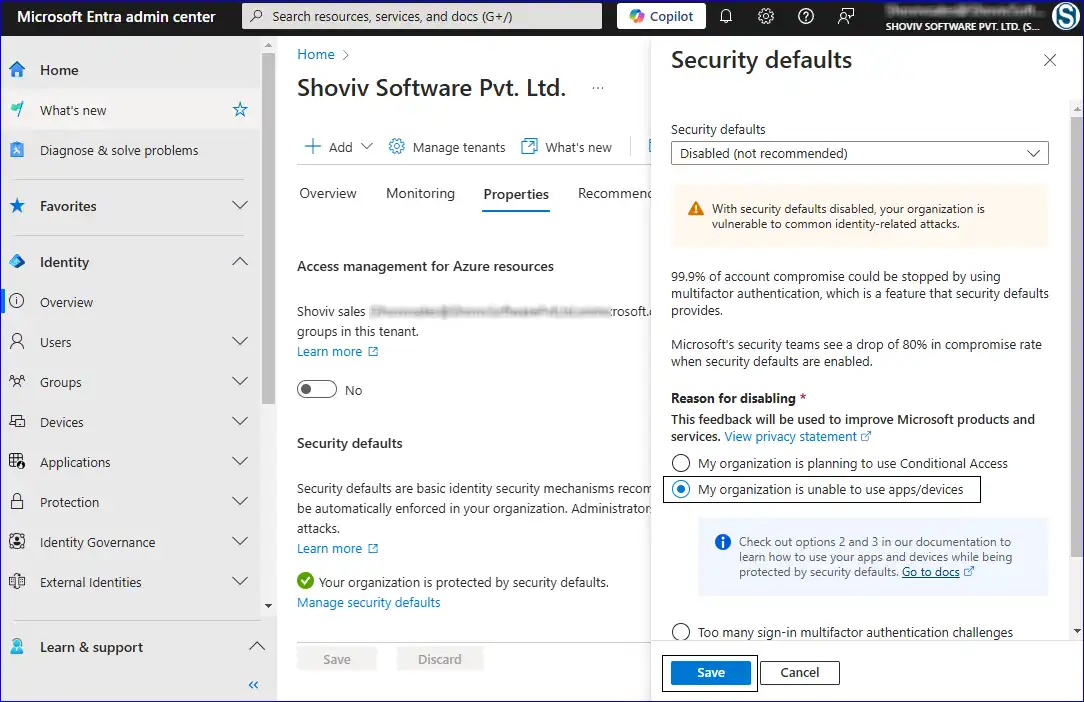
Note: Once you have created the connection with SharePoint and completed your task, then re-enable the security defaults.
If you are still facing the issue while connecting to SharePoint Online, then it is time to verify and, if required, alter the authentication-related settings.
Enable Using the Legacy Protocols:
Enable the following legacy authentication protocols:
- Enable settings by turning the LegacyAuthprotocolsEnabled parameter to True.
- Must set the RequireAcceptingAccountMatchInvitedAccount to False.
Steps to Change the Parameters using the Windows PowerShell:
- Open the Windows PowerShell Run as Administrator and Run the command:
Install-Module-Name Microsoft.Online.SharePoint.PowerShell
- Now connect with SharePoint Online using the following command:
Connect-SPOService -Url https://< organization >-admin.sharepoint.com
Note: Here, an organization refers to the tenant name set in Microsoft 365.
- Run:
Set-SPOTenant -LegacyAuthProtocolsEnabled $True
Set-SPOTenant -RequireAcceptingAccountMatchInvitedAccount $False
Note: The changes may take up to 12 hours, so wait till the changes get reflected.




