How to Create an Online Outlook Profile?
Firstly, you must check that the account is added must be Global Admin and have given delegate rights to all users.
Step 1: Go to the Control Panel and select the Mail (Microsoft Outlook) option.

Step 2: Now click on the Show Profiles… option.
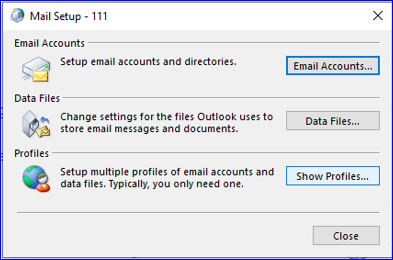
Step 3: Click on the Add… option.
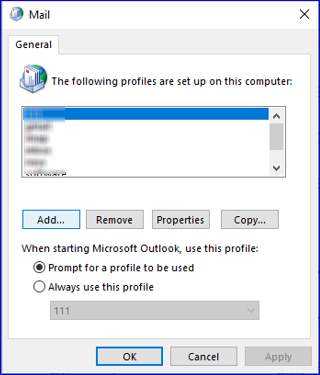
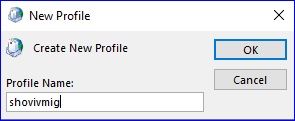
Step 4: Name the profile.
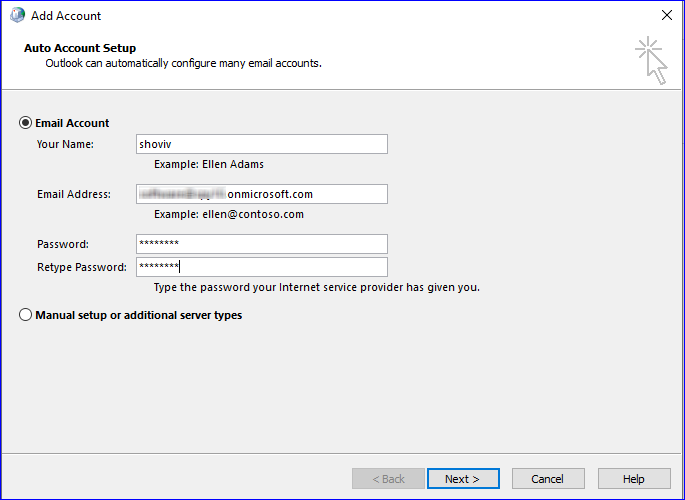
Step 5: Provide a name, enter the Email Account (add global admin user), enter the Password, and click Next.
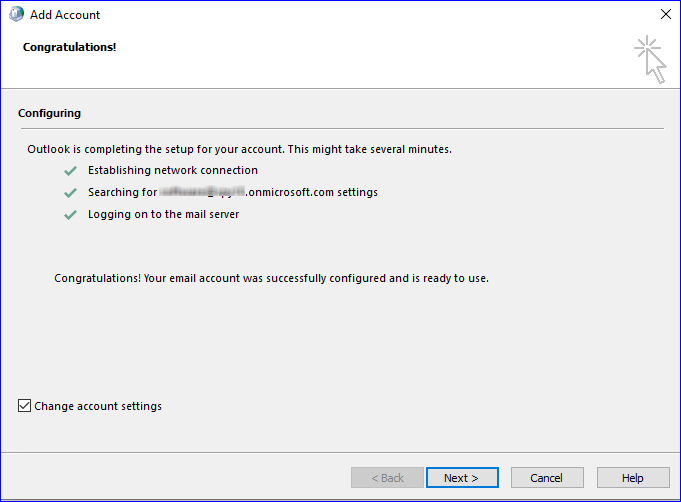
Step 6: Check on Change Account Setting, then click Next.
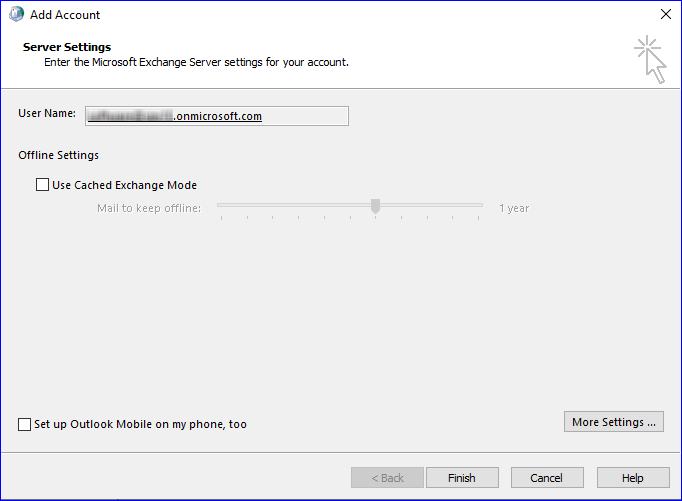
Step 7: Keep “Use Cached Exchange Mode” unchecked (for online profile creation) and click on Finish.
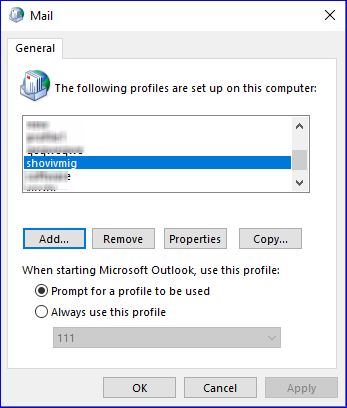
Step 8: Check the prompt for a profile to be used. Click .OK.
Step 9: You must check for the delegate rights by visiting the Admin Portal.
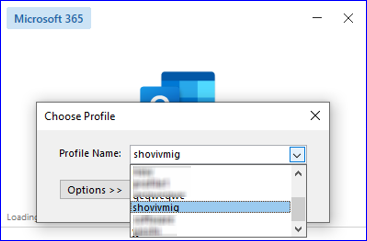
Step 10: Now Open Outlook and select the profile you have just created, and check if it is working or not.
Step 11: Also, check for the mailbox that has delegate rights. Make sure the Archive mailbox/Public Folder is visible or not. If not, then wait for some time.
Step 12: If you do not get it after waiting for a long, then give 2-3 attempts for the same process.
Note: You must provide delegate rights if you want multiple mailboxes.