Granting mailbox access permission to another user is very crucial for IT admin.
However, there are few cases which lead us to delegate such rights in order to avoid the inconvenience in production environment.
Let’s suppose some critical situation such as email migration, where access permission is very important and key point since you require access permission of all the mailboxes in order to move their data into new server. Without having prior access for mailboxes, one would not be able to do anything with their data to let alone move.
Below, I have described the required steps to grant full-access permission of mailbox to another IT admin. This guide also includes an important freeware which helps to grant multiple mailboxes full-access permission to another IT admin and perform the migration job effortlessly.
Methods to Grant Full-access permission:-
There are basically two known methods to grant full access permission of a mailbox to any user.
Method 1 :
1. Using Exchange Admin Center
- Login to office 365
- From right top of the panel, click on app launcher
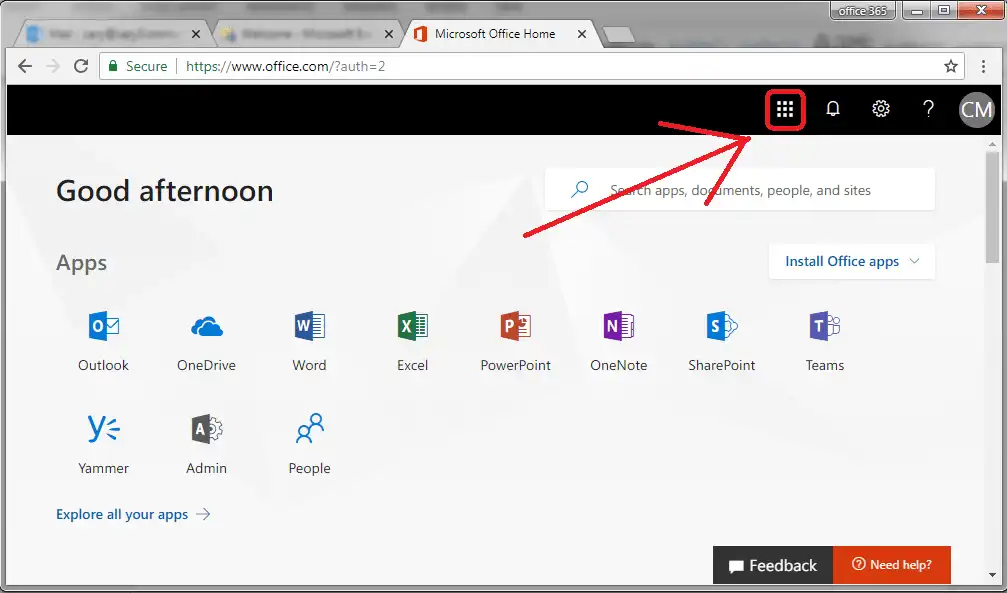
- After that, click on “admin” in order to open admin panel
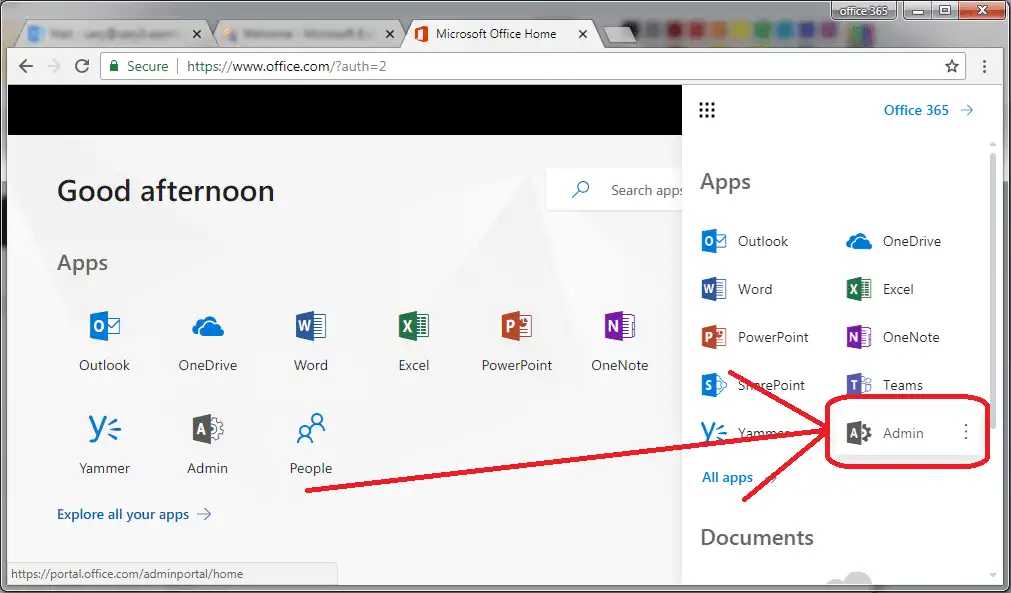
- Now Admin center of the Office 365 will open
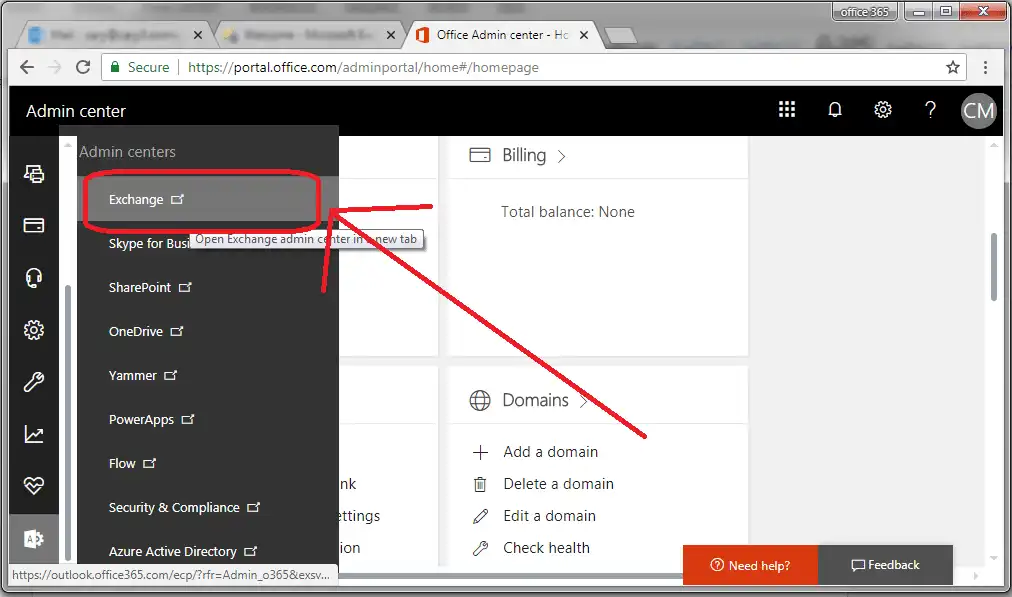
- From admin center, switch to “exchange admin center” by going to the left down corner and Clicking on “Exchange”
- Go to “recipients” and click on any user to grant full access permission of this mailbox to another user, let suppose we want “user12” to be able to access the mailbox of “user11”.
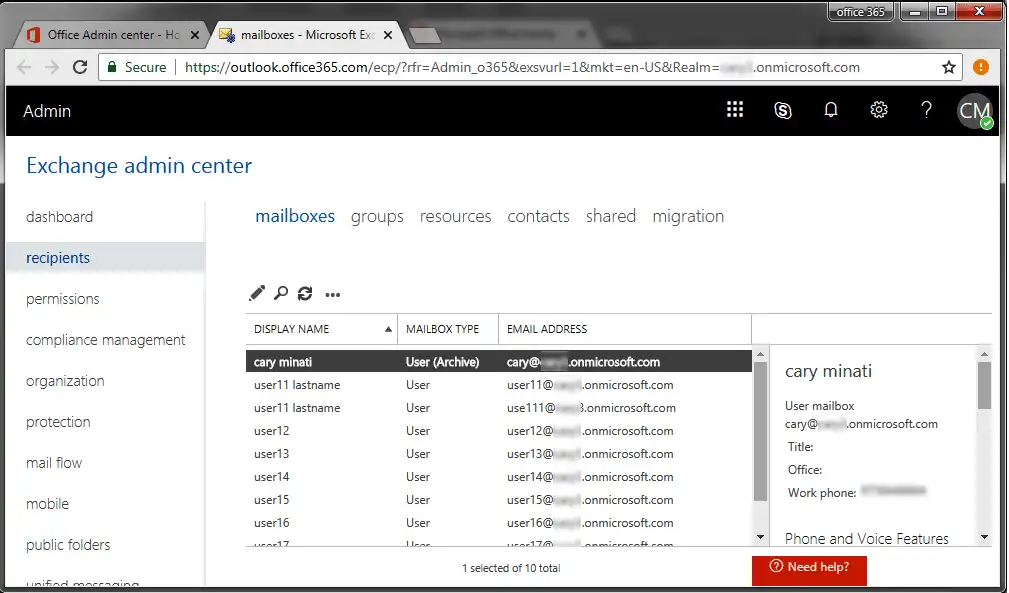
- Double click on the user (user11) to open “Edit User mailbox” dialog
- From this dialog, go the “mailbox delegation” option, it has three types of access permission: Send as, Send on Behalf, Full access.
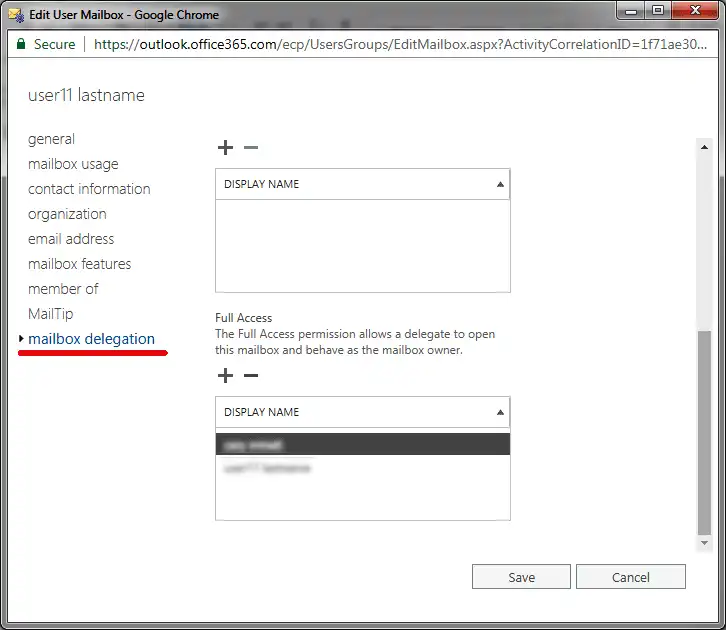
- You can select the last option which is Full Access permission. Click on plus sign (+).
- Now one more dialog will pop up from which you need to select user to whom you want to give full access permission of the mailbox (user12). [PS – you can select more than one user in order to grant full-access permission of the mailbox to multiple user.]
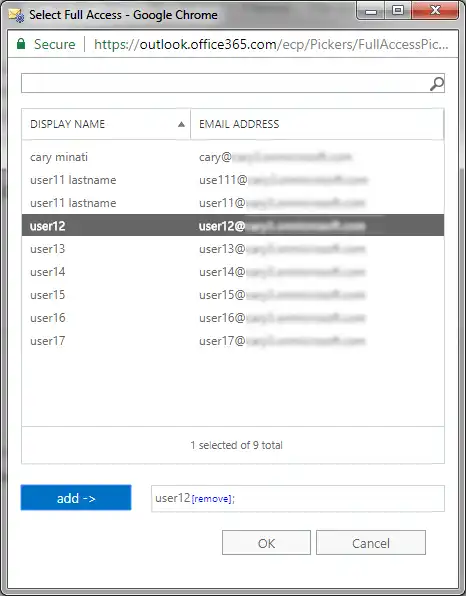
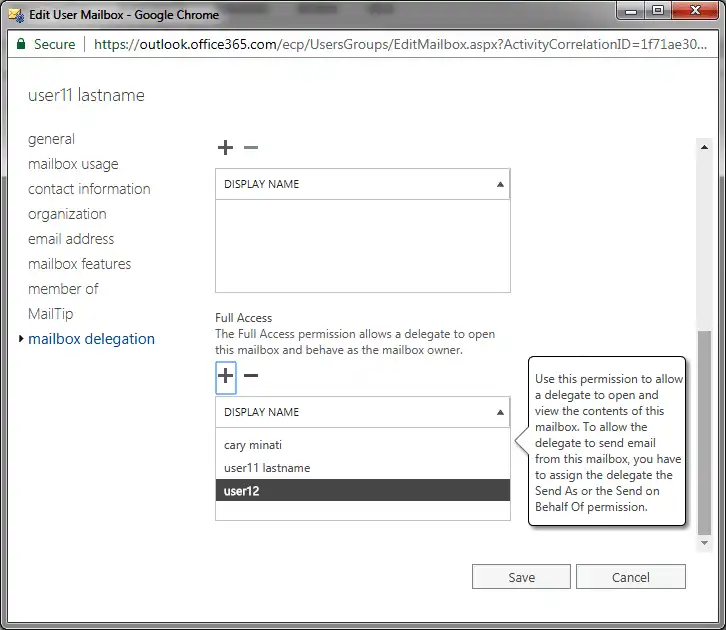
Congratulations you have successfully completed the task to grant full-access permission of one mailbox (user11) to another user (user12).
Though above process sounds very easy however, let me share a scenario while you are proceeding for email migration and where you require to grant full access permission of all the other user into single user? I don’t think, this technique would be an ideal solution since, you have to grant permission of each mailbox individually and if you are performing migration of 500 mailboxes, then it might become more lengthy and annoying.
Method 2 :
2. Using Exchange Cmdlet :
- You can use Add-MailboxPermission cmdlet in order to grant full access permission, in AccessRights parameter, you need to pass FullAccess
- For example : if you want to grant full-assess permission of user11’s mailbox to user12, the cmdlet will be like this
Add-MailboxPermission –Identity “user12” -User “User11” –AccessRightsFullaccess
Though one can follow the above steps to fulfill their requirement however, manual methods may be time consuming and demands a good technical expertise to actually perform these tasks. In fact, you never know where it might go wrong which may cost you later.
Shoviv Mailbox Access Permission Manager
Add/Remove multiple mailboxes Full-Access permission to given user.
Free Download
This freeware is developed and distributed by Shoviv to help the community and save their precious time.
Method 3 :
Let me introduce a freeware solution from Shoviv software. It is completely free and provides an automated solution to make full-access permission granting like a piece of cake.
Shoviv Mailbox access permission manager helps to eliminate the complexity of granting full-access permission process of Office 365 mailboxes. Adding or removing full-access permission of a single or multiple mailboxes have never been easy like that.
Download the software
Once you have successfully installed the software, please follow below instructions :
Step 1 – Insert the credentials of the Office 365 Global admin user to whom you want to give full-access permission of the mailboxes.
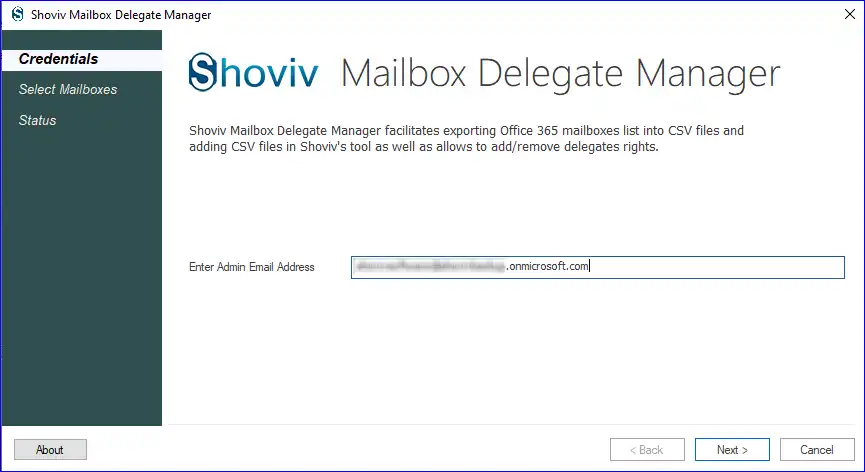
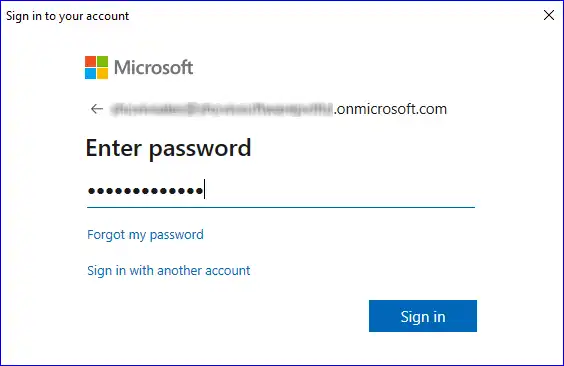
Step 2 – User will be taken to the login page of Microsoft. Enter the password and press the Sign in button.
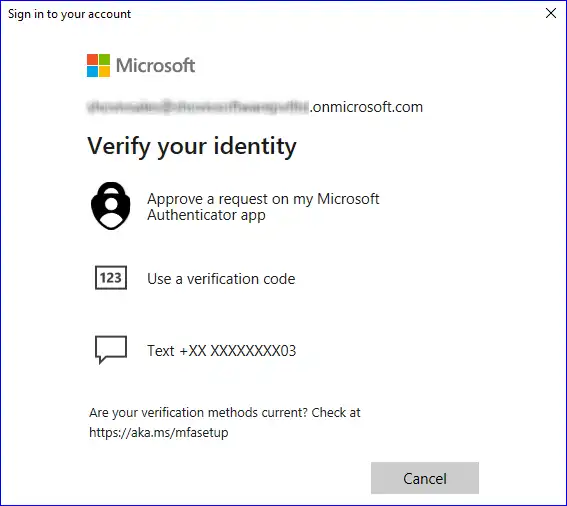
Step3 – Select the desired/appropriate method in order to verify your Identity.
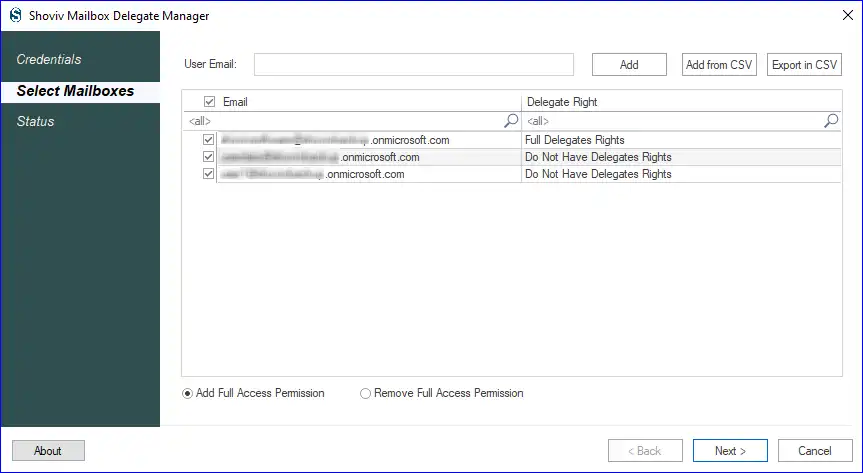
Step 4 – The list of all the users of server will appear from where, you can select the mailboxes in order to make selection of users whose mailbox full-access permission you want to add/remove.
Now, you see two option : 1) Add and 2) Remove full-access permission Please select one of them based upon your requirement
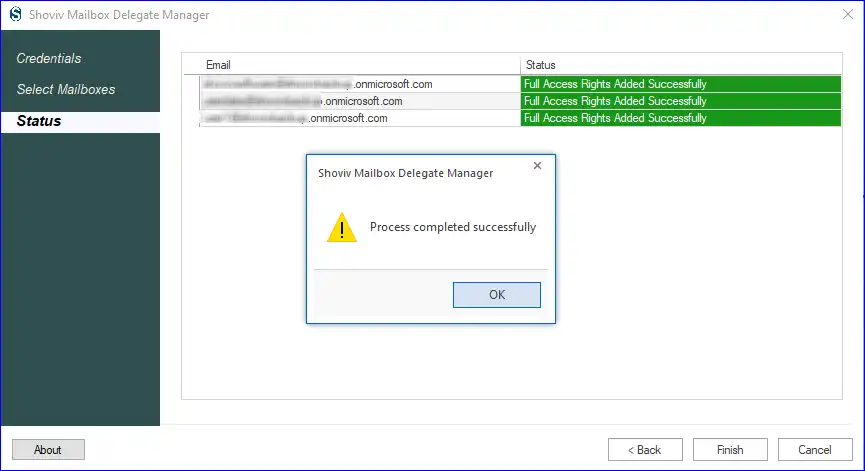
Step 5 – Clicking "Next" will start the process. You may also monitor the status of ongoing process in real time.
Method to Assign Multiple Mailbox Access Permission through Exchange Admin Center
We have shared the easier way by following them it is possible to grant Multiple Mailbox Access permission.
Click here to know about the process for assigning delegate rights.
Shoviv Mailbox Access Permission Manager
Add/Remove multiple mailboxes Full-Access permission to given user.
Free Download
This freeware is developed and distributed by Shoviv to help the community and save their precious time.
Your valuable feedback/suggestions are always welcome. You can write us at support@shoviv.com




