Step 1:Install and execute the Shoviv Migrator application. Create Drive Migration Job.
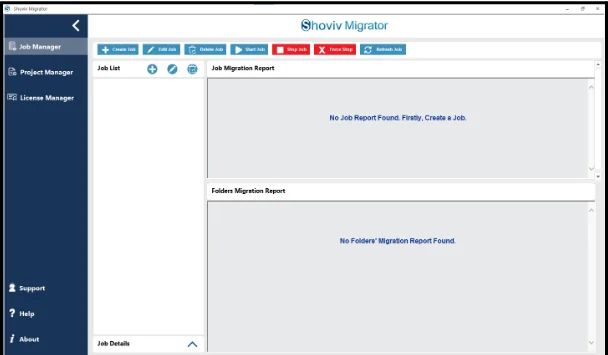
Step 2: From the Job Manager, click on the Create Job button present in the ribbon bar.
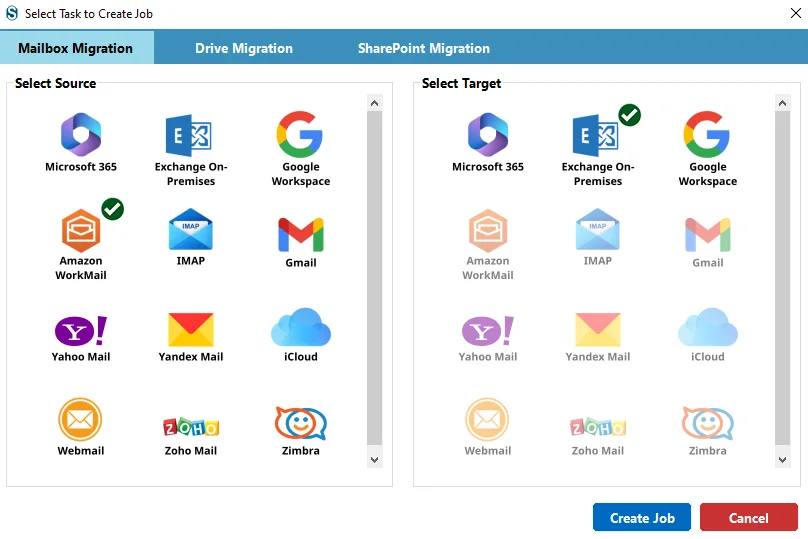
- Select Mailbox Migration, and after that, select Amazon WorkMail as the Source and Exchange On-Premises as the target platform.
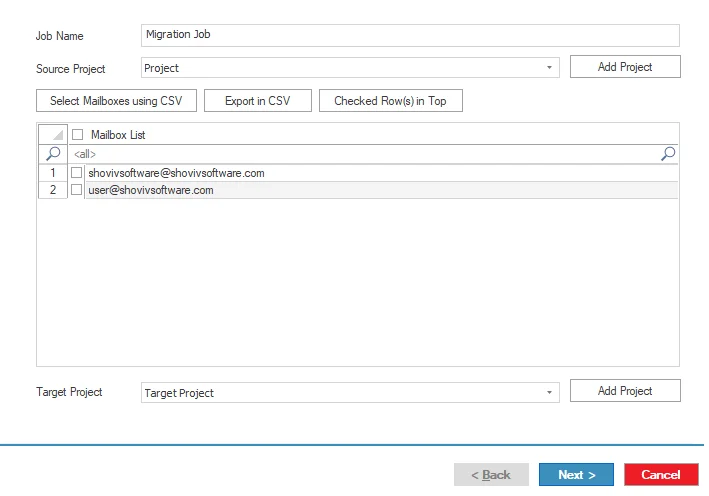
Step 3: Enter the Job Name.
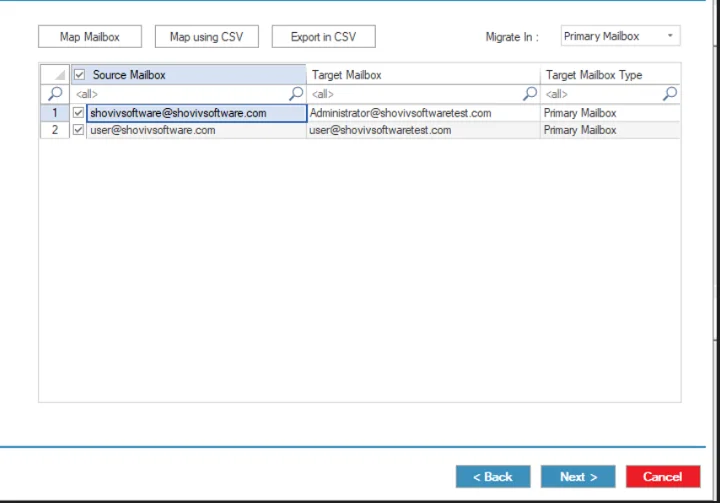
Step 4: Match the Source and Target Mailbox with the help of the facility.You will find two methods to map.
- Map Mailbox: This option is manual; you need to select the Mailbox, and then click on Map Mailbox. After that, pick the required mailbox for that mailbox.
- Using CSV: If you have a larger list, then you can do themapping with the help of using CSV.
- Select the destination type for migration: Primary Mailbox, Archive Mailbox, or Public Folder.
- Click on the Next button
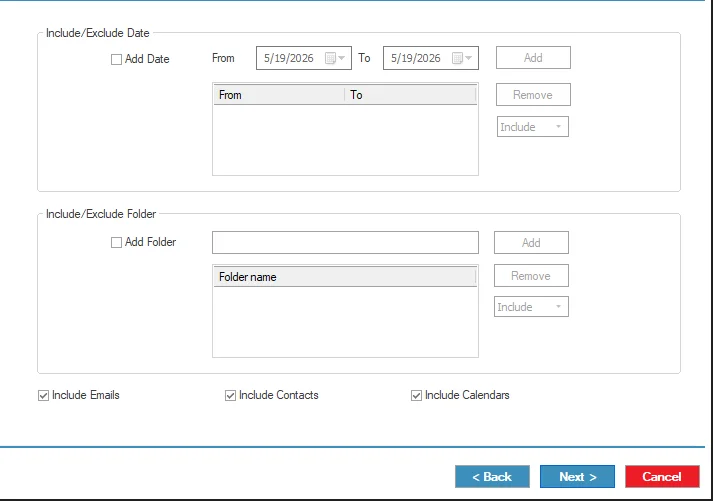
Step 5: In this page, you will find the most user-centric filter features to fine-tune the migration process:
- Include/Exclude Date: Choose the date range you want to migrate.
- Include/Exclude Folder: Select specific folders to include in the migration.
- Include Emails: Migrate all email messages along with their attachments.
- Include Contacts: Transfer mailbox contact information.
- Include Calendars: Migrate calendar events, appointments, and meetings.
- Click the Next button to continue.
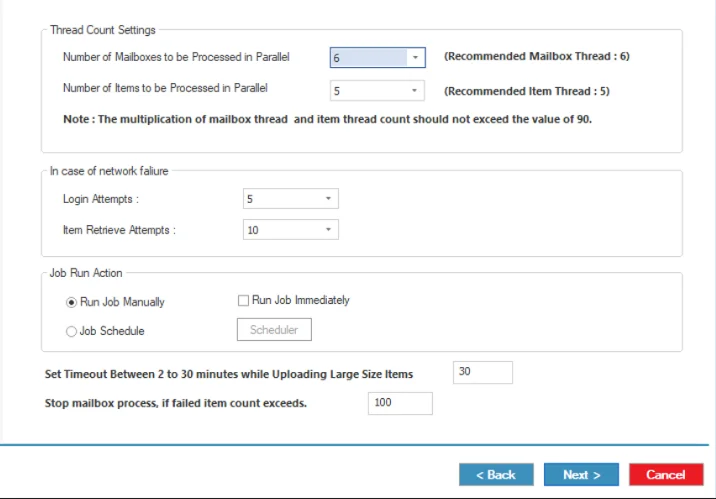
Step 6: You can now configure the advanced settings to customize the migration process further:
- Number of Mailboxes to be Processed in Parallel: Define how many mailboxes should be migrated at the same time.
- Number of Items to be Processed in Parallel: Specify how many mailboxes' items, such as emails or contacts, should be processed at the same time within each mailbox.
- Login Retry Attempt: Set the number of retry attempts if the mailbox login fails because of connectivity or network problems.
- Items Retrieval Attempts: Choose how many times the system should retry fetching mailbox items if retrieval fails during migration.
- Run Manually: Configure the migration and start it later by clicking the Start Job button from the ribbon menu.
- Run Immediately: Start the migration automatically once the setup is complete.
- Scheduler: Schedule the migration for a particular date and time.
- Timeout for Large Item Size: Set a time limit, between 2 and 30 mins, for uploading large mailbox items.
- Bad Item Count: The migration process will stop automatically if the number of failed items exceeds the defined limit.
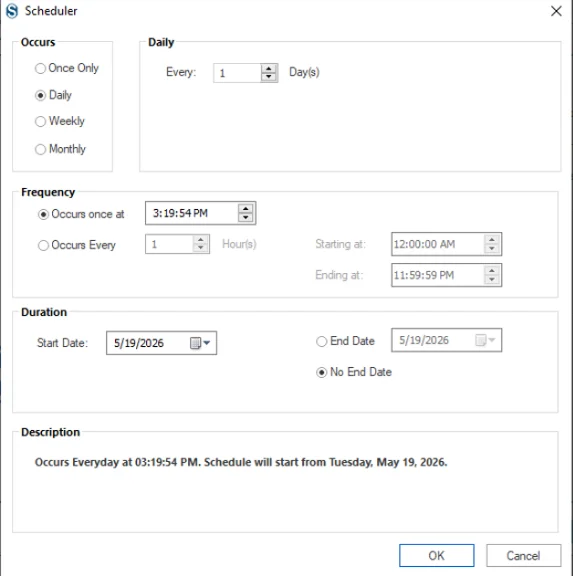
Step 7: Occurs: Choose how often the migration job should run, such as one-time, daily, weekly, or monthly, according to business needs.
- Daily: Configure how many times the job runs each day for continuous or incremental synchronization.
- Occurs Once At: Set a specific time for the migration process to start and manage server workload efficiently.
- Start Date: Select the date from which the scheduled migration will begin.
- End Date / No End Date: Decide whether the schedule should stop on a particular date or continue indefinitely.
- Description: Add notes or details about the scheduled migration setup for easy identification and review.
Step 8: Review all migration settings carefully. If any changes are needed, use the Back button; otherwise, click Finish to proceed.
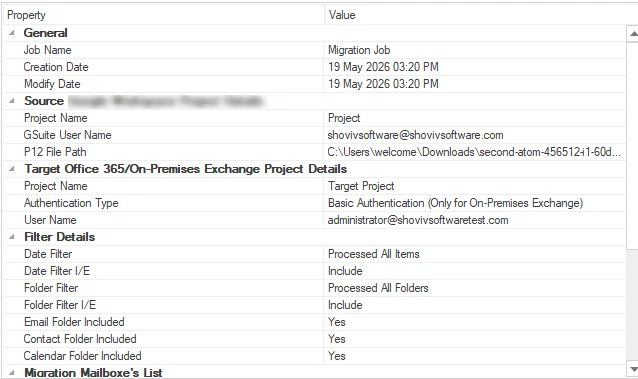
Step 9: The migration will run according to the selected filters and configuration settings. If you selected the manual option, you must click the Start Job button to begin the process.




