Blog

+91-8171144903

1-855-257-5251

Products

×

Steps to Add Microsoft 365 Mailboxes

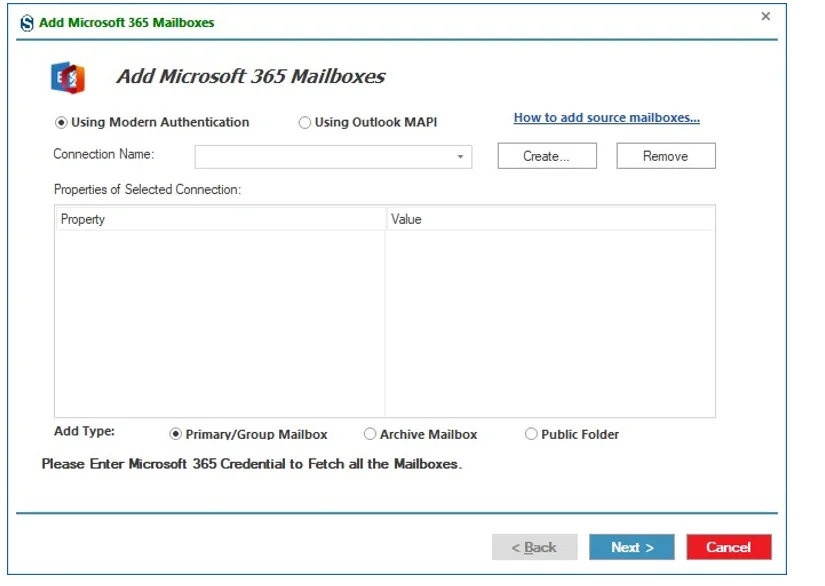
From the application interface, select the option to Add Microsoft 365 Mailboxes The Add Microsoft 365 Mailboxes Wizard will appear.

Exclude the folders if there is any requirement

Choose the Authentication Method:
Select one of the available authentication methods from the top section of the window:

  • Using Modern Authentication: Uses Microsoft’s secure OAuth-based authentication to connect to Microsoft 365.
  • Using Outlook MAPI: Connects mailboxes through an Outlook-configured profile, suitable when Outlook is already set up on the system.

Read more about how to add source Mailboxes: https://www.shoviv.com/technical-guide/add-source-mailboxes.html

Under the Add Type section, choose the type of mailboxes you want to fetch:

  • Primary / Group Mailbox: To add user and group mailboxes.
  • Archive Mailbox: To add archive mailboxes.
  • Public Folder: To add public folder mailboxes.

Mode 1: Using the EWS (Modern Authentication):

In the Connection Name field:

  • Click Create to set up a new Microsoft 365 connection.

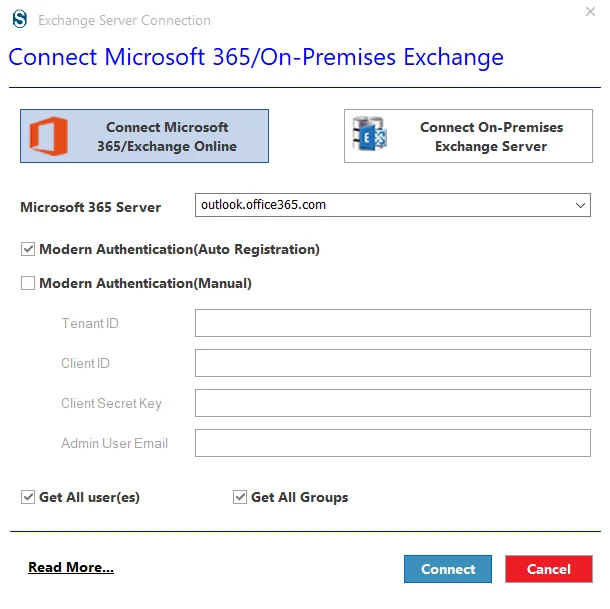
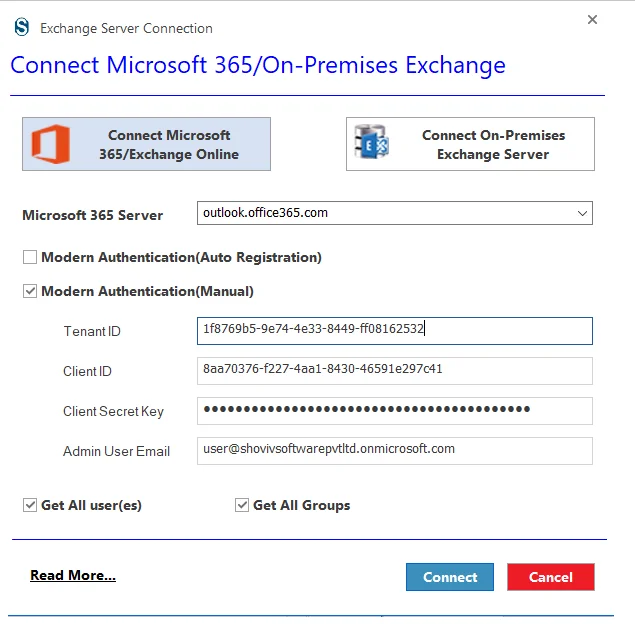
After clicking Create, the Exchange Server Connection window appears. At the top of this window, users can choose how they want to connect to Microsoft 365 or an on-premises Exchange environment.

Choose Connect Microsoft 365 / Exchange Online.
Exclude the folders if there is any requirement

Modern Authentication Options:

  • Modern Authentication (Auto Registration):
    • Automatically registers the application with Microsoft.
  • Modern Authentication (Manual):
    • Allows users to manually enter Tenant ID, Client ID, and Client Secret.

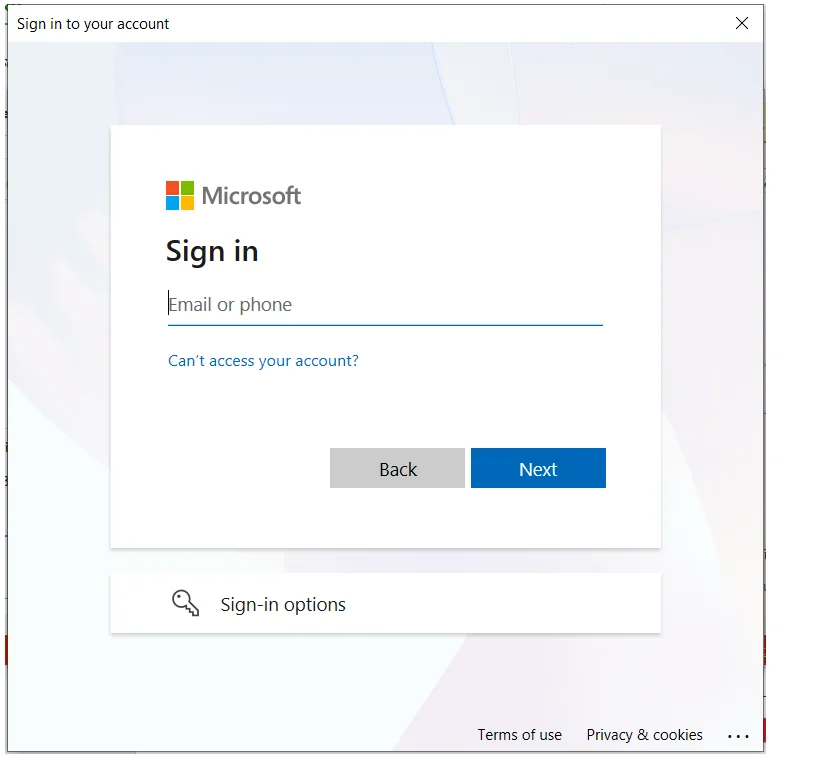
1.2: Modern Authentication (Auto Registration): Connect via Modern Authentication. You will be redirected to the Microsoft sign-in page, where you must enter your email address and password to authenticate.
Exclude the folders if there is any requirement

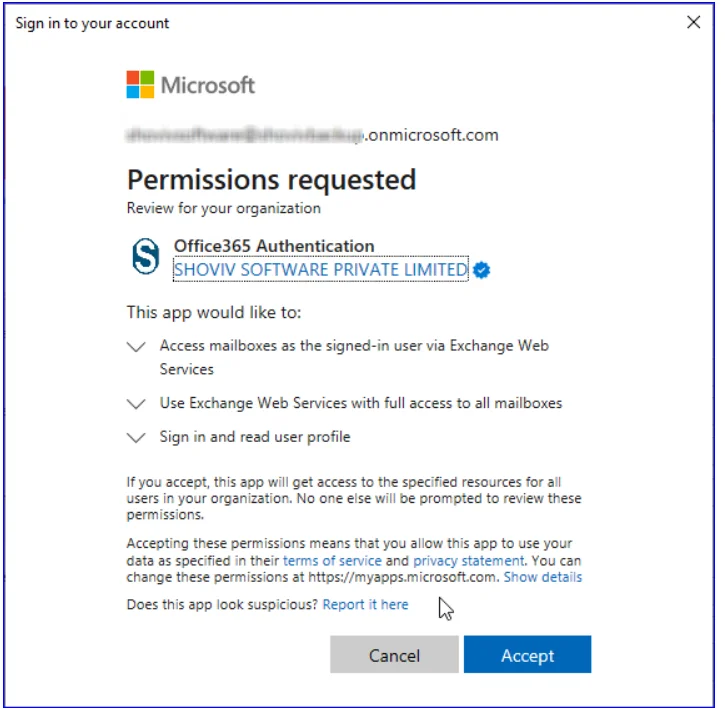
1.3: Once verifying the identity, kindly accept the permission request by clicking on Accept.
Exclude the folders if there is any requirement

Modern Authentication (Manual-Registration) for login
Exclude the folders if there is any requirement

Step 1: To log in through this Modern Authentication option, you must provide the following details:

  • Tenant ID: Enter the Tenant ID available in the Active Directory’s overview section.
  • Client ID: Client ID (also known as Application ID) is available in the Active Directory’s overview section below the Tenant ID.
  • Client Secret Key: Enter the client’s secret value from the Clients & Secrets section.
  • Admin User Email: Enter the Administrator user email.

Read more to create Tenant ID, Client ID, and Client Secret Key for Modern Authentication: https://www.shoviv.com/technical-guide/connect-exchange-server.html

After adding all the credentials, click Connect.

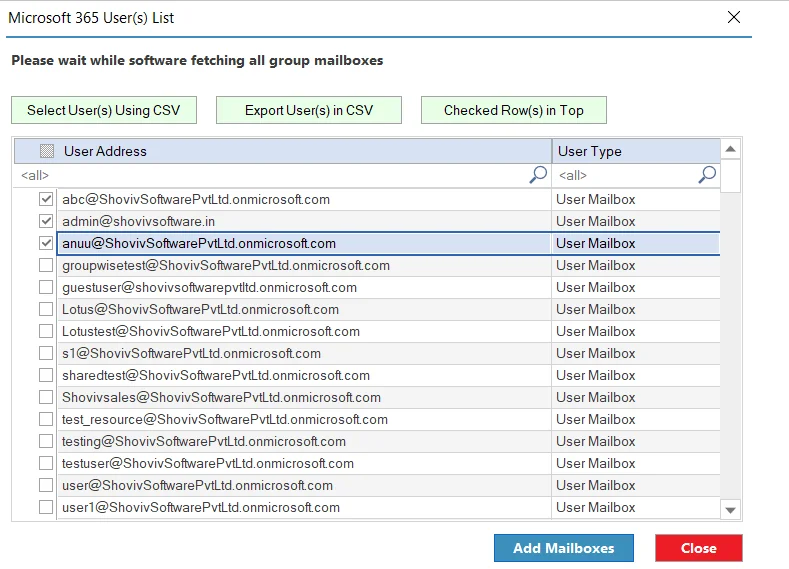
Step 2: Select the Mailboxes you want to add and click ADD Mailboxes.
Exclude the folders if there is any requirement
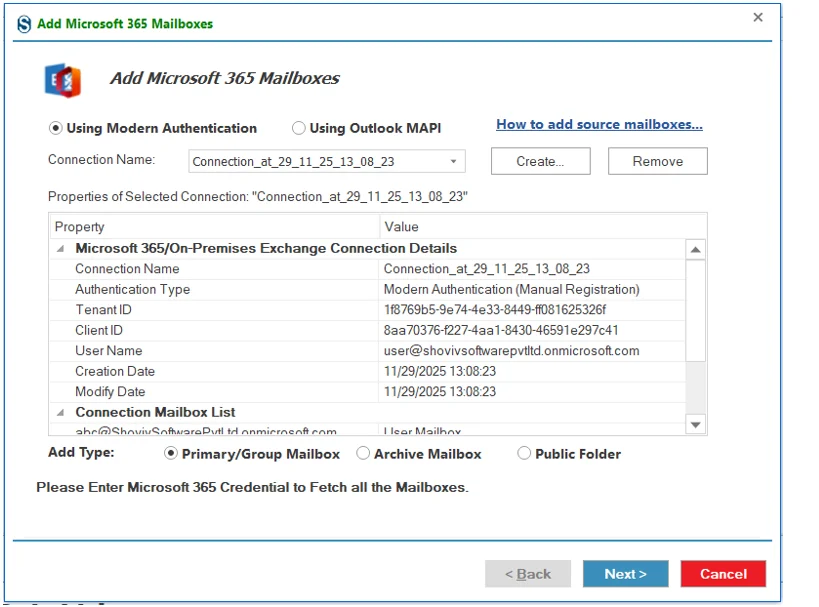
  • Once the mailboxes are added, the application gives a wizard to validate and confirm the configured Microsoft 365 or Exchange connection.
Exclude the folders if there is any requirement

Click on Next

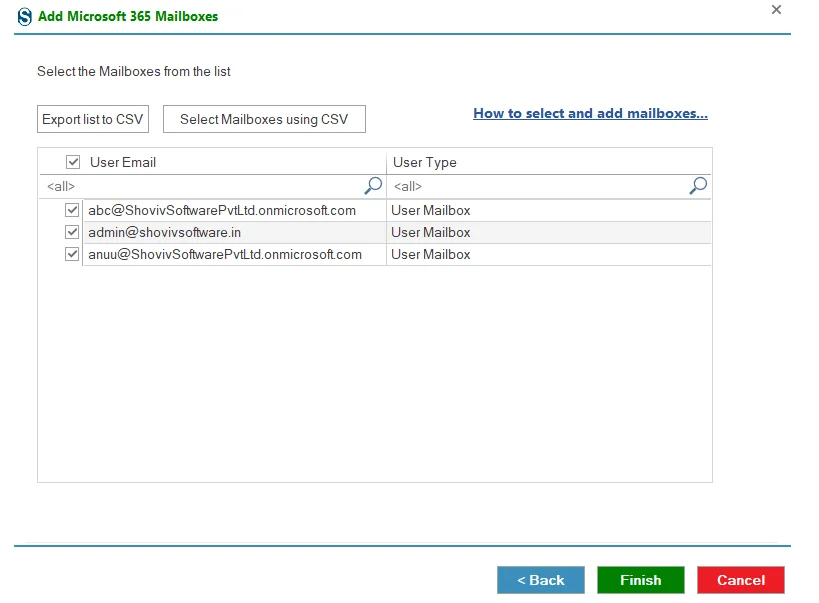
Finally, select the mailboxes you want to ADD.

  • Export list to CSV: Exports the displayed mailbox list for reference.
  • Select Mailboxes using CSV: Selects mailboxes automatically based on a CSV file.
Exclude the folders if there is any requirement

Read more for How to select and add mailboxes: https://www.shoviv.com/technical-guide/select-source-mailboxes.html

Click on Finish.

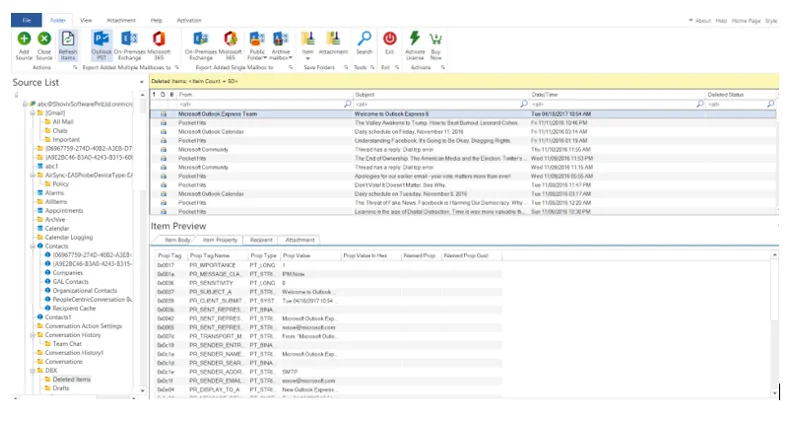
  • The selected mailboxes are shown on the left side of the application for preview.
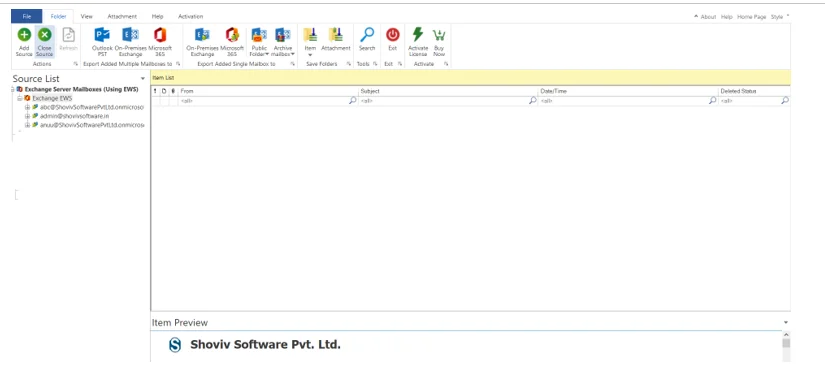
Exclude the folders if there is any requirement

Preview Mailbox Data

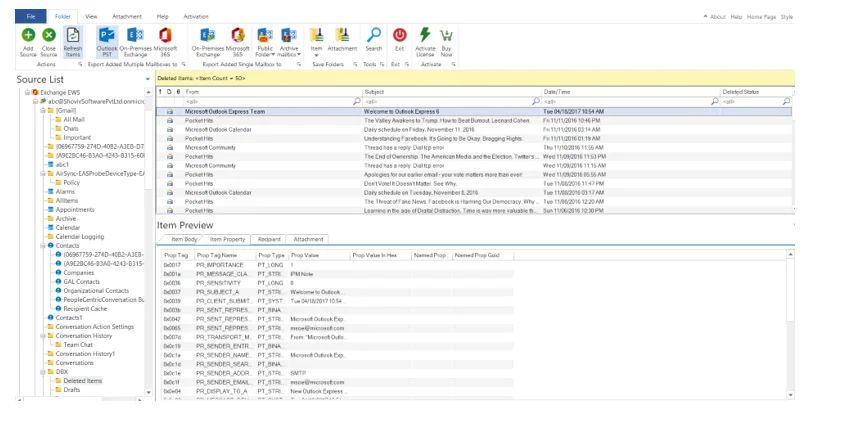
You can now click on any mailbox or item to preview its data. The application provides a live item preview with multiple viewing options to help you review the content in detail.
Exclude the folders if there is any requirement

The preview pane includes the following tabs:

  • Item Body: Displays the main content of the selected item.
  • Item Properties: Shows detailed metadata and properties of the item.
  • Recipients: Lists all recipients associated with the selected item.
  • Attachments: Displays all attachments linked to the item.

Mode 2: Migrate Using Outlook MAPI (Outlook Profile)

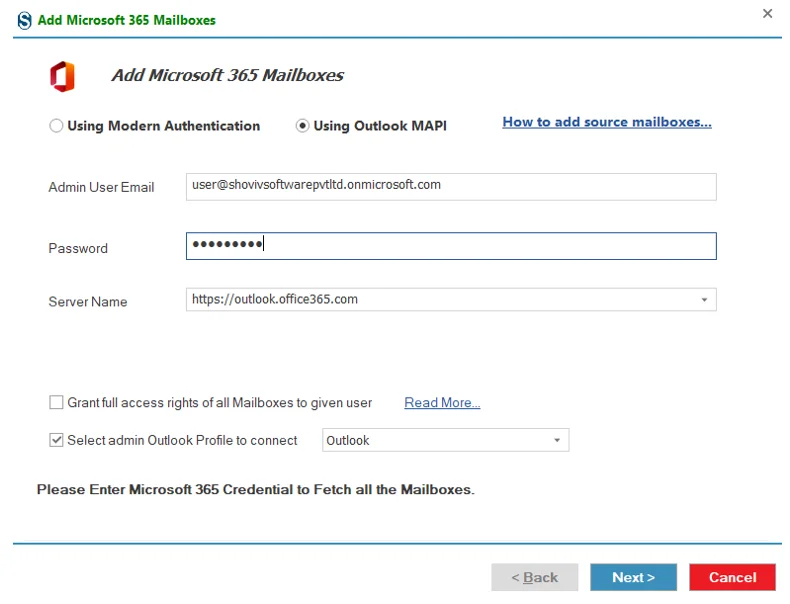
In the Add Microsoft 365 Mailboxes window, select Using Outlook MAPI as the authentication method.

Exclude the folders if there is any requirement

Enter Admin Credentials:

  • Enter the Admin User Email associated with the Outlook profile.
  • Enter the corresponding Password.

Grant Mailbox Access: https://www.shoviv.com/technical-guide/mailbox-access-permission.html

  • Enable Grant full access rights of all Mailboxes to given user if required.
  • Check Select admin Outlook Profile to connect, then choose the appropriate Outlook profile from the drop-down list.

Click on Next.

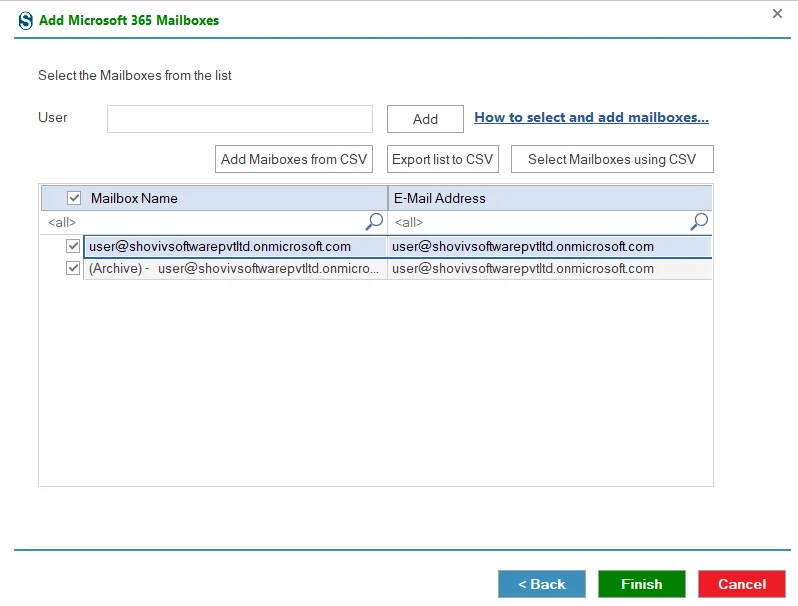
Step 2: Select the Mailboxes you want to ADD.

Add Mailboxes Options:

  • Add: Adds the selected mailboxes to the application.
  • Add Mailboxes from CSV: Allows bulk addition of mailboxes using a CSV file.
  • Select Mailboxes using CSV: Selects mailboxes automatically based on a CSV file.
  • Export list to CSV: Exports the displayed mailbox list for reference.
Exclude the folders if there is any requirement

Click on Finish.

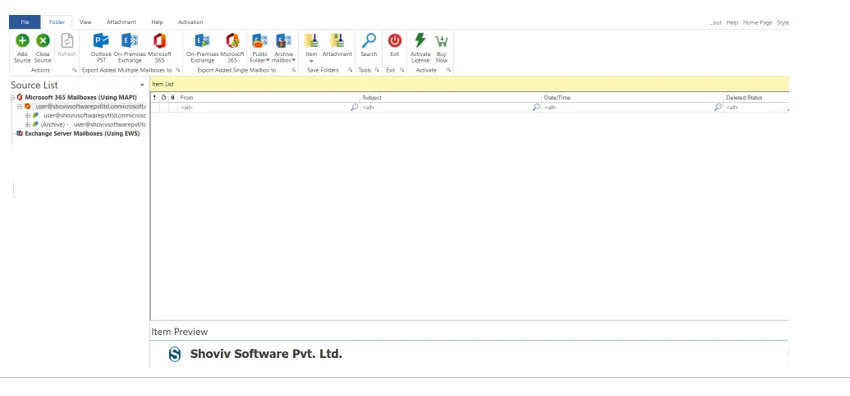
  • The selected mailboxes are added on the Source List.
Exclude the folders if there is any requirement

Preview Mailbox Data:
You can now click on any mailbox or item to preview its data. The application provides a live item preview with multiple viewing options to help you review the content in detail.

Exclude the folders if there is any requirement

The preview pane includes the following tabs:

  • Item Body: Displays the main content of the selected item.
  • Item Properties: Shows detailed metadata and properties of the item.
  • Recipients: Lists all recipients associated with the selected item.
  • Attachments: Displays all attachments linked to the item.