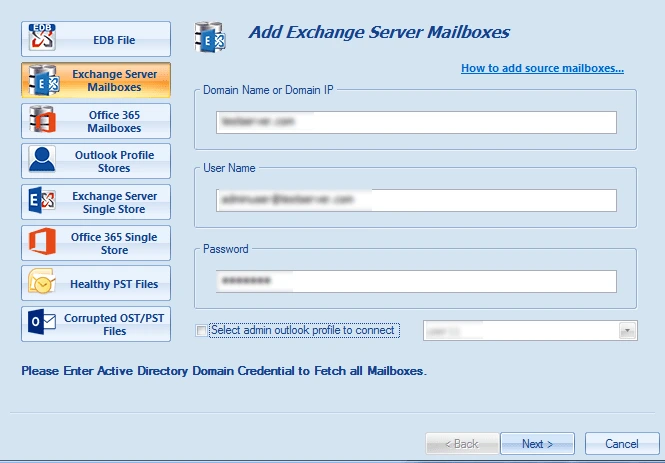
Add On-Premises Exchange Server (On-premises Exchange) Mailboxes into the software by providing the asked details. After successfully adding the mailboxes, you can Export and Save the items.
- Domain name or Domain IP: - Enter the Server Name or IP address of Domain Server where your Active Directory (AD) is installed.
- User Name: - Enter the Username (User Email), who has administrative rights.
- Password: - Enter the Password of the respective AD administrative user.
After entering the credentials, please click on the Next button, if you get any error here, please ensure that given user name has mailbox in Exchange or you can choose another option: "Select admin Outlook Profile to connect"
- Select admin Outlook Profile to connect: - Select the Outlook Profile of the admin user and click on the Next button.
- If you are still getting the error message then it is recommended to create Outlook Profile of the admin user of Exchange, assure making it online (disable cache) and use “Outlook Profile Stores” option. (refer method 3)
- After successfully completing the above-described task, the software displays all the mailbox stores. You can select multiple mailboxes
Method 2: Add Office365 Mailboxes: -
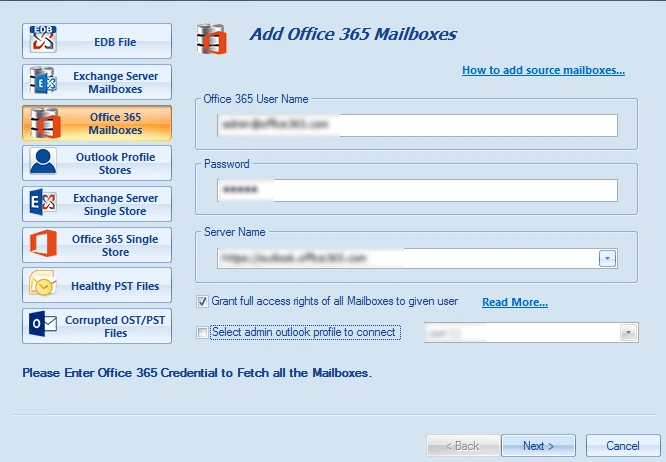
Add Office 365 (Online Exchange Server)mailboxes into the software by providing the asked details. After successfully adding the mailboxes, you can Export and Save the items.
- Office365 Username: - Enter the global admin user email of Office 365.
- Password: - Enter the Password of the respective user.
- Server Name: - Enter the Server Name of Office 365 (If not specified please leave it as default).
- Grant full access rights: - Grant Full access permission of the user mailboxes to the admin user.(Read More…)
After entering the credentials, please click on the Next button, if you get any error here, please ensure that given user name has mailbox in Office365 or you can choose another option: “Select admin Outlook Profile to connect”
- Select admin Outlook Profile to connect: - Select the Outlook Profile of the admin user and click on the Next button.
- If you are still getting the error message then it is recommended to create Outlook Profile of the admin user of Office 365, assure making it online (disable cache) and use “Outlook Profile Stores” option. (refer method 3)
- After successfully completing the above-described task, the software displays all the mailbox stores. You can select multiple mailboxes from here to add as a source and to save and export items.
Method 3: Outlook Profile Stores(Use if MFA is enabled)
- Select Outlook Profile of Exchange Server, Office 365 or MAPI Client. If you don’t have Outlook Profile, please Create Outlook Profile from Control Panel, assure making it online (disable cache).
- Select the newly created Outlook Profile.
Note: Please make sure the delegate rights are given to all the attached user mailboxes.
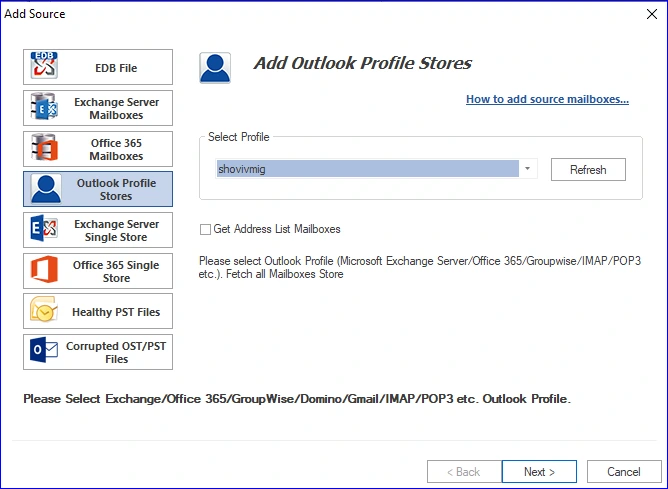
After successfully completing the above-described task, the software displays all the mailbox stores. You can select multiple mailboxes from here to add as a source to save and export.