Summary: Are you searching for a simple and reliable way to migrate Horde Webmail to Microsoft Office 365 accounts? You’re in the right place! This guide explains step-by-step methods to migrate from Horde emails to Microsoft 365 quickly and securely. Let’s explore how you can efficiently move from Horde to Office 365 and unlock advanced email management features, enhanced security, and modern collaboration tools.
Overview of Horde Webmail & Office 365
Horde Webmail is a free, open-source email platform available through cPanel, widely used by hosting providers, educational institutions, and small businesses. It allows users to send, receive, and organize emails, as well as manage calendars, contacts, and tasks.
However, with Horde Webmail’s discontinuation on servers from April 2023 and the growing need for secure, cloud-based email systems, many users are now looking to migrate their Horde mailboxes to Microsoft Office 365.
Office 365 offers modern features, large storage, cross-platform access, and seamless integration with Microsoft apps like Teams, OneDrive, and Outlook. In this blog, we’ll explore the best methods to migrate Horde Webmail to Office 365 efficiently.
Reasons to Migrate Horde Webmail to Office 365
Here are some key reasons users choose to switch from Horde Webmail to Office 365:
- Modern User Interface – Office 365 offers a sleek, intuitive, and responsive interface compared to Horde’s outdated design.
- Enhanced Security – Advanced spam filtering, encryption, and compliance tools ensure data protection.
- Scalable Cloud Storage – with 1TB of OneDrive storage, mailbox limitations are eliminated.
- Productivity & Collaboration – Integrated with Teams, SharePoint, and OneDrive for seamless teamwork.
- Anywhere Access – Access your emails, contacts, and files from any device, anywhere.
- Horde Discontinuation – With Horde Webmail support ending, migration ensures data safety and continuity.
How to Migrate Horde Webmail to Office 365?
There are two main approaches to migrating Horde emails to Office 365: Manual Migration & Using a Professional Migration Tool. Let’s go through both in detail.
Manual Method to Migrate Horde Webmail to Office 365
Although there is no direct method to move Horde emails to Office 365, you can use an email client such as Mozilla Thunderbird and Export and Import via MBOX to migrate your data.
Method 1: Using Thunderbird
- Install and open Mozilla Thunderbird on your system.
- Go to File > New > Existing Mail Account.
- Enter your Horde Webmail credentials (email address, name, and password).
- Thunderbird will automatically detect server settings – click
- Repeat the same steps to add your Office 365 account.
- Once both accounts are configured, open the Horde mailbox folders.
- Select the desired emails > Right-click > Choose Copy To > Office 365 > Target Folder.
- Wait for the emails to transfer; the duration depends on mailbox size.
Method 2: Export and Import via MBOX
- Log in to your Horde Webmail account.
- Right-click on your mailbox folder and choose Export to save emails as MBOX files.
- Convert the MBOX files into PST format using an MBOX to PST converter tool.
- Import the PST file into Office 365 through Microsoft Outlook > File > Open & Export > Import/Export.
Drawbacks of the Manual Method
While the manual methods are free, they come with several challenges:
- Time-Consuming Process – Involves multiple steps and requires technical expertise.
- Risk of Data Loss – Folder structure and metadata may not remain intact.
- No Direct Transfer – Requires intermediate conversions (MBOX > PST).
- Limited Scalability – Not suitable for large mailboxes or bulk migration.
- Incomplete Migration – Attachments and special characters may fail to migrate properly.
- No Automation or Scheduling – Manual supervision needed throughout the process.
While manual methods exist, they often involve complex steps and risks of data loss. Using a professional migration tool can make the process smooth, automated, and error-free.
Solution to Migrate Horde Webmail to Office 365 Professionally
To overcome manual limitations, using an automated tool like the Shoviv IMAP to Office 365 Migration Tool is the best option. This professional utility directly connects Horde Webmail (via IMAP) to Office 365 and securely migrates attachments and folder structure without any data loss.
Key Features of Shoviv IMAP(Horde Webmail) to Office 365 Migration Tool
- Direct Transfer: Connects Horde Webmail IMAP account and transfers data directly to Office 365.
- Bulk Migration: Migrate multiple mailboxes simultaneously without size restrictions.
- Data Integrity: Maintains folder hierarchy, email properties, and attachments during migration.
- Incremental Migration: Resumes interrupted processes without duplicating data.
- Filtering Options: Apply filters by date range or folder for selective migration.
- Job Scheduling: Schedule migrations for off-hours or periodic syncing.
- User-Friendly Interface: Ideal for both technical and non-technical users.
- Free Trial: Allows migrating the first 50 items per folder for free.
Steps to Migrate Horde Webmail to Office 365:
- Install and launch the Shoviv IMAP to Office 365 Migration Tool.
- Go to the Source IMAP tab and enter your Horde Webmail credentials.
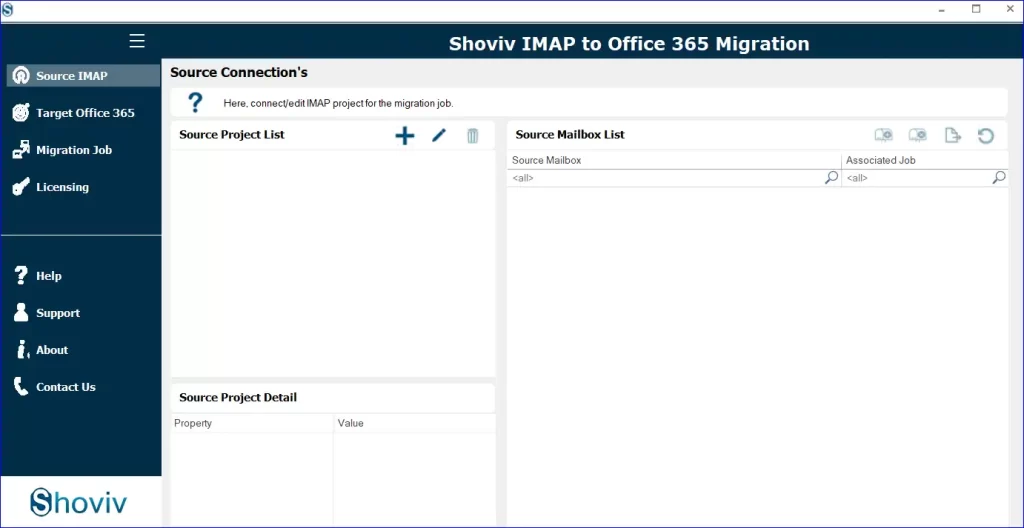
- Click on the Target Office 365 tab and log in to your Office 365 account.
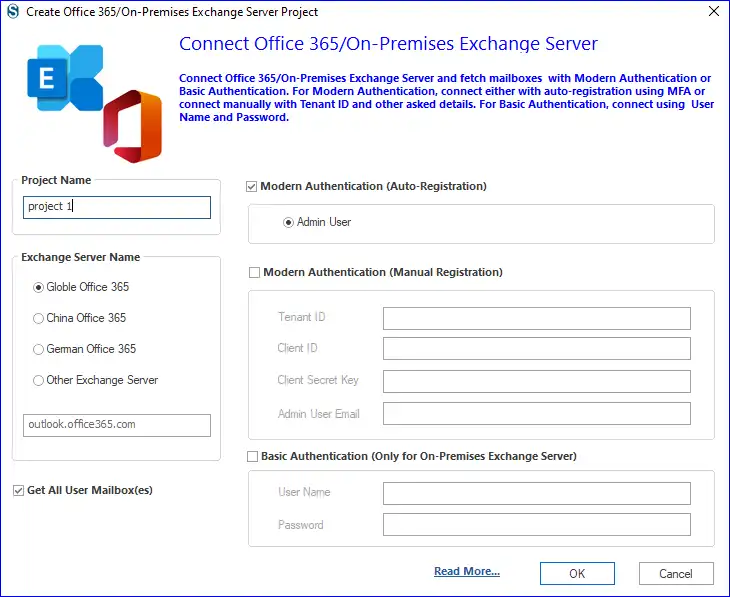
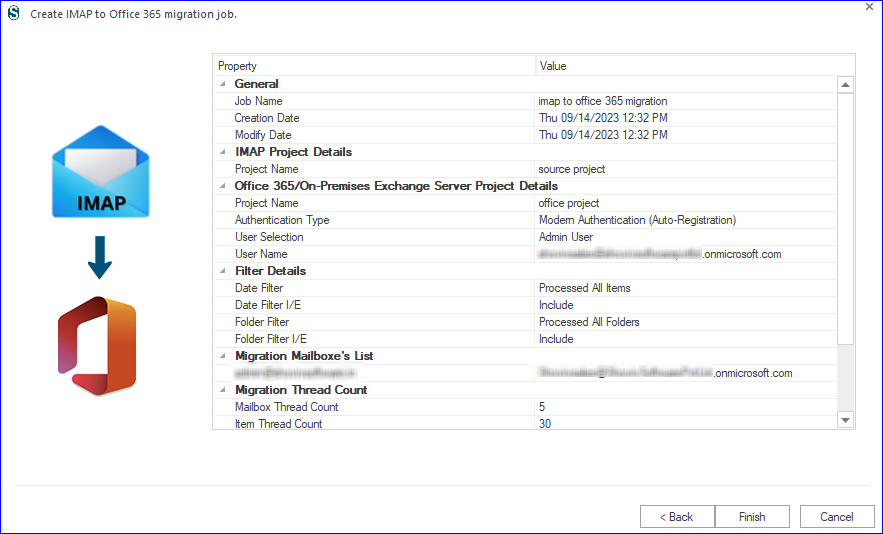
- Create a new migration job and select the source (Horde) and target (Office 365) mailboxes.
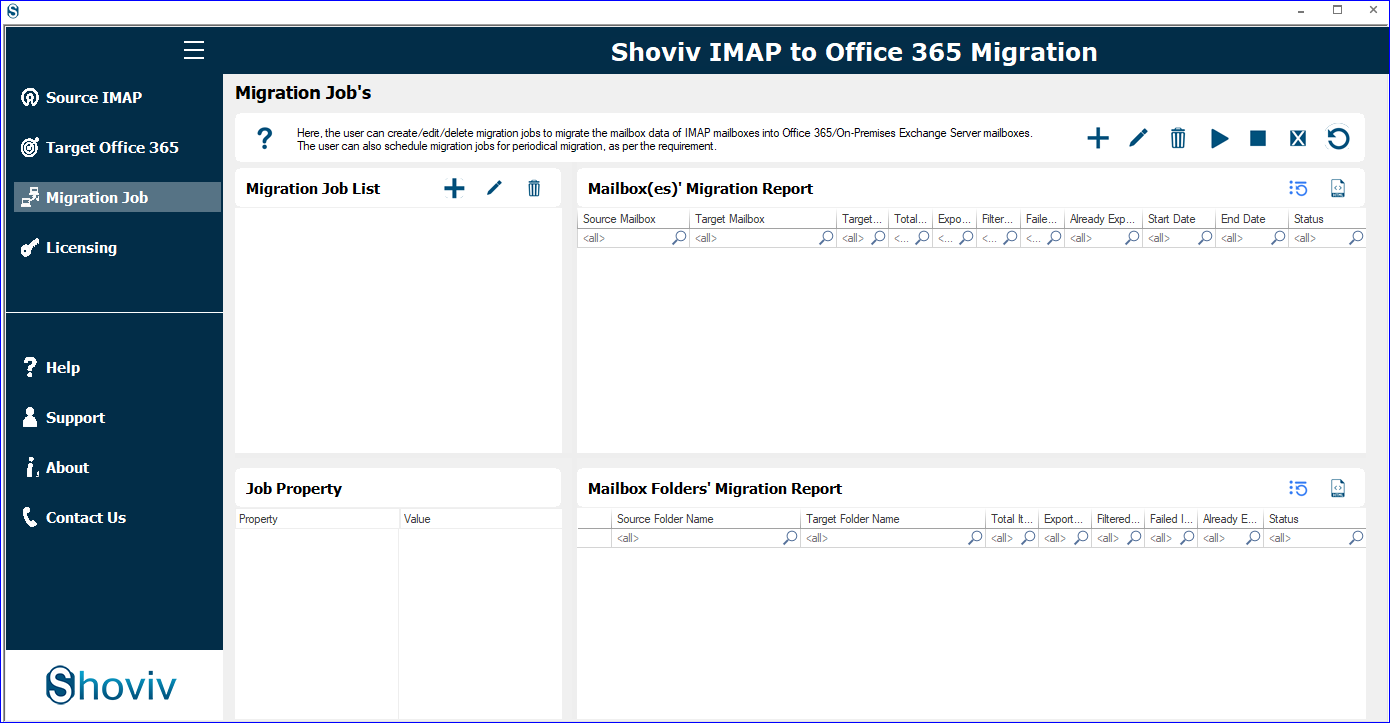
- Map mailboxes and apply filters as required.
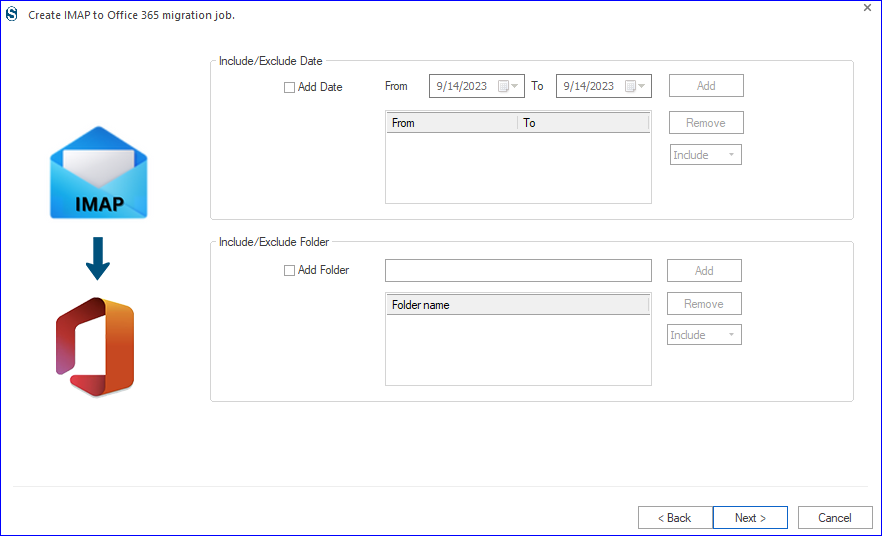
- Review settings, choose scheduling options, and start the migration process.
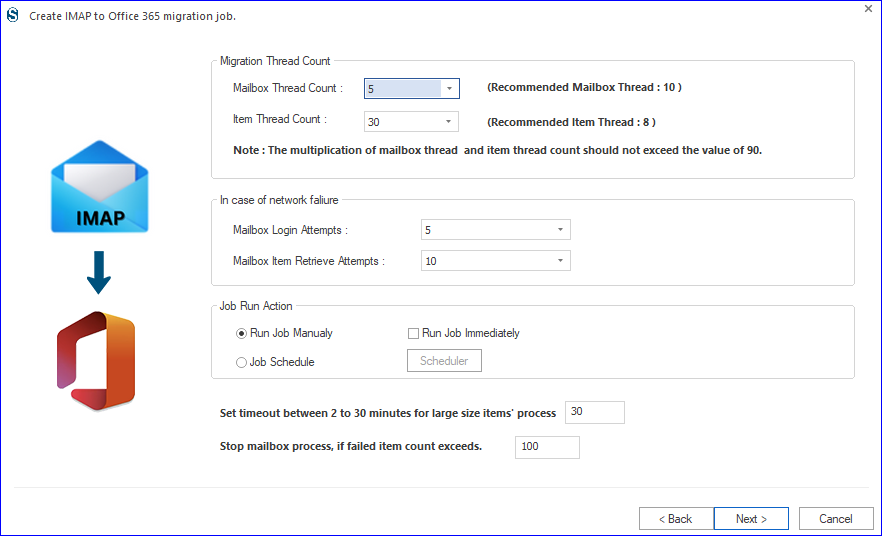
- The tool will automatically transfer selected emails from Horde to Office 365 as per the job run action.
Final Words:
In this blog, we discussed the most efficient ways to migrate Horde Webmail to Office 365. While manual methods are available, they are often lengthy, complex, and prone to errors. On the other hand, using professional tools like Shoviv IMAP (Horde Webmail) to Office 365 Migration Tool simplifies the process and ensures secure, accurate, and complete data transfer.
Suppose you’re planning to migrate from Horde to Office 365 for better functionality, collaboration, and reliability. In that case, automated migration is your best choice. Try the free demo version today to experience a hassle-free migration.
Frequently Asked Questions
Yes, you can use Thunderbird or MBOX export/import, but the process is time-consuming and not suitable for bulk data. Moreover, you need to be technically advanced.
You should migrate your data as soon as possible using an automated tool to prevent any risk of data loss.
Yes, professional migration tools transfer emails with all attachments, metadata, and folder structure intact.
Absolutely. You can apply filters to migrate specific folders or emails within a defined date range.
Yes, it supports all Windows versions, including Windows 10 & 11.