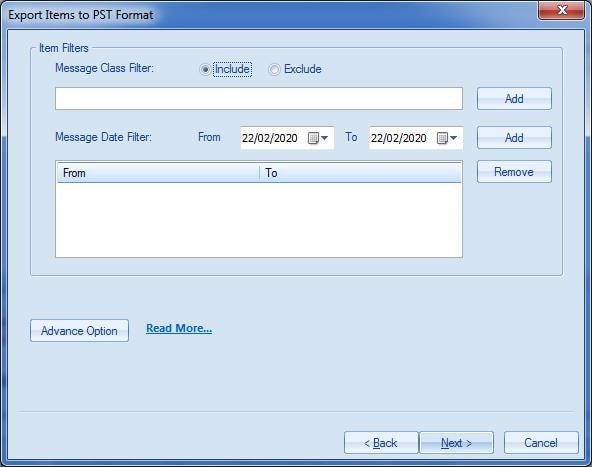
1) Message Class Filter: This filter option allows filtering the items based on Message Class User can add the message class using the ADD button, the user can either ‘include’ or ‘exclude’ the selected message classes. Message class i.e. item type
- By clicking on the ‘Add’ button, message class dialog box pops-up. The message class dialog box shows some default message classes inside the dialog box which user can check or uncheck as per the wish. To add a new message class user needs to type the message class in the edit box and click on ‘Add’.
2) Message Date Filter: This option allows the user to filter the message according to the date range. To add a new date range the user has to choose the ‘From’ date field and ‘To’ date field and click on ‘Add’ button.
Advance Option
By clicking the ‘Advance Option’ button, a new dialog will open which has options that can be used by the user as per the need.
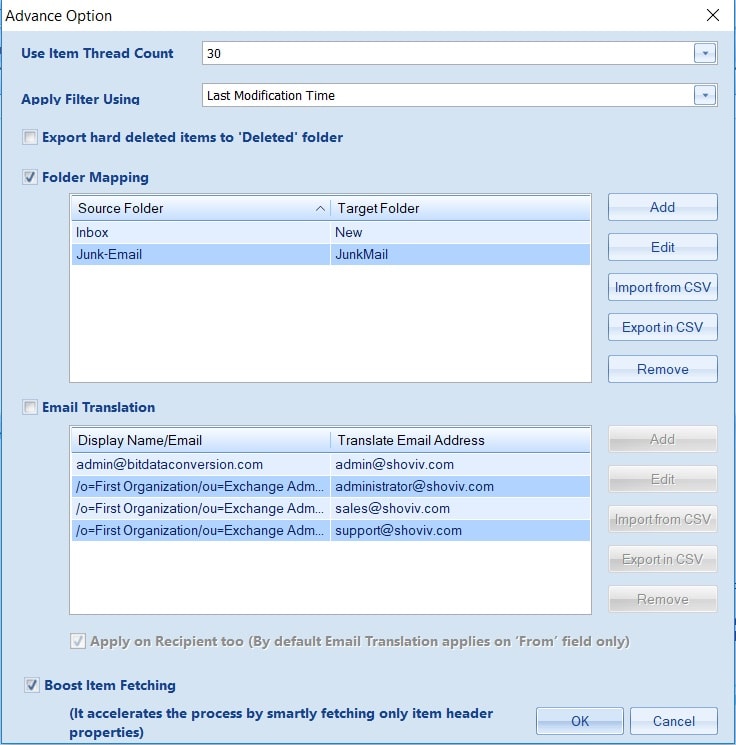
1. Use Item Thread Count: This option allows the user to choose the thread count ranging b/w 1 to 50 (by default set to 30); thread count helps speed up the process of migration by running the multiple threads.
Note:- Recommended thread count for the slow source network is 20 (i.e. for office365 to pst process).
Apply Filter Using: By using this filter option user has options to choose date type to compare for the date filter.
Options are:
1. Last Modification Time
2. Message Creation Time
3. Message Delivery Time
4. Client Submit Time
By default, it takes 'Last Modification Time' to filter.
Note: For the Incremental migration, please select: The Date before the starting of last migration in “From” field and the date next to the present date (from when Incremental migration is taking place) in “To” field .
3. Export hard deleted items to "Deleted" folder:- Enable this option to export hard deleted email items to a "Deleted" folder on the target,
Note - The feature does not affect the source.
4. Folder Mapping: This option allows you to Map the source mailbox folder with target mailbox folder or you can create a new custom folder for any given source folder. To map folder, the user needs to click on ‘Add’ button, after that enter the source folder name in the corresponding text box and target folder name in the target folder text box and click OK.
- User can also import the mapping of folder names from CSV file using ‘Import From CSV’ button (sample file), and can also export the mapping to the CSV file by clicking on ‘Export In CSV’ button.
These options are meant for:
- Add: To add a new entry of folder mapping.
- Edit: To edit the selected folder mapping from the list.
- Import from CSV: To import the folder’s mapping list from CSV file (sample file).
- Export in CSV: To export the folder’s mapping list to a new CSV file.
- Remove: To remove the selected folder mapping entries from the list.
5. Email Translation: This option allows you to change the source folders’ email address with a new desired email address which will be visible on new exported email items. To add new email translation, the user needs to click on ‘Add’ button and after that enter the source email address in the corresponding text box and new email address in the target text box and click OK.
User can also import the email translation list from a CSV file using ‘Import From CSV’ button (sample file), and can also export the email translation list to a new CSV file by clicking on ‘Export In CSV’ button.
These options are meant for:
- Add: To add a new entry of email translation.
- Edit: To edit the selected email translation from the list.
- Import from CSV: To import the email translation list from CSV file (sample file).
- Export in CSV: To export the email translation list to a new CSV file.
- Remove: To remove the selected email translation entries from the list.
- Apply on Recipient too: This option allows the user to enable the email translation process for the recipients as well, by default the email translation only works on the ‘From’ field of the email item.
Boost Item Fetching: This option allows boosting the speed of fetching the mailbox data from the server of source, always use this option while applying date filter and for data migration.
Note – It will take some time if the folder has a huge amount of items(5-10 minutes in general) afterwards it will work very fast.
Click on “Next” in the wizard box to continue.