We use Microsoft EWS (Exchange Web Service) in order to access the Office 365. But at some times, users may face certain issues, some critical errors like “The server cannot service this request right now. Try again later" at the time of migration. This error comes because the EWS policy is enabled in Office 365. To solve the issue, there is a need to disable the EWS throttling policy.
To see how you to do this task, kindly follow the shared step-by-step instructions:-
Step-by-Step Instruction to Disable EWS Policy
By disabling the EWS throttling policy, the problem which arises at the time of the migration will be solved. So carefully follow the steps shared below:-
- Open the login page of Office 365. Sign in with your admin credentials.
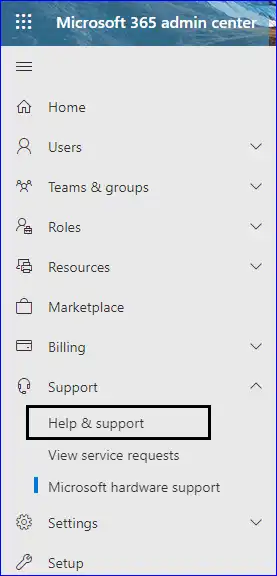
- Simply go to the Support where you need to hit on the Help & Support option.
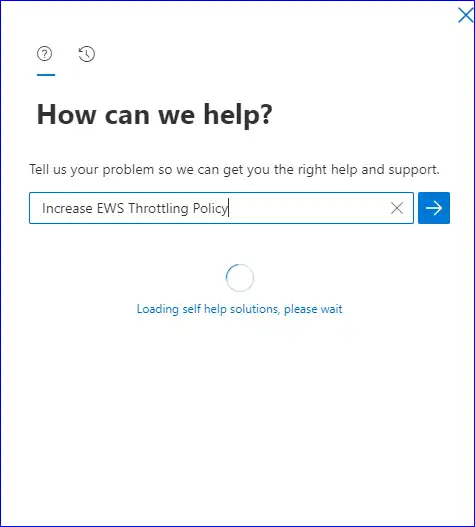
- In the How can we help search box Increase, then you see an Increase EWS Throttling Policy. Click on it.
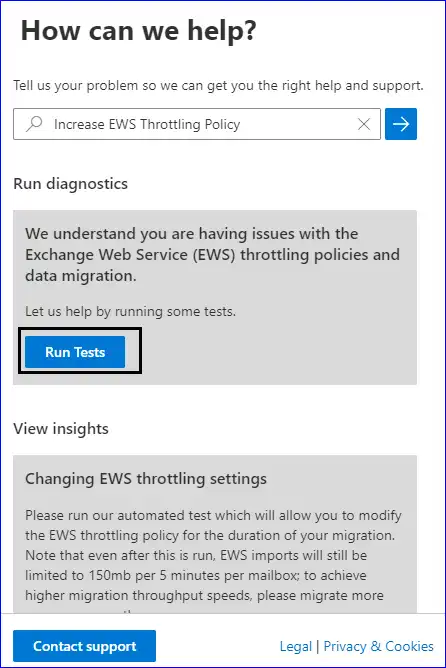
- Now, click on the Run Tests to analyze the problem.
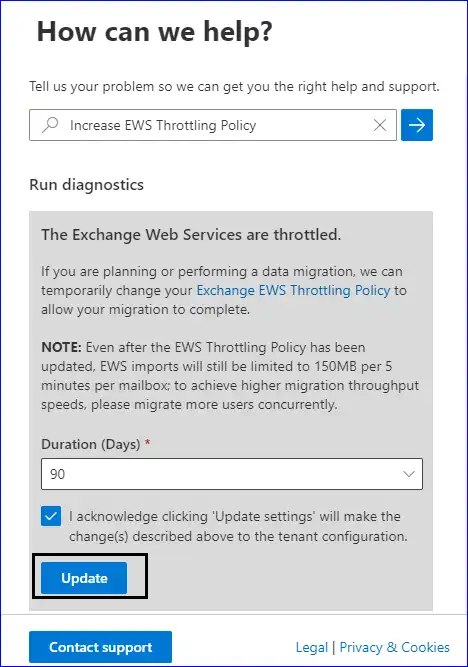
- Select for how many days you want to disable the throttling policy in Office 365. Here, we are choosing 90 days, tick the acknowledge checkbox and click on Update.
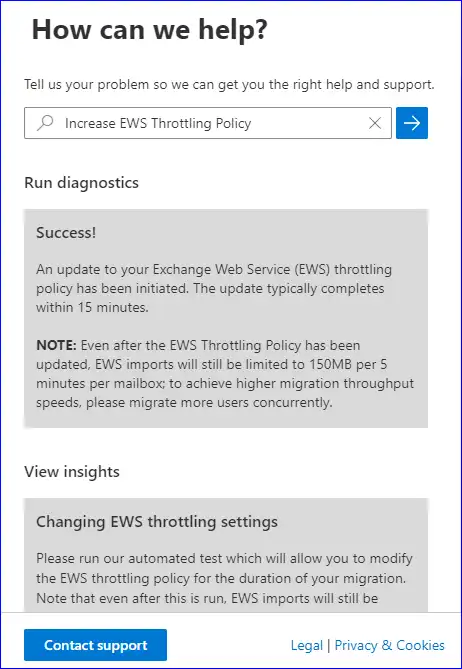
- A success message will appear, which means that the throttling policy has been initiated, and the change will be reflected within 15 minutes.
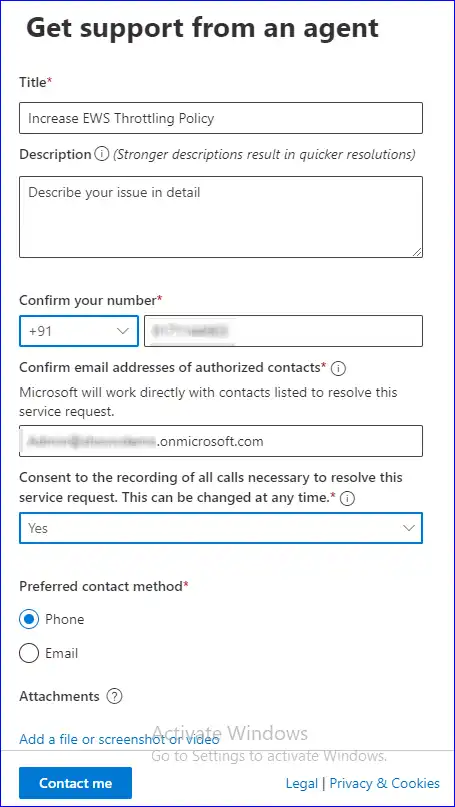
- If in case you do not see a success message, then you can simply click on Contact support to raise the service request. In the support form, you are required fill in details such as the Title, Description, Contact number, email address, etc. After entering details, click on Contact Me.