Shoviv GroupWise Migration tool prevents duplicate items in the target mailbox while exporting GroupWise Mailbox into Office 365 or On-Premises (On-Premises Exchange Server) mailbox.
By default, Shoviv software migrates complete GroupWise mailbox Items at once, at the time of migration or after starting the migration, some new Items (Emails, calendar, contact) may appear in the GroupWise Mailbox. Hence, you have to sync these items into the target mailbox.
If you migrate the GroupWise Mailbox again into the target, then it will create duplicate items in the target.
To prevent duplicate items from the target, you have to follow the below-given steps:
Full Mailbox Migration
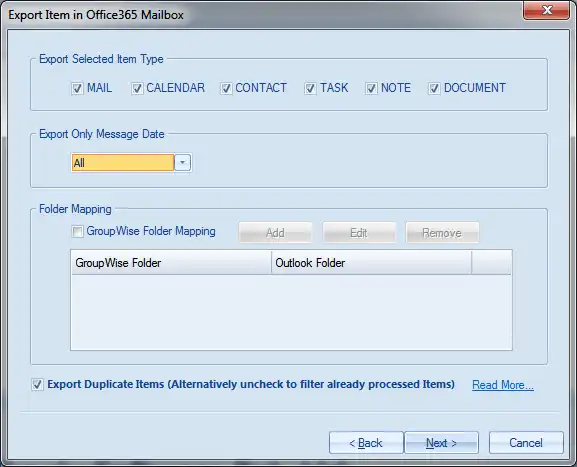
When you perform the migration for source mailbox for the first time, please check "Export Duplicate Items (Alternatively uncheck to filter already processed Items)" option. It will migrate all the items for the first time (In case you are wondering why to check this option when it’s clearly mentioned that it will create the duplicate item. it's because there is no chance to appear duplicate item in first migration, by checking this option, migration speed will be increased as the software will not perform to check for the duplicate item.).
Now all Items from source mailboxes to target are migrated.
Sync Mailbox
Now if you want to perform the migration process for the second time to include those items which appear after starting the first or previous migration process, first make sure that if you had performed any folder mapping in the primary migration, please configure the same folder mapping this time as well.
Note: Please make sure that the mapping of source & target mailboxes is the same as previously used mapping. Also please ensure that the folder mapping is the same.
Please uncheck/disable the option "Export Duplicate Items (Alternatively uncheck to filter already processed Items)" and it will prevent migrating those items which were migrated previously.
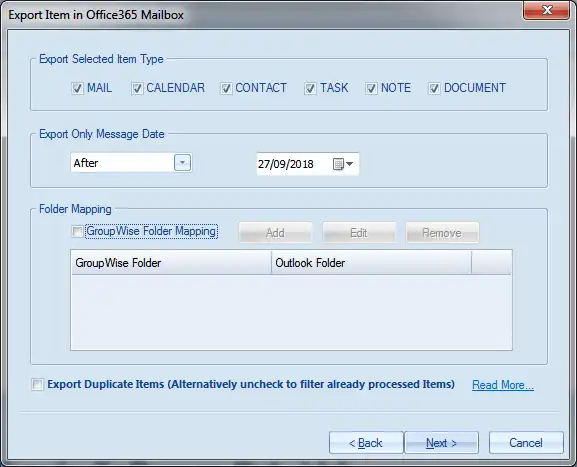
Though this option is very efficient and effective, it still takes time to perform migration as it performs to check for the individual email items whether it's already present in the target folder of the mailbox or not. An alternative option is to perform migration is by applying the date filter option, i.e. if your last migration was started on 20-Jan-2018 and you want to perform the migration for those items which appears after 20-Jan-2018, you can select date filter and choose the date 20-Jan-2018.




