Products

×

How to Create an App Password for IMAP Email Clients?

Email clients using the IMAP Protocol require an app password to connect to a third-party application. However, the process will remain the same for all IMAP email clients for creating the app password.

  • Sign in to the Account Security page, and to do so, first click on the Account initials.
  • Turn on the Two-Step Verification in order to proceed ahead with creating the App password.
  • Now go to the Generate App Password. Then select the application and hit on the Generate button.
  • Copy the App Password, which will make you to login into the third-party app.

How to Create App Password for Gmail?

Enabling the 2-Step verification on the Gmail account makes your account safer while login on the third-party application. Unfortunately, some third-party applications won't make you log in to your account with a regular Gmail password. However, you need to create the app password, which will be generated through Gmail specifically for third-party apps.

Firstly, you need to enable the 2-step verification in your Gmail account, and later on, you can easily create the App Password. We have shared the step-by-step procedure for activating the 2-Step verification and creating the App Password.

Turn On 2- Step Verification

  • You need to log in to your Gmail account with your credentials.
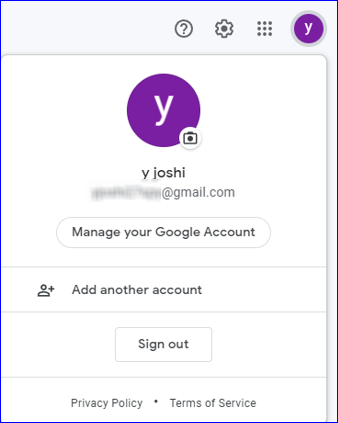
  • Now, go to the upper right side and click on your initials. After that, select the Manage Your Google Account option

  • app password for IMAP
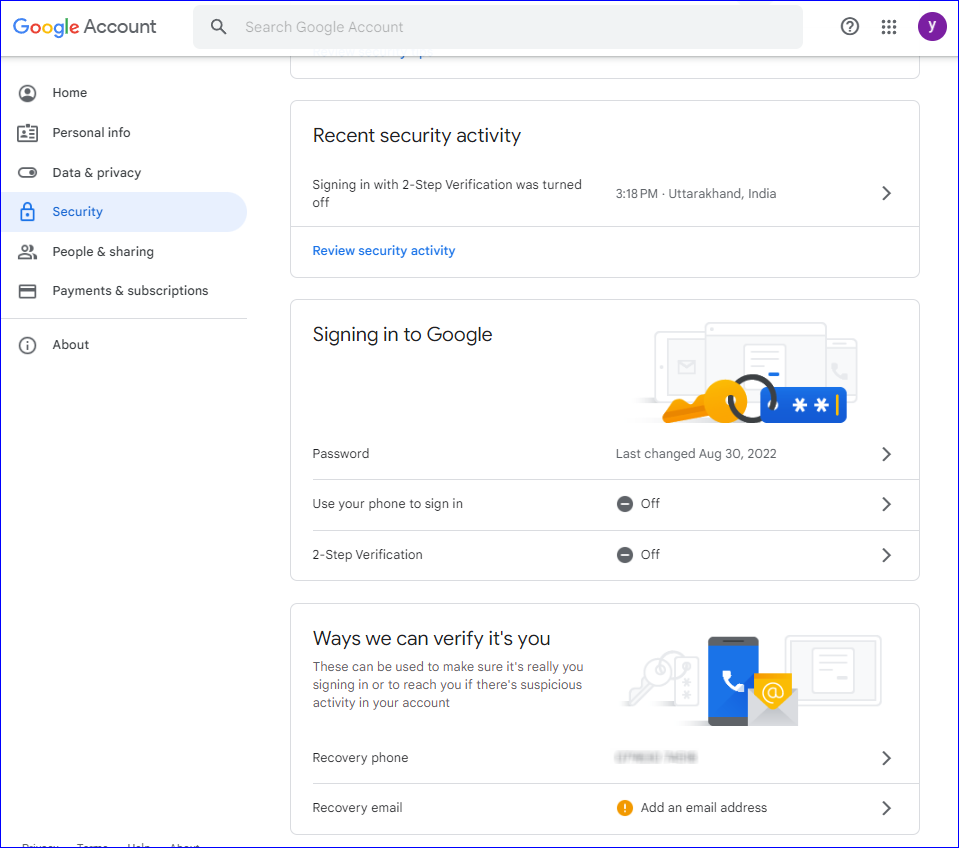
  • You will be redirected to the Gmail setting page, where you need to click on Security from the left Sidebar. In the Security section, make sure to click on the 2-Step Verification option.
  • app password for IMAP
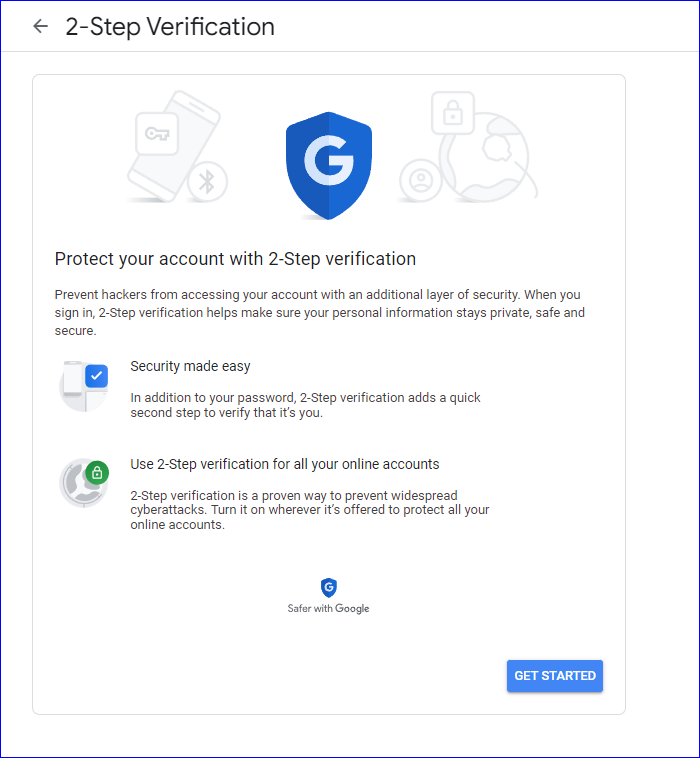
  • 2 Step verification page will open, and you just need to select the Get Started button.

  • app password for IMAP
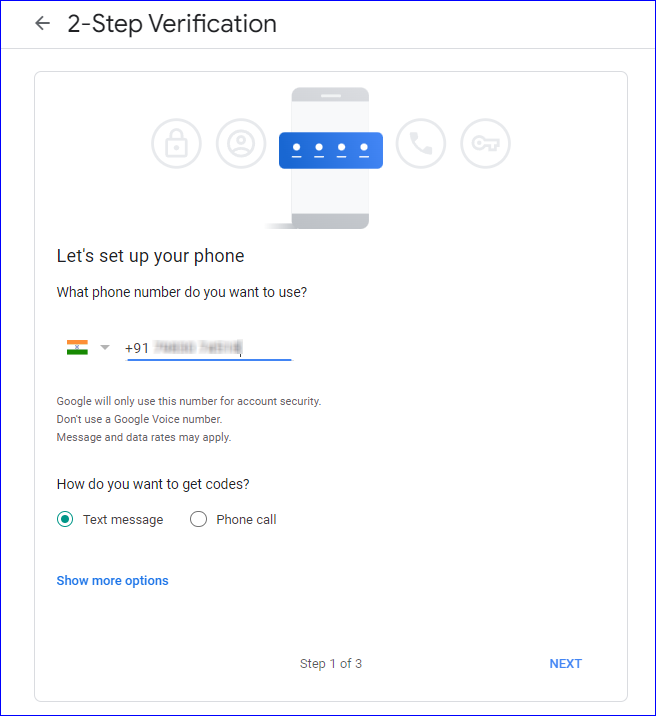
  • In this Window, you need to enter your phone number and select any one option from the Text message and Phone call options to verify the number. Once done, click on Next.
  • app password for IMAP
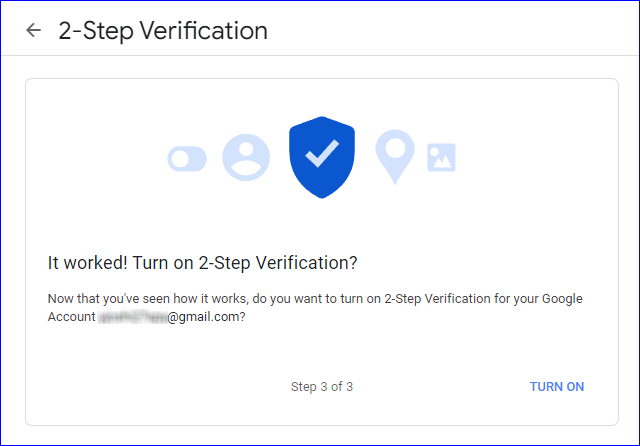
  • Click on Turn On to activate the 2-Step Verification.
  • app password for IMAP

    A 2-Step verification confirmation message will be displayed on the screen. Now you can easily set up the App password for your Gmail Account.

Generate the App Password for Your Gmail Account

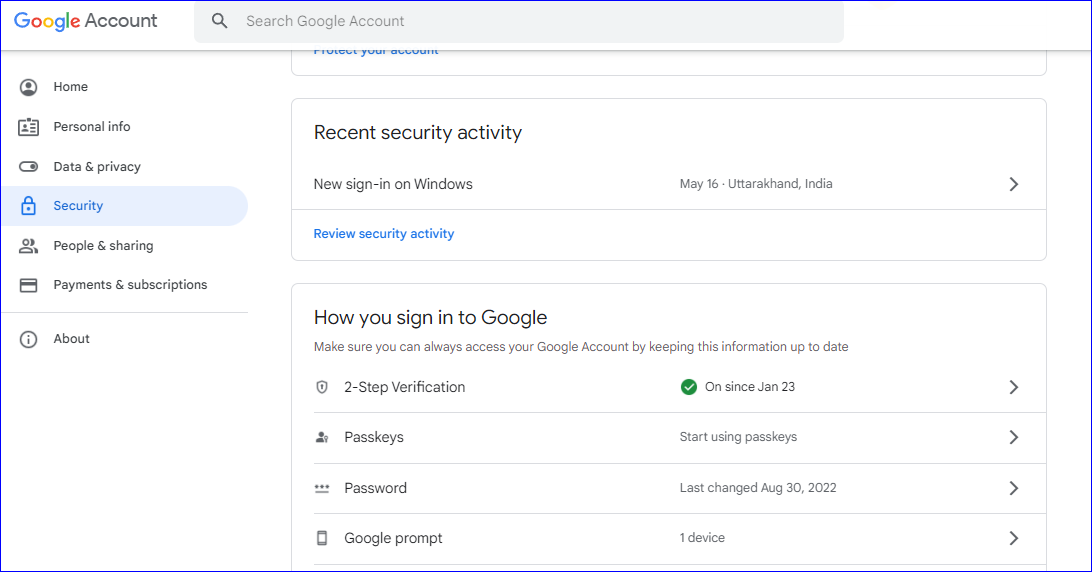
  • To start setting up the App password for your account, you must go to Manage Your Account. Now, go to the How you Sign in to Google section and click on 2-Step Verification.
  • app password for IMAP
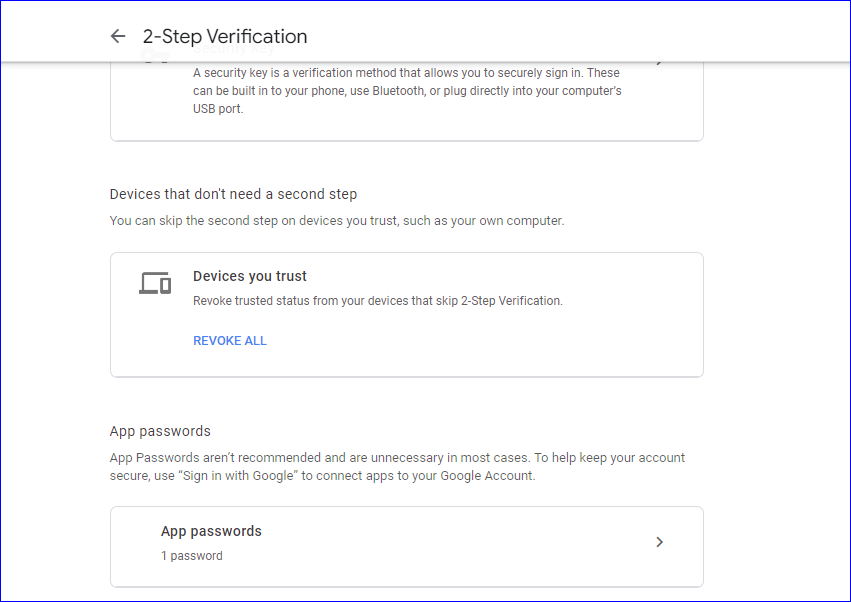
  • Now, kindly click on the App Password to start creating the process for forming an app password.
  • app password for IMAP

    Note: If after following all the steps mentioned above, you don't find any option to create the App Password; then click on this link to create an App Password

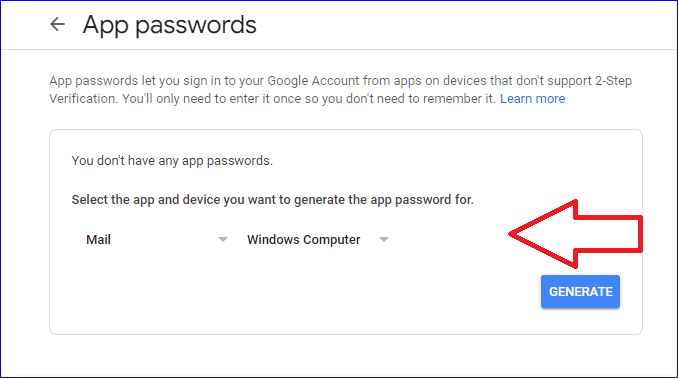
  • You need to enter the password to login again into your Gmail account and then choose the app type and device for which you are required to generate the App password. Click on Generate to move to the last step.
  • app password for IMAP
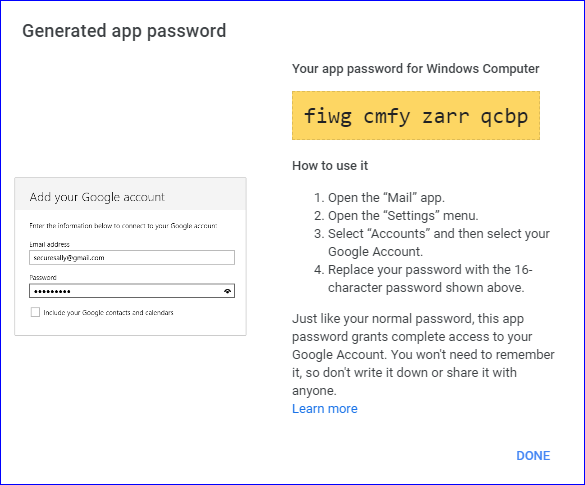
  • You can copy the app password for the later use and click on Done.
  • app password for IMAP

Your valuable feedback/suggestions are always welcome. You can write us at support@shoviv.com