Note: After adding the OST Files, you have to select Outlook PST as the target.
The first way is to choose the Outlook PST option from the ribbon bar, and the second way is to right-click on the file folder and select the same option (Outlook PST).
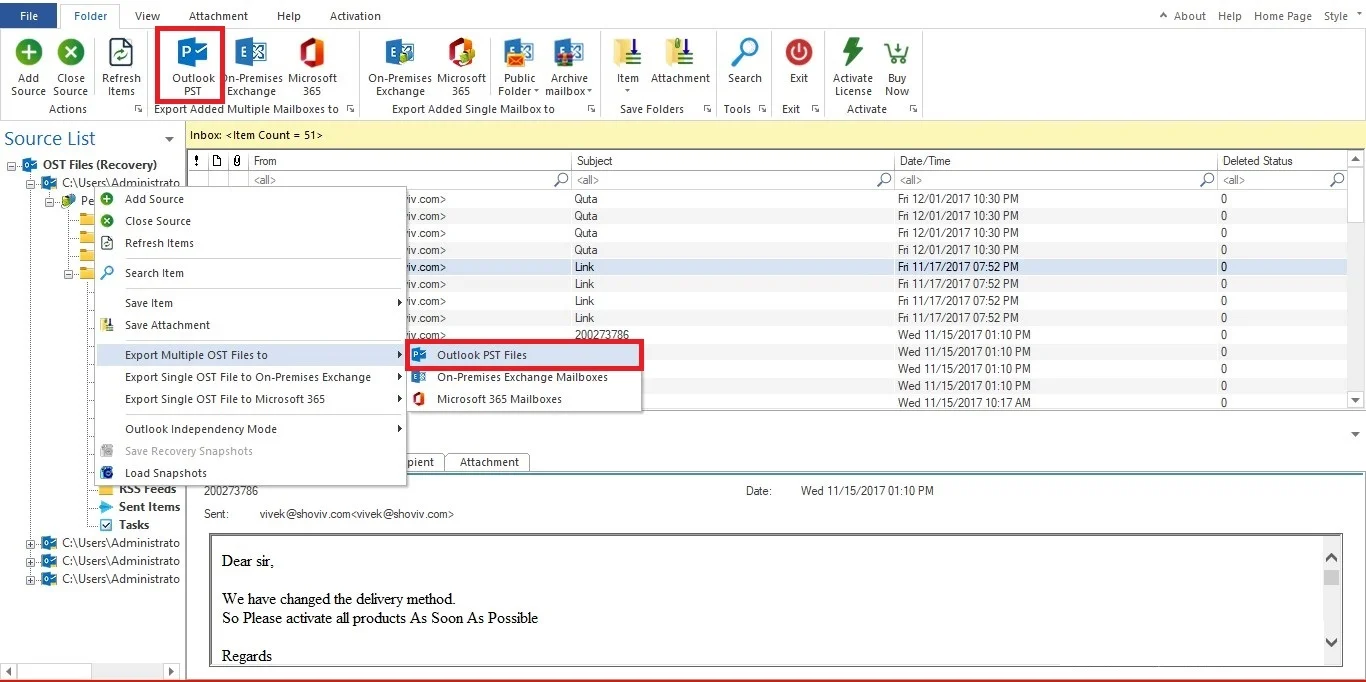
Step 1: After that, check the Select Sub Folders option to include all subfolders in the OST to PST conversion task. You can also select manually to add particular subfolders from the list.
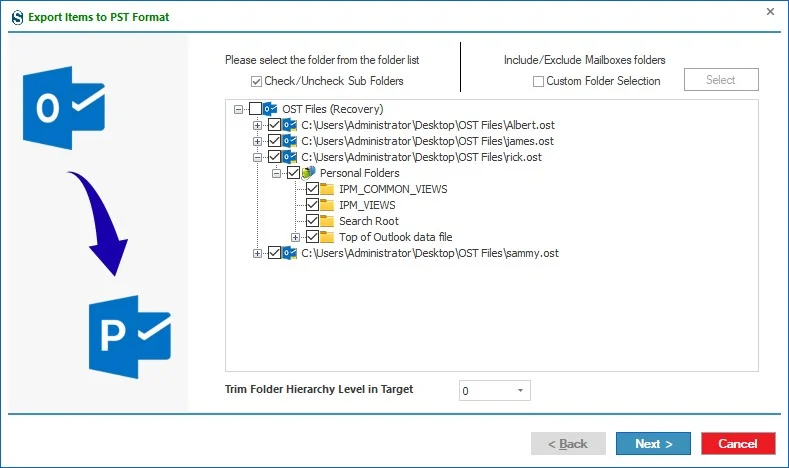
Custom Folder Selection: Enables you to choose specific folders for processing, ensuring only required data is included in the job.
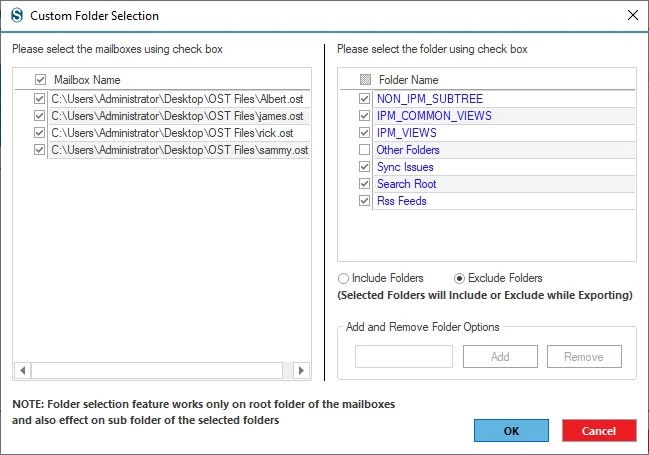
Step 2: After click on next button, There are two ways to Export items in PST.
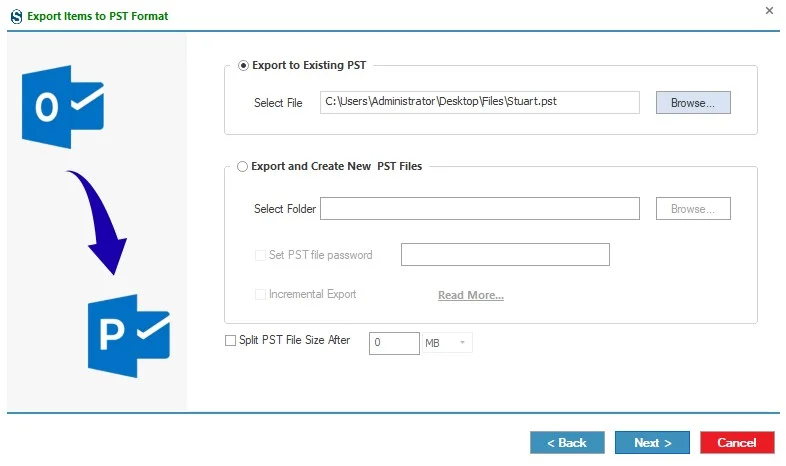
- Export on Existing PST: If you want to export an item in PST by existing PST then check the 'Export on Existing PST' option and select the existing PST from the disk using the 'Browse' button.
OR
- Export and Create New PST File If you want to export item in PST by creating new PST file then check Export and Create New PST File option.
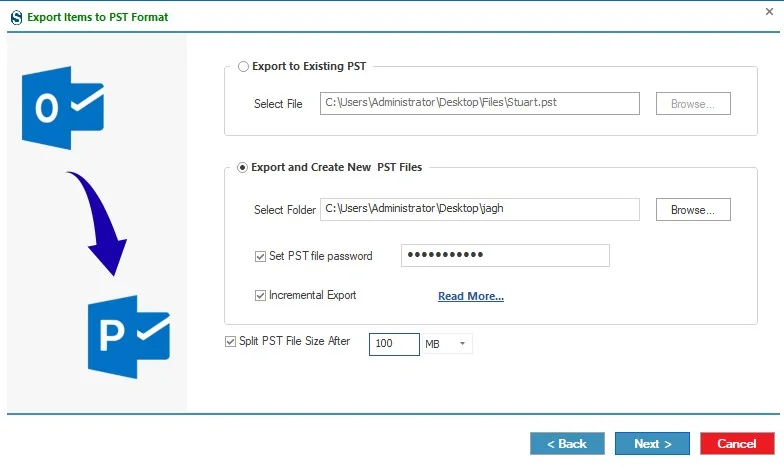
- Select Folder: Select the target folder anywhere in the disk whither you want to save OST files in Outlook PST file format.
- Set PST file Password: If you want to create a password-protected PST then select the Password check box. and enter a password for the PST.
- Incremental Export: Incremental Backup Option is an advanced feature to solve out the issue of item duplicity and prevents software to create new .pst file for the same target if same PST file has been found of the source when processing again.
https://www.shoviv.com/technical-guide/incremental-export-backup.html
- Split PST file size After: Using this feature you can create more than one PST file according to size (100 MB to 51200 MB or 1 GB to 50 GB). then select this option and enter the PST file size in GB or MB accordingly.
After that click on Next button.
Step 3: Thereafter, you can use the Message Class and Message Date filters to include/exclude the mailbox items.
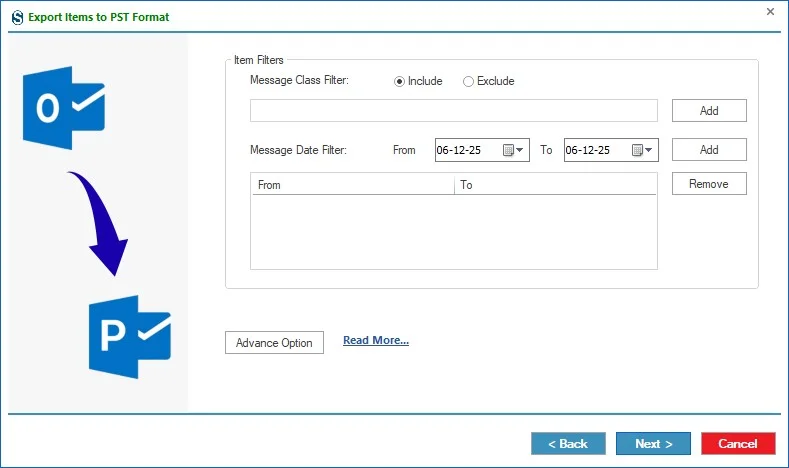
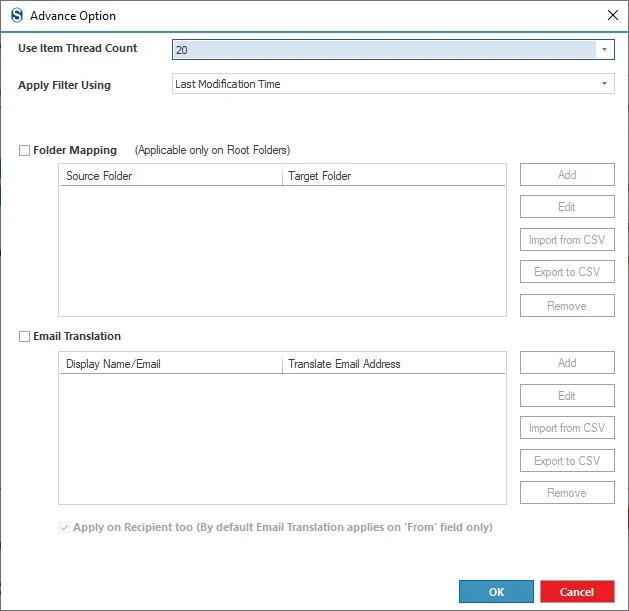
Select the Advanced Option to make other changes, like managing item thread count, folder mapping and email translation. After setting up these options, click the Next button.
https://www.shoviv.com/technical-guide/migation-advance-option.html
Step 4: Now the process will start and status will be shown. The Status wizard will show Source Folder, Target Folder, Item Count, Filtered Items, Copied Items, and Process Item in this report.
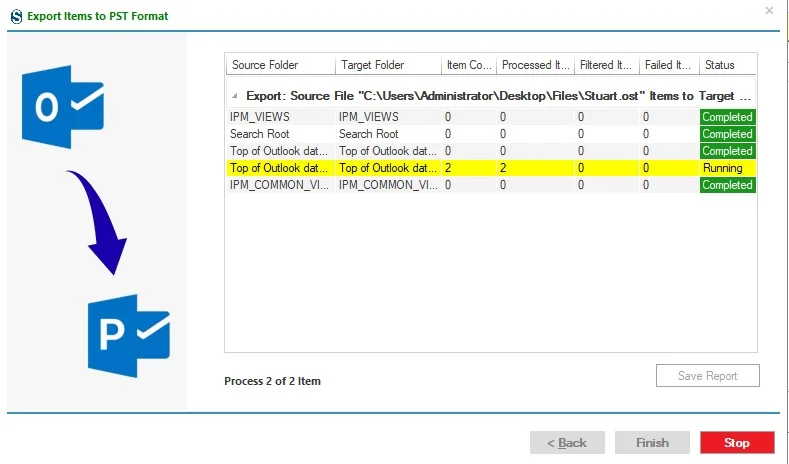
You can stop the process using the 'Stop' button, else wait for the process completion.
Once the process gets completed successfully. Click on the 'OK' button. And you can also save the report using the 'Save Report' button and at last click on the 'Finish' button to finish the process.




