You can either add OST files directly or load a previously saved OST snapshot for quick processing.
1: Add OST Files
- Click on the Add Button and choose the OST files from the system that you want to add for further use.
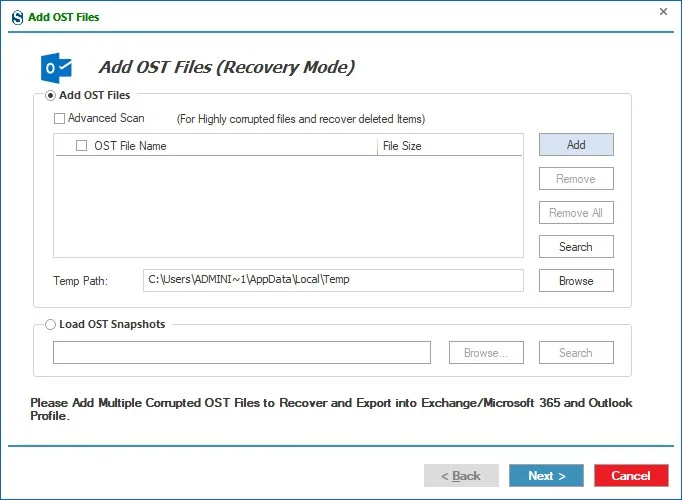
You can also use the Search or Browse option to find the desired OST files for conversion and tap OK.
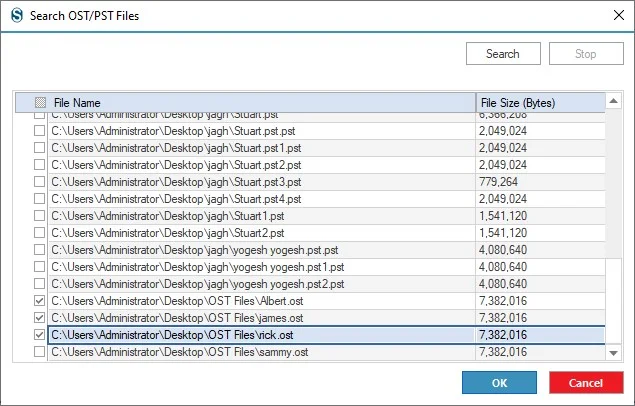
After selecting the OST Files click on Ok Button.
- You can also remove the OST files by just selecting the OST file and click on the Remove button.
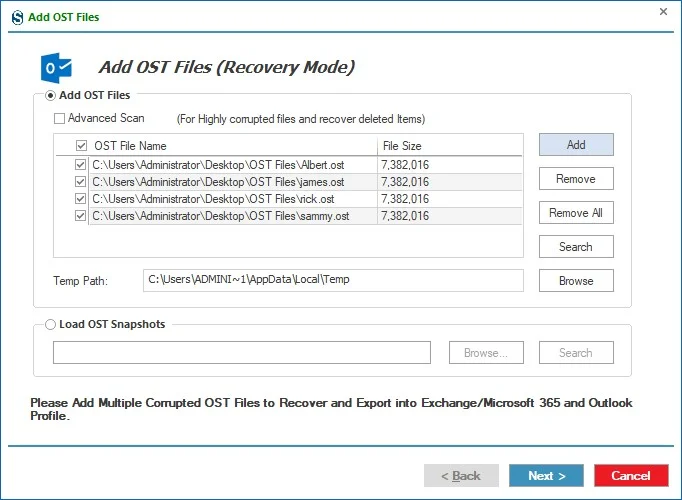
Now, click on Next button and the desired OST Files will be added.
2: Load OST Snapshots:
- Check on the Load OST Snapshots option if you want to load a previously saved OST file so you can quickly resume the process without repeating the configuration steps.
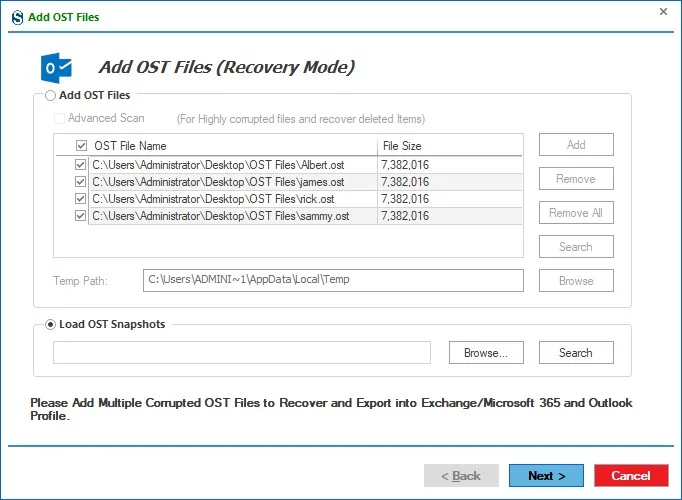
You can use the Browse or Search option to locate and add an existing snapshot file easily.
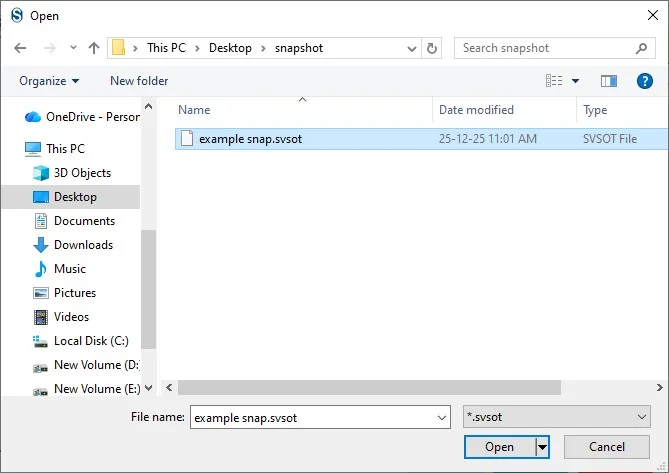
Select the OST Snapshot that you want to open and click on the Open Button.
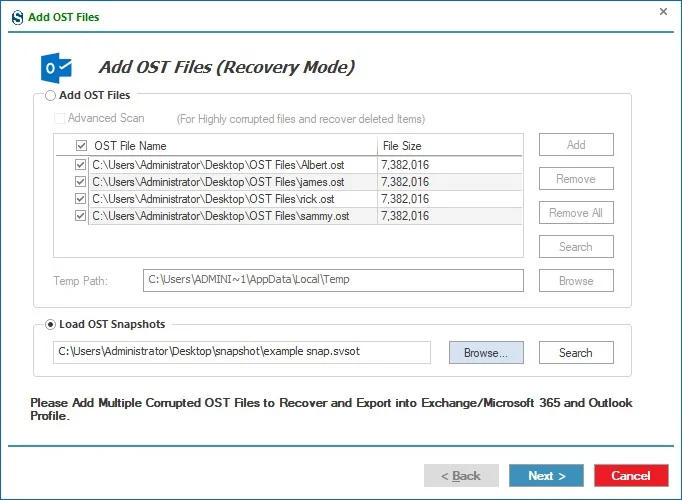
Click on the Next button, and the desired OST Snapshots will be added.
You can now click on any mailbox or item to preview its data. The application provides a live item preview with multiple viewing options to help you review the content in detail.
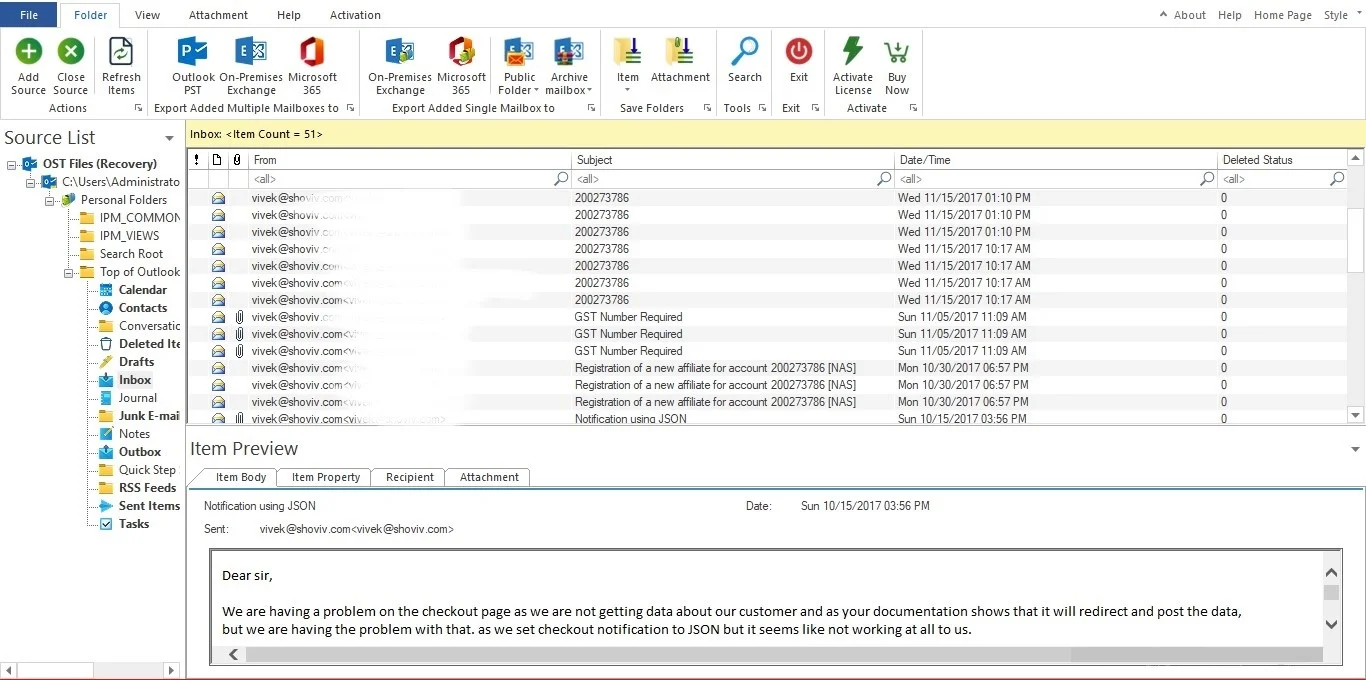
The preview pane includes the following tabs:
- Item Body: Displays the main content of the selected item.
- Item Properties: Shows detailed metadata and properties of the item.
- Recipients: Lists all recipients associated with the selected item.
- Attachments: Displays all attachments linked to the item.




