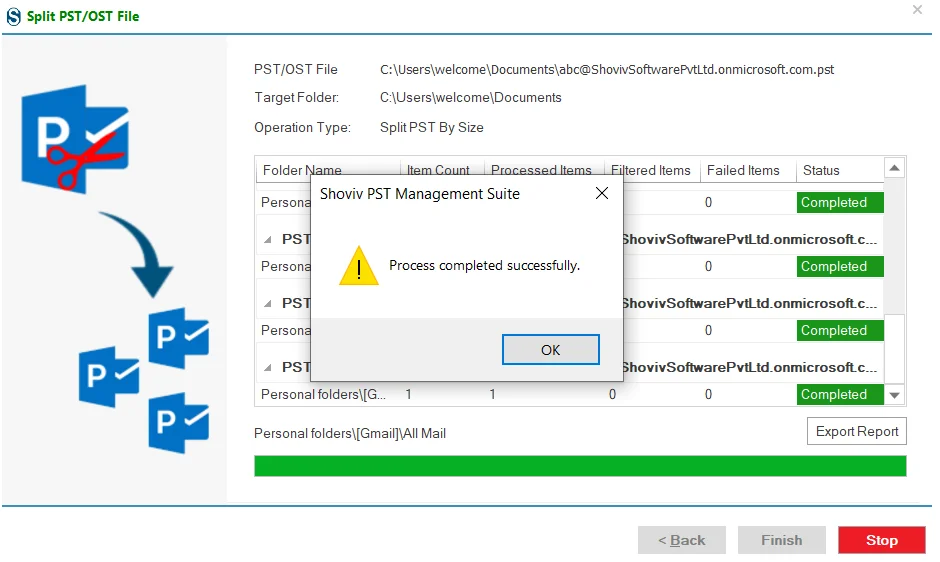
After launching Shoviv PST Management Suite, the main dashboard appears.
Step 1: From the available Options, click on PST/OST Split to start the PST/OST split operation.
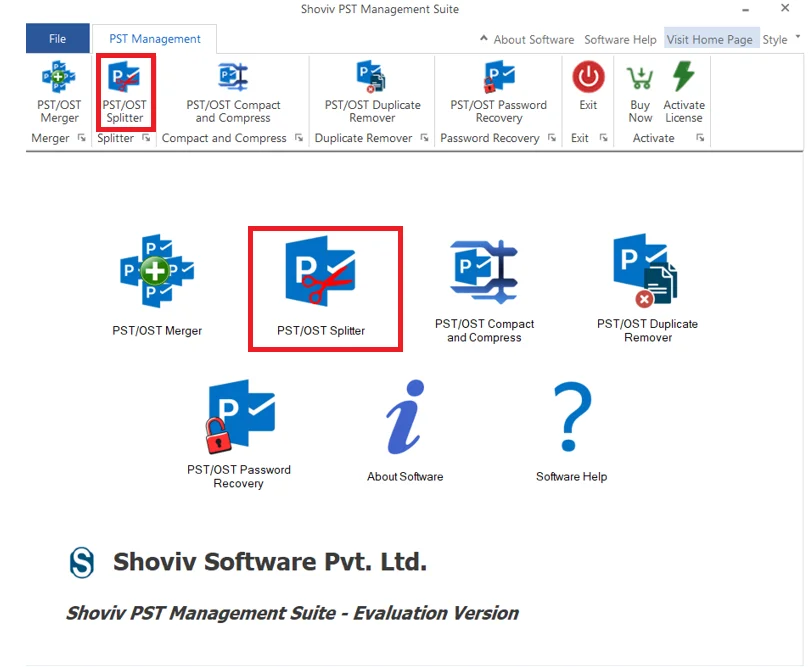
Step 2: Select PST/OST File to Split
After choosing the PST/OST Splitter option from the dashboard, this window appears.
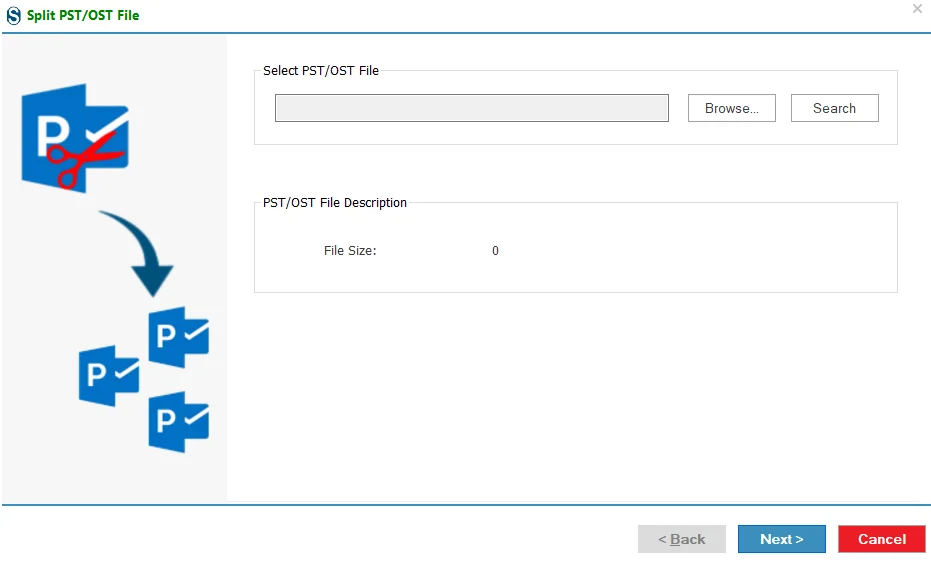
Click Browse to manually select the PST or OST file and click open.
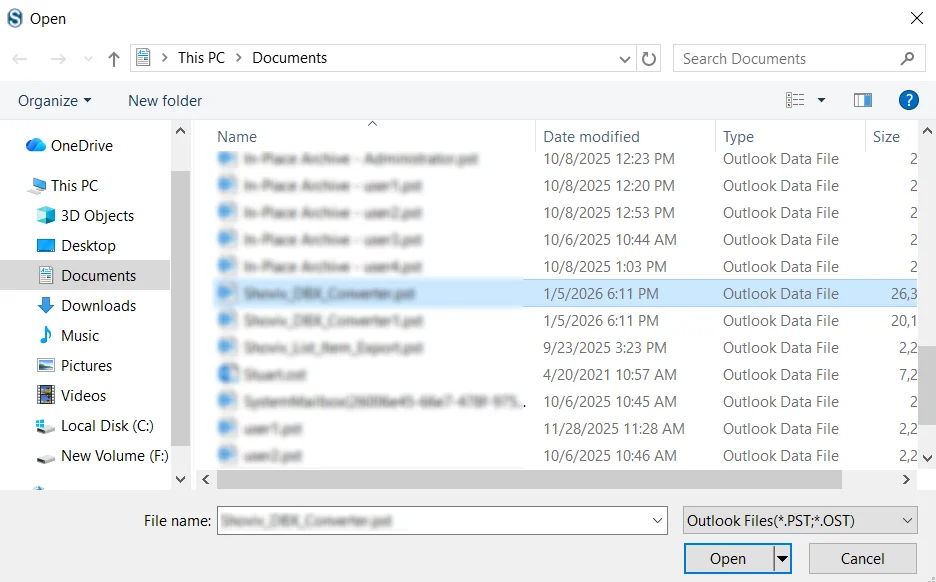
OR
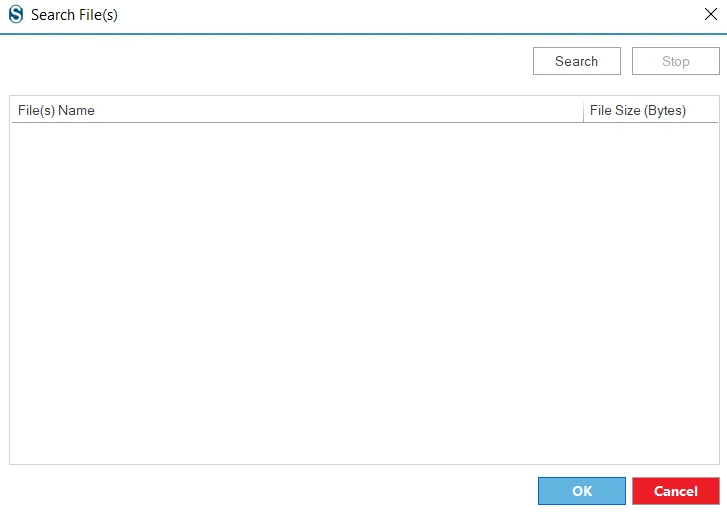
- Click on search, a dialog box will appear again click on search.
- Now select the target folder, to find the required PST/OST file.
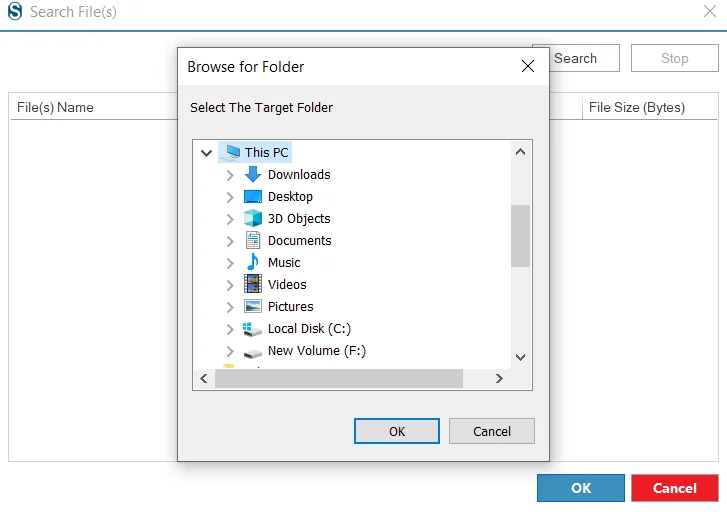
After selecting, click Ok.
New dialog box will appear, select the PST/OST files that are required.
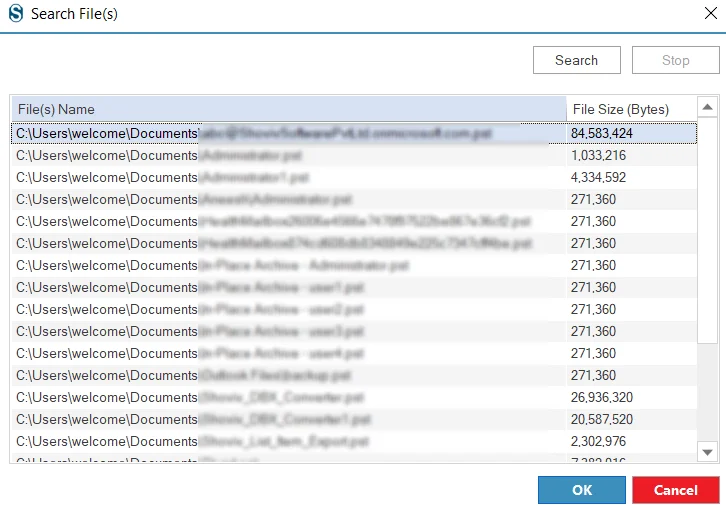
click Ok.
Once selected, the software displays the file size and details for confirmation.
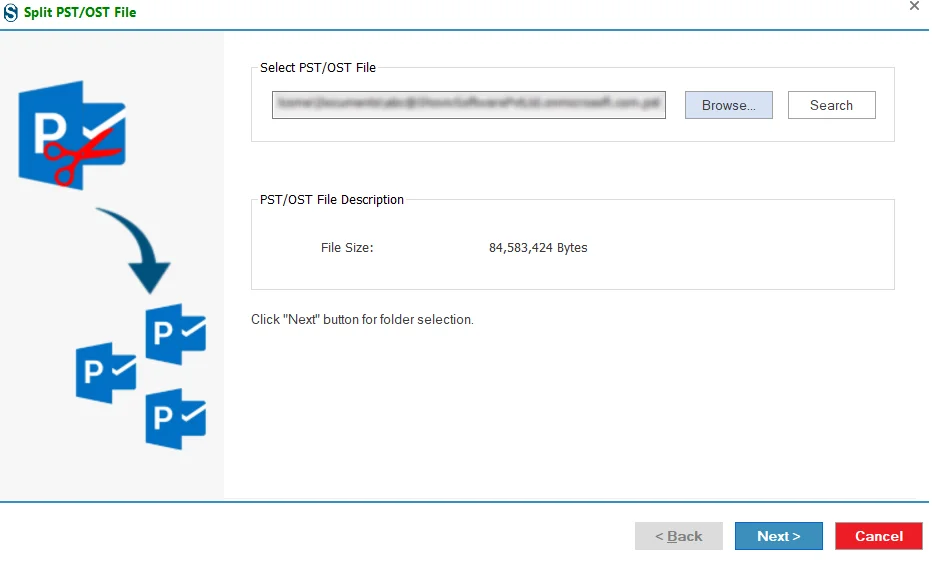
- Click Next to proceed with split options.
Step 3: Choose Split Destination and Criteria
This window allows you to control how and where the PST/OST file will be split.
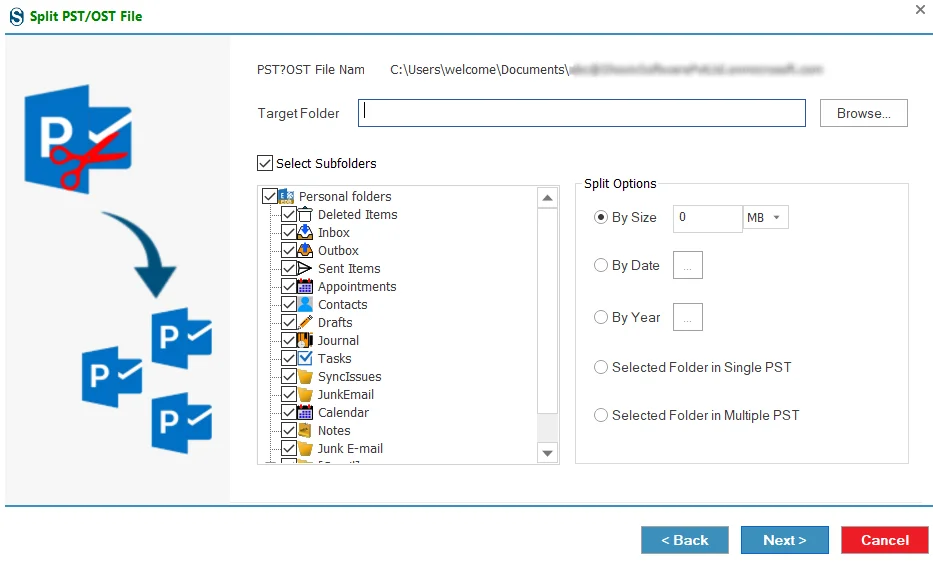
Target Folder
Select the destination folder where the split PST files will be saved by clicking Browse.
Select Subfolders
Choose specific mailbox folders (Inbox, Sent Items, Contacts, Calendar, etc.) that you want to include in the split process.
Split Options
Define the method for splitting the file:
- By Size: Split by size splits PST file according to size it allows you to split pst file into pieces of 10 MB - 51200 MB and 1 GB - 50 GB.
- By Date: Create PST files based on a selected date range.
- By Year: Split data year-wise for better organization.
- Selected Folder in Single PST: Save selected folders into one PST file.
- Selected Folder in Multiple PST: Create separate PST files for each selected folder.
After configuring the required options, click Next to proceed.
Step 4: PST Split process Status
- In the status section, you can see the status of the current PST split process. Through the status window, you can check the number of items count, running status, Target folder, and Operation type of a selected PST file in report format.
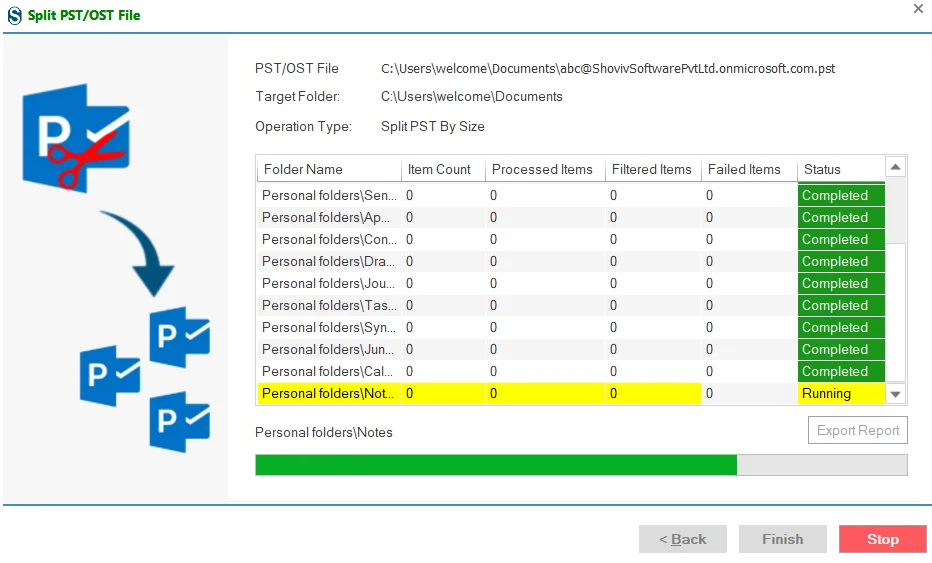
- After getting a message "Process completed successfully". then click the OK button.