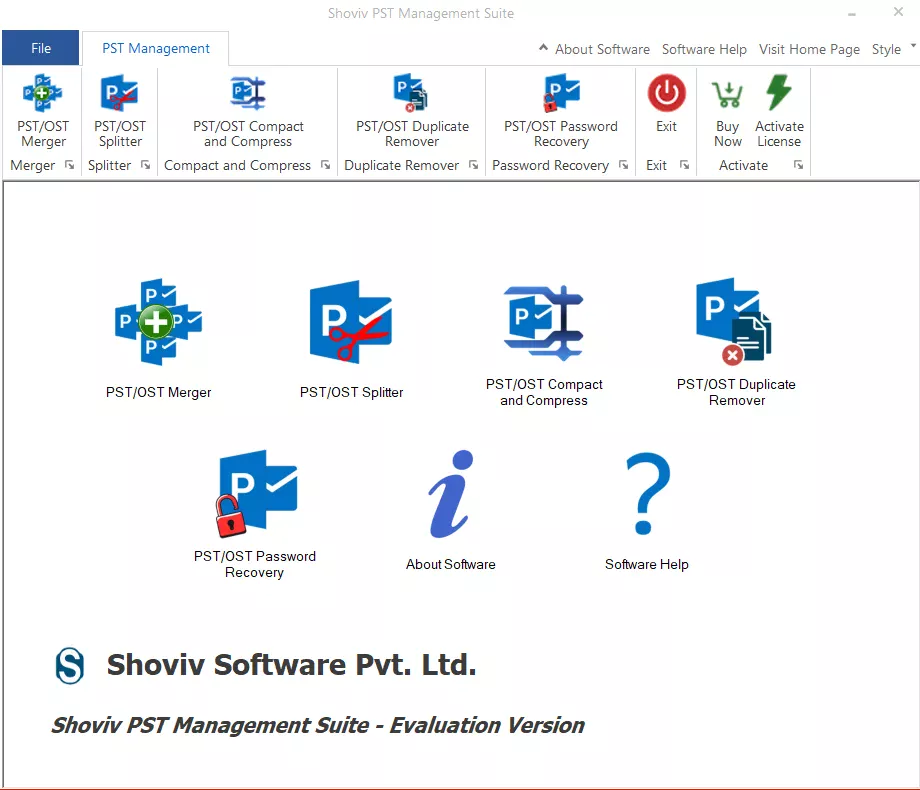
After launching Shoviv PST Management Suite, the main dashboard appears.
Step 1: From the available Options, click on PST /OST Password Recovery to start the PST/OST recovery operation.
Step 2: Recover or Reset PST/OST Password
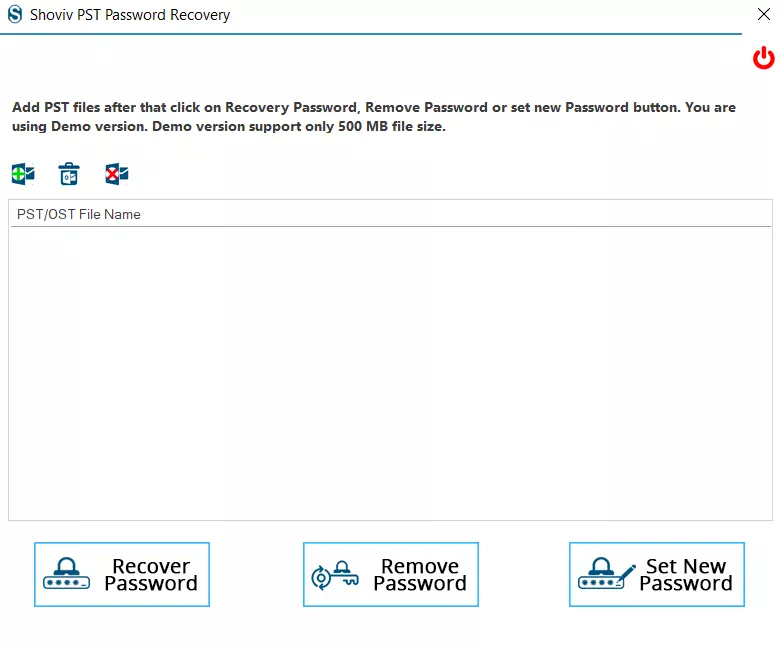
After selecting the PST/OST Password Recovery option, this window appears.
-
Add : Add PST files to Recover, Remove and set new passowrd.
-
Remove Selected: Remove selected PST files from the list.
-
Remove All: Remove all PST files from the list.
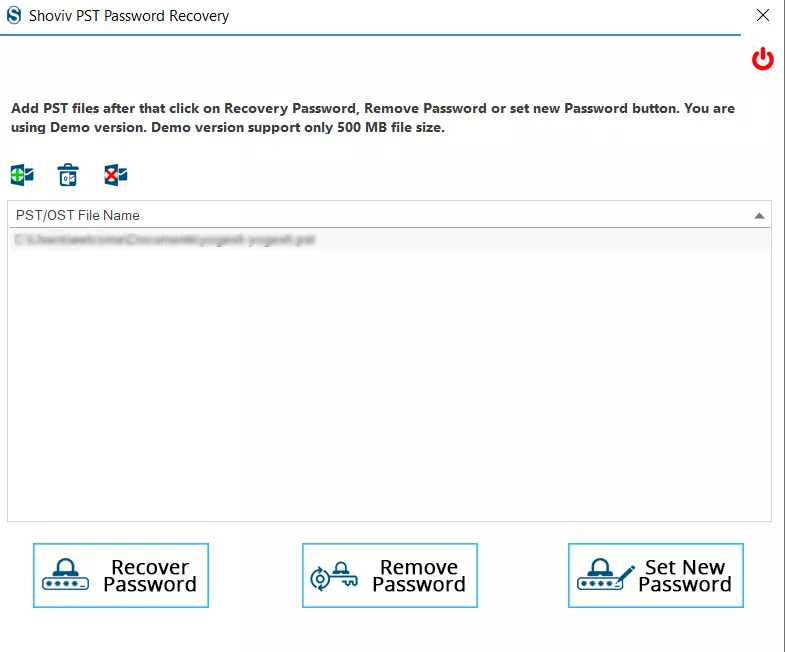
Add the required PST or OST file to the list , and click on Recover Password.
Choose the desired action:
- Recover Password : to retrieve the existing password
- Remove Password : to unlock the file without a password
- Set New Password : to apply a new password to the PST
The software will recover password of the PST files. The software will provide you three different passwords. apply these passowrd to access the PST files in Microsoft outlook.
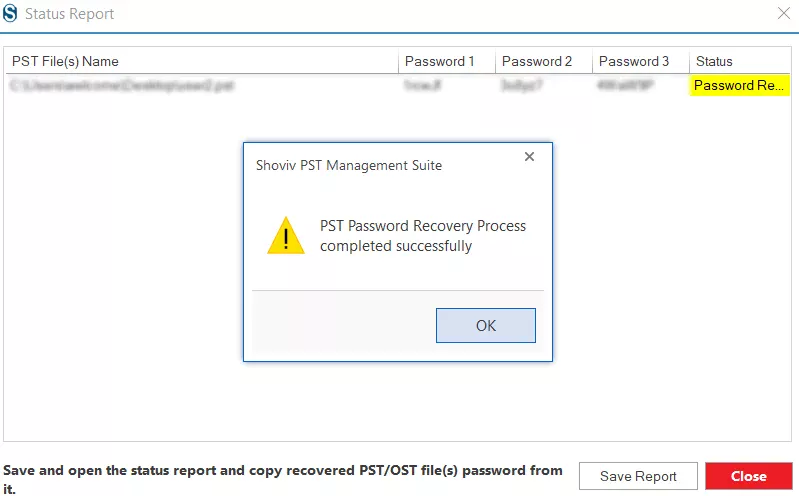
Save Report: Save the recovered PST files Password status report. Open the report and copy the recovered PST Files password from it.