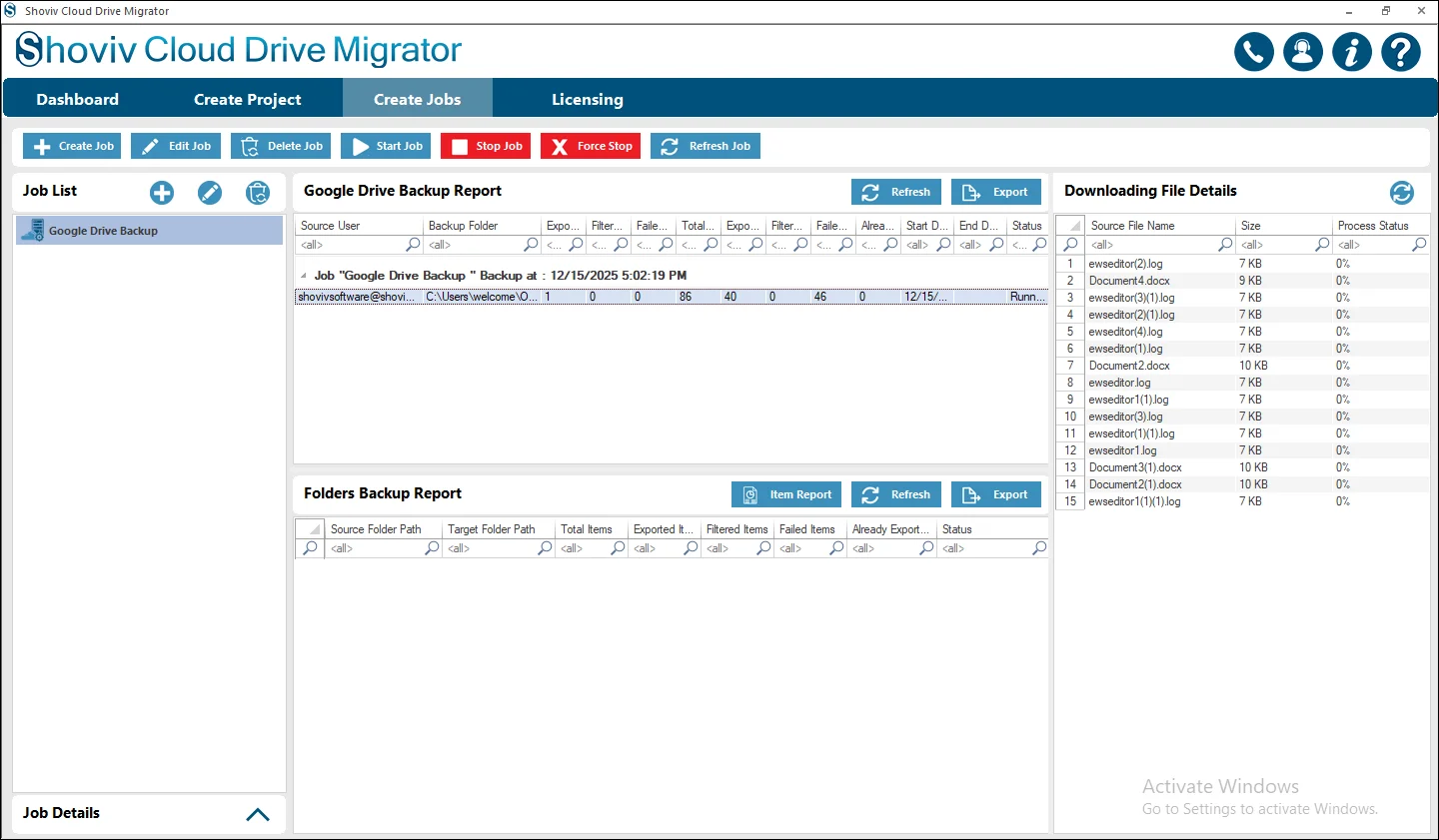
Step 1: Shoviv Cloud Drive Migrator opens with the main interface or dashboard.
- From the dashboard, you need to go to the Create Drive Backup Job.
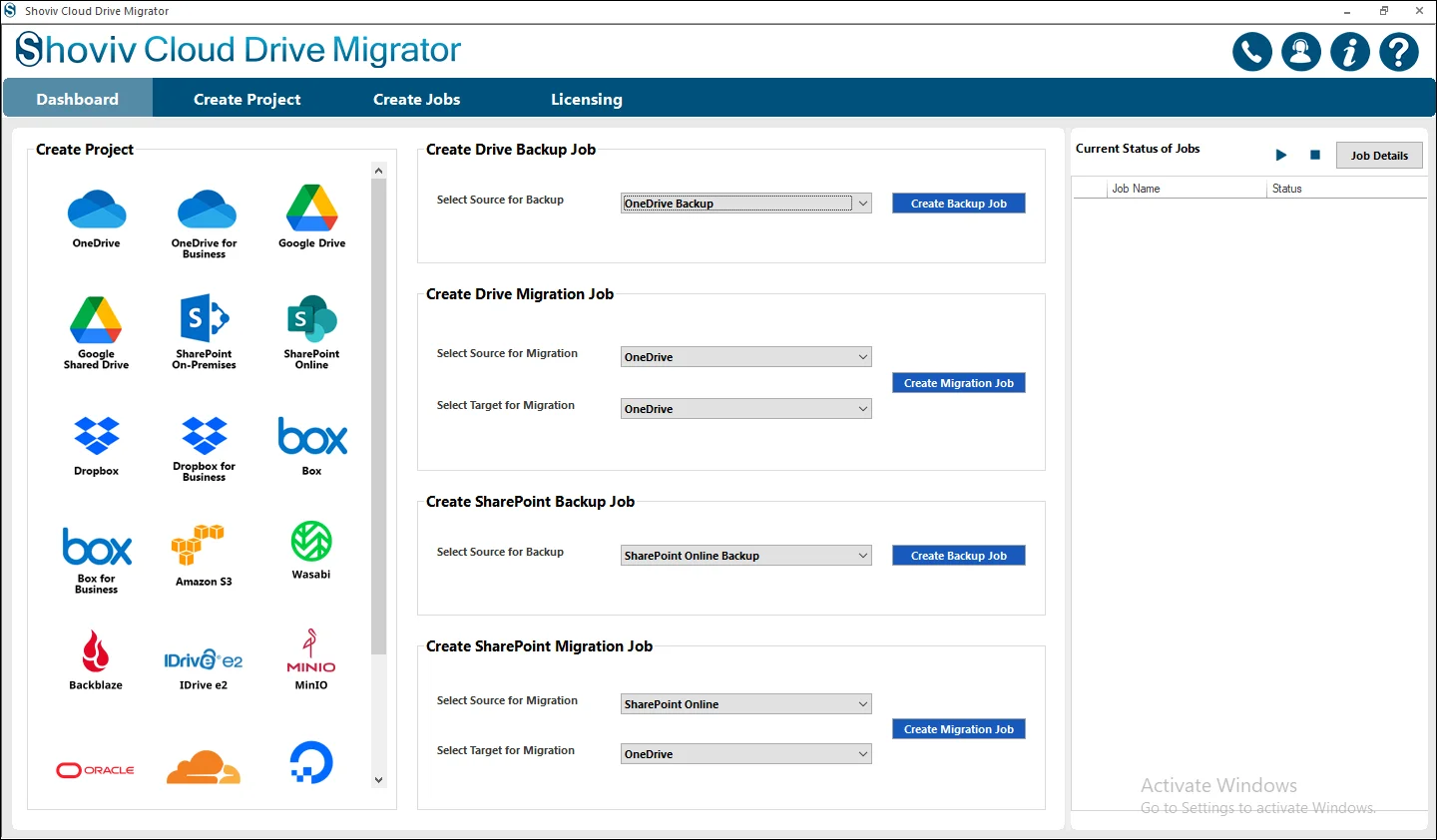
Step 2: In this section, pick Google Drive Backup as the Source destination with the help of the dropdown menu.
- Click on the Create Backup Job.
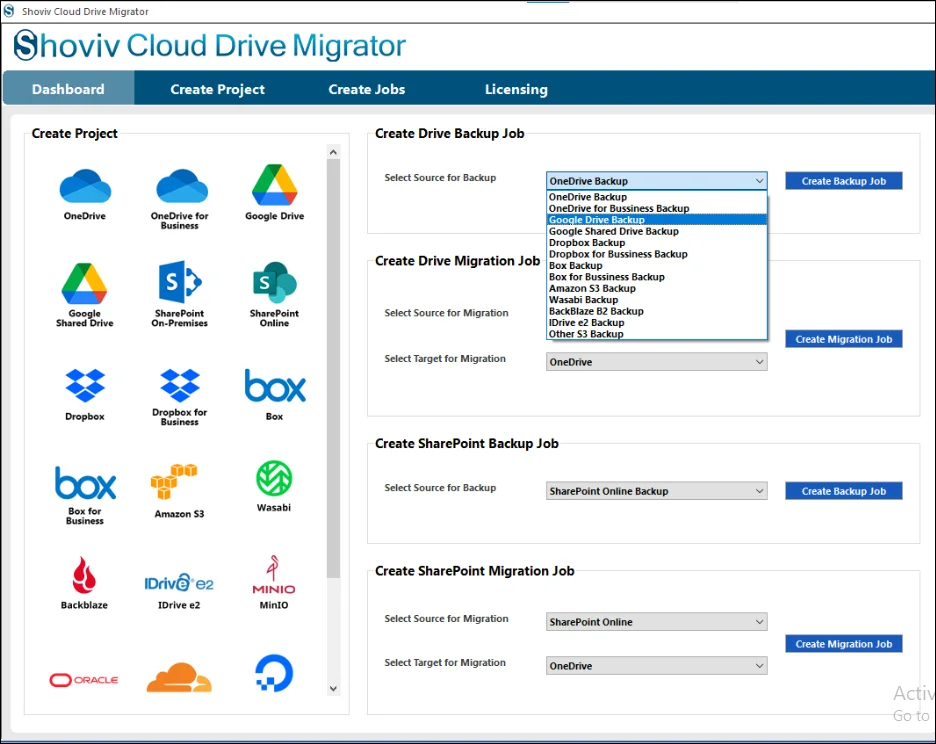
Step 3: Give the name of the job under the Job Name section.
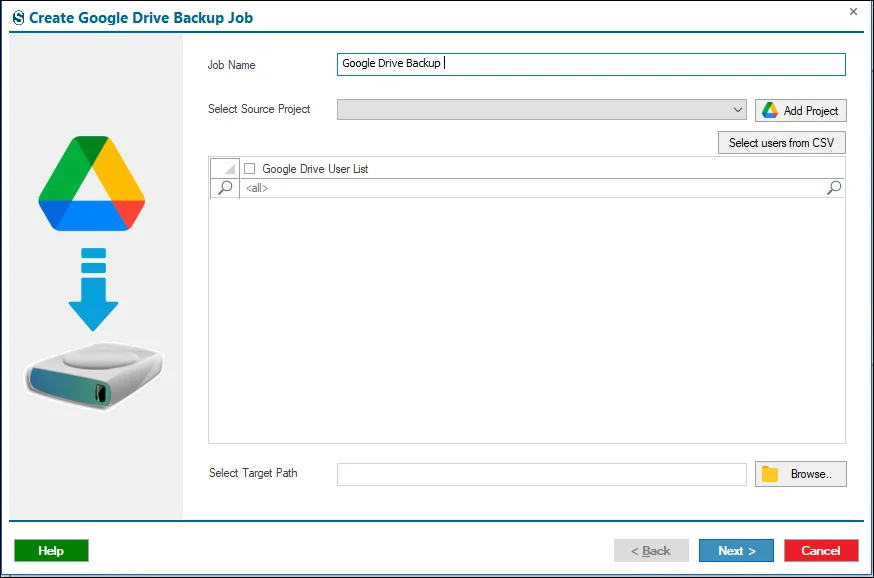
Step 4: Click on the Add Project to create a new source project.
- Please enter the name of the project under the Project Name section in such a way that it cannot overlap with the other created jobs in the previous manner.
- In this case, you will receive a notification about it.
- Now you need to choose between the Business and Personal Google Drive Account.
- In case you choose the Business Account, then you need to enter all the credentials under the Service Account Credentials section and then click on the Connect button.
- If you want to know more about these credentials, then you can refer to Shoviv’s Technical Guide:
https://www.shoviv.com/technical-guide/add-service-account-id-and-p12-file-path-for-google-drive.html
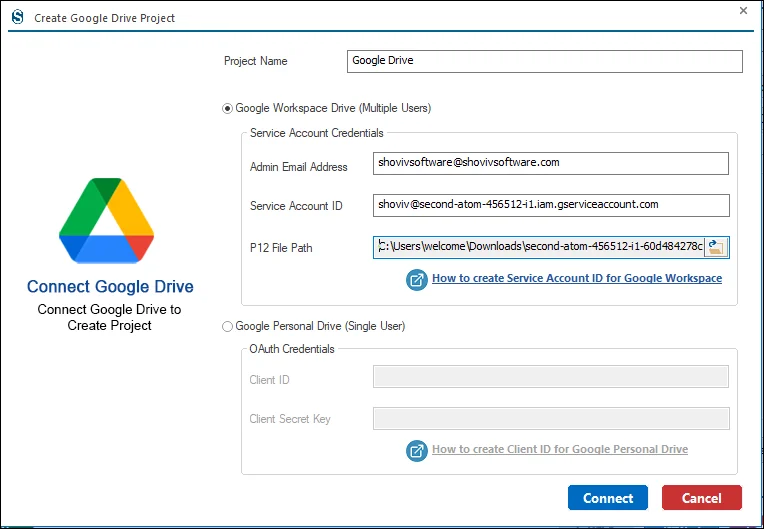
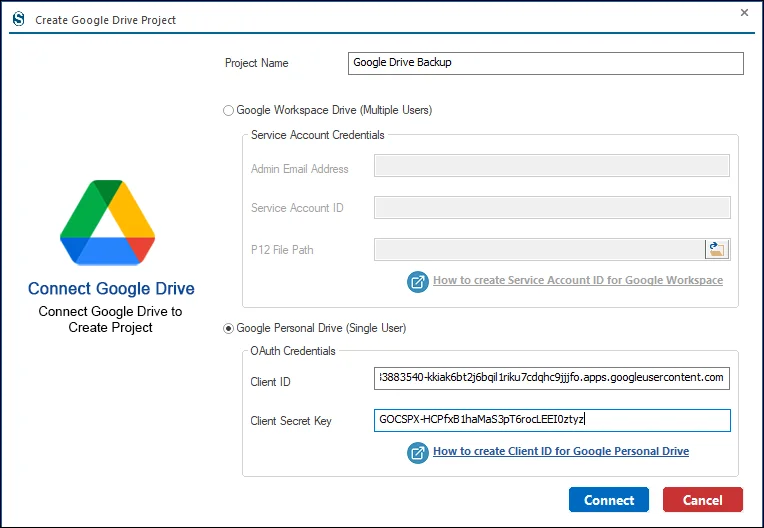
Step 5: On the other hand, if you want to back up your personal data, then go with the Google Personal Drive account and then click on the Connect button to complete the process of the Source Project connection.
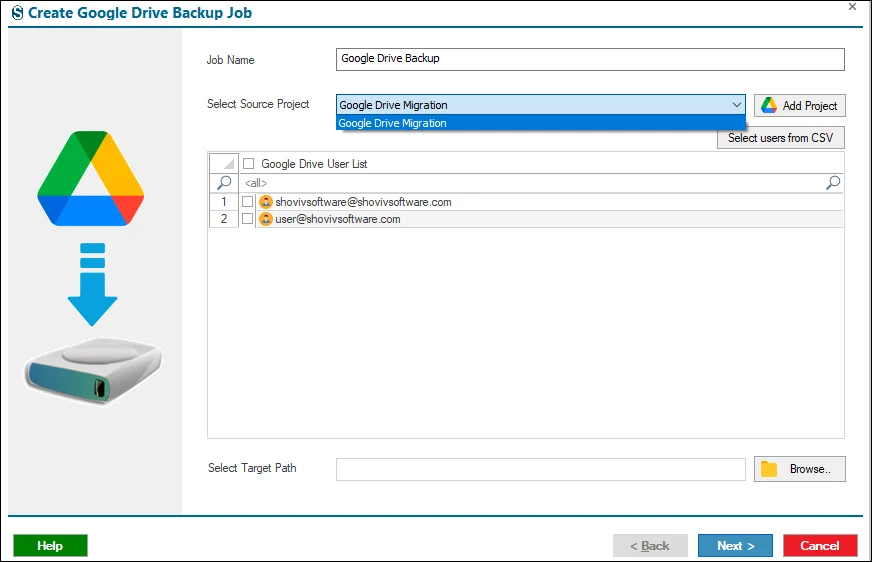
Step 6: Select Source Project if present in your system from the dropdown menu.
- The Source Users from CSV helps streamline drive selection in large batches.
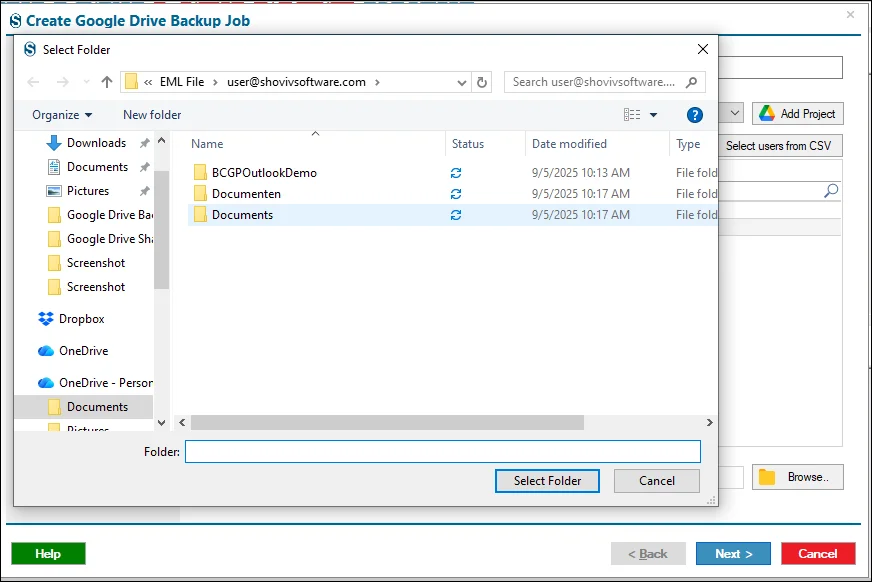
Step 7: At this point, you need to select the location for the backup download with the help of the Browse button under the Target Path.
- After selecting the folder, click on the Next button.
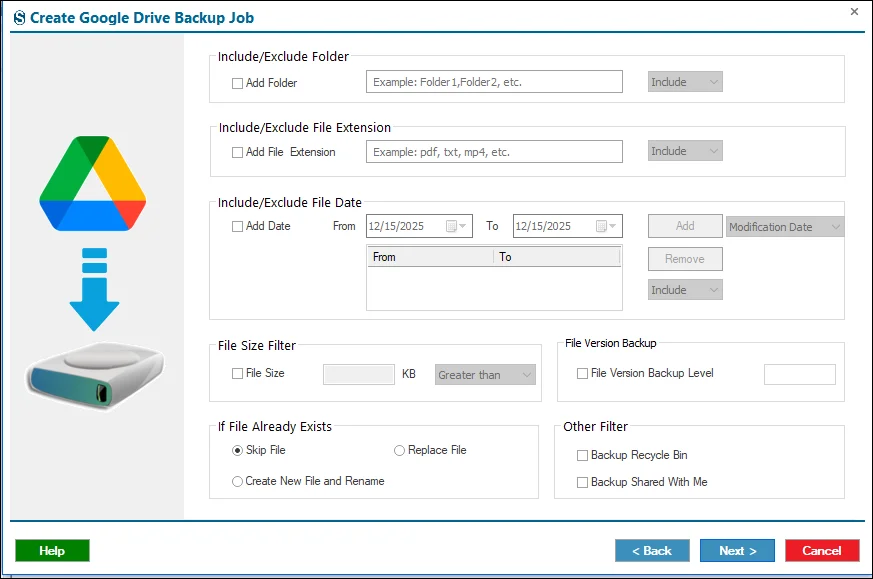
Step 8: The filter screen allows you to precisely control which data is included in the migration. You may refine the migration using the options below, or bypass this step by selecting Next.
- Date Filter: Transfer only files that were created or modified within a defined date range.
- Folder Filter: Specify which folders should be included in or excluded from the migration.
- File Size Filter: Set minimum or maximum file size limits to prevent migrating oversized files.
- File Extension Filter: Define which file types are permitted or restricted during the migration.
Duplicate File Handling:
- Skip File: Do not migrate files that already exist.
- Replace File: Overwrite existing files at the destination.
- Create New & Rename: Keep both files by renaming the new one.
If you do not need it then you can ignore it with the help of the Next button.
Step 9: Under the Settings page you can apply the advanced settings.
- User Thread Count: Determines how many users are migrated at once. Higher values speed up the process but require more system resources.
- Item Thread Count: Sets how many files or folders are handled simultaneously for each user. Increasing this improves speed, while decreasing it reduces system load.
- User Login Attempts: Specifies how many times the system retries a login if it fails.
- User Drive Item Retrieve Attempts: Defines how many retries are made when a file migration fails.
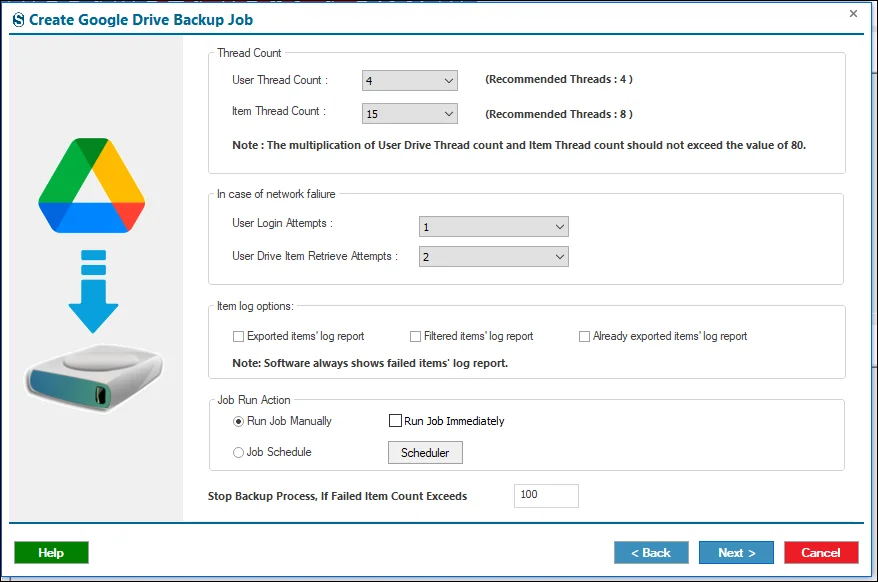
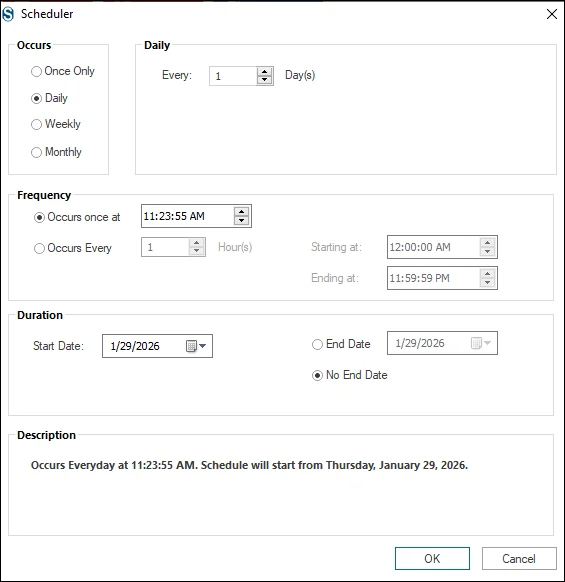
Step 10: Here you can set the Scheduler option. You can set the options for how a job is migrated.
- Run Manually: Start the migration at any time directly from the dashboard.
- Start Immediately: The migration launches automatically as soon as it’s created.
- Run on a Schedule: Choose a specific date and time for the migration to begin.
Repeat Options
- Daily: Runs the migration every day at a chosen time.
- Weekly: Executes once per week or on selected weekdays.
- Monthly: Runs on designated dates each month.
By using the Scheduler, you reduce the need for manual effort and ensure migrations run on time. You can also bypass scheduling and continue by selecting Next.
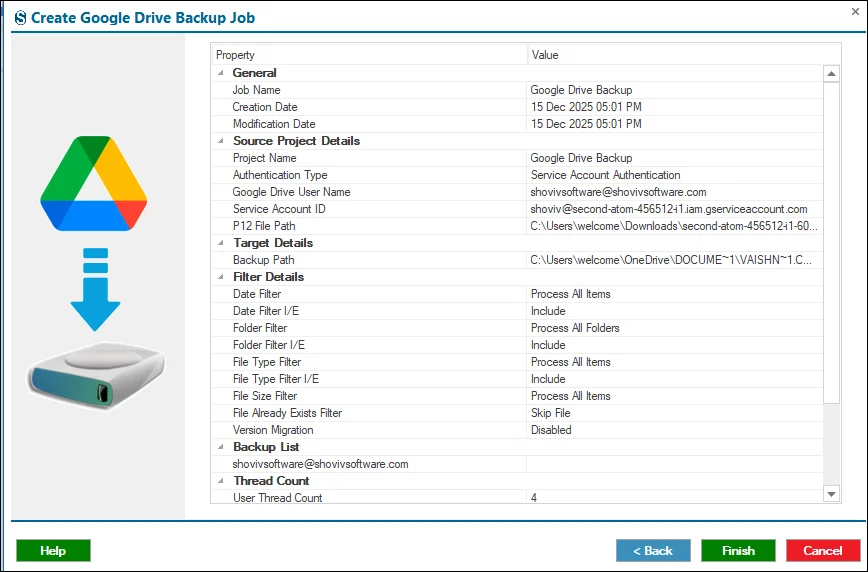
Step 11: Review the Job details, and if you want changes, then you can do it with the help of the Back button, and if not, then you need to complete the process of the job creation by clicking on the Finish button.
Step 12: Job runs per selected options. For Manual, click Start Job on the ribbon bar.