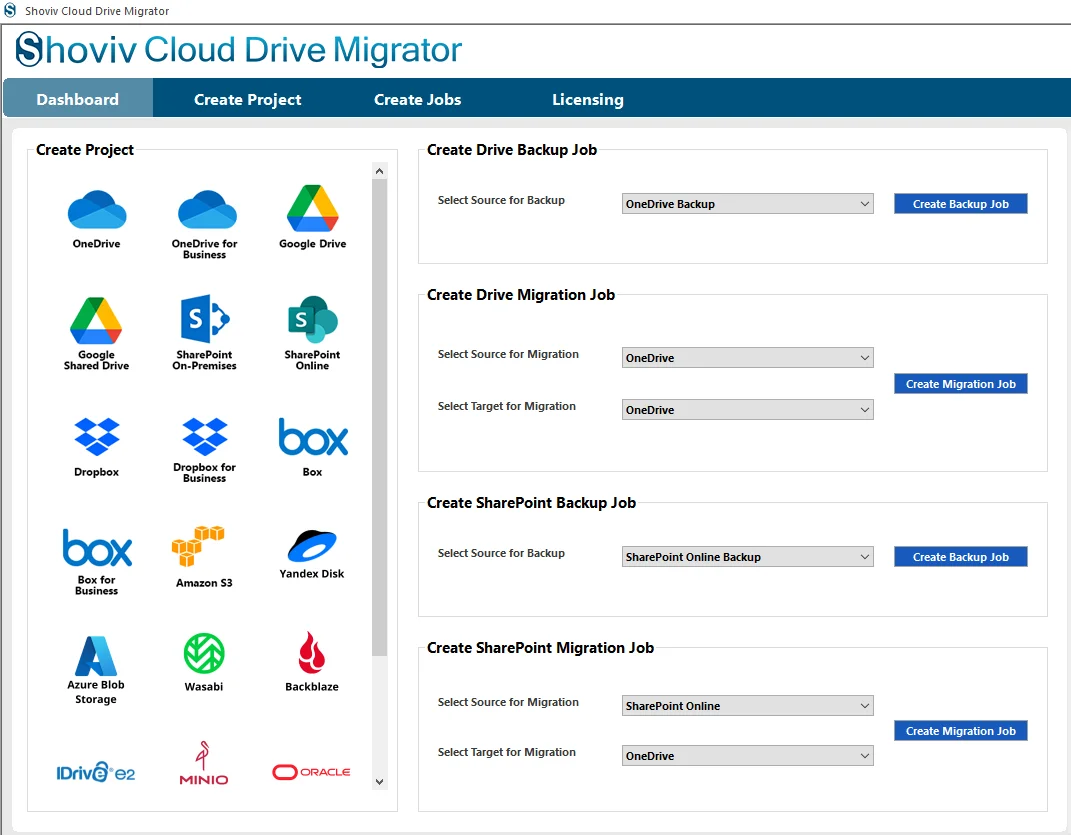
1. After downloading and installing the Shoviv Cloud Drive Migrator on your system, you can launch the software. The application greets you on the main interface or dashboard.
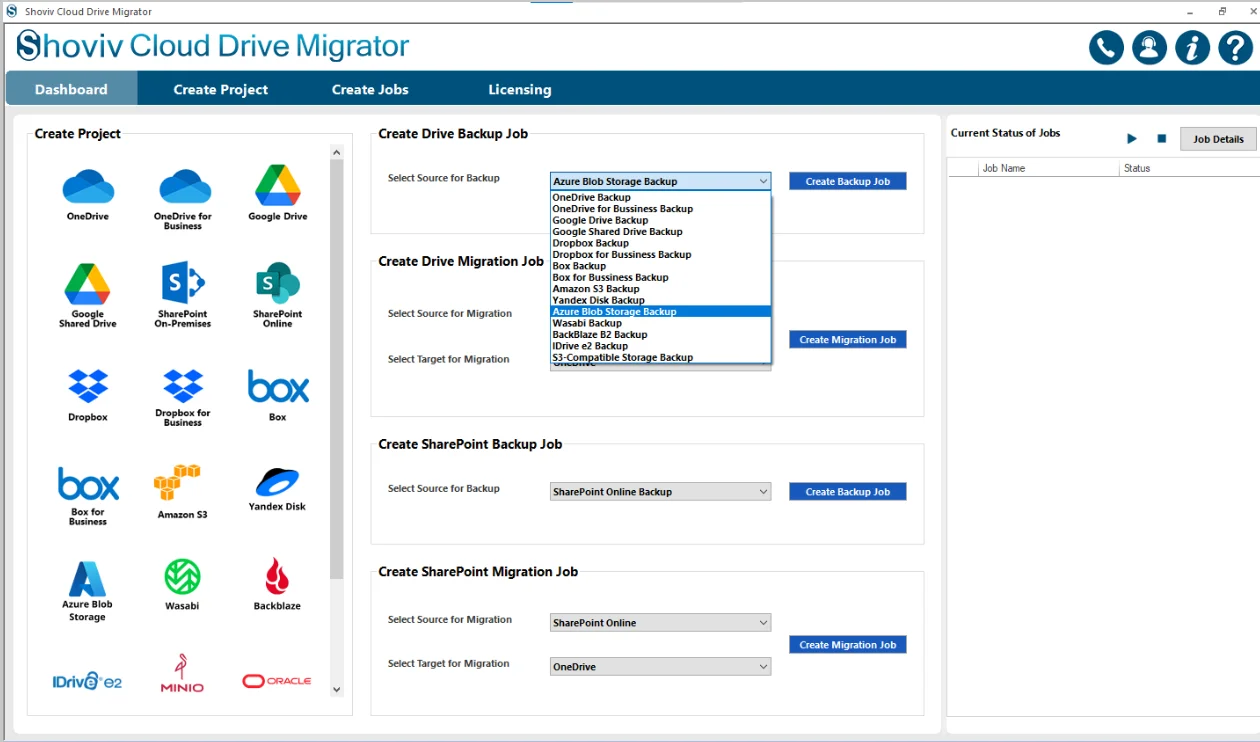
2. From the dashboard, navigate to the Create Backup Job. In this section, you have to select the source for Backup.
- For the Azure Blob Storage Backup Job, you need to pick the Azure Blob Storage as the Source by clicking on the dropdown menu.
- Click on the Create Backup Job.
3. Give the name of the job in the field of Job Name.
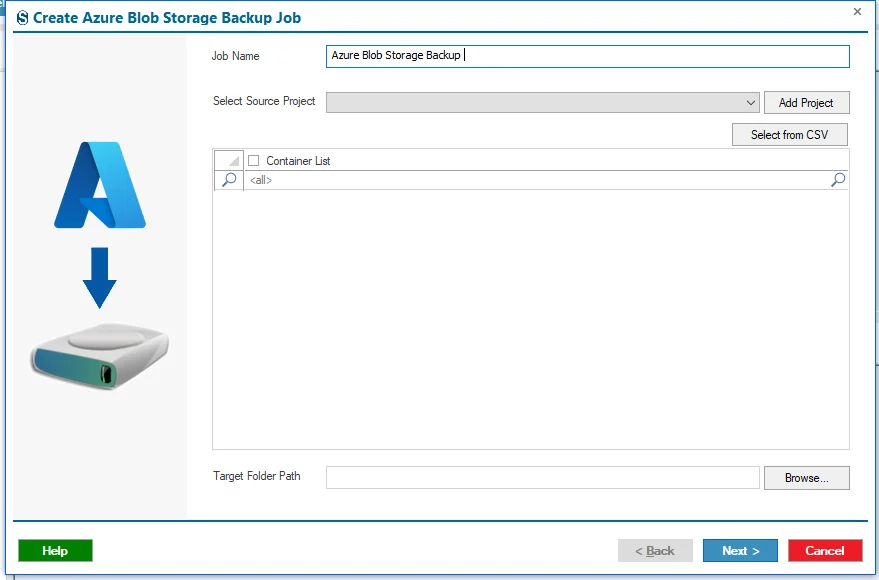
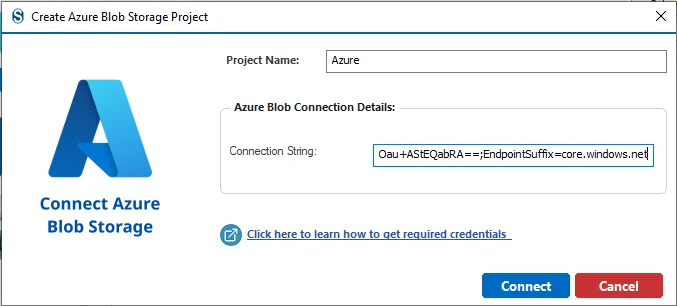
4. Next, you need to connect with the Source Project. Click on the Add Project.
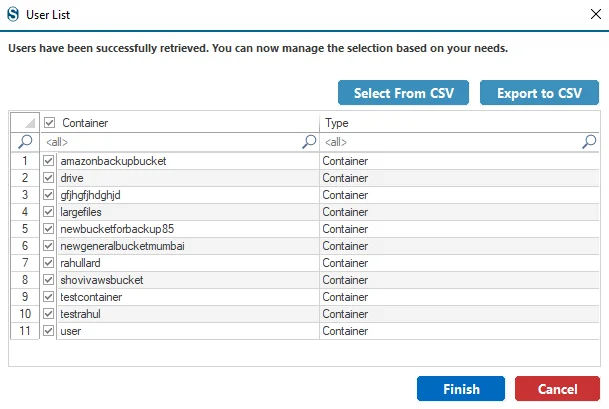
5. Next, you need to select the Source Containers from the list and then click on the Finish button and if you want to select the larger list of the containers then you can select a specific bucket with the help of the Select From CSV option.
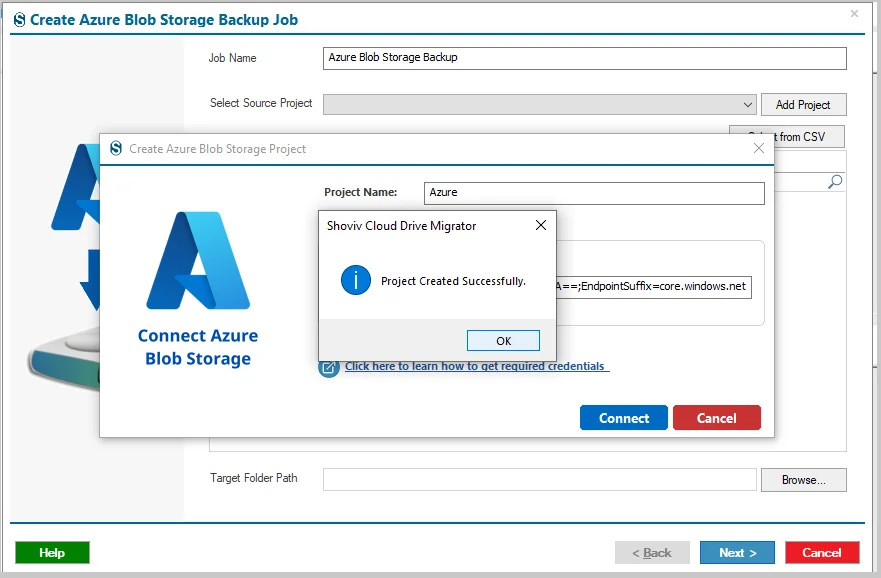
6. After clicking on the Finish button you will receive the notification that the Project Created Successfully. Click on the Ok button.
7. If you have the Source Project present in your system, then you can select it with the help of the dropdown menu.
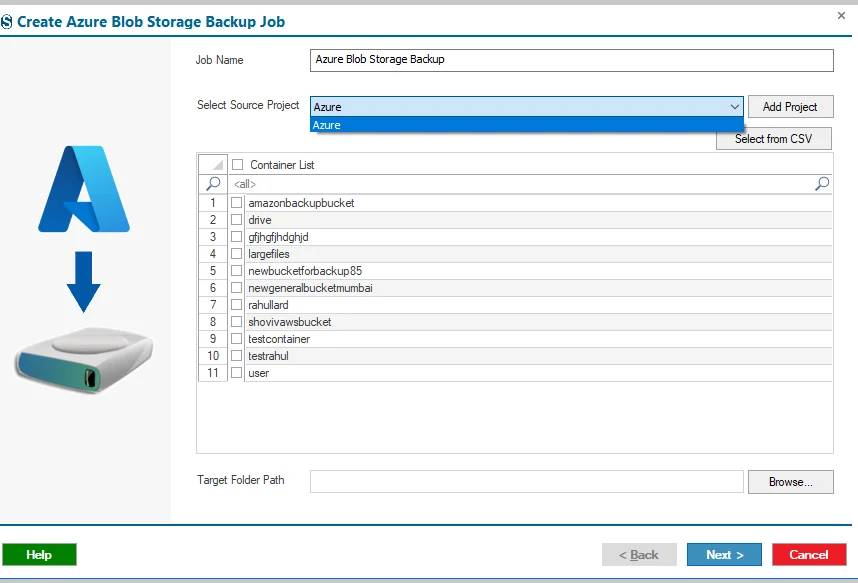
8. Next, you need to select the containers from the Container List, which displays on the screen.
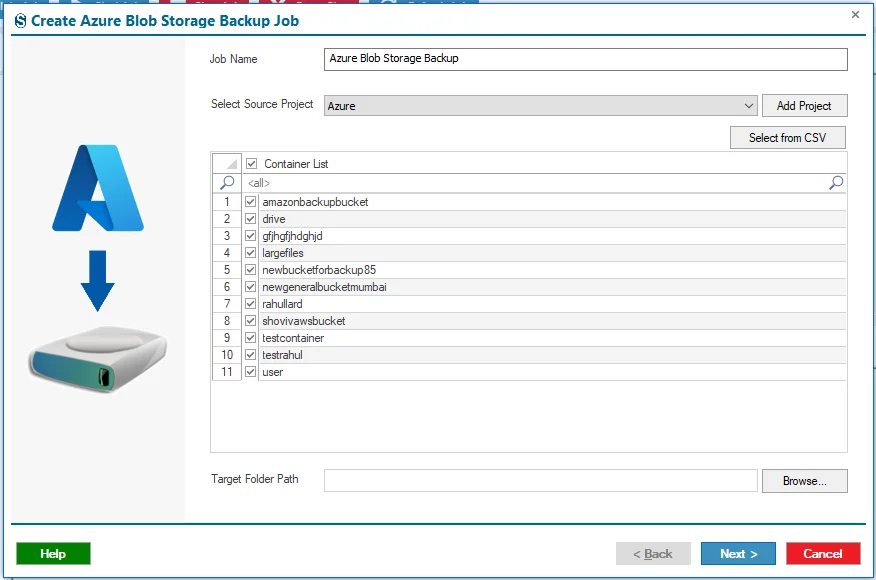
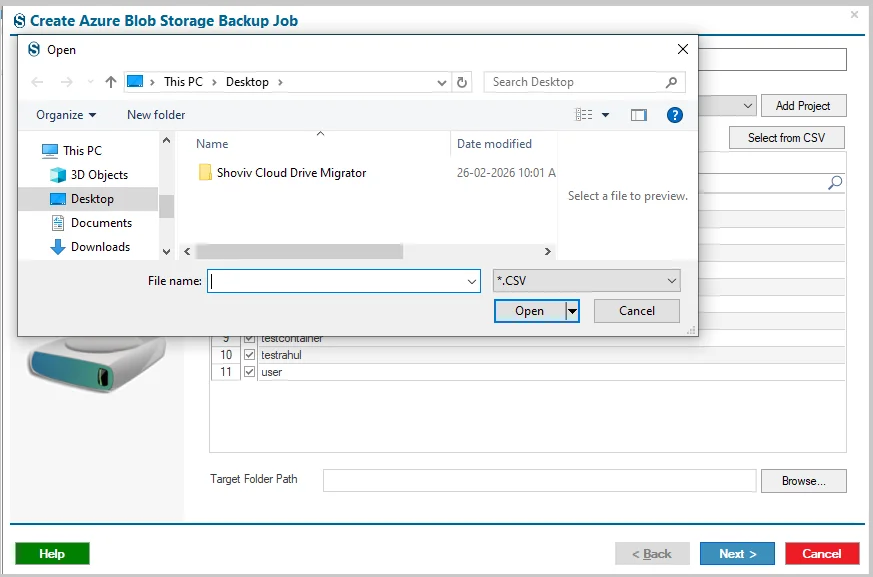
9. If you have the larger containers list for the selection, then you can select them by clicking on the Select from CSV button.
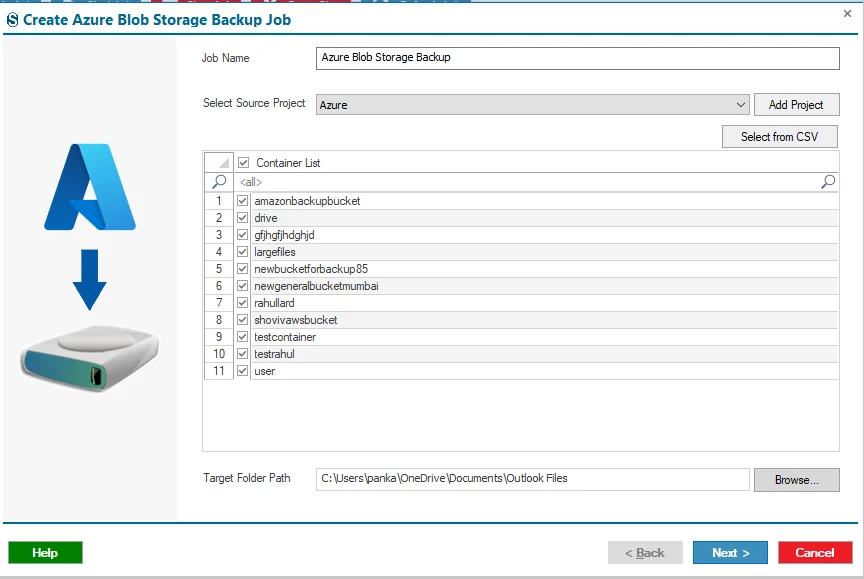
10. Now you need to select the location for the backup data of Azure Blob Storage by clicking on the Browse within the Target Folder Path.
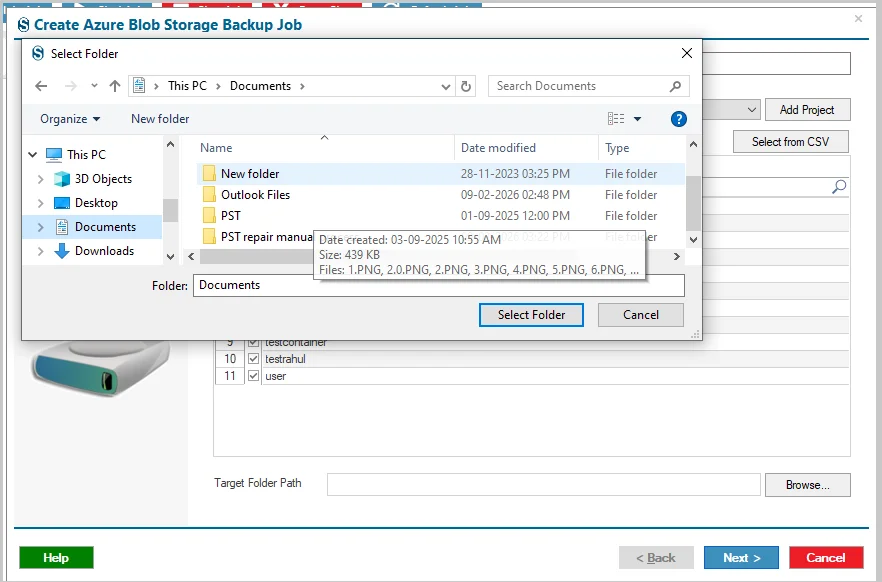
11. Click on the Browse button, select the folder, and then click on the Select Folder option.
- Click on the Next button.
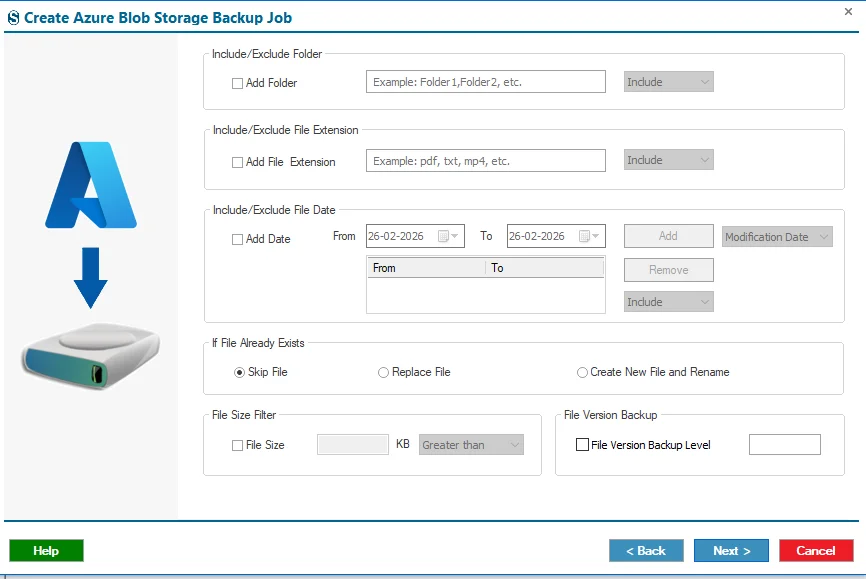
12. Next, you will navigate to the filters page with the help of the various filter options such as Add Folder, Add File Extension, Add Date, If File Already Exists, File Size Filter and File Version Backup Level. These options are explained below:-
- Folder Filter:- By clicking on this option, you will manage to skip the specific folder from the user’s container. If you want to back up the specific folders, then you can switch to the Include in the replacement of the Exclude option.
- File Extension Filter:- It will enable you to filter the files based on their extension. You can select the extension, such as PDF, TXT, MP4, etc., by clicking on the Include/Exclude option.
- Date Filter:- As the name suggests, this filter is for adjusting the specific files according to the date range within the Modification date or Creation date. After selecting the date ranges and files, click on the Add button.
- If File Already Exists:- This option defines the manner of case when the file already exists in the Target. Within this option, you will find other three options for refining the backup process.
- Skip File:- This option allows you to prevent taking a backup of the duplicate files.
- Replace File:- Use this option for replacing the file that already exists with a new name.
- Create New File & Rename:- This option backs up the file by creating a new copy in the target folder with a new name each time (for example, Test (1), Test (2), etc.).
- File Version Backup Level:- By enabling this option, you will be able to take the backup of the version files. This option operates from the latest to the oldest version.
- Click on the Next button if you have finished setting up the filter options; otherwise, you will also be able to avoid these filter options by clicking on the Next button.
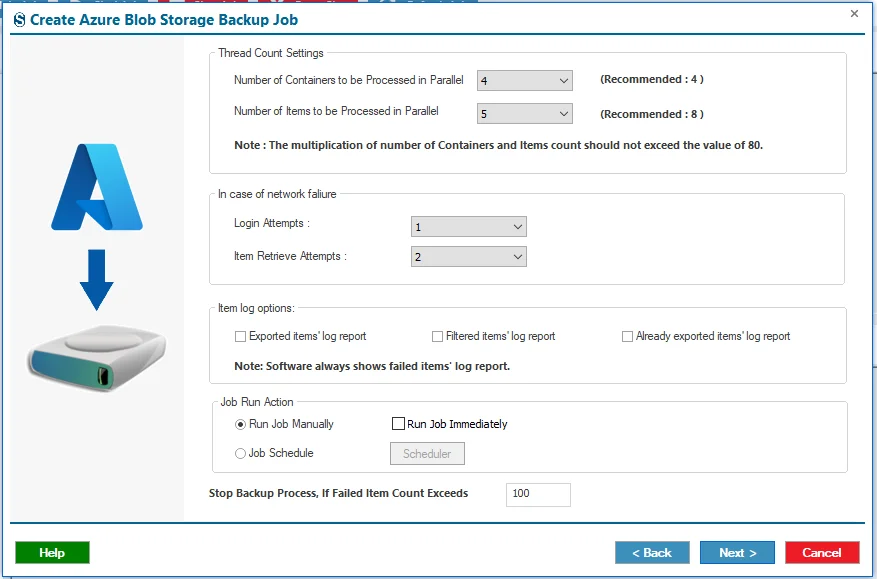
13. Next, you will find the Settings option to refine your backup process. Here you will find the various Settings options, such as Thread Count Settings, in case of network failure, Item log options, Job Run Action, and Bad Count. These options are explained in a detailed manner below:-
- Thread Count Settings:-
- Number of Containers to be Processed in Parallel:- This setting controls how many containers can be processed at the same time during the backup. For example, if a backup job includes five containers and the thread count is set to five, the software will back up all five containers simultaneously.
- Number of Items to be Processed in Parallel:- This option determines how many threads the software can use for each container during the backup. For example, if the thread count is set to ten, the software will process up to ten items at the same time within each container.
- In case of network failure:-
- Login Attempts:- During backup, temporary network interruptions may cause user login attempts to fail. This option lets you define the maximum number of retry attempts before the backup job is marked as failed.
- Item Retrieve Attempts:- This setting allows you to specify how many times the software should retry retrieving an item from a container before the backup item is considered failed.
- Item log options:-
- Exported items’ log report:- When this option is enabled, the software generates a log report listing all items that have been successfully backed up.
- Filtered item’s log report:- This option creates a log report of items that were skipped due to applied filters, such as date range, file size, folder selection, or file extension criteria. It helps users understand which items were excluded and the reasons for their exclusion.
- Already exported items’ log report:- By selecting this option, you can open the job report folder that contains the log report of items that have already been backed up.
Note:- The software automatically generates a Failed Items Log Report by default. This report includes details of items that could not be backed up due to errors or other issues, regardless of which log report options are selected.
- Bad Item Count:- This option defines the maximum number of failed items allowed before the software stops backing up a specific container. For example, if the bad item count is set to 100, the backup process for that container will stop after 100 items have failed. You can adjust the bad item count according to your requirements.
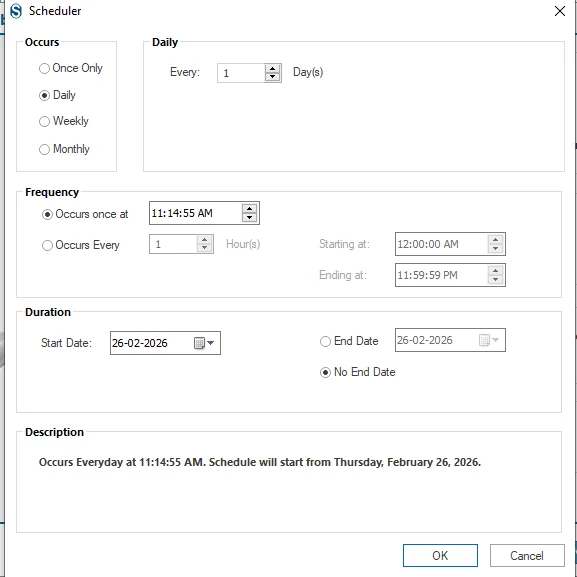
14. The Scheduler is a crucial part of the job creation process. For periodic backups, users can configure this option and set a specific start time. This ensures that the backup job runs automatically at the scheduled time.
- Run Job Manually:- This option allows you to run the Azure Blob Storage backup job anytime directly from the dashboard.
- Run Job Immediately:- Select this option to start the backup job immediately after completing the job setup.
- Job Schedule:- This option lets you schedule the backup job at a specific time. You can configure it to run once a week or on multiple days within a week at a defined time.
- Daily:- Back up containers daily at a specified time.
- Weekly:- Back up containers weekly. You can choose to run the backup once per week or on multiple selected days at a specific time.
- Monthly:- Back up containers every month or during selected months on specified date(s).
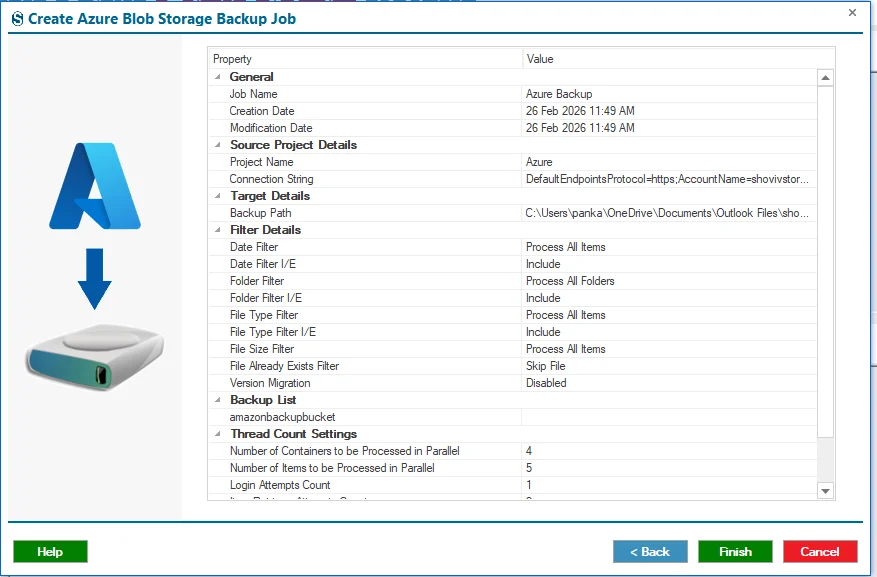
15. Review the job details, and if you want to change any details, you can change them with the help of the Back button, and if not, then click on the Finish button.
16. The job runs according to you, and in case you selected the Run Job Manually, then you need to click on the Start Job button.