Outlook for Mac stores all mailbox items—emails, contacts, calendars, tasks, notes—inside an OLM file. Over time, these files grow excessively large, slowing down Outlook’s performance and increasing the chances of corruption and data loss. Splitting OLM files by size helps improve mailbox manageability, reduces corruption risks, and enhances Outlook’s stability. While Mac Outlook does not offer a direct feature to split OLM files, users can rely on reliable methods. This blog provides complete guidance for splitting OLM files using both manual and professional approaches.
What are OLM files?
An OLM file is a data container used by Outlook for Mac to store all personal mailbox information, including emails, calendars, journals, tasks, and archived items. Although convenient for backup and migration across Mac systems, OLM files gradually increase in size as mailbox data grows. An oversized OLM file is difficult to manage, slows down Outlook, and may even lead to corruption if it exceeds certain limits. To ensure data safety and improve Outlook’s performance, splitting OLM files into smaller components becomes essential. In this guide, we explore why oversized OLM files become problematic, what triggers the need to split them, and how users can manually or professionally split OLM files efficiently.
What happens when OLM files increase in size?
When OLM files become overloaded, then this happens:
- Oversized OLM files slow down Outlook for Mac and reduce overall performance.
- Searching, loading, and navigating mailbox folders becomes difficult and sluggish.
- Outlook may lag, freeze, or crash more frequently.
- Import/export operations are more likely to fail.
- Backups take longer and sometimes fail.
- Large OLM files are more prone to data corruption.
- Handling or transferring such files becomes challenging due to their size.
To maintain mailbox integrity and avoid such issues, splitting OLM files is a crucial preventive measure.
Reasons to Split OLM File by Size:
Here are the major reasons why users should split OLM files:
- Prevents file corruption caused by oversized OLM structures.
- Enhances Outlook for Mac performance and responsiveness.
- Helps avoid data loss arising from large archive files.
- Facilitates smoother mailbox migration or conversion.
- Makes backup, restore, and data management easier.
- Allows users to find important emails and folders more efficiently.
How to split OLM file by size?
You can split OLM files by size using two main approaches: manual and professional. Below, both methods are explained clearly.
Manual Methods to Split OLM Files:
Mac Outlook does not provide a direct feature to split OLM files by size, but users can use two manual workarounds:
Method 1: Create a New Outlook Profile & Export Data Individually
This method creates different OLM files for specific data types, but does not split a large OLM file into smaller chunks.
- Open Applications on your Mac.
- Right-click Outlook > select Show Package Contents.
- Navigate to Contents > Shared Support > Outlook Profile Manager.
- Create a New Profile.
- Import the oversized OLM file into this new profile.
- Open Outlook > go to File > Export.
- Export individual items (emails, contacts, calendars, tasks, notes) separately.
- Each selected item will be saved as its own OLM file.
Drawbacks of Manual Methods
- Time-consuming and tedious.
- Only splits data types, not the file by size.
- Requires technical knowledge.
- No control over output size.
- Higher risk of missing or mis-storing items.
Method 2: Categorize & Export Emails Based on Date
This method helps reduce OLM file load by exporting emails in smaller groups (e.g., quarterly or yearly archives).
Categorize Emails
- Open Outlook for Mac.
- Create a New Folder.
- Select emails based on date and move them to this folder.
Export the Folder
- Go to File > Export.
- Select the newly created folder.
- Save it as a separate OLM file.
Repeat for Other Date Ranges
- Create new folders for additional ranges.
- Export each folder separately.
Drawbacks of Manual Methods:
- Does not ensure exact file size control.
- Requires manual selection and categorisation.
- Very slow for large mailboxes.
- Possibility of skipping important emails.
- Repetitive steps for each date range.
Manual methods do not technically split a large OLM file into multiple smaller OLM files. They only divide data based on categories or dates. A professional solution is required to split OLM files by size accurately and efficiently.
Professional Method to Split a File by Size:
A reliable and automated way to split OLM file by size is by using a specialised professional tool. Shoviv OLM Converter stands out because it not only converts OLM to PST but also provides advanced options to split the file by Size, Date, or Year, ensuring smooth data handling without corruption risks. This tool preserves data integrity, maintains folder hierarchy, and supports bulk OLM processing.
Key Features of Shoviv OLM Converter:
- Add and process multiple OLM files of any size.
- Split PST output by size, year, or
- Convert OLM to PST, EML, MSG, HTML, vCard, or ICS.
- Maintains original folder structure and metadata.
- Export directly to Office 365 and Exchange Server.
- Supports incremental export to avoid duplications.
- Provide a preview of OLM data before export.
- Offer a free demo to test features before purchase.
Steps to Split OLM File by Size via Shoviv OLM Converter:
- Install and launch Shoviv OLM Converter.
- Select OLM to PST and Add OLM Files to load one or multiple OLM files.
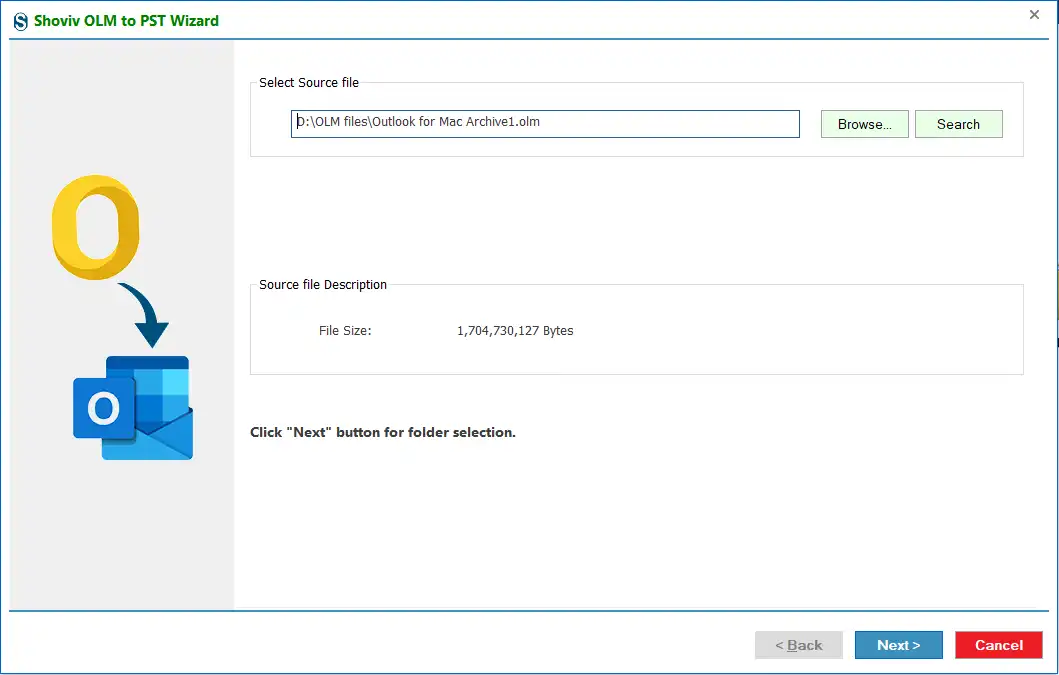
- Preview mailbox items inside the loaded OLM file.
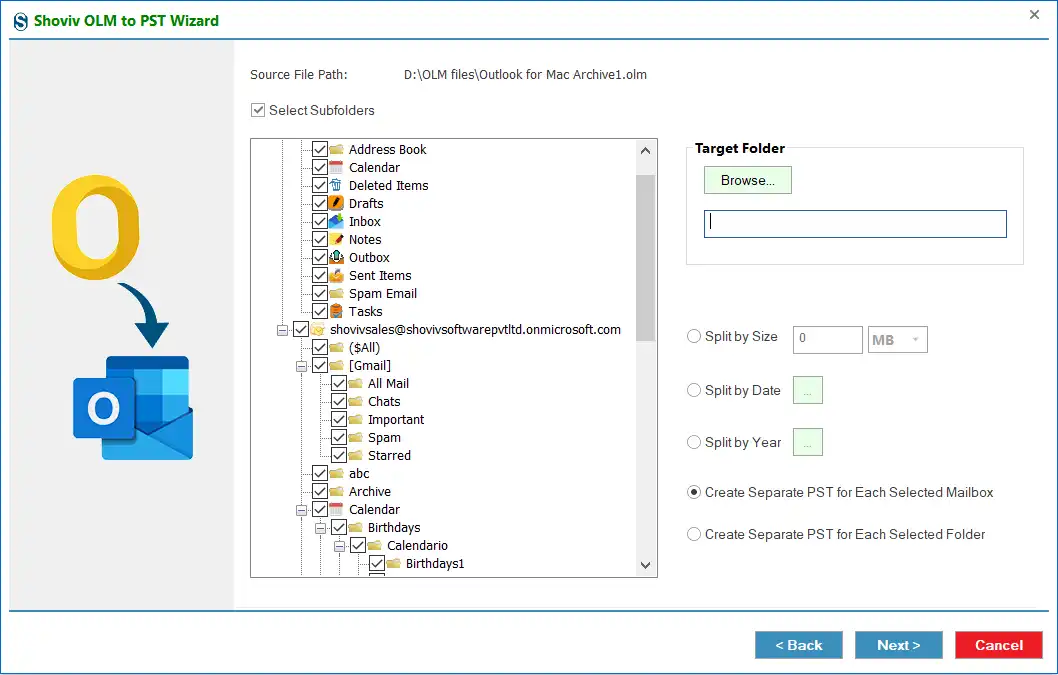
- Choose the Target Folder to save the output.
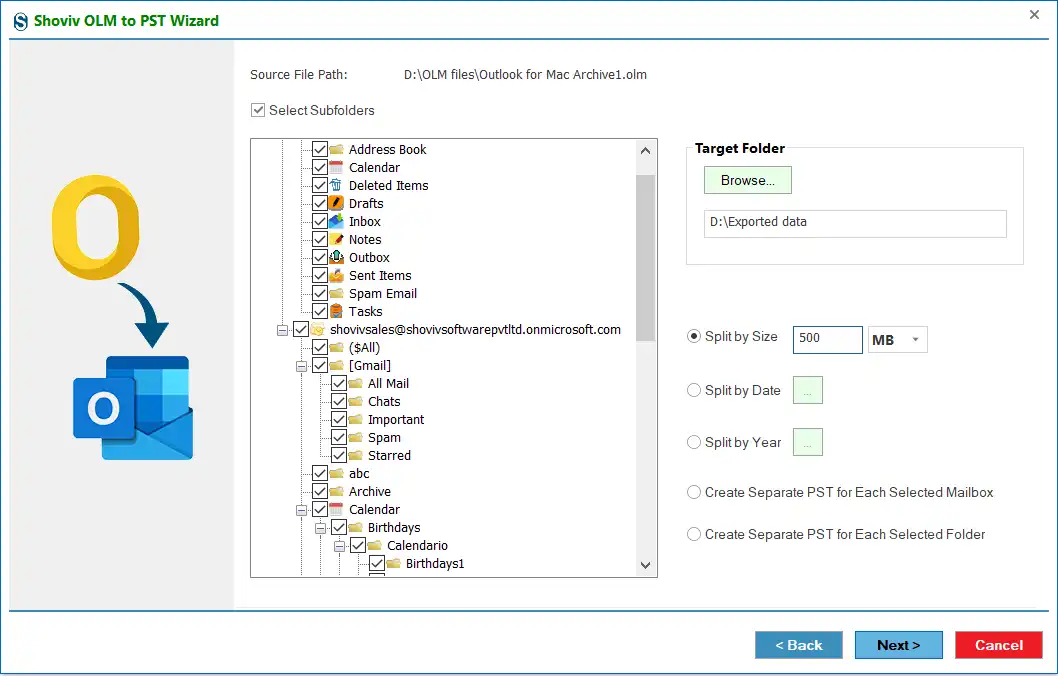
- Enable the Split PST option and select:
- Split OLM File by Size
- Click Next to start the conversion and splitting.
- View the live progress and save the final log report.
This method is fast, reliable and ensures accurate splitting without data loss.
Final Words:
Managing oversized OLM files is essential for maintaining the smooth performance of Outlook for Mac. Large OLM files increase the risk of corruption, slow down the application, and make data handling difficult. Although manual methods offer basic workarounds, they are time-consuming and cannot split OLM file by size.
Alternatively, using a professional utility such as the Shoviv OLM Converter provides a seamless way to split OLM file by size while preserving data integrity. Based on efficiency, safety, and usability, automated tools remain the best choice for splitting OLM files effectively.