Summary: Are you struggling with Dropbox’s slow upload or bandwidth limit issues? Many users experience situations where Dropbox takes forever to upload files, especially large folders or high-resolution media. These problems can reduce productivity and delay important work. In this blog, we will understand why these issues occur and provide structured, practical solutions to fix them effectively.
What is Dropbox?
Dropbox is a popular cloud storage and file synchronisation service that allows users to store, manage, share, and access files from anywhere. It works through a desktop application, web interface, and mobile apps, enabling seamless collaboration and automatic syncing across devices. Individuals and businesses commonly use Dropbox to manage documents, media files, project folders, and backups securely in the cloud.
What do you mean by Dropbox Slow Upload Issue?
The “Dropbox slow upload issue” refers to situations where files take an unusually long time to upload or sync to the cloud. Users often notice problems such as slow Dropbox upload speed, syncing getting stuck, or Dropbox taking forever to upload large files. This issue is especially common when uploading high-resolution videos, large project folders, or thousands of small files. Slow uploads can disrupt workflow and reduce productivity, particularly for teams handling heavy data.
What do you mean by Dropbox Bandwidth Limit Issue?
The “Dropbox bandwidth limit issue” occurs when Dropbox restricts the amount of internet bandwidth used for uploading or downloading data. It can happen due to default app settings that limit transfer speeds or because of daily traffic limits on shared links. When bandwidth is restricted, upload performance decreases significantly, and users may experience delays, temporary suspensions of shared links, or reduced syncing speed.
Reason behind Dropbox’s Slow Upload and Bandwidth Limit Issue
Before applying fixes, it is important to understand the actual causes behind slow upload speed and bandwidth restrictions.
- Limited Internet Upload Speed
Most internet plans offer higher download speed than upload speed. If your ISP provides limited upload bandwidth, Dropbox cannot exceed that limit, even if your internet appears fast.
- Default Dropbox Bandwidth Throttling
Dropbox may automatically restrict upload speed to avoid consuming the entire network. It internally reduces transfer performance.
- Large File Processing and Encryption
Before uploading, Dropbox processes files by encrypting, verifying, and dividing them into chunks. This background activity increases upload time, especially for large files.
- Uploading Too Many Small Files
Thousands of small files require individual processing and server communication. This increases metadata handling and slows down overall syncing.
- Unstable Wi-Fi Connection
Wireless networks can experience interference, packet loss, and signal drops. This instability affects consistent upload speed.
- Antivirus or Firewall Interference
Security software may scan files during transfer. This additional inspection consumes system resources and reduces upload performance.
- High System Resource Usage
If other applications heavily use CPU or memory, Dropbox cannot process uploads efficiently.
- Outdated Dropbox Application
Older versions may contain performance inefficiencies or syncing bugs that impact upload speed.
- Insufficient Dropbox Storage Space
If your account storage is nearly full, uploads may stall or appear extremely slow.
Troubleshooting Fixes of Dropbox Slow Upload Issue
1. Remove Dropbox Upload Speed Limit
Dropbox may be configured to limit upload speed automatically. Removing this restriction allows the Dropbox application to use the maximum available bandwidth.
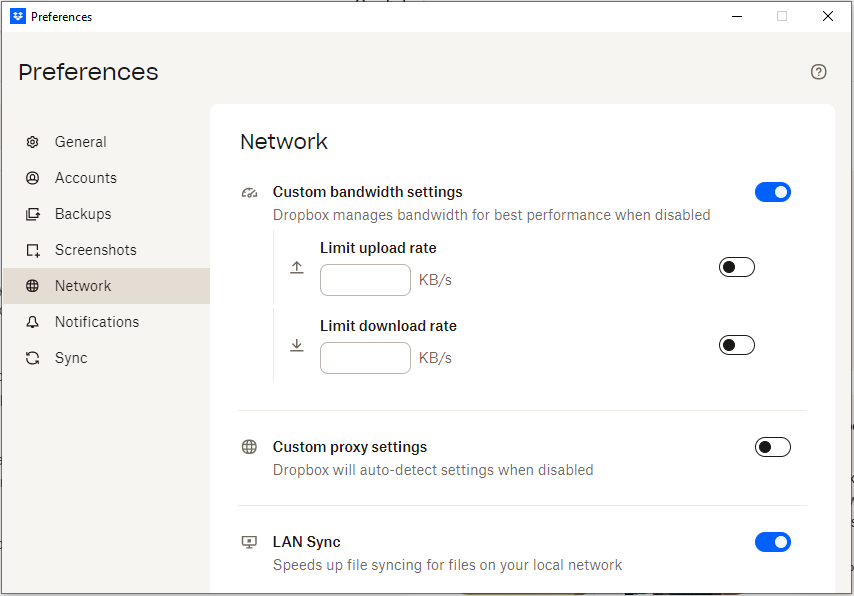
Here are the steps to fix:
- Click the Dropbox icon in the system tray/menu bar.
- Go to Preferences.
- Open the Bandwidth / Network tab.
- Set the upload rate to Don’t Limit.
- Save changes and restart Dropbox.
2. Switch to a Wired Ethernet Connection
Wi-Fi instability often reduces upload consistency. A wired connection provides stable and uninterrupted transfer speed. Here are the steps to fix:
- Connect your system directly to the router using an Ethernet cable.
- Disable Wi-Fi to avoid automatic switching.
- Restart Dropbox and test the upload again.
3. Optimise Large File Upload Handling
Uploading multiple heavy files simultaneously increases processing load and delays syncing. Here are the steps to fix:
- Pause syncing temporarily.
- Upload one large file at a time.
- Wait until completion before starting the next upload.
4. Compress Folders with Many Small Files
Multiple small files increase processing overhead. Converting them into a single archive reduces metadata operations. Here are the steps to fix:
- Select the folder containing many small files.
- Right-click and choose Compress / Send to ZIP.
- Upload the single ZIP file to Dropbox.
5. Close Background Applications
Other applications consume bandwidth and system resources, affecting Dropbox’s performance. Here are the steps to fix:
- Open Task Manager (Windows) or Activity Monitor (Mac).
- Close high CPU or network usage applications.
- Restart Dropbox for smoother syncing.
6. Adjust Antivirus or Firewall Settings
Security tools may delay transfers due to real-time scanning. Here are the steps:
- Open antivirus/firewall settings.
- Add Dropbox to the allowlist or allowed programs list.
- Temporarily turn off real-time scanning (for testing).
- Resume upload.
7. Update Dropbox to the Latest Version
New versions include performance improvements and bug fixes. Here are the steps to fix:
- Visit the official Dropbox website.
- Download the latest version.
- Install and restart your system.
8. Check and Free Up Storage Space
Storage limitations can cause uploads to stall. Here are the steps to fix:
- Log in to your Dropbox account.
- Check available storage space.
- Delete unnecessary files or upgrade your storage plan.
Quick Fixes the Dropbox Bandwidth Limit Issue
Bandwidth limit issues are usually related to configuration settings, ISP restrictions, or account-based limitations.
1. Disable Dropbox Internal Bandwidth Restriction
Dropbox allows manual speed limitation for uploads and downloads. Removing this restriction restores full transfer capability. Follow the steps below:
- Open Dropbox > Preferences.
- Go to the Network / Bandwidth tab.
- Set both the Upload and Download rate to Don’t Limit.
- Save settings and restart the app.
2. Check ISP Upload Speed Cap
Sometimes the issue is caused by the internet service provider’s limitations, especially during peak hours. Follow the steps below:
- Run an online speed test (focus on upload speed).
- Compare results with your ISP plan.
- Restart your modern / router.
- Contact ISP or upgrade your plan if needed.
3. Avoid Network Congestion
When multiple devices share the same internet connection, bandwidth gets divided. Follow the steps below:
- Pause streaming services (YouTube, Netflix, etc).
- Stop large downloads on other devices.
- Limit simultaneous cloud backups.
- Upload during off-peak hours.
4. Monitor Shared Link Bandwidth Usage
Heavy downloads from shared links may exceed Dropbox traffic limits and temporarily turn off links. Follow the steps below:
- Log in to your Dropbox account.
- Check file sharing activity.
- Disable high-traffic public links.
- Upgrade your Dropbox plan if limits are exceeded frequently.
5. Upgrade Your Dropbox Plan
Lower-tier plans include bandwidth and transfer limits that may restrict performance. Follow the steps below:
- Review your current subscription plan.
- Compare bandwidth and transfer limits.
- Upgrade to a higher-tier plan if necessary.
6. Pause and Resume Sync
Temporary sync glitches may restrict bandwidth usage. Follow the steps below:
- Click the Dropbox icon.
- Select Pause Syncing.
- Wait 30-60 seconds.
- Click Resume Syncing.
7. Restart Dropbox Application
Application-level glitches may affect transfer performance. Follow the steps below:
- Quit Dropbox completely.
- Reopen the application.
- Restart your system if required.
Conclusion:
In this blog, we discussed Dropbox’s slow upload and bandwidth limit issues, their possible causes, and practical fixes to resolve them. In most cases, adjusting network settings, removing bandwidth restrictions, or optimising system performance can improve Dropbox upload speed.
However, if the problem persists of Dropbox slow upload and bandwidth limit issues, or you frequently handle large volumes of data, relying on a professional backup solution is a more reliable option. Tools like Shoviv Dropbox Backup Tool provide a secure and efficient way to back up Dropbox data, ensuring data integrity, preventing data loss, and reducing sync-related issues. It helps streamline backup management and offers better control of large data volumes without performance disruptions. Minimising syncing errors and simplifying the overall issues.
Choosing the right approach depends on your specific needs, but combining structured troubleshooting with a professional backup solution ensures smoother Dropbox performance and better data protection.
Frequently Asked Questions:-
Your upload bandwidth may be lower than your download speed, or Dropbox’s internal bandwidth limit may be enabled.
Go to Preferences > Network / Bandwidth > Set Upload Rate to ‘Don’t Limit.’
Large files require chunking, hashing, encryption, and server validation before transfer, which increases processing time.
Yes, Dropbox includes configurable desktop bandwidth limits and shared link traffic limits depending on your subscription.
Yes. Weak Wi-Fi signals and network interference can significantly reduce upload speed.
Yes. Compressing thousands of small files into a single ZIP file reduces metadata processing and improves upload speed.
If you regularly handle large business data, face upload throttling, or need structured backup management, a professional solution like Shoviv Dropbox Backup Tool is recommended.
The tool helps manage large-scale data transfers efficiently. It avoids common throttling-related slowdowns, making it suitable for professional environments.