Microsoft Outlook users often face challenges when working with OST (Offline Storage Table) files, especially when they need to access or share individual emails. In such cases, converting OST to MSG format becomes essential. MSG files store a single email message, including body, attachments, and metadata, making them easier to manage, share, and back up.
Since there is no direct method in Outlook to export multiple OST emails to MSG at once, users either rely on manual techniques or automated tools. In this blog, we’ll explore free manual methods to export OST to MSG and also introduce a professional solution for effortless, bulk, and accurate conversion.
Before we start, let’s understand the difference between the two file formats:
- OST File: Stores mailbox data offline and syncs automatically when reconnected to the Server.
- MSG File: Stores a single Outlook item, like an email, including attachments.
Reasons to Export OST to MSG Files:
Here are some of the most common reasons why users prefer to export the OST file into the MSG format:
- To start and manage individual emails separately for easy access.
- MSG files are lightweight, reducing the size of large OST files and improving Outlook performance.
- Easier sharing – MSG files can be sent or copied without exporting entire mailboxes.
- Compatibility – MSG format works on multiple systems.
- Helps create backups or archives of important emails for long-term use.
- Preserves metadata, including subject, sender, and timestamp.
- Ideal for legal or business use, where tracking individual email messages is essential.
The above are some of the key reasons users convert OST to MSG. In the following sections, we’ll discuss the free manual methods to perform this conversion easily.
Explore the Free Methods to Export OST to MSG:
Manual techniques are free and straightforward, but they come with certain limitations. Here are two commonly used manual approaches:
Approach 1: Drag and Drop Method
This method is simple and best suited when you need to convert a few emails only. Follow the steps below:
- Launch Microsoft Outlook and ensure your OST file is connected.
- Go to the mailbox folder that contains the emails you want to export.
- Open the folder on your system where you want to save MSG files.
- Select one or more emails from Outlook.
- Drag and drop them into the folder.
Each email will be saved separately as an MSG file automatically.
Drawbacks of this Method:
- Works only when Outlook is connected to the server.
- Cannot convert orphaned or corrupted OST files.
- Time-consuming for bulk conversions.
- Attachments or metadata may not always be preserved perfectly.
- Requires manual effort for every email.
Approach 2: Save As Option in Outlook
You can also use Outlook’s Save As feature to export emails as MSG files. Follow the steps below:
- Open Outlook and click on the email you wish to convert.
- Click on the File > Save As.
- From the dropdown menu, select Outlook MSG as ‘Save as type’.
- Choose your desired folder and click Save.
Drawbacks and Limitations of this Method:
- Can’t convert multiple emails at once.
- Doesn’t work on inaccessible or orphaned OST files.
- It may require repeated steps for each email, making it tedious.
- Limited control over data filters or advanced options.
- Risk of data loss if the process isn’t followed carefully.
If you find the above manual methods complicated or if your OST file is orphaned, corrupted, or large in size, use a professional tool to save time and ensure data accuracy.
Professional Method: Expert-Recommended Way
When manual methods fail to deliver accurate or bulk results, it’s best to use a professional and automated solution like the Shoviv OST Converter Tool. This advanced utility is developed to convert OST files into multiple formats, including MSG, PST, EML, MBOX, and more—without any data loss.
Key Features of Shoviv OST to MSG Converter Tool
- Supports bulk conversion of multiple OST files simultaneously.
- Maintains folder hierarchy, metadata, and attachments during export of OST files.
- Exports OST file to MSG, PST, EML, MBOX, and HTML formats effortlessly.
- Allows preview of OST file data before exportation.
- Works with both corrupted and orphaned OST files, offering filtering options (date, subject, item type) for selective conversion.
- Support exporting OST data directly to Office 365, Gmail, Live Exchange( On-Premises), etc.
- Compatible with all Outlook and Windows OS versions.
Steps to Export OST to MSG Files Using the Shoviv Tool:
- Install and launch the Shoviv OST to PST Converter.

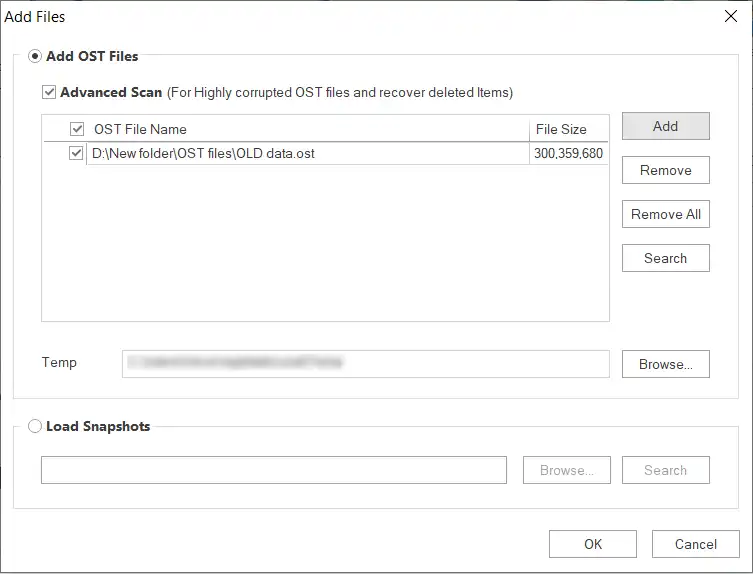
- Launch the software and add OST files from your system.
- Preview the complete OST mailbox data in the tool’s interface.
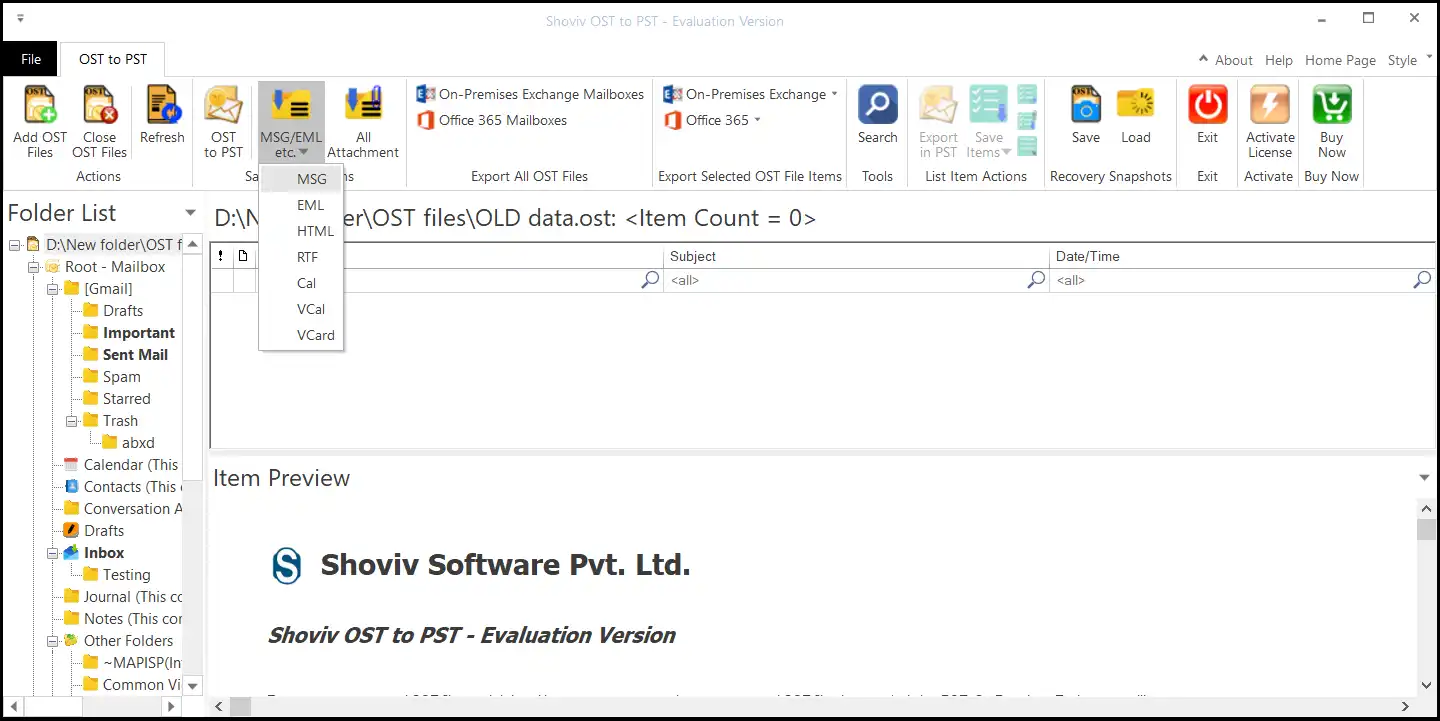
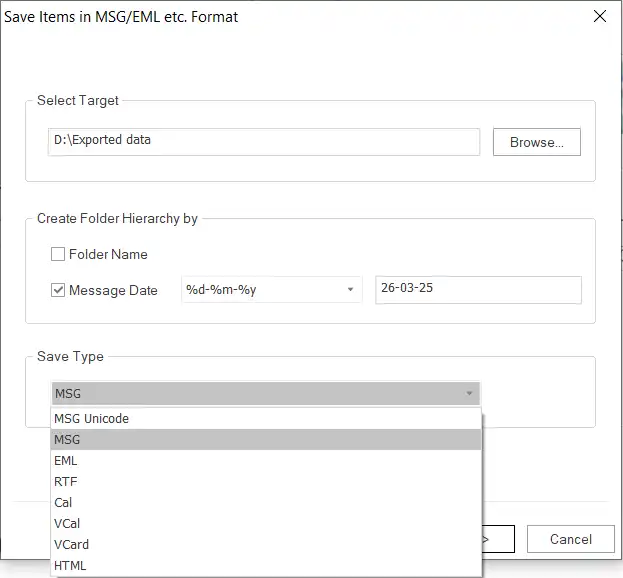
- Select MSG as the output format. Moreover, browse the destination folder to save the MSG files.
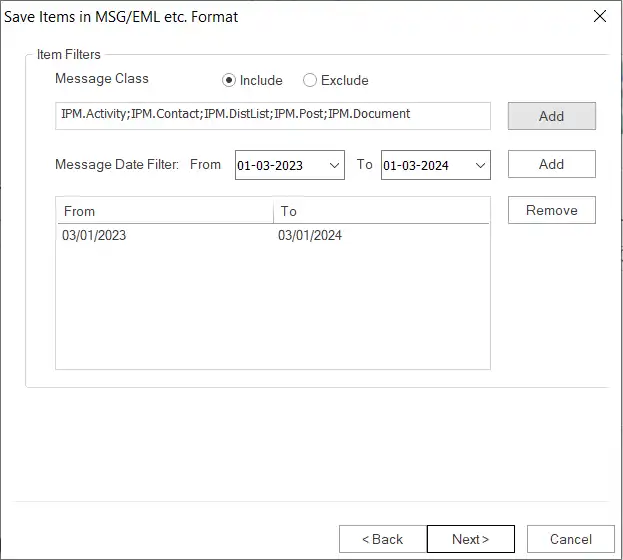
- Apply filters if needed (by date range or item type).
- Click Next to start the conversion process.
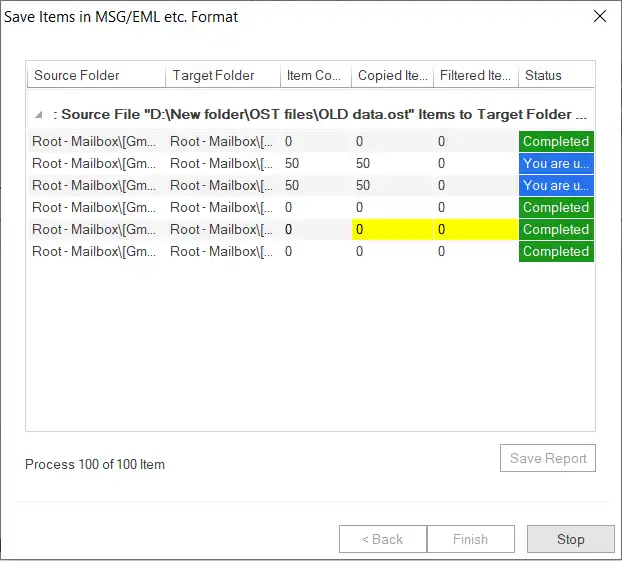
Within a few minutes, your OST data will be successfully exported into MSG format with complete accuracy. A complete conversion process of OST to MSG using Shoviv OST Converter can be found here.
Summing Up:
Through this blog, we have discussed free manual and professional methods to export OST to MSG files. The manual options like Drag & Drop and Save As are suitable for a few emails, but aren’t ideal for bulk conversion. For safer, faster and reliable results, best to use a professional tool like Shoviv OST to MSG Converter. It not only ensures 100% data integrity but also simplifies the process with advanced features. Evaluate the free demo version to check its performance before purchasing.
Frequently Asked Questions:
You can export them manually using Outlook’s Save As or Drag-and-Drop options. However, for bulk conversion or inaccessible OST files, use the Shoviv OST to MSG Converter for better accuracy.
The Shoviv tool can handle both corrupted and orphaned OST files efficiently, recovering all data and converting it into MSG format.
Yes, Shoviv’s tool offers a free demo that allows exporting of OST to MSG files. Free demo allows exporting the first 50 items per folder into MSG format. You can also try the manual methods mentioned above for small-scale conversion.
Currently, the Shoviv OST to PST/MSG Converter is compatible with Windows OS only.