Summary – If you’re looking to access your Outlook for Mac emails in Windows or in other clients like Thunderbird, Windows Live Mail, converting OLM files to EML format is the ideal solution. This conversion ensures better compatibility, portability, and effortless data sharing across different platforms. In this blog, we’ll guide you through simple manual steps and introduce a professional OML to EML Converter Tool for quick, accurate, and seamless exportation without data loss.
Overview of OLM & EML
OLM (Outlook for Mac) and EML (Email Message) are popular file formats used for managing and storing email data across different platforms.
OLM is the native file format of Microsoft Outlook for Mac, used to store emails, contacts, calendars, and other mailbox items within the macOS environment.
EML is a widely compatible email file format supported by various clients like Microsoft Outlook, Mozilla Thunderbird, and Apple Mail. It stores individual emails in a structured, readable text format.
Since OLM files work only with Mac Outlook, converting them to EML ensures easier access, portability, and compatibility across multiple email platforms.
Why is it important to convert OLM Files to EML?
Converting an OLM file to EML format offers multiple benefits for users who want to access, share, or migrate their Outlook for Mac data to different platforms. Since OLM is limited to macOS, switching to EML ensures better compatibility, accessibility, and management across various email clients and operating systems. Here are the main reasons why this conversion is essential:
- Cross-Platform Compatibility – EML files can be easily accessed in major email clients such as Thunderbird, Apple Mail, Windows Live Mail, Entourage, and Postbox.
- Easy Accessibility – Open, read, and manage OLM emails on any device — including desktops, laptops, mobiles, and tablets — without restrictions.
- Data Portability – EML files are lightweight and can be transferred or shared between systems effortlessly.
- Efficient Backup & Archiving – Each email is saved as an individual EML file, making it easier to back up, archive, and restore when needed.
- Preserves Original Data – The EML format maintains email metadata, headers, attachments, and formatting without data loss.
- Enhanced Email Sharing – Users can send individual emails as EML attachments directly, improving collaboration and data exchange.
- Forensic & Recovery Support – EML files are compatible with many forensic tools and can help recover orphaned or deleted emails.
- Data Security – Storing emails in EML format protects data from corruption or unexpected loss during system transitions.
- Seamless Migration – It simplifies switching from Outlook for Mac to Windows or any other email environment.
Overall, converting OLM files to ELM ensures smooth data migration, secure backups, and universal accessibility. Once you understand these reasons, the next step is choosing a reliable method to perform the conversion efficiently and without data loss.
Methods to Convert OLM to EML?
Converting OLM files to EML format can be accomplished through various approaches. Users can either use manual methods available within Outlook for Mac or opt for automated conversion tools for a quicker and more accurate migration process.
Manual Methods to Convert OLM Files to EML
There are a few manual methods available for users who want to convert OLM files to EML format without using paid software. These approaches mainly involve using Outlook for Mac and sometimes Thunderbird for intermediate conversion. However, these methods are only recommended for users handling a small number of emails, as they come with notable limitations. Below are the commonly used manual procedures.
Way 1: Convert OLM to EML by using Drag-and-Drop in Outlook for Mac
- Launch Microsoft Outlook on your Mac system.
- Open the mailbox containing the emails you want to export.
- Create a new local folder on your desktop or in Outlook.
- Select one or more emails from the OLM mailbox.
- Drag and drop the selected emails into the local folder.
- The emails will be automatically saved in .eml format along with their message content and basic structure.
- You can now transfer these EML files to any Windows PC or other email clients.
Drawbacks of this Method:-
- Supports only one email at a time, making it unsuitable for large mailboxes.
- Time-consuming and requires repetitive manual effort.
- Attachments or metadata may not be preserved
- Folder hierarchy is not maintained during export.
- Requires Outlook for Mac installed and configured.
Way 2: Convert OLM to EML Using Thunderbird
- Install and open Mozilla Thunderbird on your Mac.
- Ensure IMAP is enabled in your Thunderbird account.
- Open Outlook for Mac and log in with the same IMAP account credentials.
- Sync your Outlook mailbox with Thunderbird through the IMAP connection.
- Once syncing completes, your OLM emails will appear in Thunderbird.
- From Thunderbird, use the Save As or Export feature to save emails in .eml format.
- Transfer the saved EML files to your desired system or email client.
Drawbacks of this Method:-
- Requires both Outlook and Thunderbird installations.
- Complex setup and syncing process that demands technical expertise.
- Folder structure and email formatting may not remain intact.
- Involves multiple conversion steps, increasing the risk of data loss.
- Not ideal for users with limited technical knowledge or large data volumes.
While manual methods like drag-and-drop or Thunderbird conversion can be effective for small-scale email transfers, they are inefficient and risky for larger mailboxes. These processes are slow, prone to errors, and may result in missing attachments or formatting inconsistencies. Therefore, for users who need a quick, secure, and complete OLM to EML migration, using a professional OLM to EML Converter Tool is the most reliable solution.
Professional Method to Convert OLM to EML
The most efficient and secure way to convert OLM files to EML format is by using a professional tool like the Shoviv OLM Converter. This automated software simplifies the conversion process, ensuring data accuracy, folder hierarchy preservation, and complete attachment retention. It supports bulk conversion, allowing users to export multiple OLM files into EML format quickly without any risk of data loss.
Steps to Convert OLM to EML Using Shoviv OLM Converter:
- Install and launch the Shoviav OLM Converter Tool.
- Select the OLM to EML option from the dashboard.
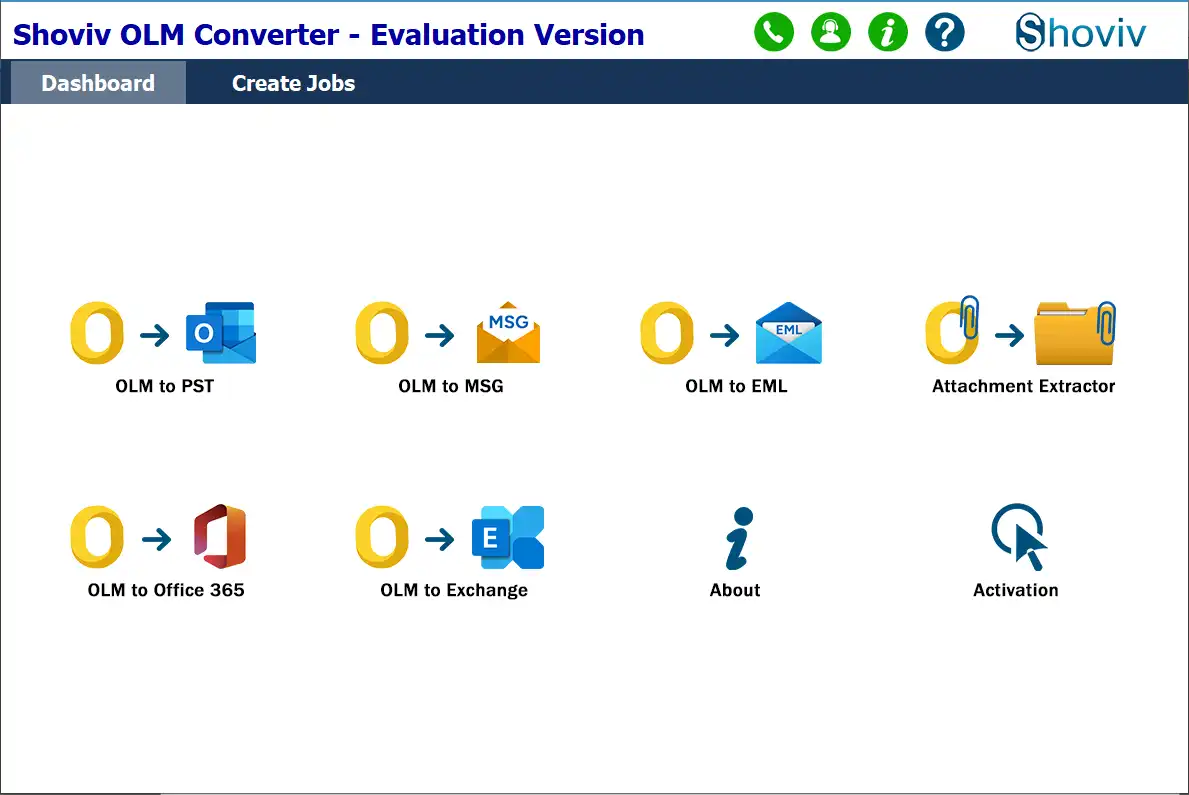
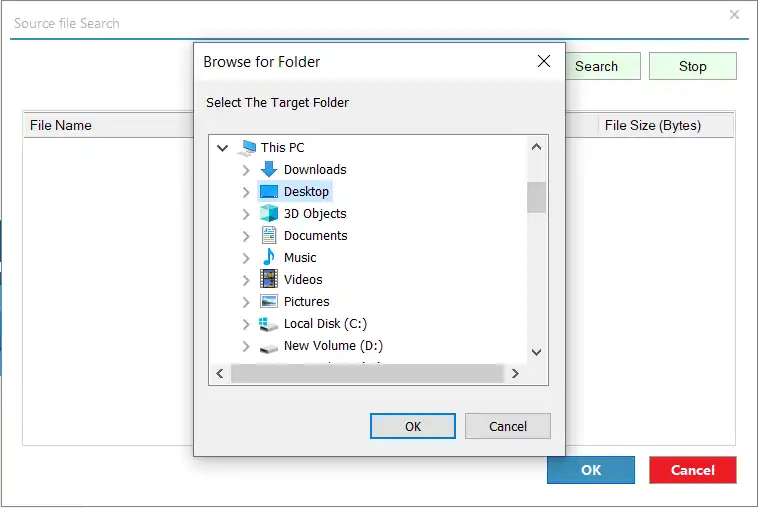
- Add your OLM files using the Browse or Search
- Choose specific subfolders if required and click Next.
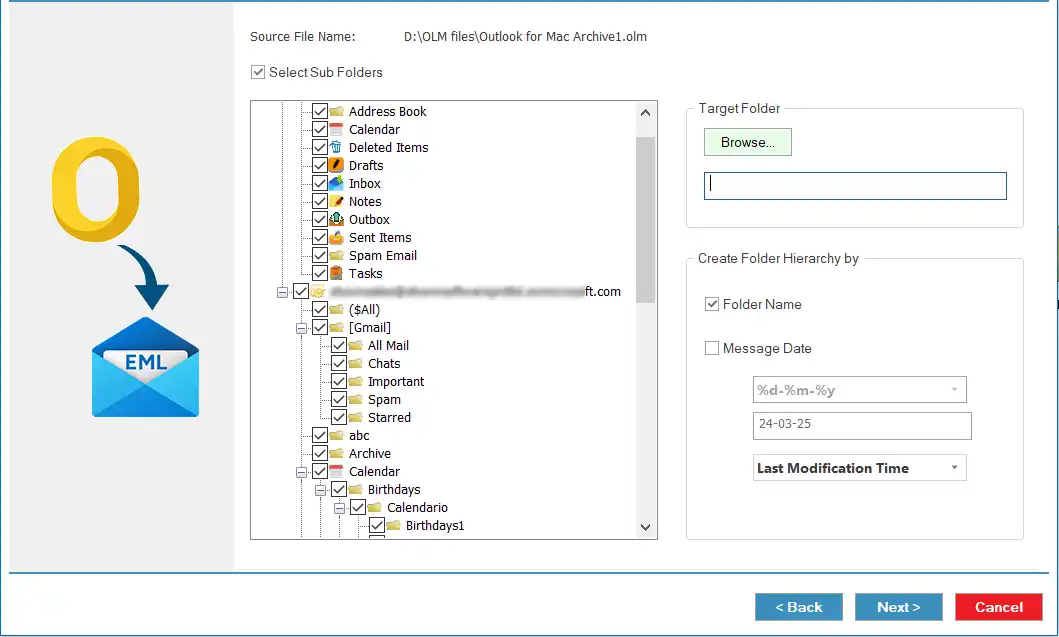
- Select the destination folder to save the converted EML files.
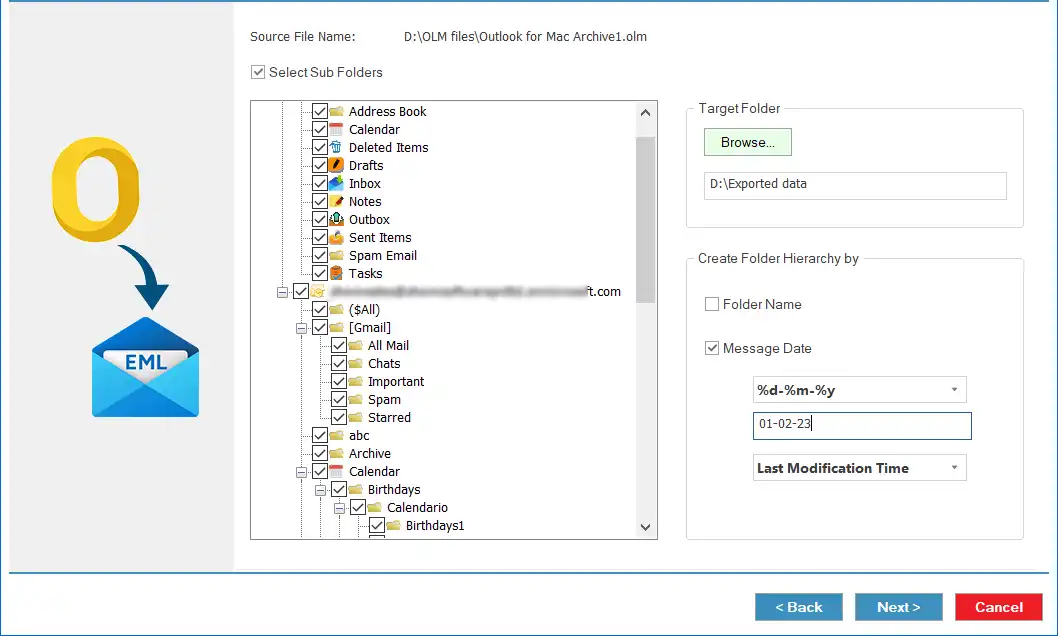
- Choose your preferred hierarchy option (by folder name or message date).
- Click Next to begin the conversion.
- Once completed, save the detailed export report for reference.
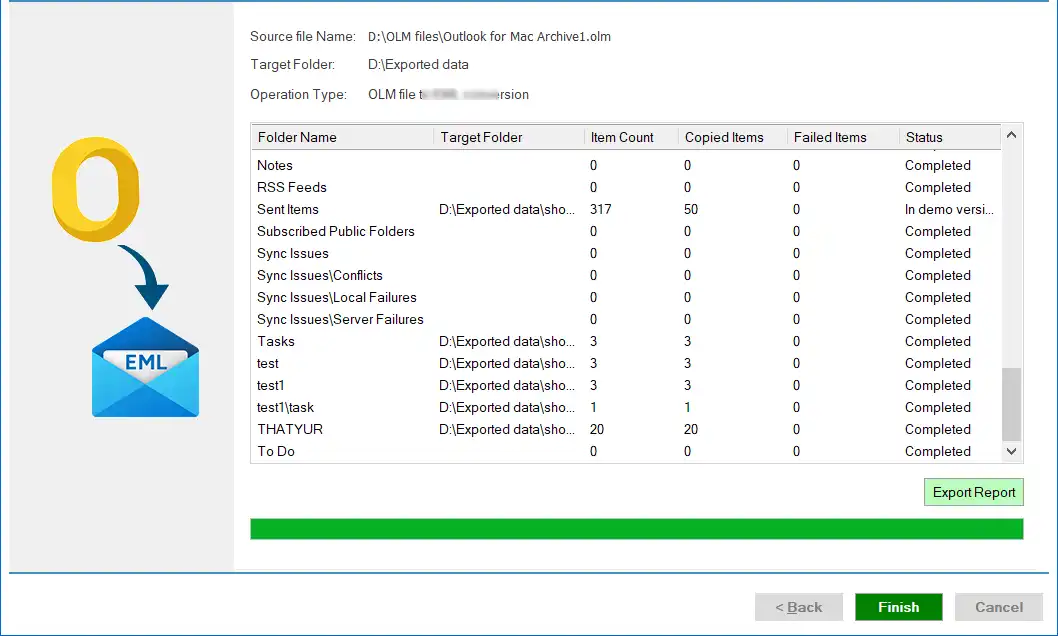
This tool ensures a seamless conversion experience, maintaining the integrity and formatting of emails throughout the process.
Wrapping Up:
Converting OLM files to EML is essential for users who want to access Mac Outlook emails on other platforms like Thunderbird or Windows Mail. While manual methods exist, they are limited, slow, and prone to data inconsistency. The Shoviv OLM Converter provides a professional, reliable, and efficient solution to export OLM to EML format without data loss.
For the best experience, try the free demo version to convert a limited number of emails and evaluate the tool’s performance before upgrading to the full version.
Frequently Asked Questions:-
Yes, the Shoviv Converter supports batch conversion of multiple OLM files at once.
Absolutely. The software maintains all attachments, metadata, and original email formatting during conversion. Moreover, you can check this utility before purchasing the license.
Yes, the tool is completely secure and ensures 100% data privacy. It performs read-only operations and does not modify or delete original OLM files.
Yes, the tool is fully compatible with all versions of Windows, but not with macOS.