Summary: Many organizations rely on cloud storage platforms to manage and share business data. Over time, some businesses decide to migrate from Box to Dropbox to improve collaboration, simplify file management, and benefit from faster synchronization. This guide explains why users choose to move data between these platforms and provides practical methods to complete the process. You will learn manual methods for migrating files and a reliable, professional solution for efficiently transferring Box Business/Enterprise to Dropbox.
Overview:
Cloud storage services enable users to save, organize, and retrieve their files online, allowing access from virtually any location with an internet connection. Among the many available platforms, Box and Dropbox are two well-known solutions used by individuals and organizations for file storage and collaboration.
What is Box?
Box is a cloud storage platform mainly designed for businesses and enterprise users. It provides secure file sharing, document management, and administrative controls that help organizations manage data and collaborate across teams.
What is Dropbox?
Dropbox is a popular online storage solution used by both individuals and businesses. It is known for its simple interface, fast file synchronization, and easy sharing, enabling users to store and access files across devices.
Reasons to Migrate from Box to Dropbox
There are several reasons users switch from Box to Dropbox. The most common factors involve usability, collaboration capabilities, and integration flexibility.
- Simpler User Interface – Dropbox provides a clean, intuitive interface that lets users manage files without much technical knowledge. Employees often find it easier to organize folders, upload documents, and share files quickly.
- Faster File Synchronization – One of Dropbox’s strengths is its advanced synchronization technology. Features such as Smart Sync and block-level syncing allow users to access files quickly across multiple devices. This can improve productivity for teams working with large files.
- Better Integration Options – Dropbox integrates with a wide range of productivity tools, including Microsoft 365, Slack, Zoom, Google Workspace, and Trello. These integrations help teams streamline workflows and collaborate more effectively without switching between multiple platforms.
- Improved Collaboration Features – Dropbox offers shared folders, real-time commenting, version history, and collaboration tools like Dropbox Paper. These features help teams manage projects and communication efficiently.
- Flexible Plans and Storage – Dropbox provides different pricing plans for individuals, small businesses, and enterprises. Many organizations find these plans more flexible when scaling storage according to their needs.
- Data Consolidation – Some organizations use multiple cloud services simultaneously. In such situations, companies may choose to migrate Box Business/Enterprise to Dropbox so that all files are stored and managed in a single, centralized environment.
Manual Method to Perform Box to Dropbox Migration
A simple way to move files between these two platforms is the manual download-and-upload approach. This method involves saving files from Box to your computer and then uploading them to Dropbox.
Step 1: Download files from Box
- Open your web browser and log in to your Box account.
- Sign in with the correct login credentials.
- Navigate to the Files and Folders section.
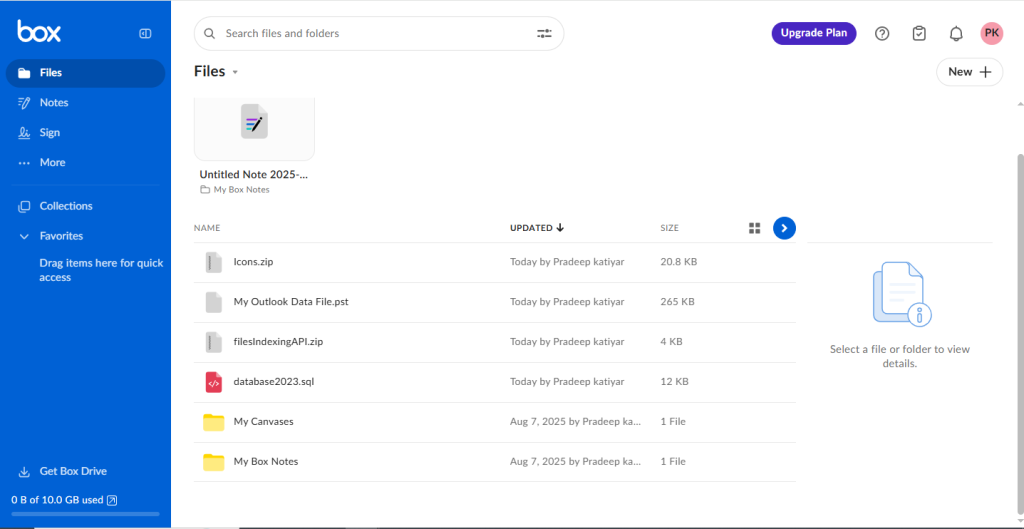
- Locate the file or folder you want to migrate.
- Select the item and choose the Download option from the menu.
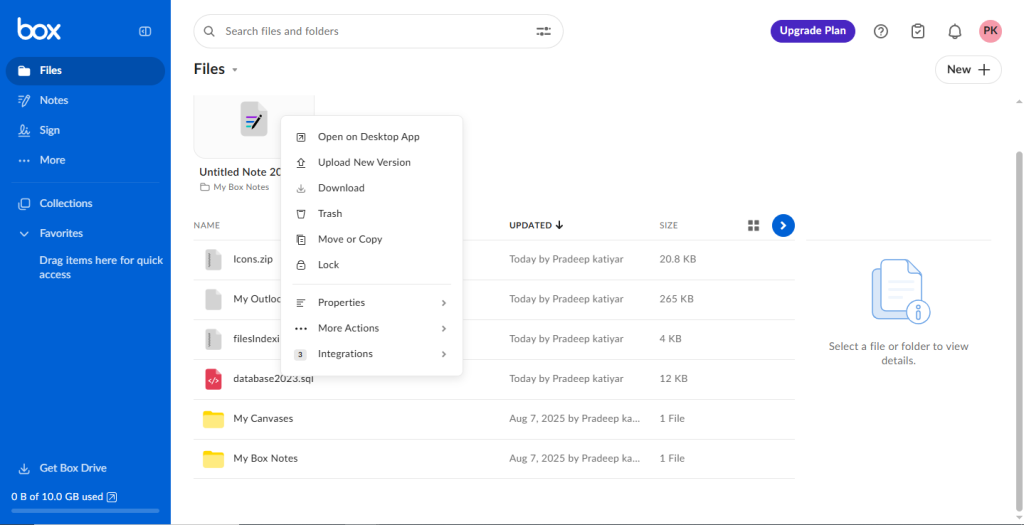
- Save the file to your computer.
After downloading files from Box, you can upload them to Dropbox.
Step 2: Upload Files to Dropbox
- Drag and Drop Method
- Direct Upload Method
- Drag-and-Drop
- Log in to your Dropbox account.
- Locate the files stored on your computer.
- Drag the selected files from your system.
- Drop them into the Dropbox window to start the upload.
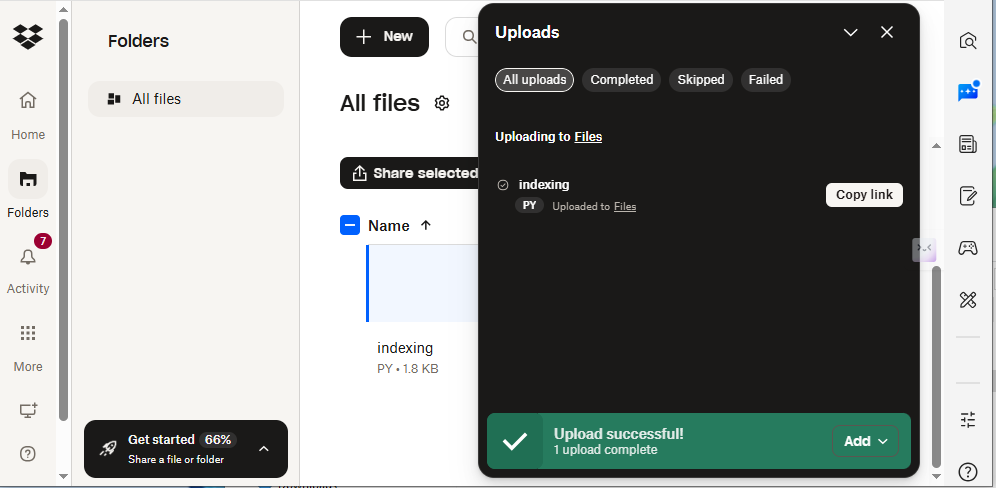
- Direct Upload
- Open Dropbox in your browser.
- Click the Upload Files button.
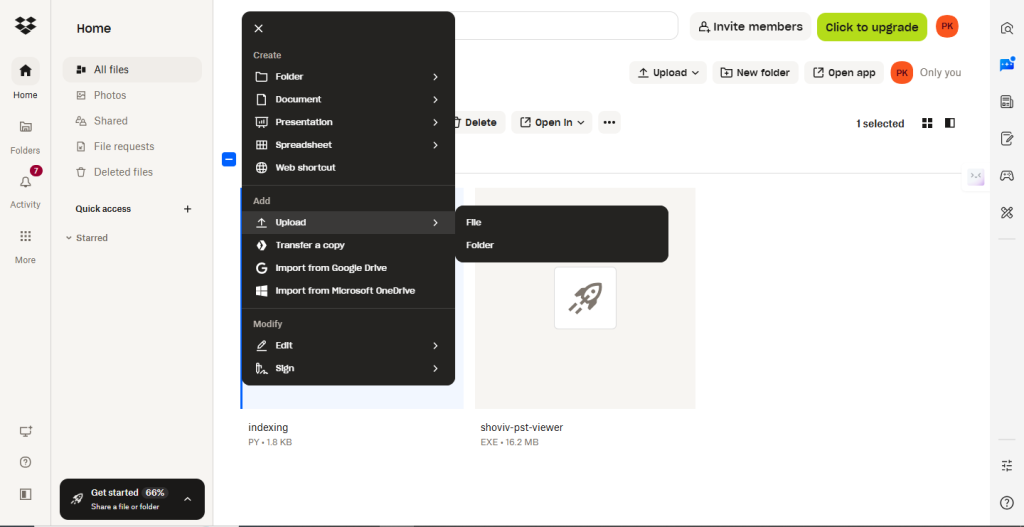
- Select the files you downloaded from Box.
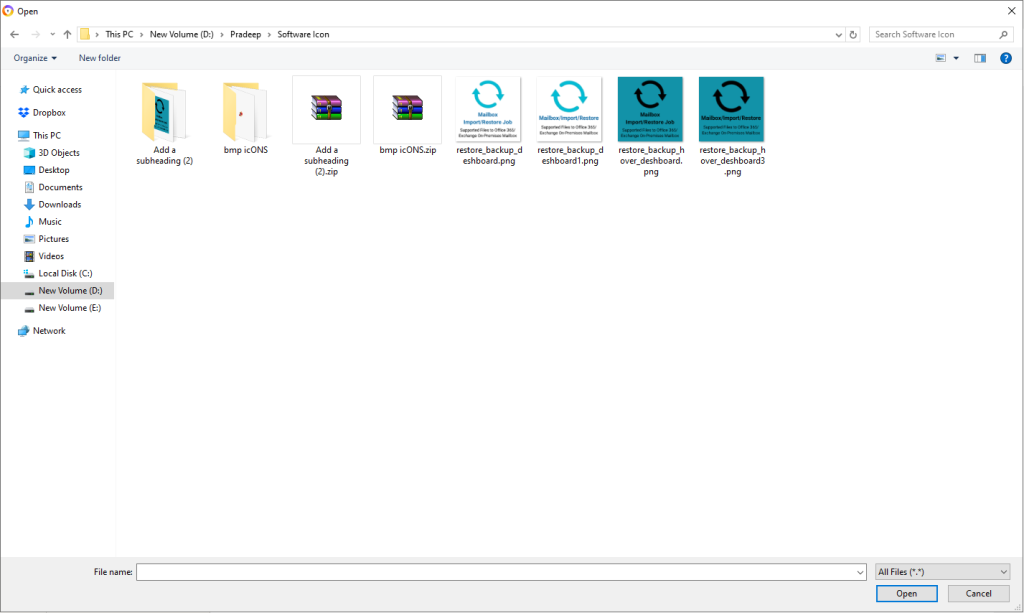
- Confirm the upload process.
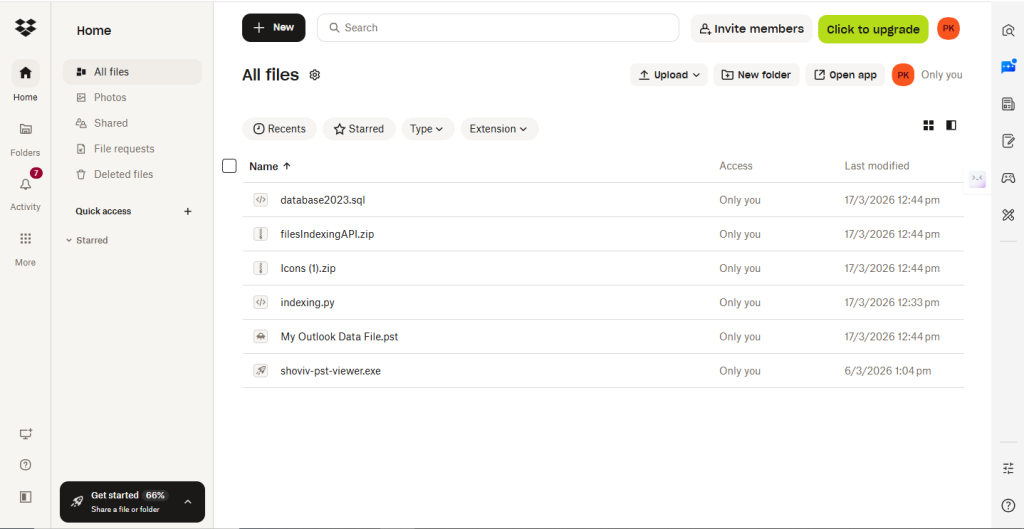
By following these steps, users can manually move data from Box to Dropbox.
Drawbacks of the Manual Method
- Downloading and re-uploading files can take a long time, especially with large folders or thousands of documents.
- Manual transfers increase the risk of missing files or incomplete uploads, leading to data inconsistencies.
- Some cloud platforms impose limits on file uploads through the web interface. Large files may fail to upload or require multiple attempts.
- When files are transferred manually, maintaining the original folder hierarchy becomes difficult.
- Access permissions and sharing settings may not transfer correctly, potentially affecting collaboration after migration.
Because of these limitations, businesses/enterprises often prefer automated tools when performing large migrations.
Professional Method for Hassel-Free Box to Dropbox Migration for Admins
For organizations managing enterprise data, using a professional migration tool is the most efficient way to complete the migration process. Shoviv Box Migrator is a specialized solution designed to perform direct cloud-to-cloud transfers. Instead of downloading files to a local device, the software allows administrators to move data directly between cloud platforms.
This approach significantly reduces migration time and eliminates many risks associated with manual transfers. It also allows administrators to perform a hassle-free Box to Dropbox migration while maintaining full control over organizational data.
Using a professional solution makes it easier to migrate Box Business/Enterprise to Dropbox without affecting file structure, permissions, or collaboration workflows.
Steps to transfer Box Business/Enterprise to Dropbox
Follow these general steps to migrate data using the Professional tool
- Install and launch the Shoviv Dropbox Migrator on your system.
- Add your Box account as the source platform.
- Connect your Dropbox account as the destination.
- Create a new migration job and select the folders or files you want to transfer.
- Apply a filter to migrate only specific data.
- Start the migration process.
- Monitor the progress through the migration dashboard.
After the process is complete, verify the files in your Dropbox account to ensure everything was transferred successfully.
Features of Shoviv Dropbox Migrator
- The tool supports migration between several services, including Box, Dropbox, OneDrive, Google Drive, Google Shared Drive, Amazon S3, and SharePoint.
- There are no restrictions on the number or size of files that can be migrated.
- Administrators can migrate multiple user accounts simultaneously, making it suitable for enterprise environments.
- The tool offers filters based on file type, folder structure, size, and date range to help users migrate only the required data.
- File permissions and version history are preserved during the migration process.
- Users can also create backups of Dropbox data to a local system if required.
- The migration process can be scheduled according to the organization’s preferred timeline.
- A trial version is available so users can evaluate the software before purchasing.
Conclusion
Migrating data between cloud platforms can seem complicated, particularly for organizations managing large amounts of information. This blog discusses migrating from Box to Dropbox, including the reasons for switching platforms and the available migration methods. While the manual download-and-upload method can work for small tasks, it becomes inefficient for enterprise data.
Businesses seeking a faster, more reliable approach should consider using a professional tool. A solution like Shoviv Box Migrator enables organizations to securely migrate Box business/enterprise data to Dropbox, ensuring data remains organized and accessible throughout the migration.
Frequently Asked Questions
Yes, users can download files from Box and upload them to Dropbox. However, this method is better suited for small migrations.
Not always. Manual transfers may disrupt the folder hierarchy, which requires additional organization after migration.
The duration depends on file size, internet speed, and the method used. Automated tools typically complete the process faster.
Using a professional migration tool is considered the safest option because it reduces the risk of data loss and errors.
Tools like Shoviv Dropbox Migrator are designed to perform secure and efficient cloud migrations.