Migration Into Office 365
Retrieve all mailboxes from Office 365(Default)
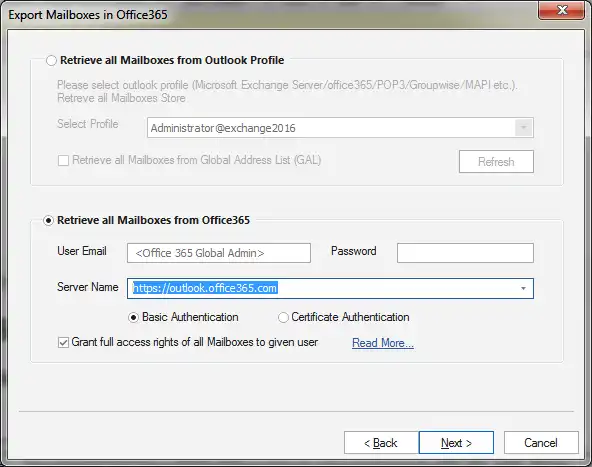
This option allows you to get all the mailboxes from Office 365 using Administration credentials of Office 365 (global admin rights) to perform the migration process.
This option has 5 fields which are:-
1. User Email - Email address of the administrator of Office 365. (Required)
2. Password - The user password of respective Office 365 user (administrator). (Required)
3. Server Name - This option is to input the address of Office 365 server address for the different Office 365 regions e.g. - https://partner.outlook.cn is for Office 365 China region. By default, you can leave it if you aren’t sure what your region is. (Default)
4. Authentication – This option is to choose the type of authentication for the above given Office 365 credentials with the server. There are two types of authentications.
- Basic Authentication – This is the basic and default authentication to authenticate credentials of Office 365. (Default)
- Certificate Authentication – If the administrator has enabled certificate-based authentication in your organization, you can also use this option to authenticate the credentials. (Optional)
Grant Full Access – In Office 365 Migration it requires that the administrator must have full access of all the other mailboxes in the organization and this can be achieved by two methods, one is manual in which the office 365 administrator has to go to exchange admin centre and grant full access permission of all the other users’ mailboxes manually.
The second option is to let the software do that automatically for you. By checking this option, you mean to allow the software to grant full access permission of all the other mailboxes into the above-provided credentials user.
For more info go please follow the link:
Link- https://www.shoviv.com/mailbox-access-permission.html
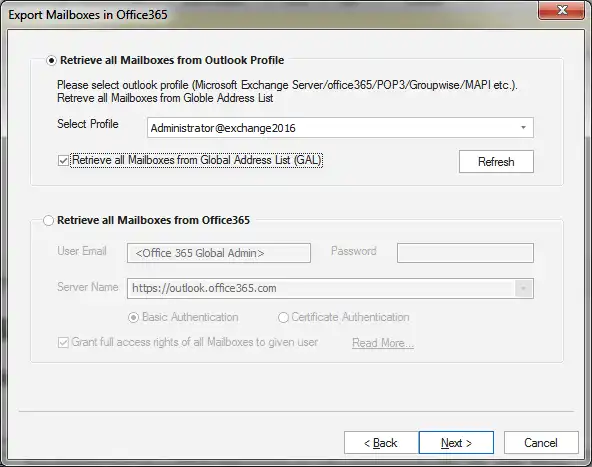
Retrieve all mailboxes from Outlook Profile (Optional)
In case the above-mentioned option is facing an issue or having trouble, you can use another effective option for you. In this option, the first thing you have to do is to make Outlook profile of the Office 365 administrator (Global administrator) in MS Outlook. Make sure that all the other office 365 mailboxes must have granted full access permission to the administrator and enlisted in outlook profile.
Now from the software, choose this option and from ‘Select Profile’ select the created office 365 profile.
1. Retrieve all mailboxes from office 365 – You can use this option to retrieve mailboxes from global address list of the exchange server. That being said, this option will fetch all the mailboxes regardless the full access permission and even the mailbox is not enlisted in outlook administrator’s profile. (Optional)
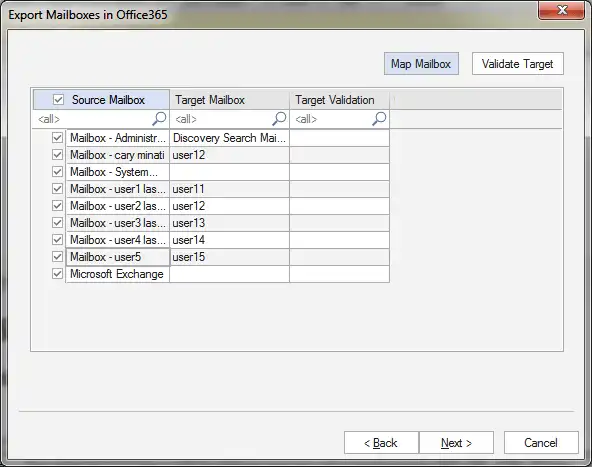
Now you can click "next" and it will prompt you to the next page. Here, you will see the source mailboxes enlisted in "Source" column. And since the software supports automated mailbox mapping, you might be seen the target mailboxes (in case if the source and target user names of mailboxes are same). Manual mapping is also available. Simply you have to select a mailbox from source list and click on ‘Map mailbox’ option. This will open the list of available Office 365 mailboxes. Please choose the desired office 365 mailbox and click "ok". This will enlist the selected Office 365 mailbox into "Target Mailbox" field. You can validate the target mailboxes availability by clicking on "Validate Target" button. Once all the mailboxes are validated and mapped correctly, you can proceed for further migration process.
After completing all the inputs, click on the Next button. If everything is correctly proceeds, you will be prompted to the next page where you can map source mailboxes with Office 365 mailboxes.
Mailboxes mapping is done automatically if the source and destination mailbox name are the same. Also, there is an option to map mailboxes manually. Simply, you have to click a mailbox and click on ‘Map Mailbox’ option which will show you all the available Office 365 mailboxes, choose any Office 365 mailbox and click "ok". This will enlist the selected Office 365 mailbox into "Target Mailbox" field. You can validate the target mailboxes availability by clicking on the "Validate Target" button. Once all the mailboxes are validated and mapped correctly, you can proceed for the further migration process.
 Hope, it will help you.




