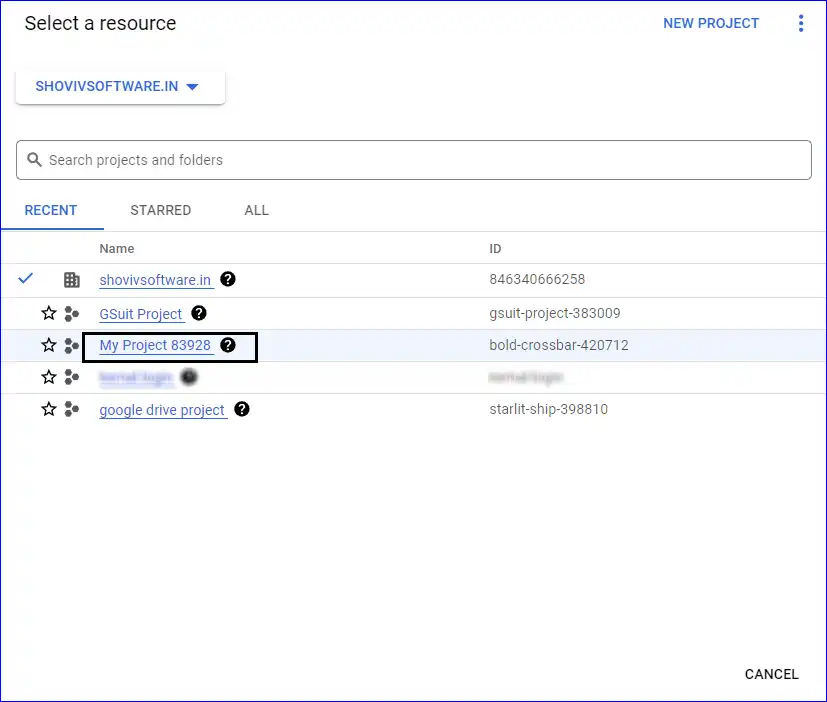
If you are getting the above-mentioned error while creating the Service Key (P12 File), then you must enable the account key creation service. Follow the steps mentioned below that will allow you to create and download the P12 File.
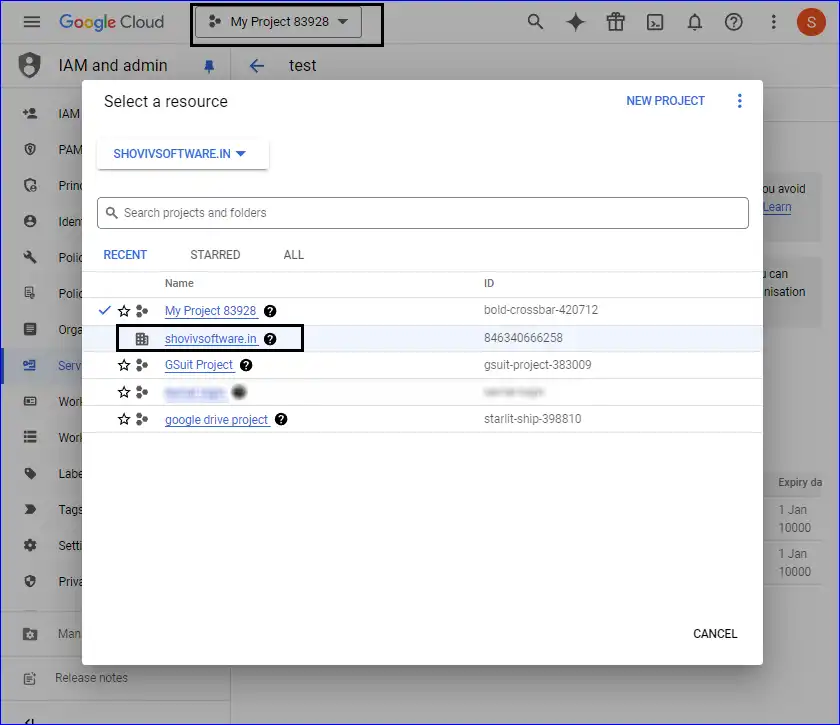
1- The first thing you have to do is switch from your created project to your organization project (your domain). E.g. In the below image, we are switching from the created project, My Project 83928, to shovivsoftware.in)
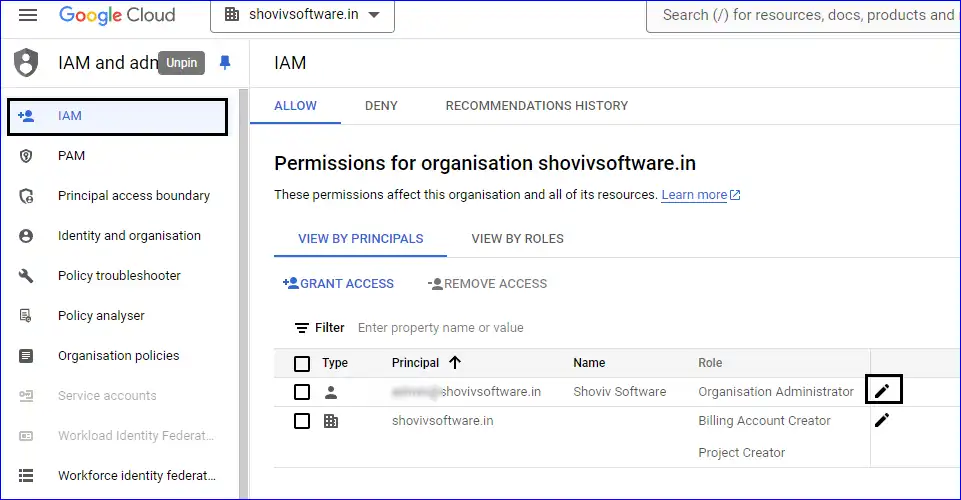
2- Navigate to IAm admin and select your admin account.
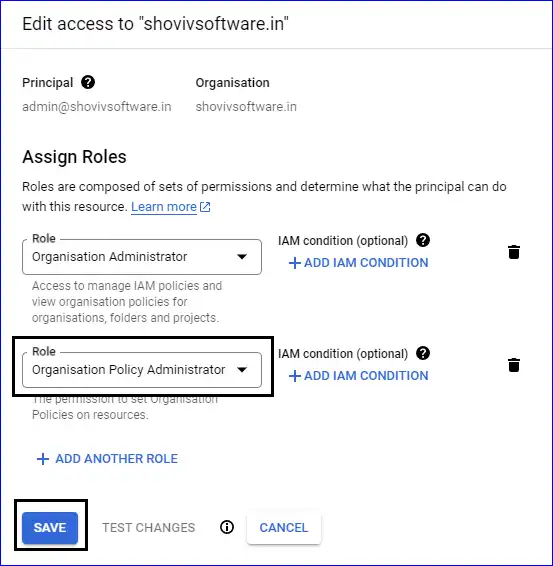
3- Now click on the Add Another Role.
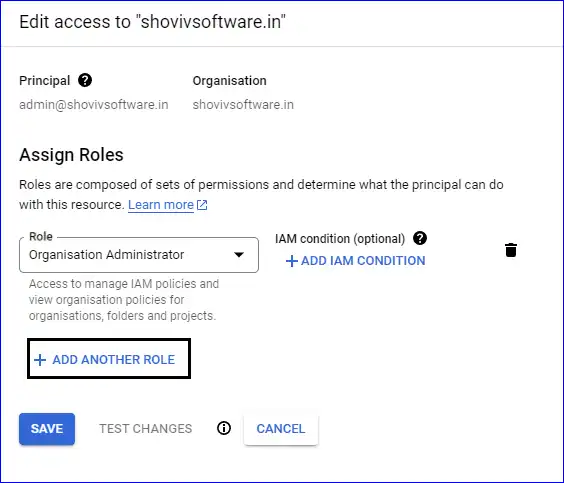
4- Now select and add the Role “Organization Policy Administrator” by clicking on Save.
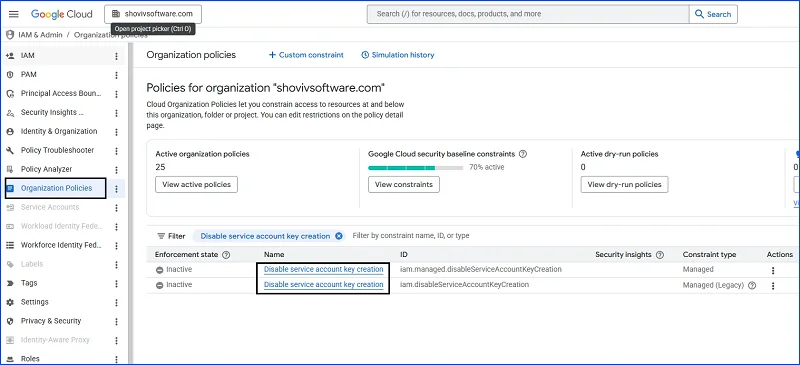
5- Under the Organization Policies, search for the “Disable service account key creation”. You will get two options for the “Disable service account key creation"; you have to change the Enforcement Status from Active to Inactive by following the below given steps for both.
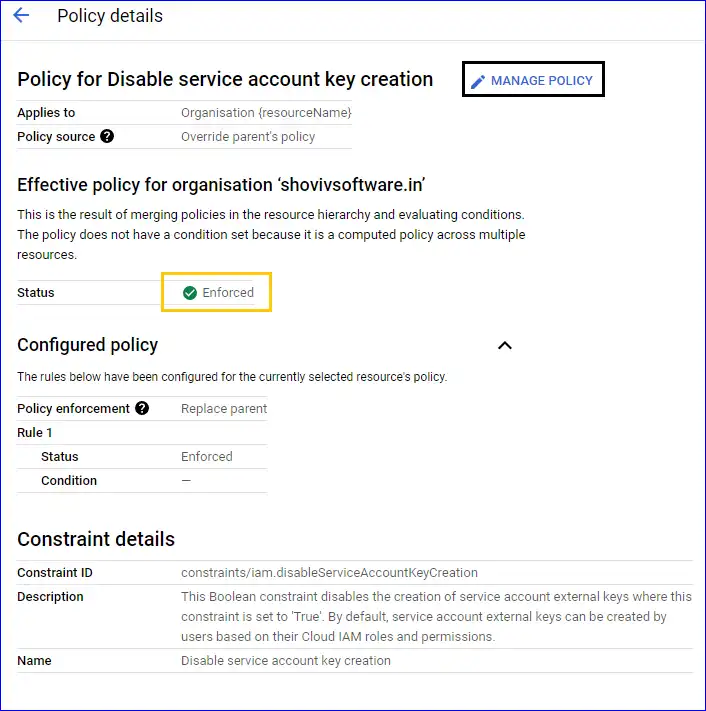
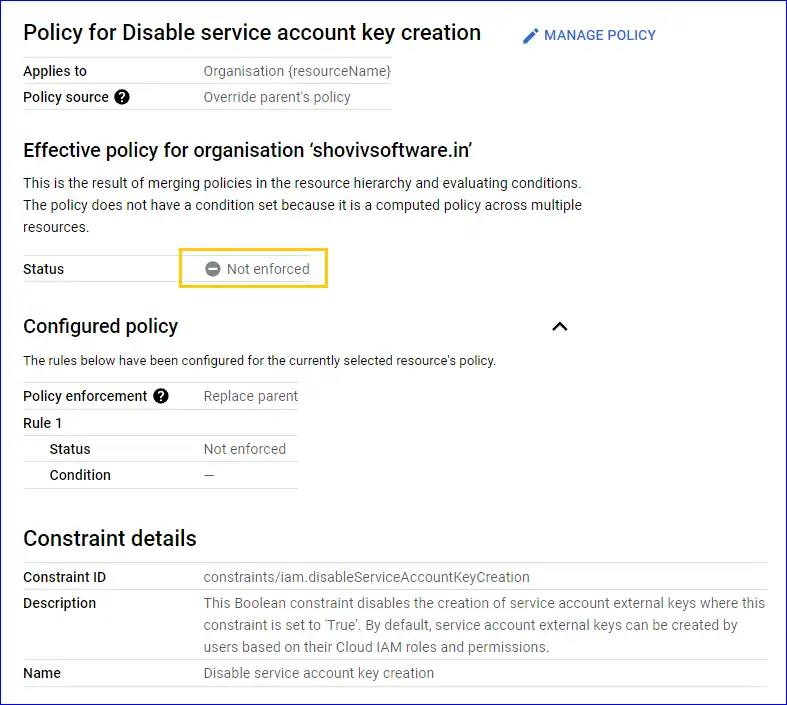
6- Click on the “Manage Policy” and change the status “Enforced” to “Not Enforced”.
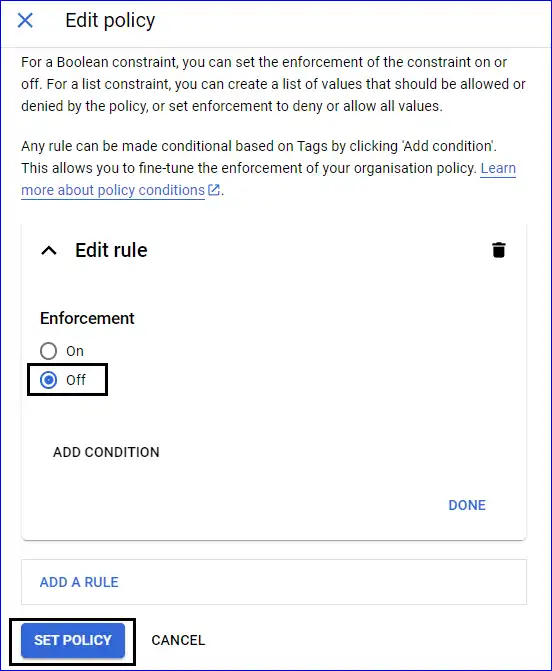
7- Under the Edit Rule, set Enforcement Status to “Off”. Click on the Set Policy.
8- Now you can check the status as “Not Enforced” has been applied successfully. This is what we need to do.
9- Finally, switch from your Organization Project to the project you have created; reverse step 1. Now, you can create your Service Account Key (P12 File).