Installation Guide - Step-by-step instructions to install the software.
Download Software and Run the Installer
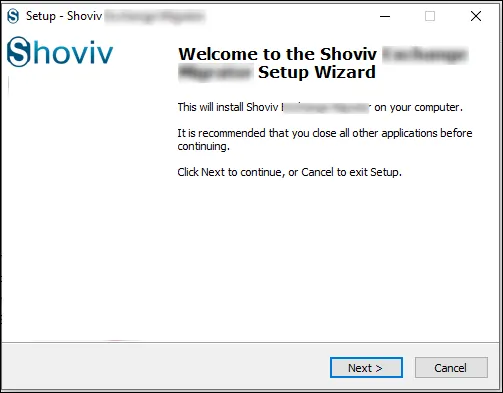
You need to visit the official website of Shoviv. Download the required software and double-click on the .exe file to begin the installation. After that Welcome to the Shoviv Software Setup Wizard screen appears on the system.
- Click the Next button to continue with the installation process.
Accept License Agreement
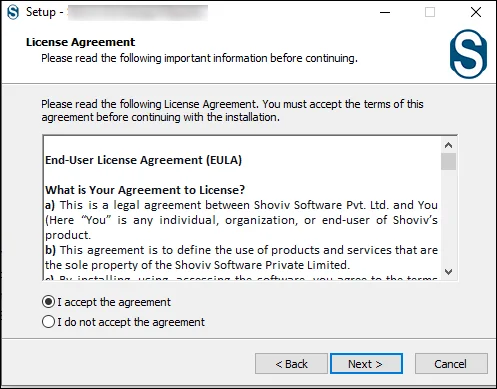
The License Agreement window appears on the screen during the setup process.
- Read the End- User License Agreement and then please click on the I accept the Agreement option to agree to the license terms.
- Click the Next button to move forward with the installation.
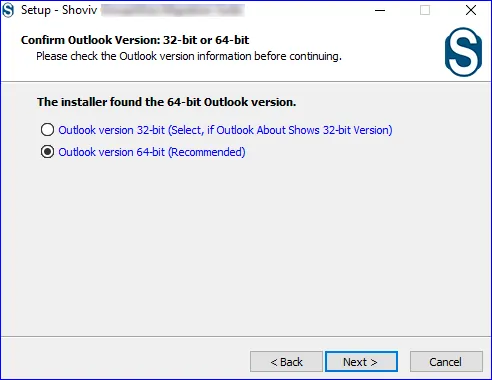
Choose Outlook Version
Cross-check your Outlook Version: 32-bit or 64-bit, and tap the Next button.
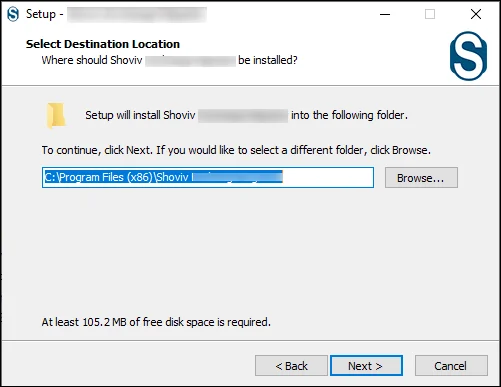
Choose Installation Location
Select where you need to install the software. You can use the default location, or if you want to change the location, then you can do it with the help of the Browser option.
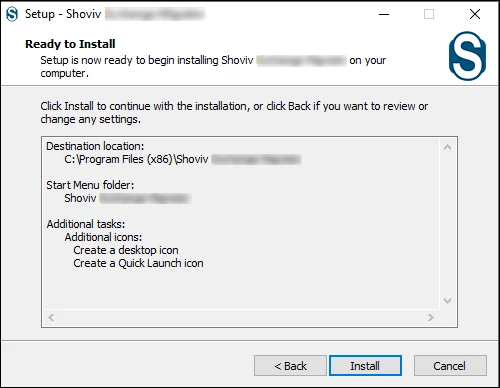
Ready to Install
At the last click on the Install button to begin the installation.
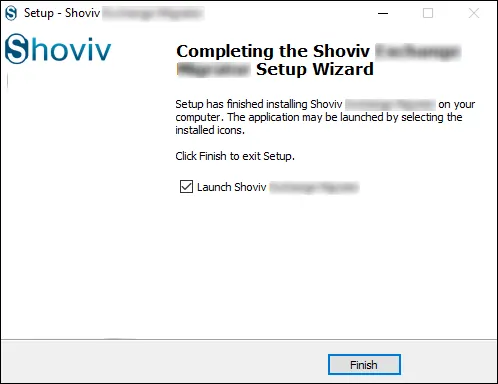
Complete Installation
Wait for the process to complete the installation. Once done, you need to click on the Finish button.
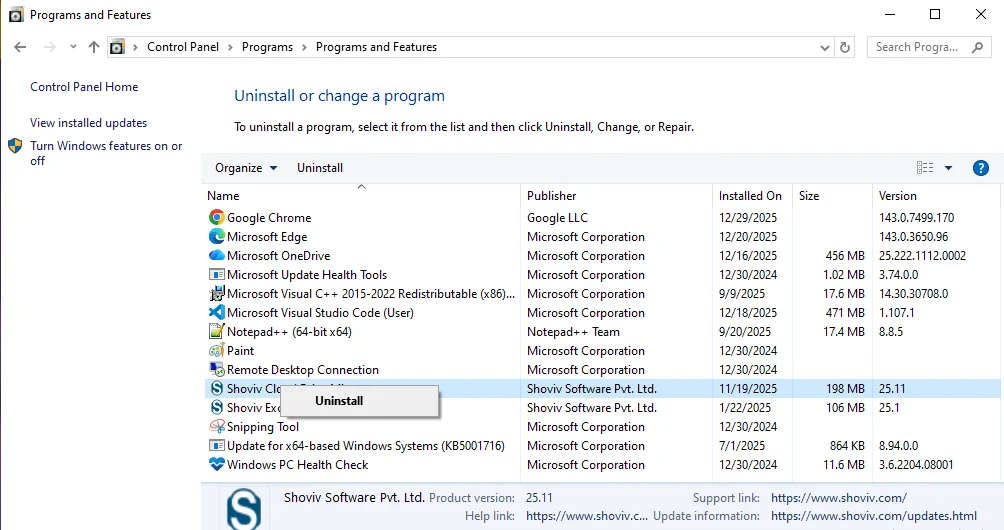
Uninstallation Guide - Step-by-step instructions to uninstall the software.
Open Programs And Features
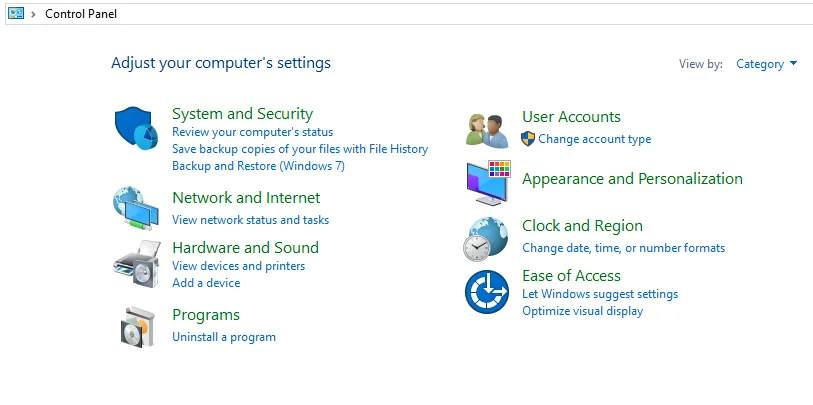
On Windows, open the Start menu, search for the Control Panel, and open it.
- After opening this you need to click on the Programs option.
Find the Software
After clicking on the option there is another page opened.
- Locate the software within the list of installed programs.
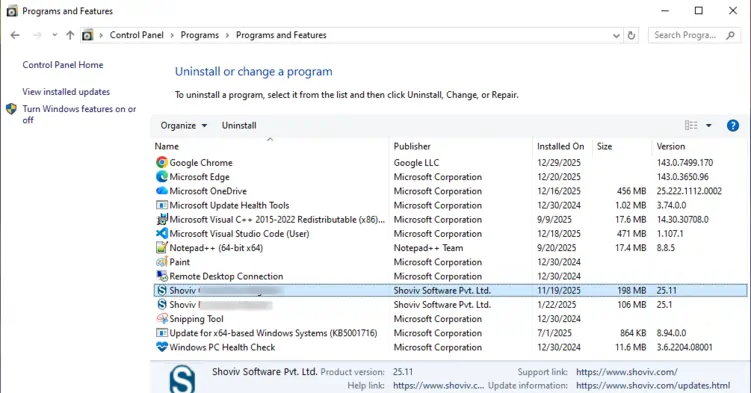
Start Uninstallation
Select software, and initiate the Uninstall, then follow the prompts to finish.