To keep up with today’s demands, we’re seeing more and more companies make the move from Google Workspace to Microsoft 365. They’re often looking for that extra layer of security, more advanced tools, or just a platform that plays nicer with their other systems. Both platforms provide powerful email and collaboration tools, yet migration is often necessary to align with specific goals. This blog presents a comprehensive step-by-step guide to migrating Google Workspace data to Microsoft 365, covering both manual approaches and professional solutions to ensure a secure and seamless transition.
Introduction of Google Workspace & Microsoft 365
Google Workspace is a comprehensive suite of cloud-based productivity and collaboration applications developed by Google. It combines widely used tools like Gmail, Drive, Docs, Meet, and more, enabling teams to work efficiently from a single platform.
On the other hand, Microsoft 365 is Microsoft’s cloud-powered productivity solution that offers a subscription-based model. It provides users access to the latest Office apps and services supporting seamless communication, file sharing, and collaboration.

Before exploring the step-by-step migration process, let’s look at the comparison points and key reasons highlighting why many users migrate from Google Workspace to Microsoft 365.
Reasons Why Users Migrate from Google Workspace to Microsoft 365:
Users migrate from Google Workspace to Microsoft 365 for various personal and business needs, often driven by the additional benefits and flexibility that Microsoft’s platform provides. Let’s know why:
- A broader range of applications, from communication tools like Teams and Yammer to task management tools like Planner.
- Flexible pricing plans suitable for individuals, small businesses, and large enterprises.
- Stronger security measures, including advanced threat protection, encryption, and Multi-Factor Authentication.
- Designed with businesses in mind, offering greater flexibility and scalability.
- Advanced collaboration features with Microsoft Teams, SharePoint, and OneDrive for seamless teamwork.
- Familiarity with Microsoft apps like Word, Excel, Outlook, and PowerPoint, which are widely used across the globe
- Step-by-step migration in batches, ensuring smooth data transfer without workflow disruption.
- Reliable support with extensive documentation, video tutorials, and 24/7 customer assistance provided by Microsoft 365.
- Secure migration of all business-critical data, including emails, files, and other assets.
Now that we’ve explored the key reasons for migration, let’s move on to the solutions that can help you seamlessly transfer data from Google Workspace to Microsoft 365.
Methods to Migrate from Google Workspace to Microsoft 365
Microsoft Admin Centre allows manual data migration from Google Workspace to Microsoft 365. In addition to this, the blog will also introduce a professional solution – an automated tool designed to simplify and streamline the Google Workspace to Microsoft 365 migration.
Manual Methods of Google Workspace to Microsoft 365 Migration: Step-by-Step Process Explained
Microsoft provides a built-in option to move data from Google Workspace to Microsoft 365 using the Exchange Admin Centre. Although this method is free, it requires several technical steps. Before starting, please set up your domain in Microsoft 365, create user accounts, and assign licenses to them. Below is the consolidated step-by-step process for manually carrying out the migration.
(1) ⇨ Prepare Your Microsoft 365 Environment
- Set up your domain in Microsoft 365 and verify ownership.
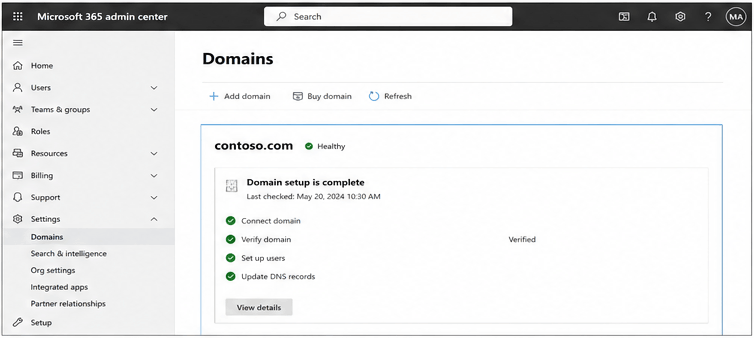
- Create all user accounts in Microsoft 365.
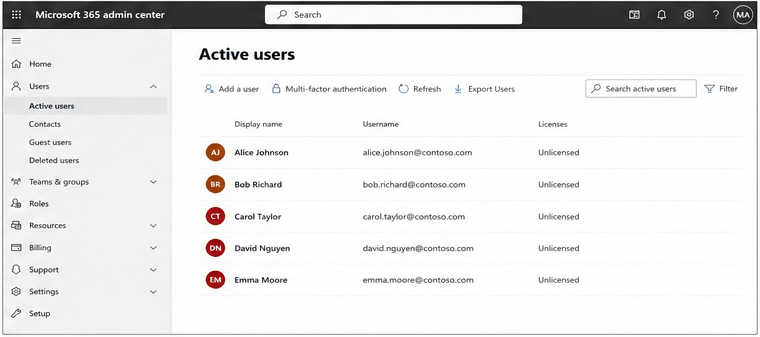
- Assign Microsoft 365 licenses to the respective users.
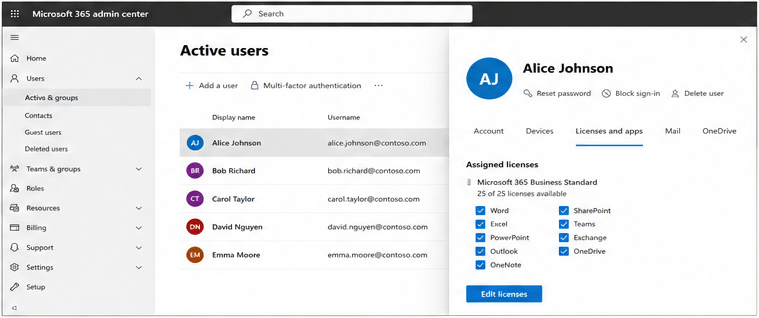
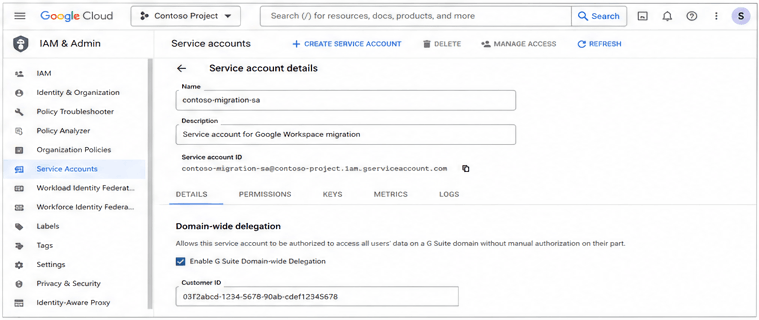
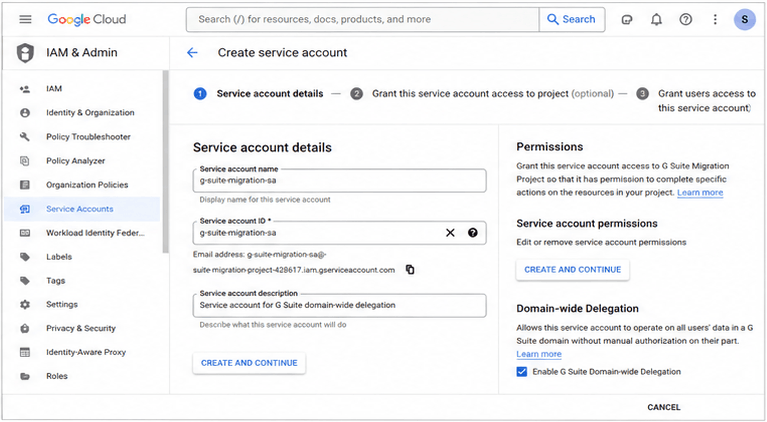
- Prepare a Google Service Account with domain-wide delegation enabled.
- Enable essential APIs (Gmail, Calendar, Contacts in the Google Cloud Console.
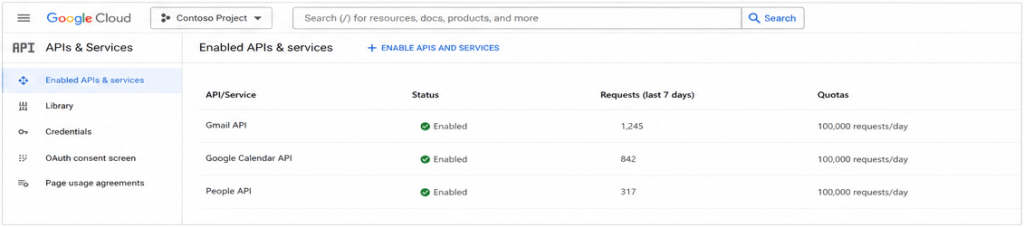
Once your environment is ready, follow the process below:
(2) ⇨ Create and Configure Google Service Account
- Sign in to the Google Developer Console and create a new project.
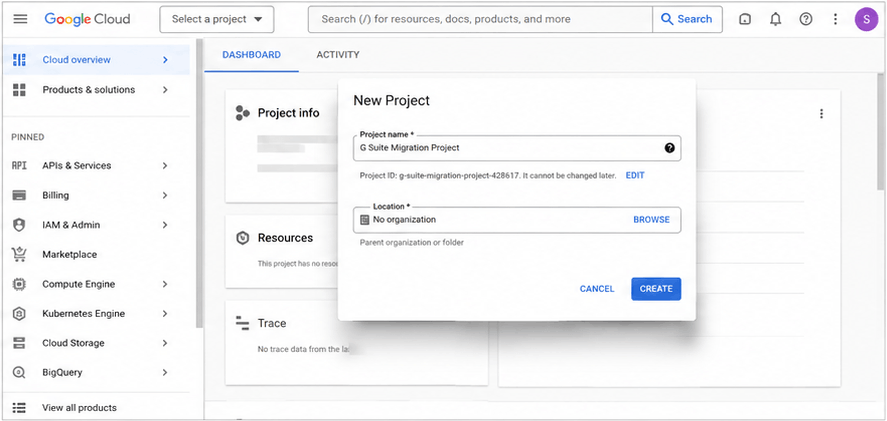
- Under Service Account, create a new account and enable “G Suite Domain-wide Delegation.”
- Generate a JSON key file and note the unique service account’s email ID.
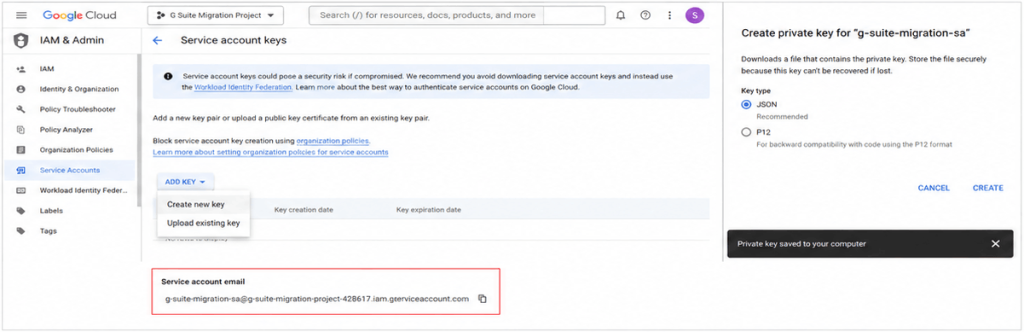
(3) ⇨ Enable Necessary APIs
- Navigate to the Google API Library and select your created project.

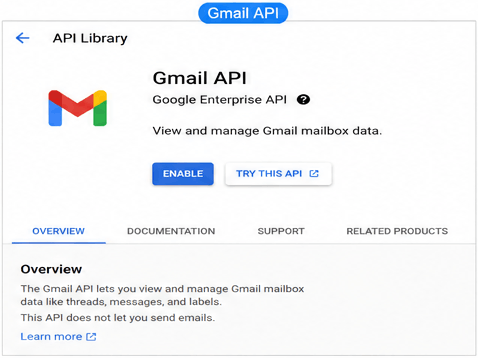
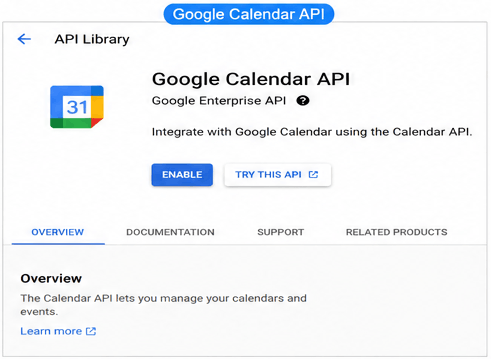
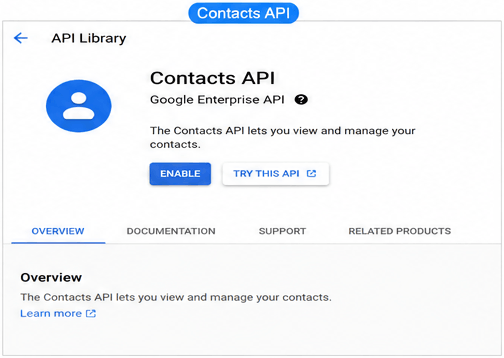
- Enable the following APIs: –
- Gmail API
- Google Calendar API
- Contacts API
(4) ⇨ Grant API Access in Google Admin Console
- Sign in to the Google Workspace Admin Console.
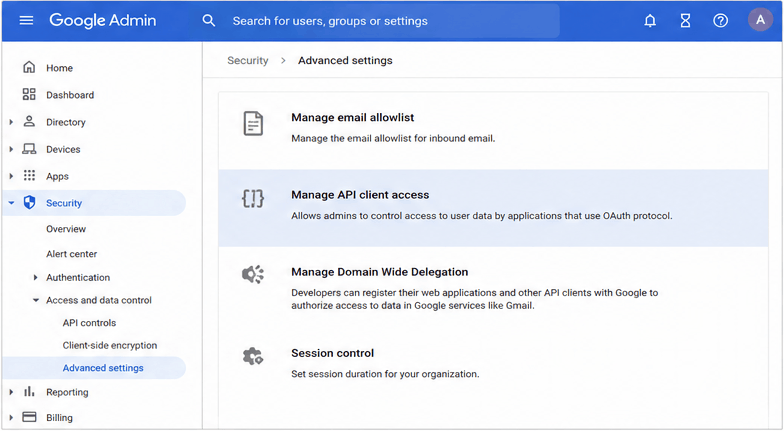
- Navigate to Security > Advanced Settings > Manage API Client Access.
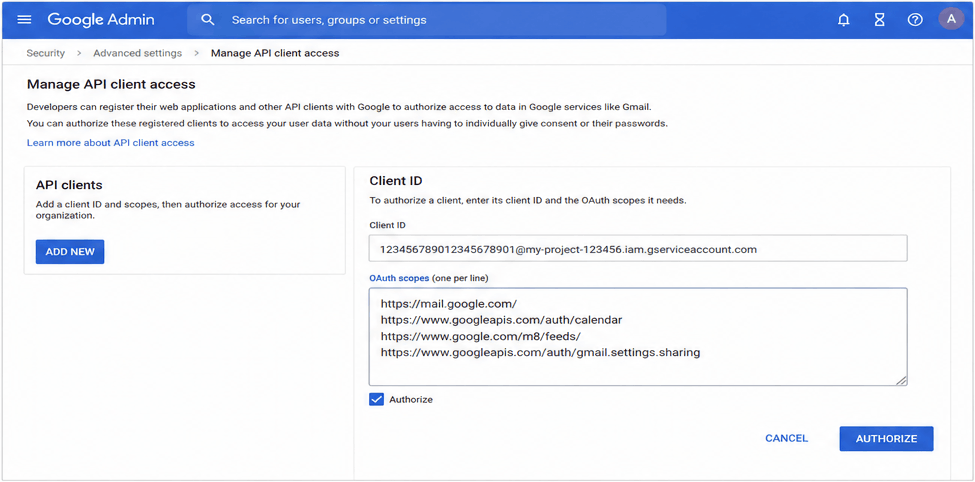
- Enter the client ID from the JSON file/service account and authorize the required scopes:
- https://mail.google.com/
- https://www.googleapis.com/auth/calendar
- https://www.google.com/m8/feeds/
- https://www.googleapis.com/auth/gmail.settings.sharing
(5) ⇨ Verify Domain
- Ensure that your Google Workspace domain is verified in Microsoft 365.
- Add or verify any additional domains or aliases required for migration.
(6) ⇨ Verify Users in Microsoft 365
- Ensure all G Suite users are created and available in Microsoft 365.
- You can bulk add users by importing a CSV file in the Microsoft 365 Admin Centre.
(7) ⇨ Configure Migration in Exchange Admin Centre (EAC)
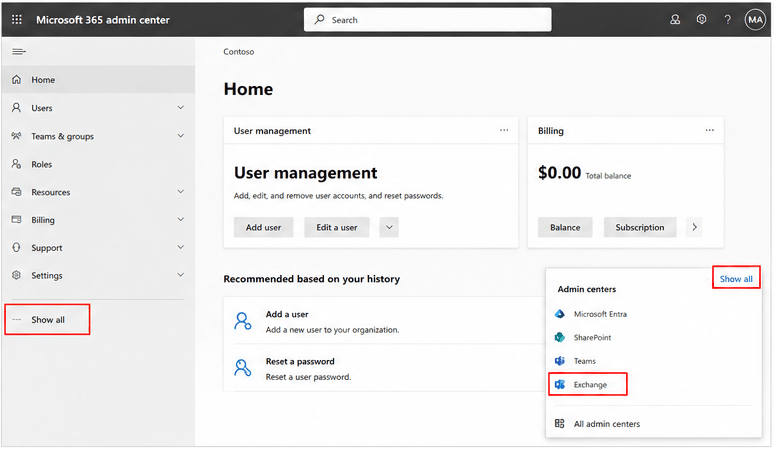
- Go to the Microsoft 365 Admin Centre, expand Show All, and open Exchange Admin Centre (EAC).
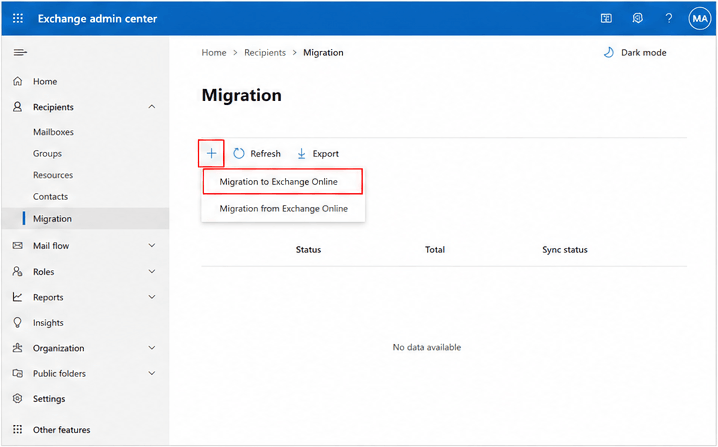
- Navigate to Recipients > Migration, click the + icon and select Migration to Exchange Online.
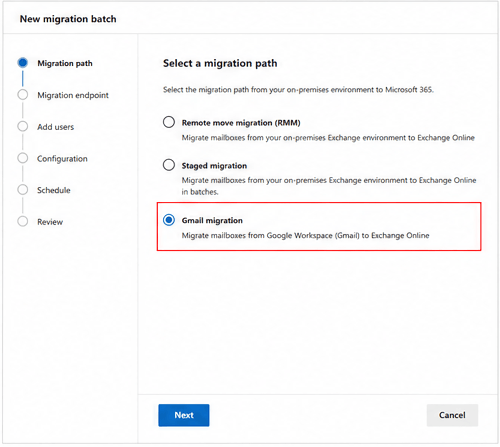
- Select Google Workspace (Gmail) migration and click Next.
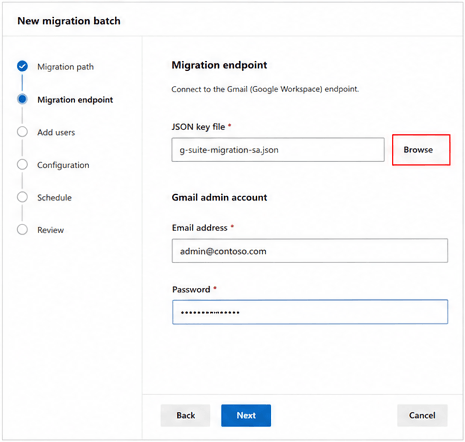
- Upload the JSON key file downloaded earlier and provide the Gmail Admin account details.
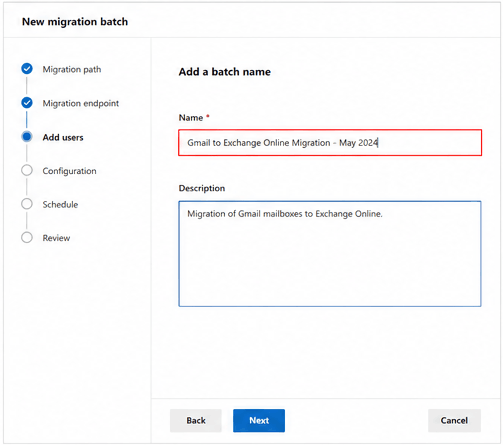
- Provide a name for the migration batch.
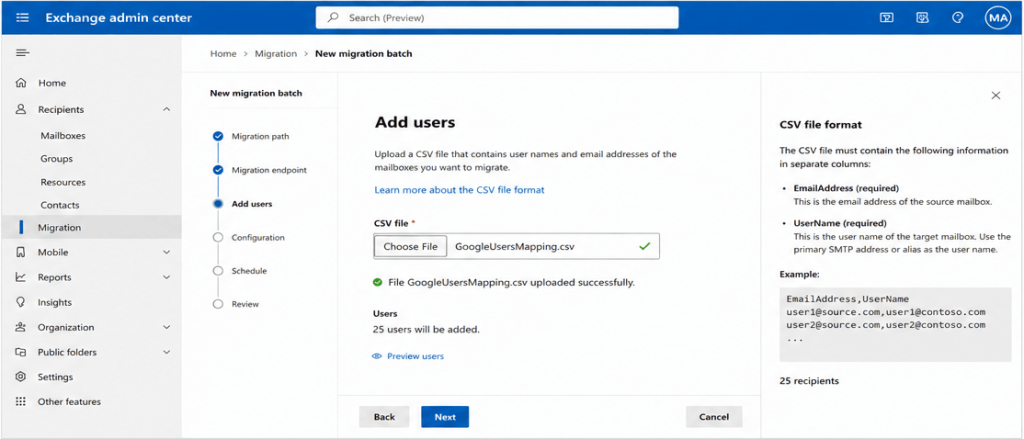
(8) ⇨ Add and Map Users
- Upload a CSV file containing the list of Google Workspace users and their corresponding Microsoft 365 accounts.
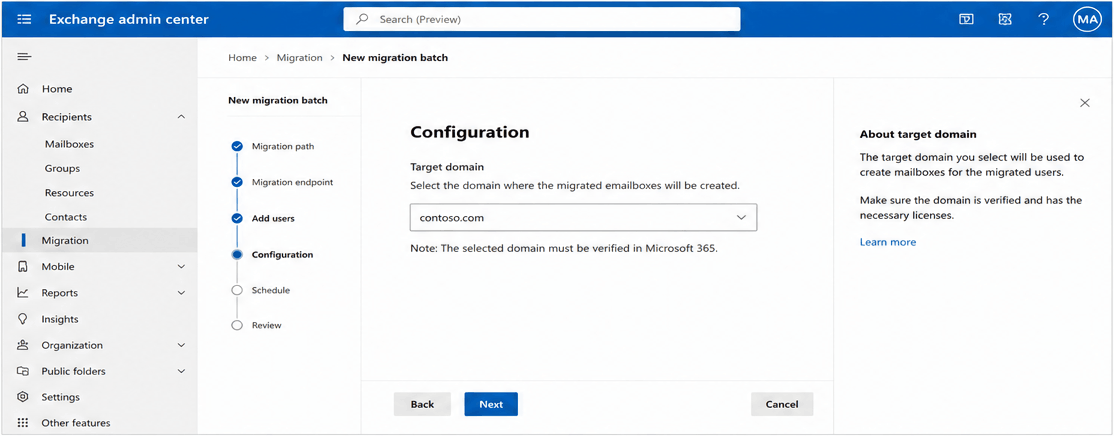
- Select the target domain where the mailboxes should be created.
(9) ⇨ Start the Migration Batch
- Create a Migration Endpoint and give it a recognizable name.
- Assign the migration batch a name and choose whether to start it automatically or manually.
- Select the migration items (emails, calendar, contacts, etc.) you want to migrate.
- Monitor progress in the Migration Dashboard and download reports in the EAC once completed.
Limitations of Manual Methods: –
- The procedure can sometimes be more complicated than expected, leading to partial data loss or missing crucial items.
- This method primarily supports email transfer, while calendars and contacts often remain unmigrated.
- Human error is always a risk; even a small mistake can disrupt the entire migration process.
- The manual process requires strong technical knowledge, making it challenging for non-technical users.
The manual method of migrating Google Workspace to Microsoft 365 can be lengthy and challenging, particularly for large-scale organizations. To save time and minimize downtime, using a reliable automated tool is a more innovative alternative. In the next section, we will explore the professional approach in detail.
Professional Method of Google Workspace to Microsoft 365 Migration: Step-by-Step Process Explained
For those who prefer not to rely on the manual process and want to move without any lengthy process or data loss, an automation solution offers a safer and more efficient way to migrate from Google Workspace to Microsoft 365. The Shoviv G Suite to Microsoft 365 Migration Tool allows users to migrate emails, contacts, calendars, and more seamlessly. This professional software allows multiple Google Workspace mailboxes to be migrated simultaneously in a single operation. Let’s explore its additional features that simplify and streamline the migration process.
Key Features of the Shoviv Google Workspace to Microsoft 365 Migration Tool: –
- Enables users to create and run multiple migration jobs simultaneously.
- Provides advanced filters based on folder selection and date range for precise migration.
- Maintains consistent migration speed, even when handling multiple jobs in parallel.
- Preserves the original folder structure and ensures complete data integrity.
- It supports the migration of archive mailboxes and public folders to Microsoft 365.
- Offers a built-in scheduler to automate and plan migration tasks at preferred times.
- Facilitates Google Drive to OneDrive for Business migration along with mailbox data.
- Compatible with all versions of Windows OS.
Steps-by-Step Process to Migrate Google Workspace to Microsoft 365:
- Launch the Shoviv migration tool on your device.
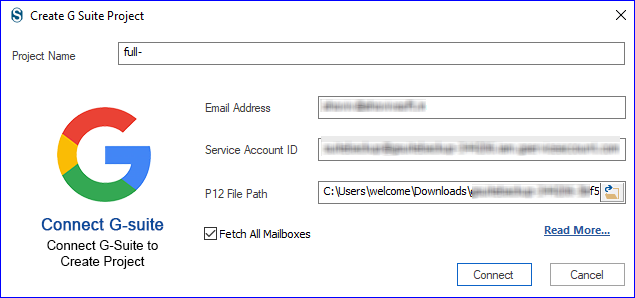
- Enter the required details in the Source G Suite tab to establish the source connection. You need to create the Service account ID and P12 path.
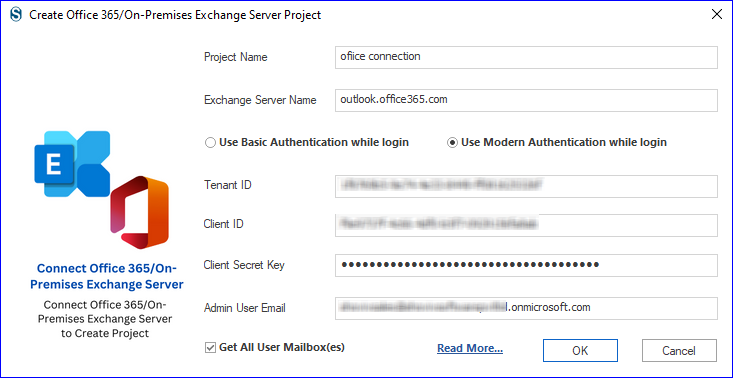
- Next, switch to the Target Office 365 tab and provide credentials to connect with Microsoft 365.You need Client ID, Tenant ID, and Client Secret Key to create a connection.
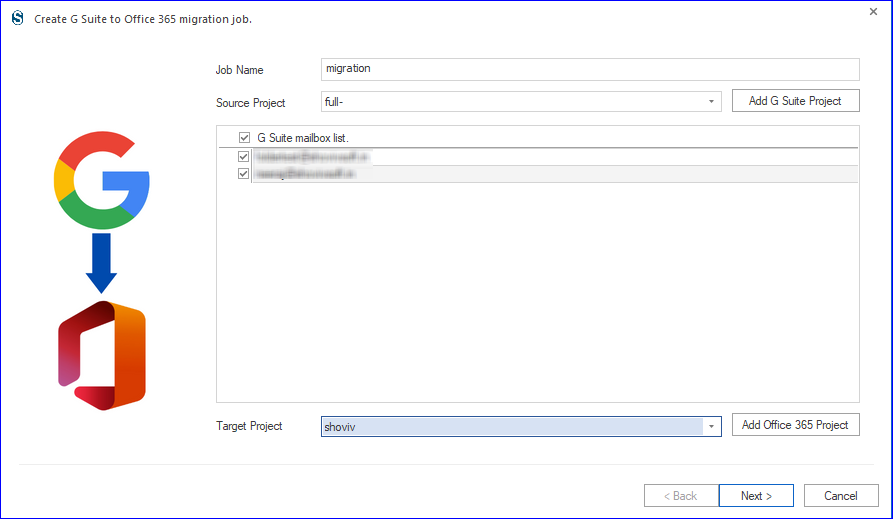
- Move to the Mailbox Migration section to create a new migration project or job.
- Assign a job name, add created projects, select the mailboxes, and continue by clicking Next.
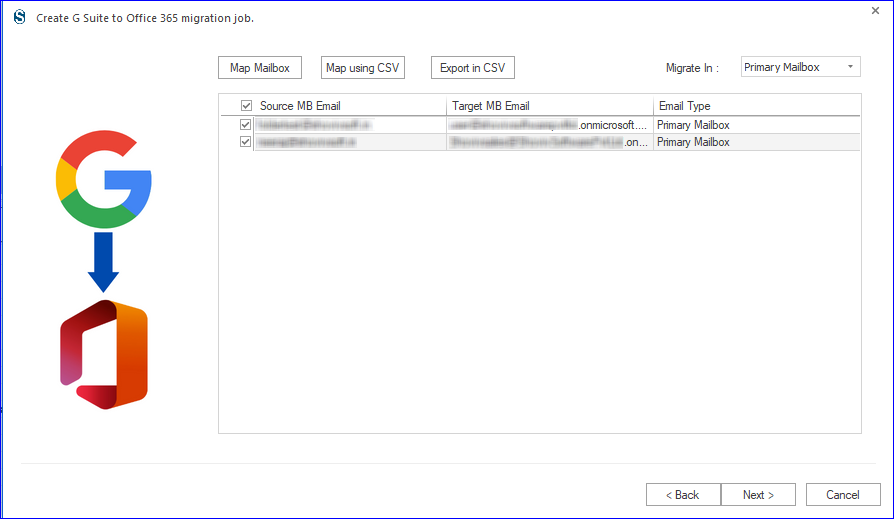
- Map each source mailbox with its respective target mailbox and proceed.
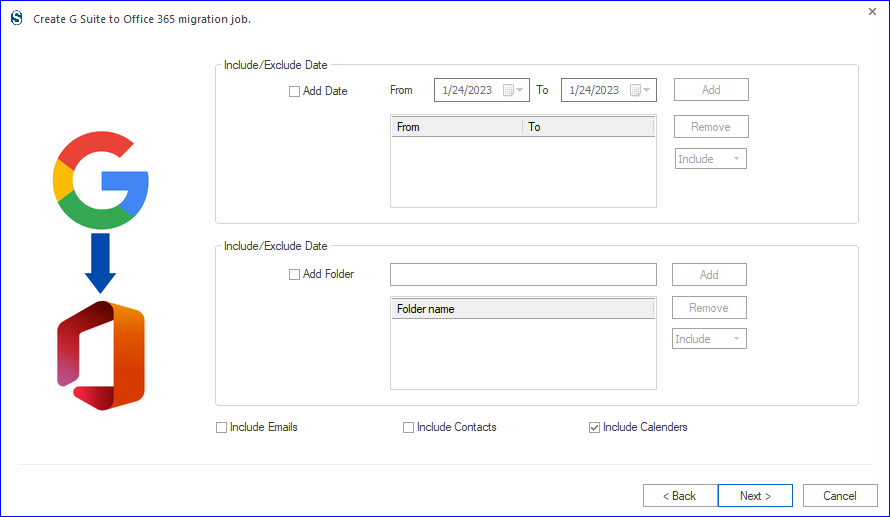
- Apply filters based on folders or date range to include or exclude specific data items.
- Adjust any additional settings on the configuration page as per your requirements.
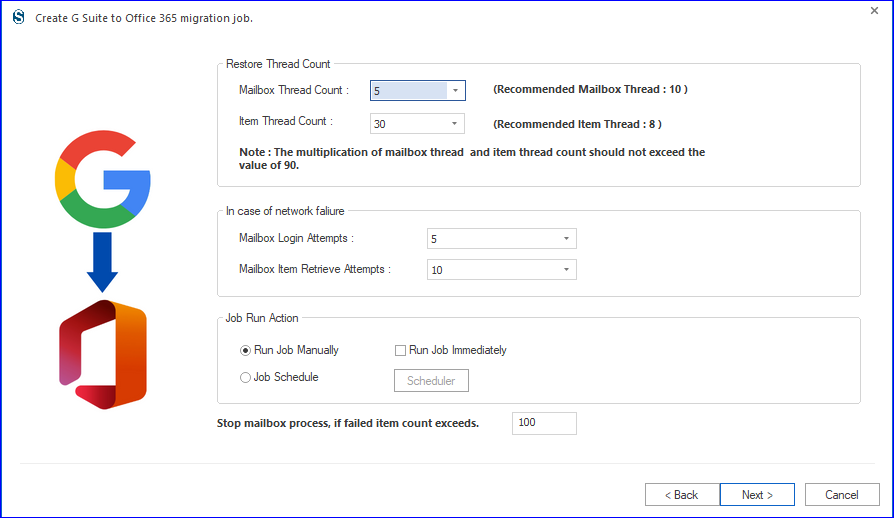
- (Optional) Use the built-in Scheduler to automate migration tasks at a chosen time.
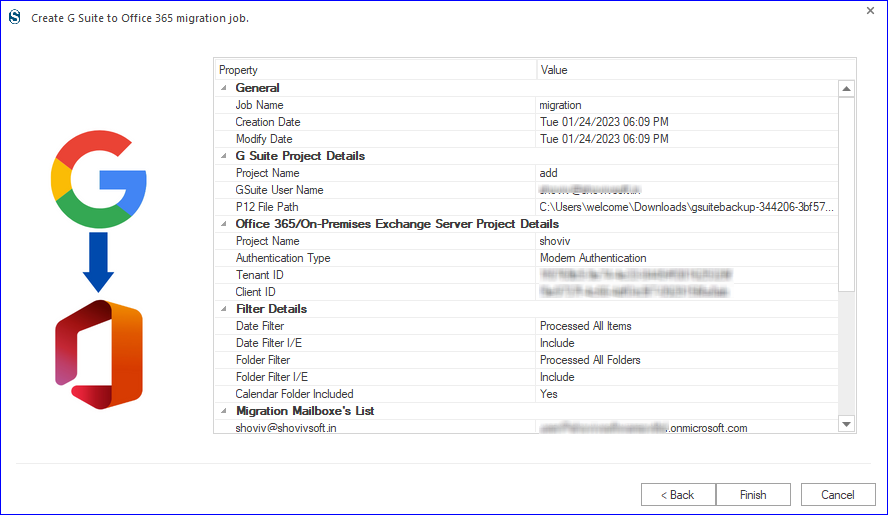
- Finally, review all job settings carefully and click Finish to start the migration.
Final Words:
This blog has outlined manual and professional migration methods from Google Workspace to Microsoft 365. While the manual approach is free, it has limitations such as partial data migration, complexity, and a higher chance of error. In contrast, the Shoviv G Suite to Microsoft 365 Migration Tool provides a simplified and reliable way to move emails, contacts, calendars, Google Drive data, and more in one go, ensuring data integrity and speed. To evaluate its performance, you can try the free demo version, which lets you migrate up to 50 items per folder without cost. Ultimately, the choice of method depends on your needs, but for a smooth and risk-free migration, the professional solution is highly recommended.
Frequently Asked Questions: –
Yes, with the Shoviv tool, you can quickly migrate emails without going through complex manual steps. The software is designed for all users, even those without technical expertise.
You need to:
➔ Create and prepare the target mailboxes in Microsoft 365.
➔ Have login credentials (Admin) for both the source (Google Workspace) and the target (Office 365).
➔ Establish a connection for both platforms.
➔ Create a migration job, then start the mailbox migration.
Yes, the Shoviv provides a date range filter, which lets you migrate only emails sent or received within your chosen timeframe. You can also include or exclude specific folders for more precise migration.
Absolutely. The software is fully compatible with Windows 11 Pro and all other versions of the Windows operating systems.