Users planning to migrate Amazon WorkMail emails to Zoom Mail before Amazon WorkMail reaches its end of support need a reliable migration approach to protect their business emails. This guide explains the reasons for Amazon WorkMail to Zoom Mail migration, discusses manual methods along with their limitations, and introduces the Shoviv Amazon WorkMail to IMAP Migrator as a reliable solution for performing a secure and efficient mailbox migration.
Reasons Behind the Migration of Amazon WorkMail to Zoom Mail
Organizations choose to migrate AWS WorkMail to Zoom for several important reasons. Some of the major ones include:
- End of Support for Amazon WorkMail
- Amazon has announced the end of support for WorkMail.
- Continuing to use an unsupported email service can increase security and operational risks.
- Migrating before the deadline helps ensure uninterrupted email communication.
- Modern Collaboration Experience
- Zoom Mail is part of the Zoom ecosystem.
- It integrates email with meetings, chat, and collaboration tools.
- Users can manage business communication from a single platform.
- Long-Term Reliability
- Zoom Mail is actively maintained and regularly updated.
- Businesses benefit from ongoing security improvements and feature enhancements.
- It provides a future-ready email environment for growing organizations.
- Simplified Administration
- Zoom Mail offers centralized user and mailbox management.
- Administrators can efficiently manage security settings and email services.
- It helps reduce administrative complexity for IT teams.
- Business Continuity
- Migrating early minimizes the risk of unexpected service disruptions.
- Organizations can complete testing and user onboarding before switching completely.
- A planned migration ensures business operations continue without interruption.
Preparation Checklist Before the Migration:
Before you migrate Amazon WorkMail to Zoom Mail, make sure your environment is properly prepared. Completing these checks beforehand helps minimize migration issues and ensure a smooth transition.
- Review all Amazon WorkMail mailboxes, shared mailboxes, aliases, and folder structures that need to be migrated.
- Create corresponding user accounts in Zoom Mail and verify that all required mailboxes are available.
- Confirm that IMAP access is enabled for both Amazon WorkMail and Zoom Mail.
- Configure your domain settings, including MX, SPF, DKIM, and other required DNS records for Zoom Mail.
- Create a backup of important mailbox data before starting the migration.
- Perform a pilot migration with a few mailboxes to verify that emails, folders, and attachments are transferred successfully.
Manual Methods to Migrate Amazon WorkMail to Zoom Mail
Method 1: Forward Emails
Email forwarding is one of the simplest ways to redirect incoming emails from Amazon WorkMail. This method only forwards new messages received after the forwarding rule is created.
Steps:
- Sign in to your Amazon WorkMail account.
- Open Settings and navigate to Email Rules.
- Create a new forwarding rule.
- Enter your Zoom Mail email address as the forwarding destination.
- Save the rule and verify that new emails are being forwarded.
Method 2: Use a Desktop Email Client
You can also use an IMAP-supported email client, such as Microsoft Outlook or Mozilla Thunderbird, to move emails between Amazon WorkMail and Zoom Mail.
Steps:
- Configure your Amazon WorkMail account using IMAP.
- Add your Zoom Mail account to the same email client.
- Wait until both mailboxes are synchronized.
- Copy or drag the required emails and folders from WorkMail to Zoom Mail.
- Verify that all required data has been transferred successfully.
Method 3: Zoom Mail Native Import
If available in your Zoom Mail subscription, the built-in import feature can be used to migrate mailboxes from Amazon WorkMail.
Steps:
- Sign in to the Zoom Admin Portal.
- Open the migration or import settings.
- Select Amazon WorkMail as the source email platform.
- Map the required user accounts.
- Start the import process and monitor the migration status until it is completed.
Limitations of Manual Methods
Although manual methods can help migrate AWS WorkMail to Zoom Mail, they may not be suitable for organisations with multiple mailboxes due to the following limitations:
- Manual migration requires users or administrators to move email individually, making it inefficient for organizations with a large number of mailboxes.
- If the migration is interrupted or performed incorrectly, some emails, folders, or attachments may not be transferred successfully.
- Manual methods do not provide real-time migration status, reports, or error logs, making it difficult to verify whether every mailbox has been migrated.
- Managing multiple user accounts manually can become complex and significantly increase the workload for IT administrators.
- Since manual migration often requires user intervention, it may interrupt normal email activities and affect business productivity.
- Features such as mailbox filtering, incremental migration, scheduling, and automatic retry options are not available with manual approaches.
Professional Method to Migrate Amazon WorkMail to Zoom Mail
Migrating business mailboxes requires a solution that not only transfers data securely but also maintains its integrity throughout the process. This Shoviv Amazon WorkMail to IMAP Migrator is designed to simplify Amazon WorkMail migration to Zoom Mail while ensuring accurate and reliable mailbox transfer.
Key Features of the Shoviv Amazon WorkMail to Zoom Mail Migration Tool
- Migrate multiple Amazon WorkMail mailboxes to Zoom Mail simultaneously.
- Supports migration of mailboxes of any size without restrictions.
- Preserves folder hierarchy and mailbox structure during migration.
- Offers incremental migration to resume interrupted tasks/ to get only unexported data.
- Includes advanced filters to migrate only the required mailbox data.
- Allows scheduled migration for better planning and automation.
- Provides a simple interface suitable for both technical and non-technical users.
Simple Steps to Migrate Amazon WorkMail to Zoom Mail
Follow the below steps:-
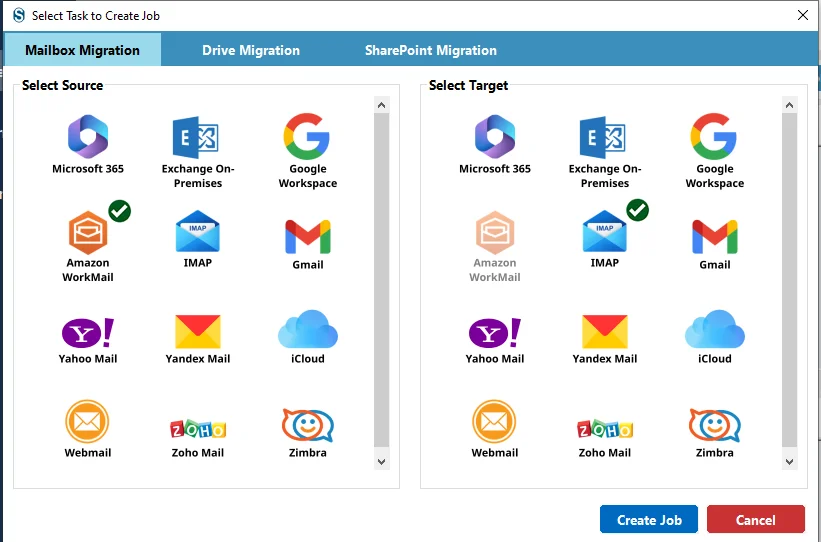
- Connect the Source & Destination
Launch the Shoviv Amazon WorkMail to IMAP Migrator, and select the source and the target.

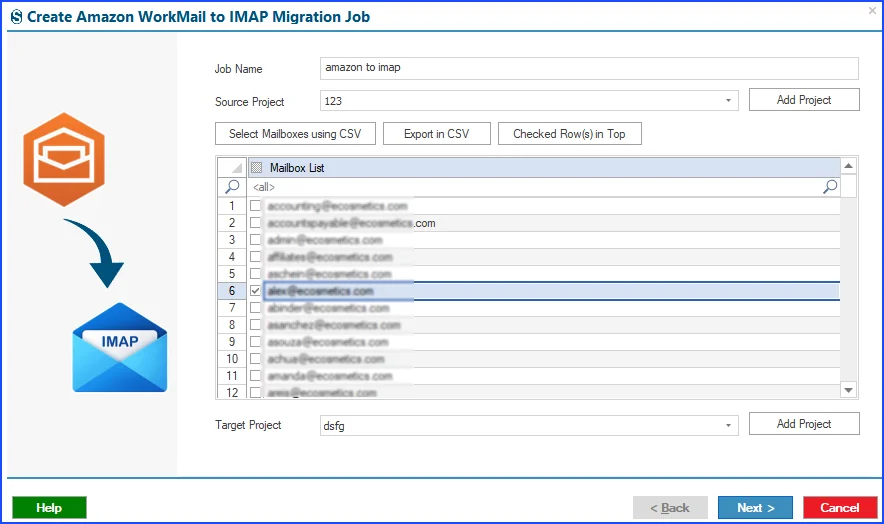
- Connect Project
Connect the source Amazon WorkMail account (Source Project) along with the destination Zoom Mail/ Target Project (IMAP) account by entering the required credentials. Moreover, give a name to the job.

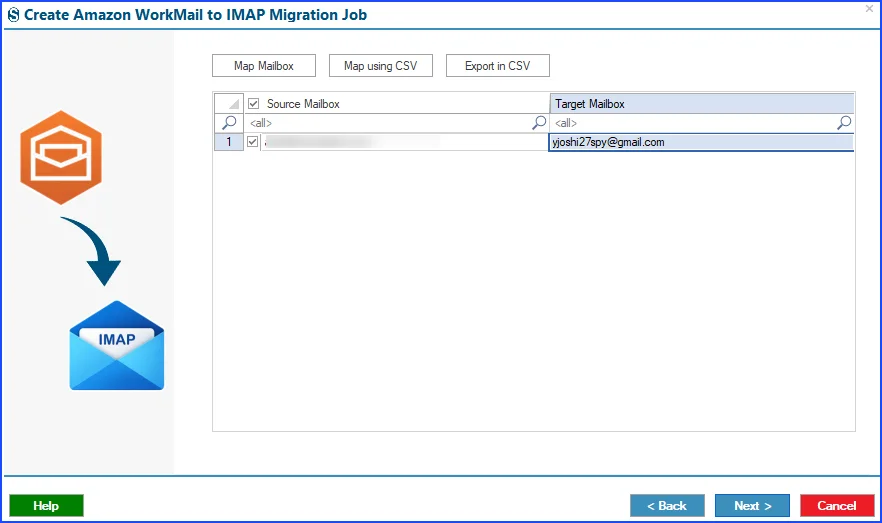
- Map the Mailboxes
Map the source WorkMail mailboxes with their corresponding Zoom Mail mailboxes to ensure accurate and secure data migration.

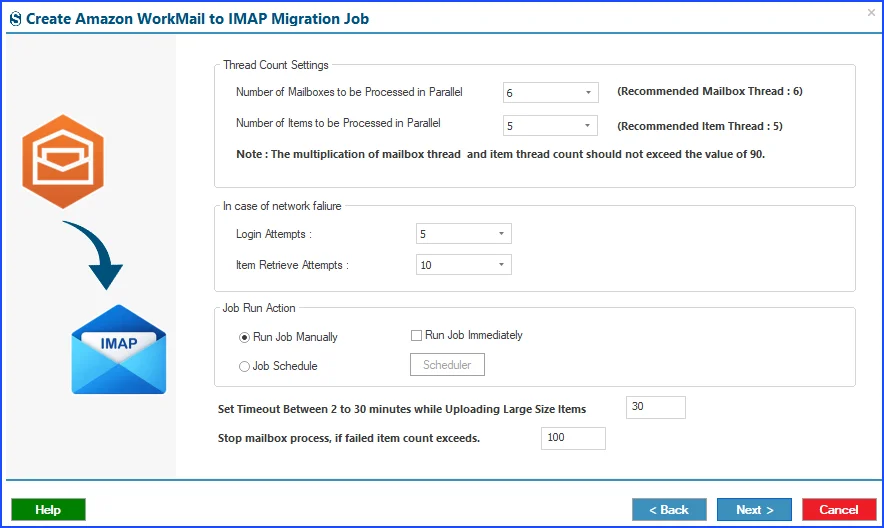
- Configure Filters & Migration Settings
Apply the required filters and configure the migration settings to transfer only the desired mailbox data based on your requirements.

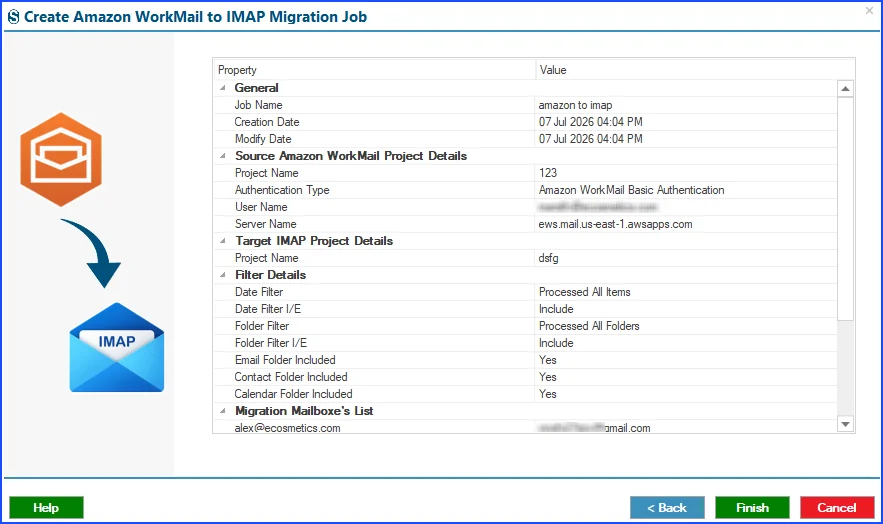
- Review the Migration Job
Review the migration configuration to ensure everything is set correctly. Once verified, click the Finish button to begin migrating Amazon WorkMail mailboxes to Zoom Mail.

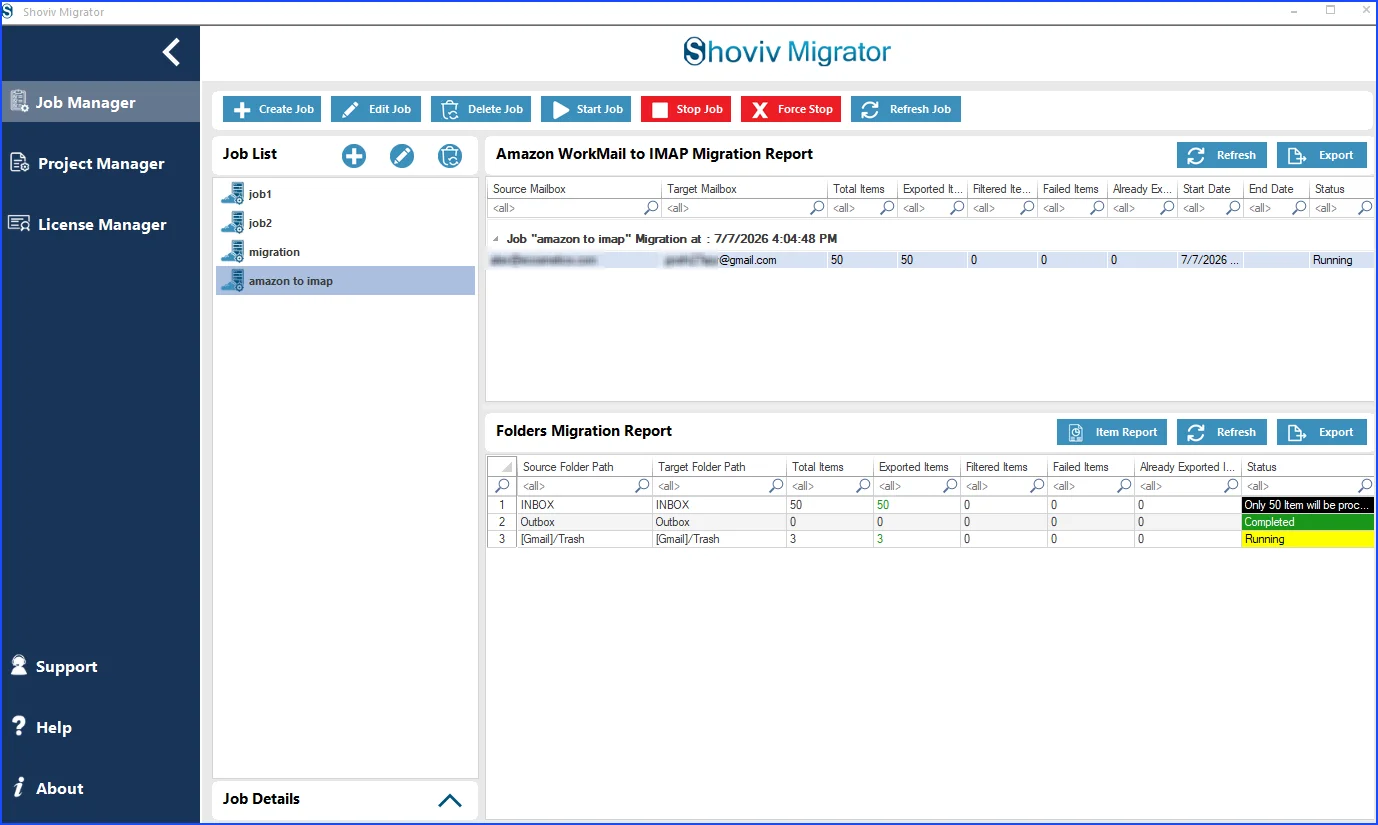
- Start Migration and Get Live Details
The migration job will run as per the job-run action.

Final Words:
Migrating Amazon WorkMail to Zoom Mail is an important step for organizations looking to move to a supported and modern email platform. While manual methods can be suitable for small migrations, they often require more time and effort. They may not be ideal for large-scale environments.
For organizations seeking an automated approach, the Shoviv Amazon WorkMail to IMAP Migrator offers a simple and reliable way to migrate mailboxes to Zoom Mail while maintaining data integrity.
Frequently Asked Questions:
Amazon WorkMail is approaching its end of support, making migration essential for organizations that want a secure, supported, and reliable email platform. Zoom Mail provides a modern environment for business communication and collaboration.
Yes. You can migrate emails, subfolders, and attachments. Using a professional migration tool also helps preserve the original mailbox structure during the migration.
No. Manual methods are generally suitable for small migrations. Organizations with multiple mailboxes may find them time-consuming and difficult to manage.
With the manual methods, users don’t get many options to customise. However, a professional tool like Shoviv Amazon WorkMail to IMAP Migrator provides advanced filtering options, allowing you to migrate only the required mailbox data.