Summary: Users who want to export a SharePoint list to Excel for reporting, analysis, backup, or data management can use this guide to understand different export methods. This blog explains manual ways, automated approaches, and professional solutions to help users export and manage SharePoint list data more effectively.
SharePoint lists help users store and organize structured data such as tasks, projects, and business records. However, Excel offers better options for analysis, reporting, and offline data handling. Exporting a SharePoint list to Excel allows users to work with data using Excel features like filters, formulas, and charts.
Reasons to Export a SharePoint list to Excel
Exporting a SharePoint list to Excel helps users manage, analyze, and share their data more efficiently. Some common reasons include:
- Creating Reports & Dashboards – Exported data can be used to create reports, charts, and dashboards in Excel for better data presentation and decision-making.
- Performing Advanced Data Analysis – Excel provides features like formulas, filtering, sorting, and PivotTables to analyze SharePoint list data in more detail.
- Sharing Data with Non-SharePoint Users – Excel files make it easier to share list information with users who do not have access to the SharePoint environment.
- Keeping Offline Copies & Backups – Exporting a list allows users to save a local copy of important SharePoint data for offline access and backup purposes.
- Archiving Important List Information – Exported Excel files help organizations reserve historical SharePoint list Data for future reference and record keeping.
By exporting SharePoint list data to Excel, users can manage and analyze their information more effectively according to their business needs.
Methods to Export a SharePoint List to Excel
SharePoint list data can be exported to Excel using different methods depending on the user’s requirements. Users can choose simple manual options for quick exports or advanced methods for automation and handling large datasets.
1. Manual Export Methods
SharePoint provides built-in export options to move list data directly into Excel or CSV format. This method is useful for one-time exports and users who do not need automation.
Export to Excel (.iqy)
- Access the SharePoint list you want to export.
- Click Export from the command bar and select Export to Excel.
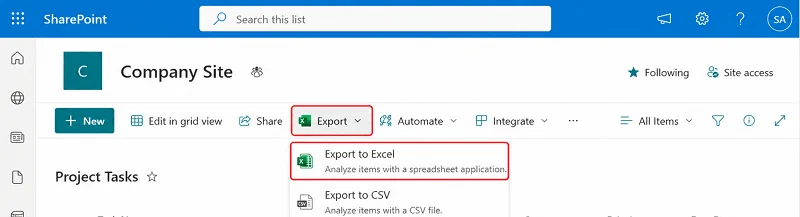
- Download the generated .iqy file and open it in Microsoft Excel.
- Allow the data connection, and the SharePoint list data will load into Excel.
- Save the workbook as an .xlsx file if required.
Export to CSV
- Open the required SharePoint list.
- Select Export > Export to CSV.
- Save the CSV file on your system.
- Open the file in Excel and save it as an Excel workbook if needed.
2. Export SharePoint List to Excel Using Power Automate
Power Automate helps automate SharePoint list exports by creating workflows that transfer data into Excel files automatically. It is suitable for scheduled exports and recurring reporting tasks.
Steps:
- Open Power Automate and create a new flow.
- Select a trigger, such as a scheduled flow or when an item is created/modified.
- Add the SharePoint Get Items action to collect list data.
- Add the Excel action to create or update rows in an Excel table.
- Map SharePoint fields with Excel columns.
- Test and save the flow to automate future exports.
3. Advanced Methods for Exporting SharePoint List Data
Advanced methods like Power Query and PowerShell provide more flexibility for complex exports, large lists, and custom data requirements.
Power Query Method
- Open Excel and go to Data > Get Data.
- Select from the SharePoint Online List.
- Enter the SharePoint site URL and connect.
- Select the required list and load or transform the data.
PowerShell Method
- Install and connect PnP PowerShell with SharePoint.
- Retrieve list items using PowerShell commands.
- Export data into Excel or CSV format.
- Use pagination and custom scripts for large lists or additional requirements.
Custom PowerShell script
Connect-PnPOnline -Url "https://shovivtenant.sharepoint.com/sites/companysite" -UseWebLogin
$items = Get-PnPListItem -List "Documents"
foreach ($item in $items) {
    $attachments = Get-PnPAttachment -List "Documents" -ListItemId $item.Id
    foreach ($attachment in $attachments) {
        Get-PnPFile -Url $attachment.ServerRelativeUrl -Path "C:\SharePointExports" -FileName $attachment.FileName -AsFile
    }
}
Common Issues While Exporting a SharePoint List to Excel
Users may encounter several challenges while exporting SharePoint lists to Excel. These issues can affect data accuracy, completeness, and the overall export process. Some common issues include:
- Export Option Not Available – The Export to Excel option may not appear due to insufficient permissions, browser limitations, or list configuration.
- Large List Export Problems – Exporting lists with a large number of items may result in slow performance, incomplete exports, or timeout errors.
- Formatting Issues in Excel – Date formats, number formats, special characters, or column formatting may change after the export.
- Missing Columns or Data – Some columns or list items may not be included if the current SharePoint view does not display them.
- Attachments Not Included – File attachments associated with list items are not exported with the Excel file.
- Data Not Refreshing – Connected Excel files may not display the latest SharePoint data if the connection is not refreshed properly.
Best Practices for Exporting a SharePoint List to Excel
Following best practices helps maintain accurate, organized, and usable exported data from SharePoint lists.
- Clean Data Before Exporting – Remove unnecessary items, verify data accuracy, and retain only the required columns.
- Use Filtered Views – Createcustomized views to export only relevant data and reduce unnecessary information.
- Manage Large Lists Efficiently – Use pagination, filtered views, or automation tools such as Power Automate or PowerShell when working with large datasets.
- Review Data Formatting – Check the Excel files for formatting changes, missing values, and incorrect data types after the export.
- Store Exported Files Securely – Protect exported files because SharePoint permissions no longer govern them.
- Automate Recurring Exports – Use Power Automate to schedule regular exports for reporting, backup, or data analysis.
Export an Entire SharePoint List to Excel via Professionally
When managing critical SharePoint data, having a dedicated backup solution helps maintain data availability and enable recovery. Shoviv SharePoint Backup Tool enables users to create backup jobs for SharePoint sites and schedule them as needed.
The tool supports backup of various SharePoint components, including document libraries, site pages, forms, templates, site assets, and style libraries. It helps users store a separate copy of SharePoint data for backup, recovery, and future data management needs.
Some of its highlights are:
- Backup all items/ file formats in the local system.
- No size or number limitations for the backup.
- Supports all versions of SharePoint (Online and SharePoint On-Premises).
- It takes a SharePoint list backup in the Excel file format.
- Advanced filter options, incremental export facility and scheduler-like features are available.
- Add multiple SharePoint sites in a single go for backup.
Conclusion:
Exporting a SharePoint list to Excel helps users manage, analyse, and share their data more effectively using Excel’s advanced features. This blog explained different methods to export SharePoint lists, including manual export options, Power Automate automation, and advanced methods like Power Query and PowerShell.
For regular data management, reporting, or backup requirements, users can choose the method based on their needs. For protecting important SharePoint data and maintaining reliable backups, Shoviv SharePoint Online Backup is a recommended solution that helps create and manage backups for multiple SharePoint sites efficiently.
Frequently Asked Questions
You can manually export a SharePoint list by opening the required list, selecting Export to Excel or Export to CSV, and saving the exported file for further use in Excel.
Yes, you can create filtered views in SharePoint and export only the required columns and list items instead of exporting the complete data.
Yes, Power Automate can be used to create workflows that automatically export SharePoint list data to Excel based on Schedules or specific triggers.
Power Automate can handle large exports using options like pagination and optimised workflows. Still, very large datasets may require advanced methods.
Yes, professional backup solutions like Shoviv Backup for SharePoint can help back up SharePoint data components such as document libraries, site pages, forms, and other important data.
The default SharePoint export options usually export list data only. Attachments require separate handling through Power Automate, PowerShell, or backup solutions.
Popular Posts:-
- How to Manage User Profiles in SharePoint Admin Center?
- How to Migrate File Server File Shares to SharePoint Online?
- Customize Permissions for SharePoint List, Library
- How to Migrate SharePoint Document Library?
- SharePoint Limitations: File Size & Site Storage Quota
- SharePoint Premium: What’s New & Is It Worth It?
- How to Move SharePoint List to Another Site?
- How to Download Multiple Files from SharePoint Like a Pro?