

Summary: Migrating from a traditional file server to SharePoint Online helps organizations modernize their document management system, improve collaboration, enhance accessibility, and improve data security. This guide explains why migration is essential, how to plan it effectively, available migration methods, and best practices to ensure success. It also highlights a professional solution to simplify complex migrations and reduce risks.
Introduction to File Server to SharePoint Online Migration
In the modern digital era, businesses are increasingly shifting from traditional storage systems to cloud-based platforms. One of the most common transformations is file server to SharePoint Online migration, which allows organizations to move their data from on-premises environments to a more flexible and scalable cloud infrastructure.
Traditional file servers have served organizations for decades. Still, they often fall short when it comes to remote accessibility, collaboration, and scalability. On the other hand, SharePoint Online offers a centralized platform where teams can store, manage, and collaborate on documents in real time.
As remote work and distributed teams become the norm, migrating file shares to SharePoint Online is no longer optional—it is a necessity for maintaining productivity and efficiency.
What is a File Server and SharePoint Online?
1. Understanding File Servers
A File Server is a centralized system that stores and allows users within a network to access it. These servers are typically hosted on-premises and require maintenance, security management, and physical infrastructure.
While file servers provide basic storage capabilities, they often lack advanced features like real-time collaboration and remote accessibility without additional configurations, such as a VPN.
2. Understanding SharePoint Online
SharePoint Online is a cloud-based document management and collaboration platform within Microsoft 365. It enables users to store files, manage permissions, and collaborate seamlessly across teams.
Unlike traditional systems, SharePoint Online supports version control, metadata organization, and integration with tools like Teams and OneDrive, making it ideal for modern workplaces.
Reasons to Migrate the File Server to SharePoint Online
Organizations relying on traditional File Servers often struggle with limitations that slow down productivity and collaboration. Migrating to SharePoint Online not only resolves these challenges but also introduces modern capabilities that align with today’s dynamic work environment.
- Limited Remote Access vs Anywhere Accessibility
On-premises file servers require VPN access, making remote work slow and restrictive. In contrast, SharePoint Online enables secure file access from anywhere on any device without dependency on VPN.
- Complex Folder Structures vs Simplified File Management
Traditional file servers rely on deeply nested folders that make file retrieval difficult. At the same time, SharePoint Online simplifies file management using modern document libraries and metadata-based organisation.
- Difficult Permission Management vs Centralized Control
File servers make permission management complex and error-prone. In contrast, SharePoint Online provides a centralized and user-friendly system for managing access and enhancing data security.
- Version Confusion vs Automatic Version Control
File servers often create duplicate files with multiple versions, confusing. At the same time, SharePoint Online maintains automatic version history to ensure users always work on the latest file.
- Lack of Real-Time Collaboration vs Seamless Teamwork
File servers limit collaboration by requiring file sharing through email. In contrast, SharePoint Online allows multiple users to work on the same document simultaneously in real time.
- High Maintenance Costs vs Cost-Effective Cloud Solution
Maintaining file servers involves high infrastructure and IT costs. At the same time, SharePoint Online reduces expenses by offering a scalable cloud-based solution.
- Data Silos vs Integrated Ecosystem
File Servers often create isolated data silos that hinder productivity. In contrast, SharePoint Online integrates seamlessly with Microsoft 365 apps like Teams and OneDrive to create a unified workflow.
Pre-Migration Planning
Successful migration depends heavily on planning. Without proper preparation, even the best tools can fail.
- Key Prerequisites
- User Permissions: Ensure users have appropriate roles (Admin/Site Admin)
- License Requirements: Assign necessary Microsoft 365 licenses
- Content Assessment: Identify important, outdated, and redundant data
- File Structure Planning: Decide how data will be organized in SharePoint
- Data Cleanup: Remove unnecessary files and duplicates
- Communication Plan: Inform users about migration timelines and changes
- Important Considerations
- Map source and destination locations
- Check file types and compatibility
- Plan for large data volumes
- Ensure compliance requirements are met
Effective planning ensures a smooth and efficient file share migration to SharePoint.
How to Migrate File Share/Server to SharePoint?
Migrating data from a File Share or Server to SharePoint Online can be performed using different approaches depending on the data size, complexity, and organizational requirements. These methods are broadly categorized into manual methods, Microsoft’s native tools, and professional solutions.
Migrate File Server to SharePoint Online Manually
Manual Methods involve transferring files without using any dedicated migration tool. These methods are simple and suitable only for small-scale migrations with limited data.
1. Drag & Drop via SharePoint
Users can directly drag files from the local file server and drop them into a SharePoint document library using a web browser.
Steps:
- Open SharePoint Online and navigate to the document library.
- Select files or folders from the file server.
- Drag and drop them into the SharePoint interface.
2. Upload via SharePoint Interface
Files can also be uploaded manually using the upload option available in SharePoint.
Steps:
- Open the SharePoint document library.
- Click on the ‘Upload’ option.
- Select files or folders from the system.
- Upload them to SharePoint.
3. OneDrive Sync Method
This method uses OneDrive to sync SharePoint libraries with the local system, allowing users to copy files directly.
Steps:
- Sync the SharePoint library with OneDrive.
- Open the synced folder on your system.
- Copy files from the file server into the folder.
- Files will automatically sync to SharePoint Online.
Limitations of Manual Methods
Manual methods are suitable only for small-scale migrations and come with several limitations:
- Time-consuming for large volumes of data
- No support for permission migration
- High risk of data loss or missing files
- No automation or scheduling capability
- Lack of reporting and tracking
- Not suitable for enterprise-level migration
Using Microsoft Tools for File Share Migration to SharePoint Online
The Microsoft Migration Tool for SharePoint (SPMT) is a free utility provided by Microsoft to migrate data from file servers and on-premises environments to SharePoint Online.
Steps to Use SPMT:
- Download and install the (SPMT) Tool.
- Launch the tool and sign in with Microsoft 365 credentials.
- Select ‘File Share’ as the source.
- Choose the file server location (folder or drive).
- Enter the SharePoint Online site URL.
- Select the destination document library.
- Start the migration process and monitor progress.
- Review migration reports after completion.
Limitations of the Microsoft Tool (SPMT)
- Although SPMT is a free and useful tool, it has certain limitations, especially in complex environments:
- Limited error handling and troubleshooting
- Requires technical expertise for smooth execution
- Performance issues with large data volumes
- Limited reporting and monitoring features
- Does not support complex migration scenarios efficiently
- One-way migration only
Professional Solution to Migrate File Share/Server to SharePoint Online
Because of these manual and native methods constraints, organizations often look for more advanced solutions. They are challenging for organizations handling large-scale or critical migrations.
To avoid this, using a professional solution like Shoviv SharePoint Migration Tool is a more reliable approach. This tool is designed to handle complex migrations with ease and efficiency.
Shoviv provides an advanced and efficient way to migrate file server data to SharePoint Online with complete accuracy and minimal effort. It supports migration of sites, document libraries, and large volumes of data without size limitations.
Advanced Features of Shoviv SharePoint Migrator
- Supports migration from on-premises and online environments
- No file size restrictions in the licensed version
- Job-based processing for running multiple migrations simultaneously
- Preserves data integrity and structure
- Provides a user-friendly interface for easy execution
Detailed Steps to Migrate from File System to SharePoint Online
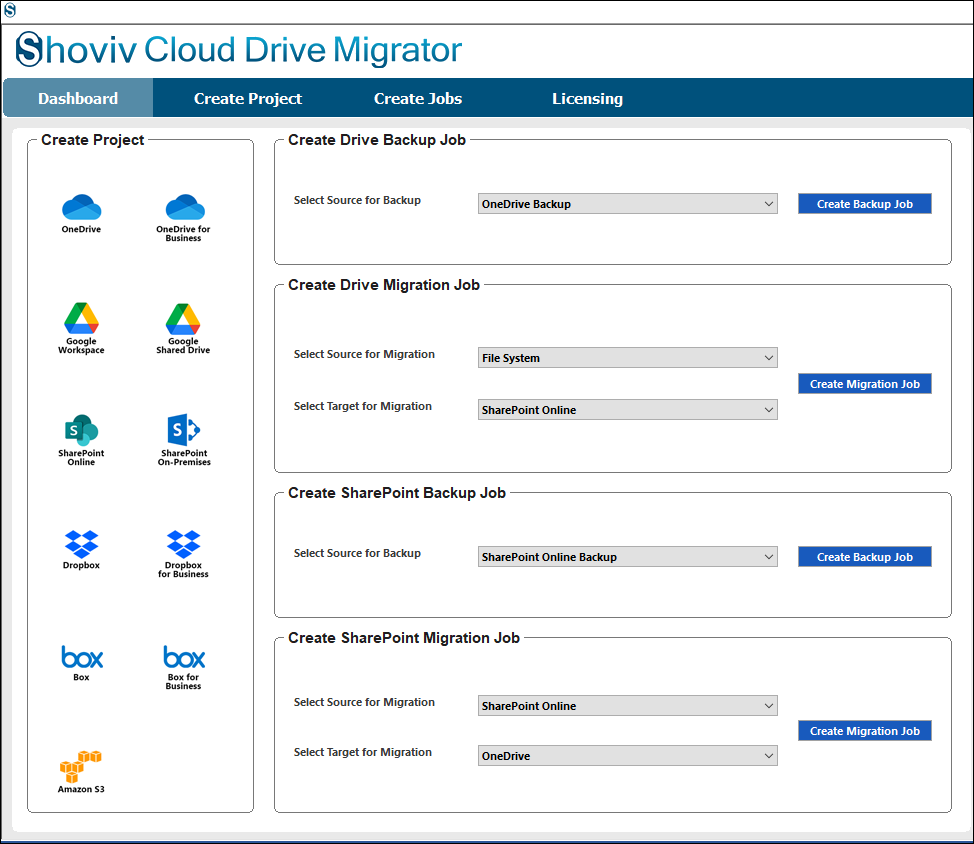
- Install and OPEN Shoviv Cloud Drive Migrator.
- From the dashboard, go to the Create Drive Migration Job.
- Select File System as the Source and SharePoint Online as the Target Destination.
- Click on Create Migration Job.
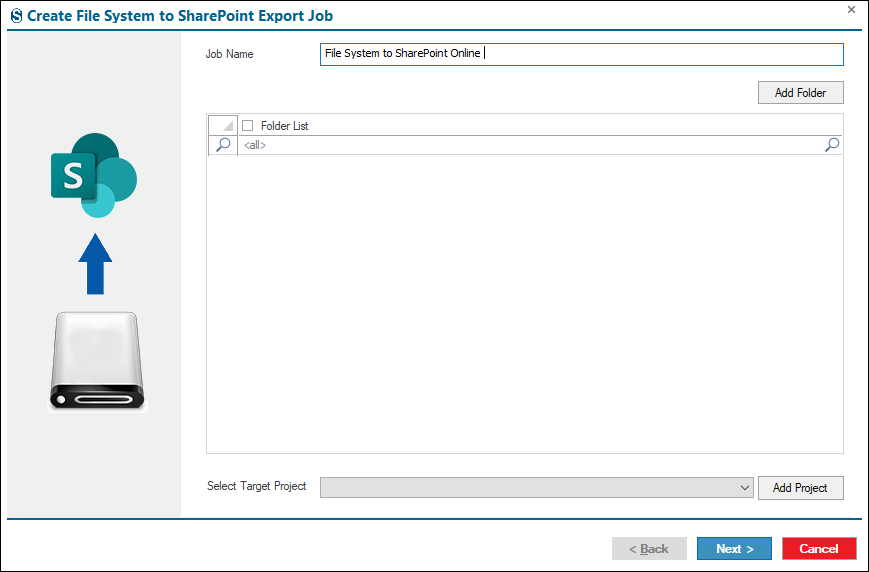
- Enter the Job Name.
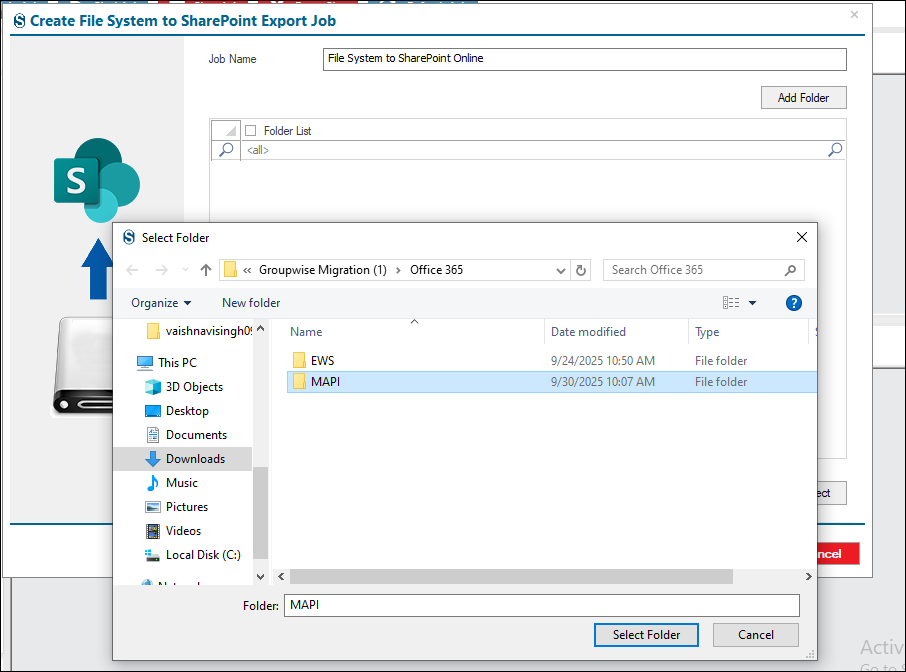
- You need to select the Source Project. Select a folder under the File System with the help of Add Folder.
- After that, you need to connect with the Target Project. In case you have already created a project present in your system, then you need to select it from the dropdown menu.
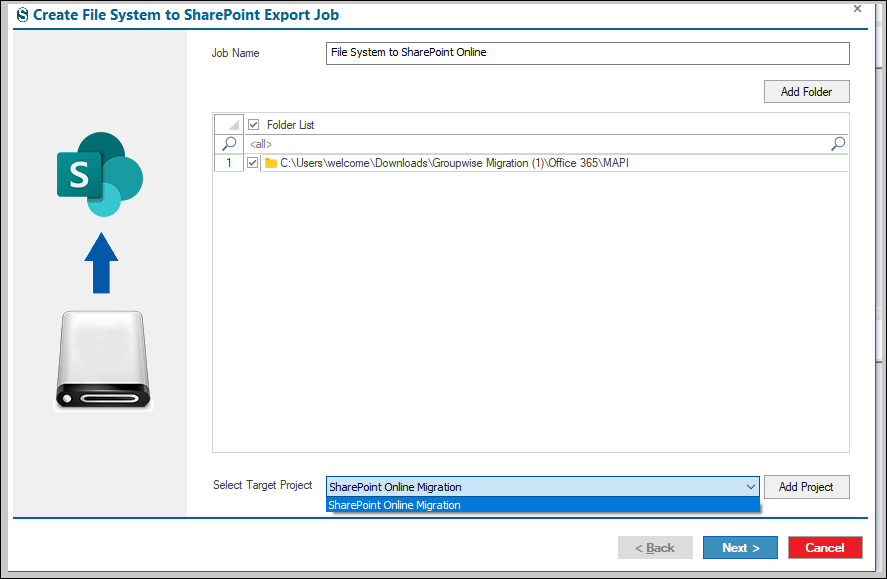
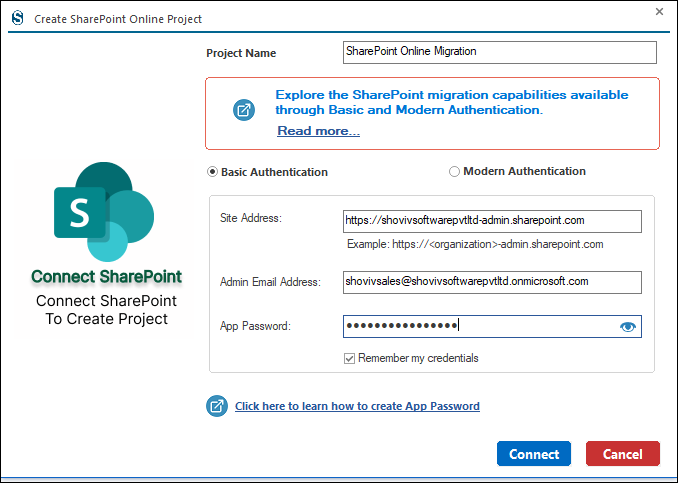
- In case you have not created any Target Project yet, then you need to click on Add Project.
- Here at this point, you need to enter the Project Name.
- Enter all the credentials which present on the screen under the SharePoint Basic.
- If you want to know more about these credentials, you can click on the link given below: https://www.shoviv.com/technical-guide/create-app-password-for-office-365.html.
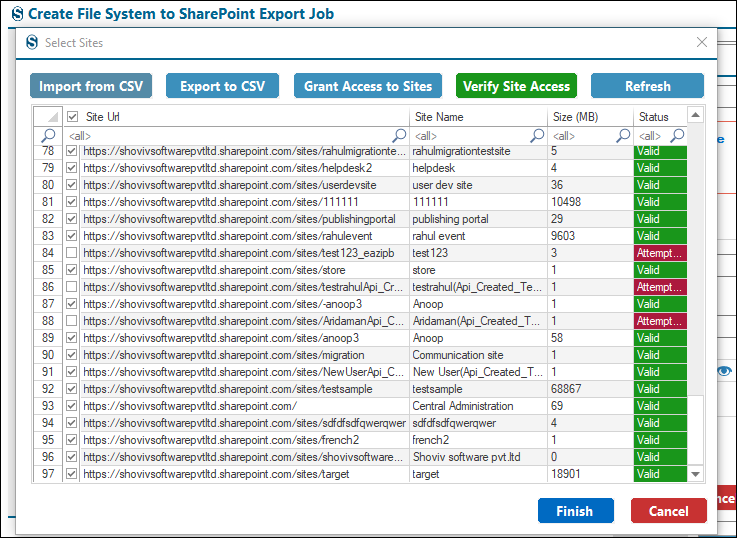
- Select the Target Project from the list which appears on the screen and then click on Finish.
Note: You can add users with the help of the Import and Export CSV. With the help of the Grant Access, you permit the users who have not the acesss or permission.
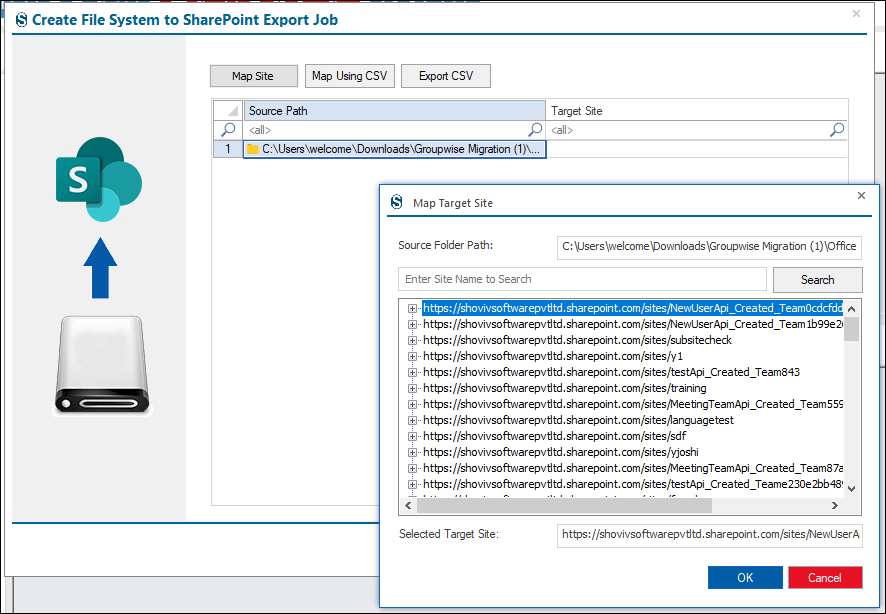
- To begin, choose the source user from the displayed list, based on your prior selection. Next, click the Map User button and select the target user from the list that appears. Once both the source and target users are selected, confirm your choices by clicking OK.
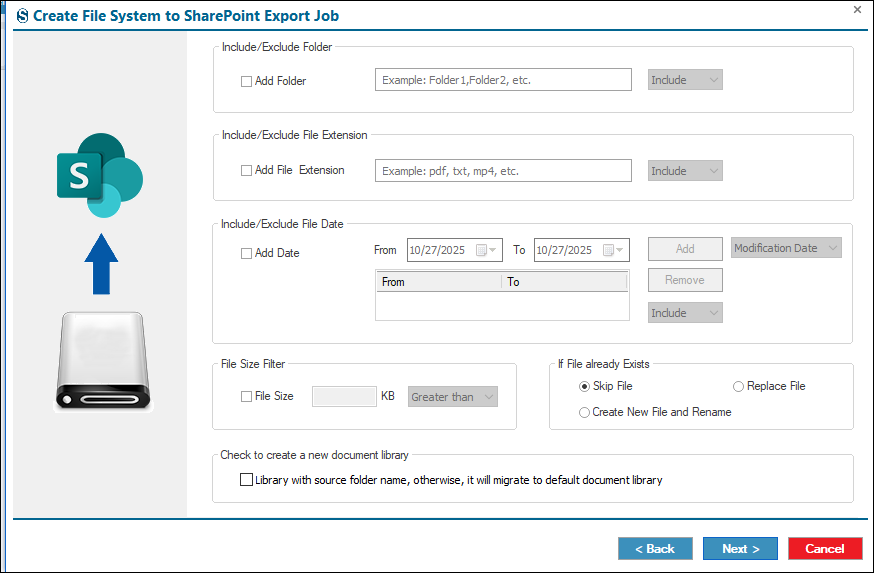
- At this point, you can apply various filters, such as specifying folders, file extensions, version migration levels, date ranges, or other migration options. If you prefer not to use these filters, click Next to proceed.
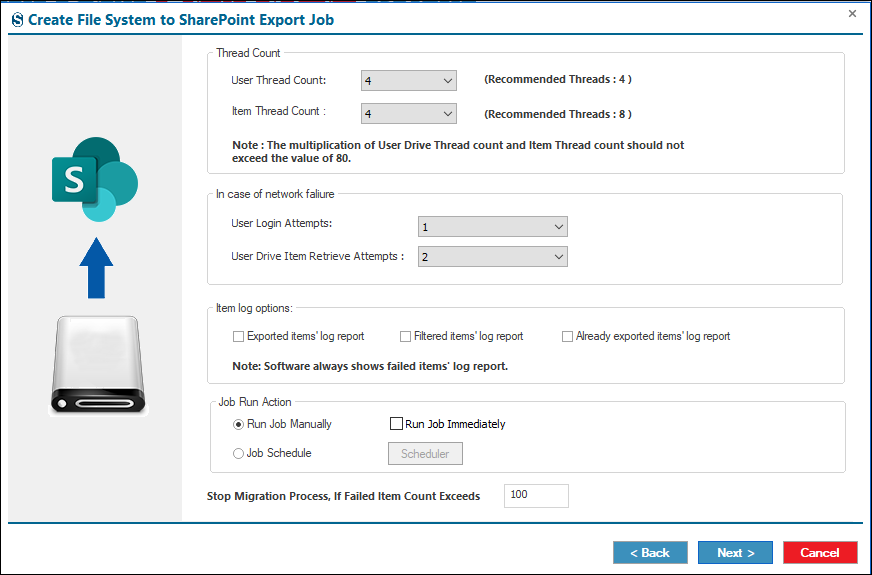
- You will then have the option to configure settings like thread count, in case of network failures, and Item log options, etc. If not needed, then hit the Next Button.
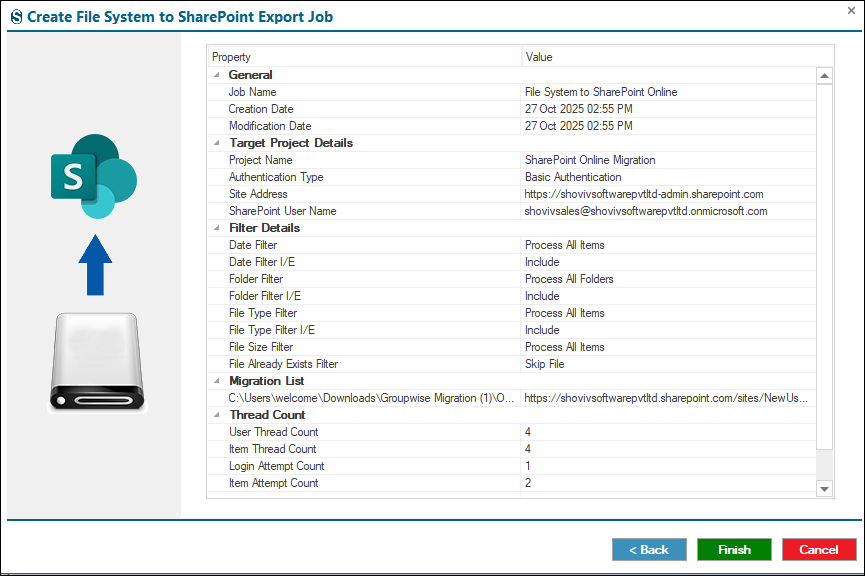
- Carefully review the Job details because after clicking Finish, you cannot edit anything. If you want to edit, then click on Back and change the details according to you.
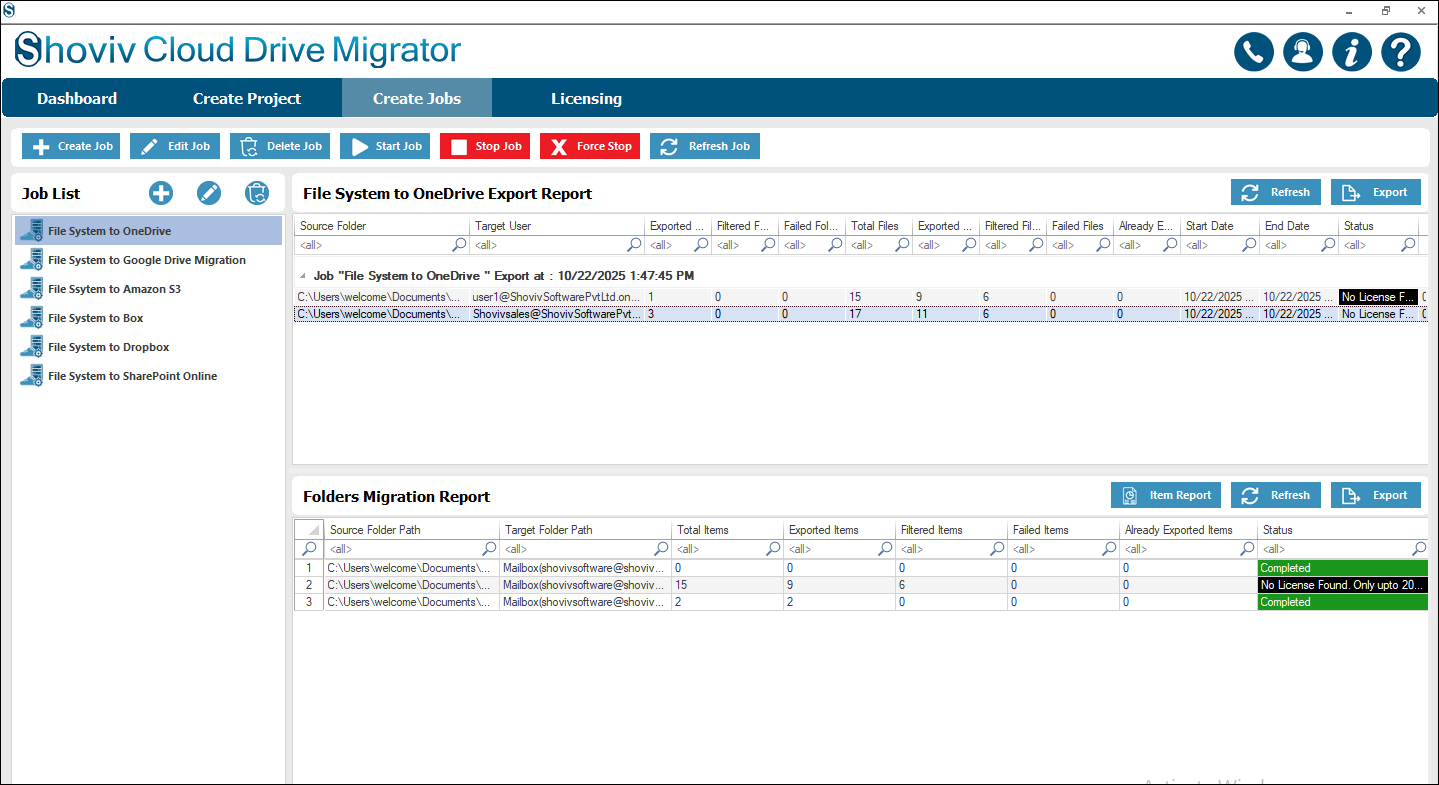
- The job runs according to the option you have chosen under the Job Run Action.
Post-Migration Best Practices
After migration, it’s important to ensure everything runs smoothly.
- Disable access to old file servers
- Train users on SharePoint usage
- Validate data and permissions
- Remove temporary storage resources
- Monitor system performance
- Optimize document libraries and metadata
These steps help maintain efficiency and avoid future issues.
Conclusion
File server to SharePoint Online migration is a crucial step for organizations aiming to modernize their document management systems. It enhances collaboration, improves accessibility, and ensures better data security. This guide explained the migration process, methods, and best practices to help organizations transition smoothly. While manual and native tools can be used for basic needs, they often fall short in complex scenarios.
A professional solution like Shoviv SharePoint Migration Tool offers a more efficient and reliable approach, making it the preferred choice for businesses handling large-scale migrations.
Frequently Asked Questions
It is the process of transferring files from on-premises file servers to SharePoint Online.
Yes, but manual methods are not recommended for large-scale migrations.
Yes, SPMT is a free tool provided by Microsoft for basic migration tasks.
Handling large data volumes and maintaining permissions are the biggest challenges.
It works for small migrations but has limitations for complex scenarios.
If configured correctly, permissions can be preserved during migration.
Using a professional tool like Shoviv ensures faster, secure, and error-free migration.
This Professional tool reduces errors, automates processes, and handles complex migrations efficiently.


