Are you looking for a guide to help you choose which is better: New Outlook vs Old Outlook? Microsoft Outlook is a worldwide famous and most in use email client. It allows businesses or users to manage their emails, contacts, and calendar entries. Moreover, MS Outlook comes with a user-friendly GUI that gives users better access to their essential emails, contacts, calendars, and other data.
This blog will simply meet users’ requirements and give them a brief explanation so that they can differentiate nicely and choose the perfect one for their business work. Kindly engage with the blog until the end and get a detailed guide on New Outlook vs Classic Outlook offered by Microsoft.
An Overview of the New Outlook for Windows
The New Outlook for Windows is no longer just a free replacement for Mail & Calendar. It now serves as the unified, AI-powered successor to the Classic Desktop experience.
Microsoft built the new version on a modern web-based architecture using WebView2. It combines the speed of a web browser with the functionality of a desktop application.
The free version supports personal use. However, its real strength comes from seamless synchronization across the Microsoft 365 ecosystem.
By 2026, the New Outlook has evolved into a robust platform. It now supports complex professional workflows, advanced data management, and deeper AI automation.
Key Features of the New Outlook (2026 Update)
- Deep Copilot Integration – The latest version includes Microsoft Copilot directly inside Outlook. Users can draft emails faster with AI assistance. Copilot can also summarize long email threads and provide “Catch Up” insights that highlight important messages based on work patterns.
- Unified Account Management – Users can manage Microsoft 365, Gmail, Yahoo, and iCloud accounts from one interface. The Unified Inbox shows all emails in a single place. This removes the need to switch between different email apps.
- Export PST and Offline Capabilities – Microsoft restored PST export and local archiving in the 2026 update. Users can also access improved offline features. They can read and draft emails even without an internet connection. This update narrows the gap with the Classic Outlook version.
- Improved Performance and Efficiency – The New Outlook uses a lighter codebase than the Classic version. It launches faster and consumes less RAM. This improvement helps users who manage large or high-volume mailboxes.
- Modern Web Add-in Ecosystem – The platform now relies on Web Add-ins instead of legacy COM or VBA add-ins. This model improves security and compatibility. It also ensures the same add-ins work across Windows, Mac, and Web versions of Outlook.
- Seamless Microsoft 365 Integration – Outlook now integrates deeply with OneDrive, Microsoft Teams, and Loop components. Users can edit Excel files or collaborate in Teams Loop directly inside an email window. This keeps the workflow uninterrupted without switching apps.

Besides that, users will also get other user-centric facilities to make their communication and collaboration seamless. Below you will find, how you can add a shared mailbox and locate PST export option in new Outlook for windows.
1. Setting up a Shared Mailbox in New Outlook
The New Outlook now offers two primary ways to manage shared mailboxes, depending on whether you want a simple folder view or full mailbox functionality.
Method A: The Quick Folder Add (Standard)
- Open New Outlook and locate your primary account in the left folder pane.
- Right-click on your email address or the “Folders” header.
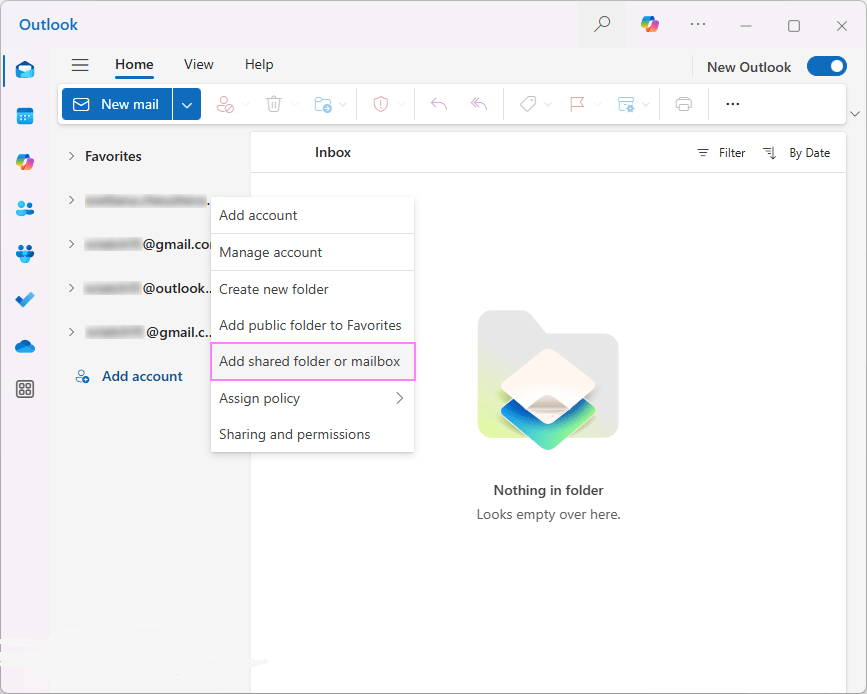
- Select Add shared folder or mailbox.
- Type the email address of the shared mailbox and click Add.
Note: It will appear at the bottom of your folder list.
Method B: Managed Account View (Recommended for 2026)
For better access to rules and “Send As” permissions, use the updated Account Settings:
- Go to Settings (gear icon) > Accounts > Shared with me.
- Click Add shared mailbox.
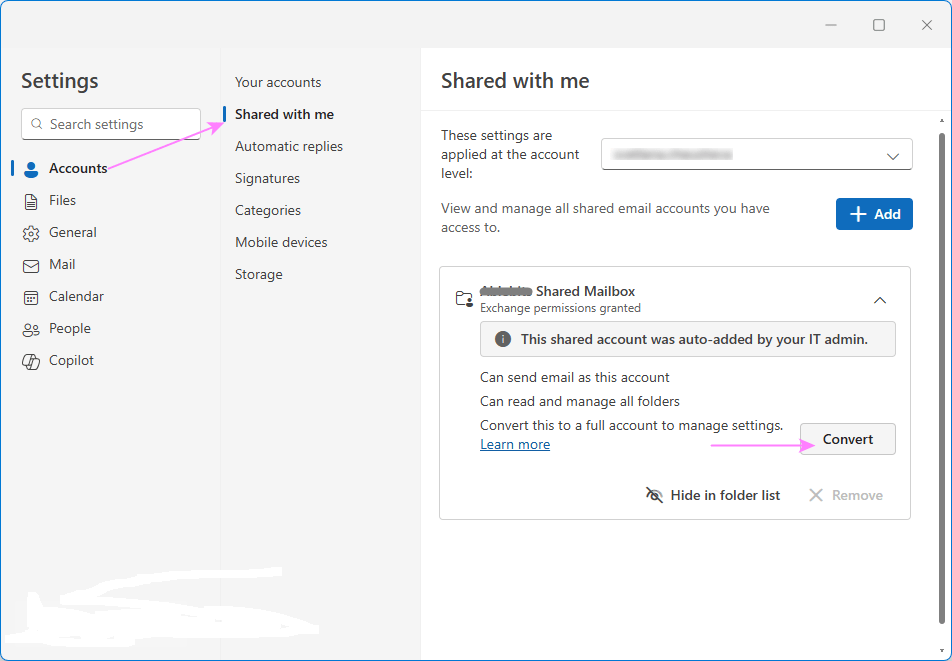
- Once added here, the mailbox acts more like a primary account, allowing you to manage specific notifications and signatures for that address.
2. Finding the PST Export Option
Previously a major pain point, native PST Export was officially rolled out to the General Availability (GA) channel in late 2025. You no longer have to rely solely on the “Classic” version or web-based eDiscovery.
Option A: The “File” Tab (New in 2026)
Following user feedback, Microsoft restored a simplified File tab to the New Outlook ribbon:
- Click the File tab in the top-left corner.
- Select Open & Export.
- Click Export.
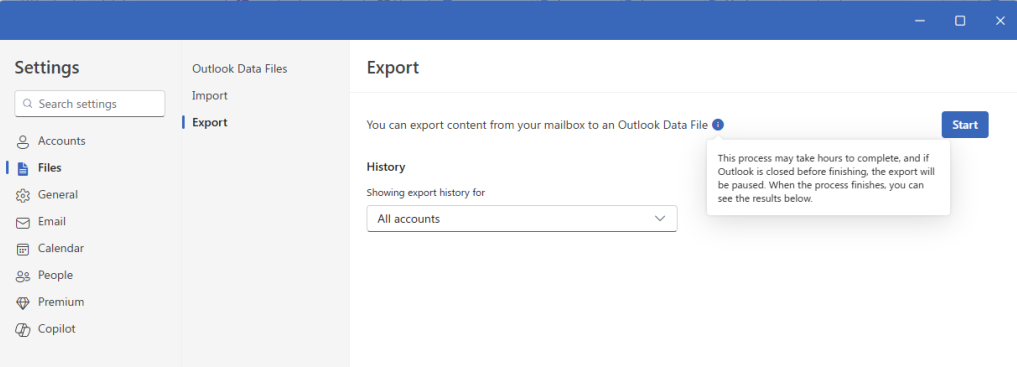
- Choose your destination and select which folders (or the entire mailbox) to include.
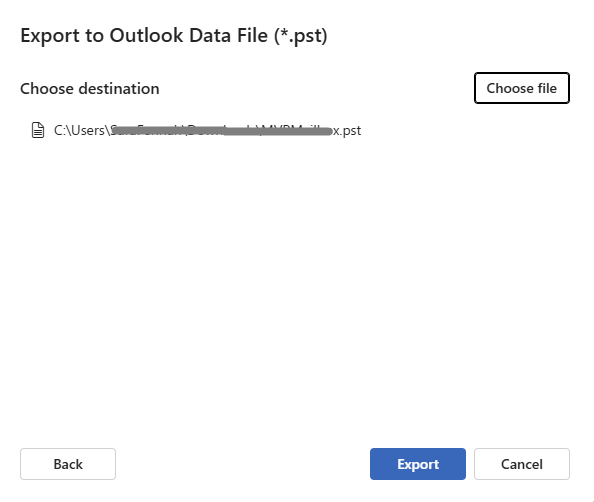
- After setting up all thing, click on the Export button to save your mailbox in PST format.
Now, we will move to the upcoming section and understand the need for the Old Outlook along with its simple benefits.
Why Old / Classic Outlook still matters in 2026?
Old Outlook or Classic Outlook is very beneficial for users. It is a desktop-based email client and allows users to have offline access to their emails, contacts, calendars, etc. Moreover, the reason why Old Outlook still matters is that it offers better data-saving facilities in two data files: OST and PST.
Outlook OST File:
It saves data in the OST file when the Exchange Cached Mode is enabled, which users can easily access even without an internet connection. Most importantly, it syncs the data to the server from offline OST when users connect to the internet.
Outlook PST File:
For many years, PST (Personal Storage Table) files have played a key role in how Outlook stores email data locally. In Classic Outlook, PST files are commonly used with POP3 accounts. They allow users to keep their entire mailbox history saved directly on their computer instead of on a remote server.
PST files are useful for more than just storing emails. Many users rely on them for manual backups, long-term archiving, and moving email data between different systems.
In the past, some users criticized the New Outlook because it focused mainly on cloud storage and did not support local data files well. However, this has started to change by 2026.
Classic Outlook is still the top choice for users who prefer a local-first approach. It allows advanced management of multiple PST files and provides powerful tools for organizing, recovering, and analyzing large amounts of email data.
At the same time, New Outlook has improved significantly. It now includes built-in PST export features, which makes it easier for professionals to move their data while still enjoying a modern, web-based interface.
However, organizations that require strict data control or offline archiving often continue to rely on Classic Outlook. It remains the industry standard for managing PST files locally.
Whether you prefer Classic Outlook for its strong PST management or New Outlook for its cloud-based convenience, it is important to understand where and how your email data is stored. This knowledge helps ensure better email management, smoother migrations, and reliable disaster recovery.
The benefits of OST and PST files are that they help users save their data from future mishaps, like accidental data loss, etc. We hope you now understand why users still rely on Old Outlook.
Now, let compare the classic old Outlook with the new Outlook.
Comparison between New Outlook vs Old Outlook (Classic Outlook)
Deciding between the modern interface and the classic powerhouse depends entirely on your workflow depth. We will use a simple table to understand the key differences between New Outlook and Old Outlook email clients. As reviewers, we’ve analyzed these based on daily stability, resource management, and long-term viability.
| Feature | New Outlook (The Modern Standard) | Classic Outlook (The Legacy Powerhouse) | Our Reviewer’s Insight |
| User Interface | Sleek, minimalist, and mirrors the Web/Mac experience. | Feature-dense, utilizing the traditional “Ribbon” style. | New Outlook wins on aesthetics, but power users may find the “Classic” density faster for complex filing. |
| Performance | Lightweight; built on WebView2 for rapid launches. | Resource-intensive; tends to lag with mailboxes over 50GB. | The New Outlook is noticeably snappier on mid-range hardware and laptops. |
| AI Integration | Native Microsoft Copilot support for summaries and drafting. | Basic “Focused Inbox” and limited AI plugins. | If you rely on Generative AI to manage your inbox, the New Outlook is the clear winner. |
| PST/OST Support | Recently Added: Now supports PST export and local archiving. | Full, native support for local data files and offline storage. | The gap has closed, but Classic remains the king of “Local-First” data management. |
| Account Support | Optimized for M365, Gmail, and iCloud with a Unified Inbox. | Comprehensive support, including legacy POP3 and Exchange. | New Outlook’s Unified Inbox is a game-changer for those managing 3+ different providers. |
| Advanced Tools | Supports modern Web Add-ins. | Supports legacy VBA Macros and COM Add-ins. | If your enterprise relies on custom 10-year-old macros, you must stay with Classic for now. |
| Offline Access | Improved, but remains “Cloud-First” in philosophy. | Robust; allows for total offline productivity via OST files. | Frequent travelers should stick to Classic to ensure 100% access without a connection. |
| Customization | Simplified; limited to themes and basic ribbon tweaks. | Infinite; every pane and command can be repositioned. | Classic offers a “cockpit” feel; New Outlook offers a “clean desk” feel. |
| Availability | The default Windows experience and future focus. | Available but entering “Maintenance Mode” for retirement. | From an business and IT longevity perspective, transitioning to the New Outlook is now inevitable. |
This is a detailed comparison between new Outlook vs old Outlook features. Users can choose with ease, which better fits to their needs.
Which is better for you: New Outlook vs Classic Outlook? – Final Thoughts
We shared a brief comparison of New Outlook vs Old Outlook in this professional blog. Now, it totally depends on you which Outlook program suits you best for working productively and effectively. If you still need clarification on which is better, Old Outlook or New Outlook, please try both Outlook on your desktop and find out which works seamlessly according to your requirements.