You can backup Google Contacts using built-in Google features for individual use or automated tools for enterprise-level requirements. The two primary manual methods are:
- Google Contacts Export (Best for quick backups):
- Navigate to Google Contacts and log in.
- Select the specific contacts you wish to save, or choose “All.”
- Click the Export icon in the sidebar or top menu.
- Select your preferred format: Google CSV, Outlook CSV, or vCard/VCF (recommended for iOS and Android devices).
- Click Export to download the file to your local storage.
- Google Takeout (Best for full account archives):
- Visit Google Takeout and ensure “Contacts” is checked.
- Choose the file type (usually .zip) and the delivery method (Email link or Cloud storage).
- Click Create Export. Once processed, download the archive to secure all contact data including labels and metadata.
- Automated Professional Solutions (Best for Enterprises):
- For large-scale data management or recurring backups, dedicated software such as Shoviv Google Workspace backup can automate the export process. This tool bypasses the manual limitations of CSV exports, ensuring data integrity, preserving contact images, and preventing file corruption during high-volume transfers.
Manual methods for Google Contacts Backup
You can backup contacts manually using three options: Data Export Feature and Google Takeout Feature.
Method 1: Desktop Browser (Direct Export)
This is the most efficient method for creating a backup file you can store on your computer or import into another email service.
- Access Google Contacts: Go to contacts.google.com and log in.
- Select Contacts:
- To export specific contacts, hover over their icons and check the boxes.
- To export all contacts, click Selection Actions (the checkbox icon at the top left) and select All.
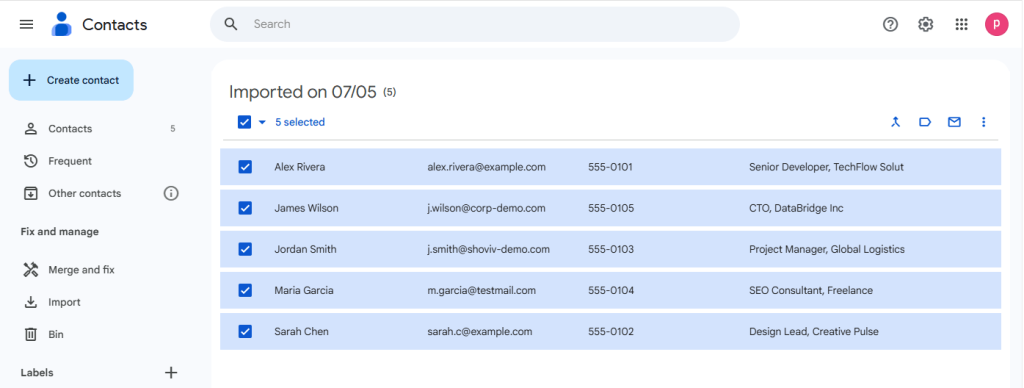
- Initiate Export: Click the three vertical dots (More actions) in the top-right corner and select Export.
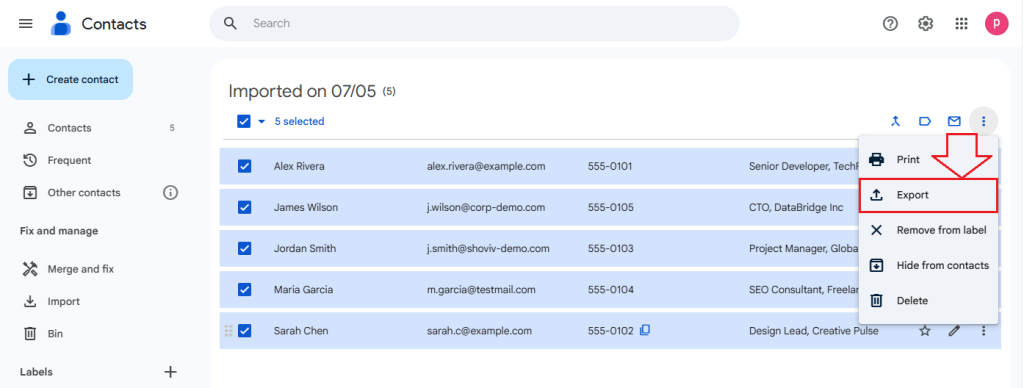
- Choose Your Format:
- Google CSV: Best for backing up and re-importing into a Google account.
- Outlook CSV: Best for importing into Microsoft Outlook or Excel.
- vCard (VCF): Best for Apple devices (iPhone/Mac) and various mobile apps.
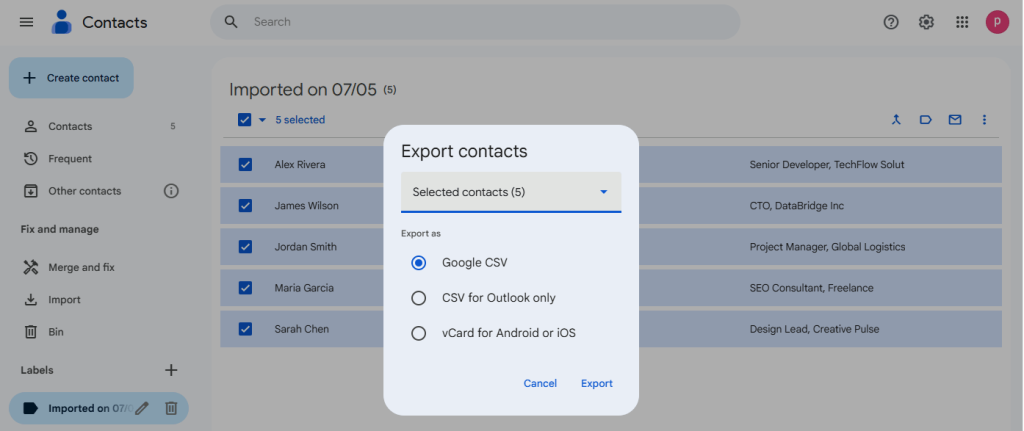
- Download: Click Export to save the file to your device.
Method 2: Android Mobile App
If you primarily manage your contacts on your phone, you can export them directly to your internal storage.
- Open Contacts App: Open the Google Contacts app on your Android device.
- Fix & Manage: Tap the Fix & manage tab at the bottom right.
- Export to File: Tap Export to file.
- Save: Choose the location on your device where you want to save the .vcf file and tap Save.
Method 3: Google Takeout (Full Data Archive)
Use this method if you want a complete archive of all your Google data, or if you want to schedule regular backups.
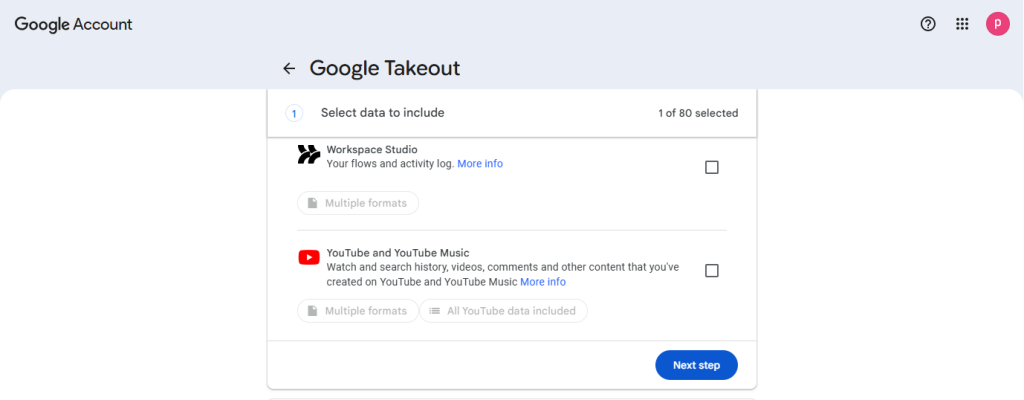
- Go to Takeout: Visit takeout.google.com.
- Select Contacts only: Click Deselect all at the top, then scroll down and check the box next to Contacts.
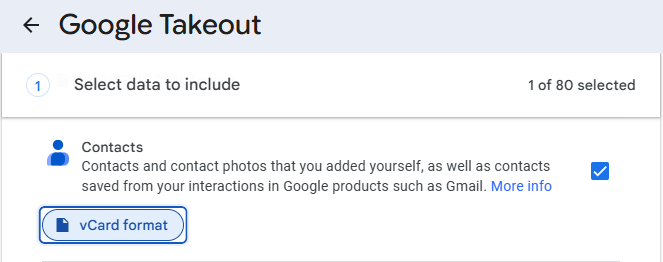
- Configure Format: Click vCard format to switch it to CSV if you prefer a spreadsheet-style backup.
- Next Step: Scroll to the bottom and click Next step.
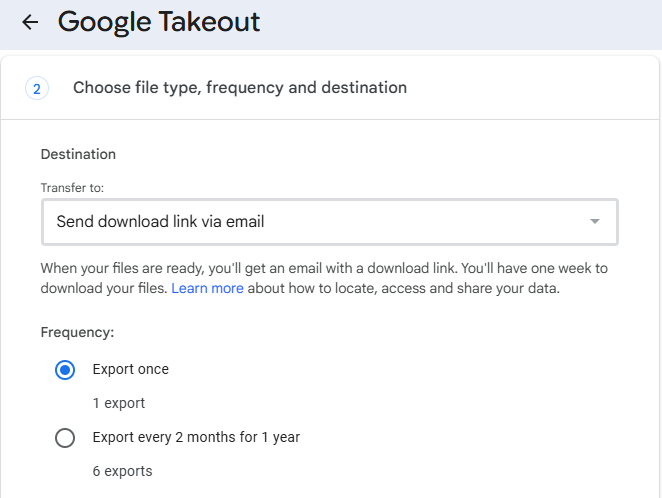
- Choose Delivery & Frequency:
- Delivery: Select “Send download link via email” or “Add to Drive.”
- Frequency: You can choose “Export once” or “Export every 2 months for 1 year” for automated backups.
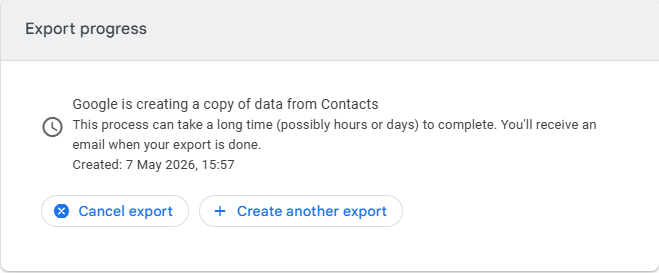
- Create Export: Click Create export. Google will prepare the file and notify you when it is ready for download.
Automated Solution to Backup Google Contacts
The Shoviv G Suite Backup & Restore Tool allows users to effortlessly back up their contacts, ensuring they never lose important contact information again. It has successfully exported contacts from over a million mailboxes, performing flawlessly each time. Moreover, restoring deleted Google contacts is a breeze, allowing you to recover them from any point in time without the hassle of manual solutions. With its trusted features, this tool is a go-to solution for backing up contacts as well as emails and calendars. Let’s take a moment to review the features of this tool before diving into the contact backup process in Google Workspace.
Features of Shoviv Google Workspace Backup Tool
- The software lets you back up several accounts including emails, contacts, and calendars.
- Users can filter out unwanted contacts before backing up to Google Workspace and oversee the entire backup process on the dashboard.
- This software works on job-based processing hence you can back up multiple mailboxes in a single go.
- The software offers multiple file formats to back up: PST, MBOX, MSG, EML MHT, and HTML.
- The tool’s intuitive design ensures that even newcomers can easily back up their Google Workspace contacts.
- Shoviv Google Workspace Backup & Restore Tool is fast and ensures no data loss when backing up Google Workspace contacts.
- No matter what your Windows version is, the tool is ready to go on any system.
Wrapping up:
Contacts are essential in both personal and professional life, so losing access to them can disrupt daily activities. To prevent a crisis, it is wise to back up important data every day. Ensuring regular backups of Google Workspace contacts helps protect your data, meet legal obligations, and guard against accidental deletions.
In this article, we have outlined various methods to backup Google Contacts. You can back up Using backup methods like Data Export Feature, Google Takeout Feature, and third-party professional solutions that ensure smooth data recovery, compliance, and business continuity. However, it’s important to note that the manual methods mentioned are only guaranteed to work in some situations. If a user is searching for a guaranteed or reliable solution, then they must use Shoviv’s utility explained in the article.