Summary: Issues with the Google Workspace Migrations may be because of the weak internet connection, authentication issues, or permissions errors. These problems regularly lead to common errors like 400, 401, 403, or 429 during the process of the migration. Basic troubleshooting, such as checking credentials, stabilizing the network, and enabling the required services, can help resolve the issues that are limited to them in a small manner. For the large-scale migration issues, you can refer to the high-class professional tool of Shoviv IMAP to Google Workspace Migration Tool, which provides a faster, more secure, and more reliable migration process.
Introduction
Google Workspace is used in a wide manner across the industries, which leads most organizations to prefer and start shifting towards Google Workspace because of its collaboration, scalability, and simplicity. But the transition is sometimes frustrating while encountering several issues, such as crashes, incomplete transfers, or performance issues, among others. Most of the users are regularly searching for questions, such as “Why does my Google Workspace keep crashing?” Or, “How can migration errors be resolved effectively?” ” On the internet.
Common Reasons for the Google Workspace Migration Failure:-
Before solving the issue, the first step is to determine the root cause. Here you will locate some common issues related to migration failures.
- Error with the account authentication.
- Unstable Internet connection.
- Google Workspace paths are blocked by the firewall or antivirus software.
- Issues with the extensions of the browser.
- Issues with the account or authentication.
- Inefficient local or cloud storage.
In addition to these issues, you will encounter several errors when the migration process fails.
Frequent Errors in Google Workspace Migration
- Error 400: This refers to a bad request. When you find these errors, it indicates issues with the source account authentication, which will negatively affect the migration job.
- Error 401: The message will appear when you do not have the required permission with the source and destination accounts; in other words, this is unauthorized.
- Error 403: If the Gmail or Drive services are not active in the Google Drive console, errors will occur due to forbidden access.
- Error 409: The Google Workspace migration tool cannot remove a conflict with the accounts of the source.
- Error 410: It is an error of the transistor.
- Error 429: This error occurs when several requests result in the overloading of different permissions.
Steps to Fix Google Workspace Migration Failures
There are two main steps to resolve the Google Workspace migration errors.
- Manual Methods: This method is ideal for small accounts and limited migration issues. They involved step-by-step troubleshooting of login credentials, mailbox size limits, connectivity of the network, and file-related issues.
- Professional Migration Tools: Most organizations recommend these methods for larger accounts and complex errors. Additionally, this method ensures smooth and secure migrations.
Manual Methods to Fix Google Workspace Migration Failure:
Thereafter, identify the root cause of the issues; then, the next step is to apply the correct solution. Most of the issues are resolved in the basic manual manner by checking internet connections, configuration, restarting, and others.
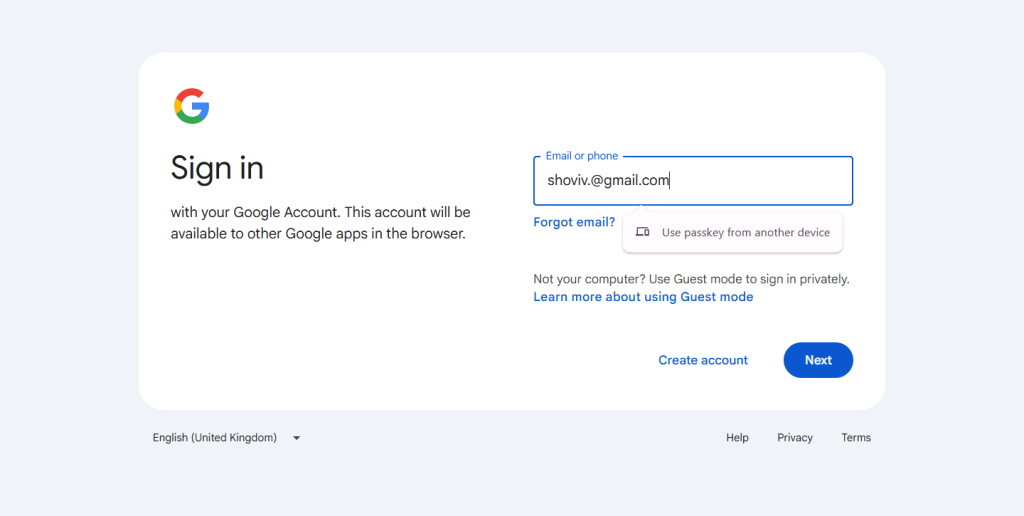
1. Account Authentication
- Open the Google Workspace account authentication page.
- Then go to the settings for the account.
- Remove the existing account connection.
- Re-enter the credentials within the provided field.
- Grant all the permission that is required and then reconnect them.
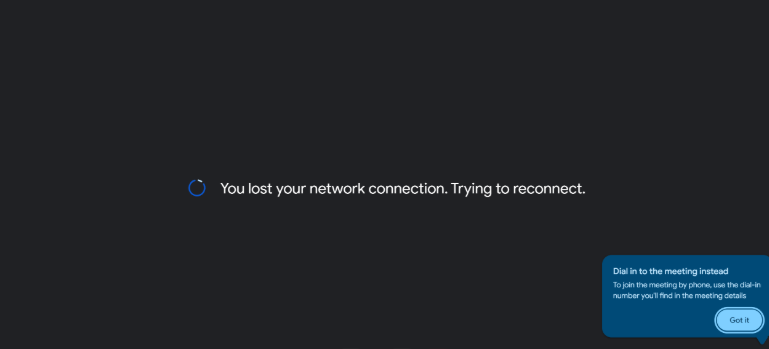
2. Check and stabilize the connection of the Internet.
- You need to verify the Internet speed.
- Switch to a reliable connection of the
- Restart the migration process.
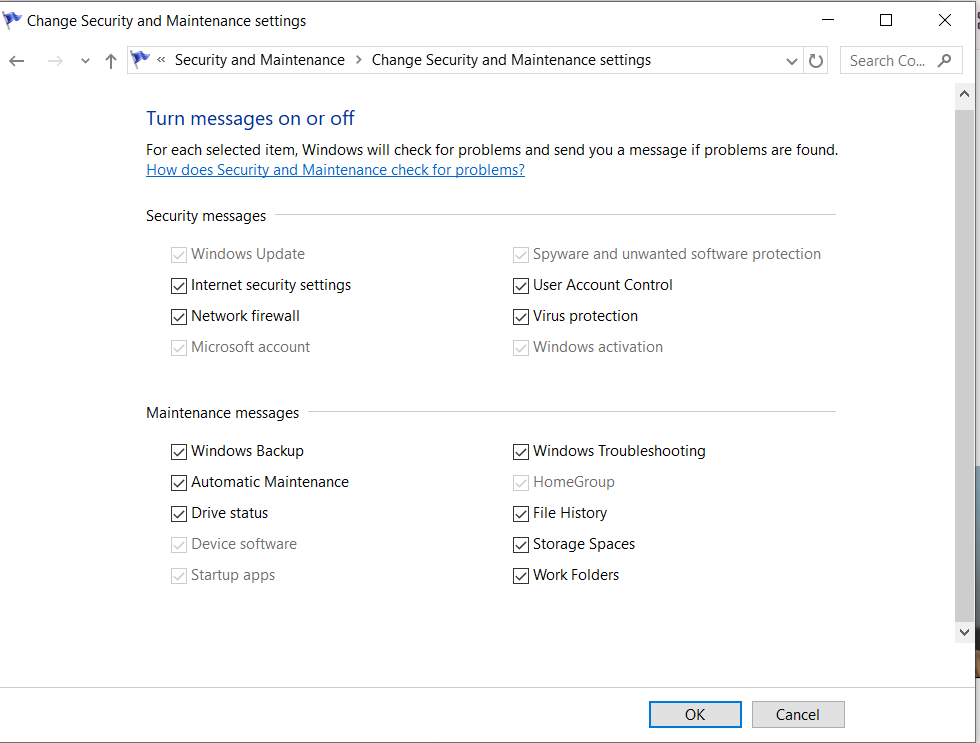
3. Disable Firewall or Antivirus Temporarily
- Open your system’s firewall or antivirus settings.
- Temporarily turn off the settings of the protection.
- Please proceed with running the Google Workspace migration process once more.
- Again, open the firewall or antivirus software after the process is complete.
4. Admin Console
- Sign in to the Google Workspace Admin Console.
- Go to apps.
- Pick the Google Workspace Service.
- Check that the users of the Google Workspace and Gmail are enabled for the migration process.
- Save the changes and then restart the process.
5. Turn off the Conflicting Extension of the Browser
- Begin with the browser settings.
- Then go to the extension section or add-ons section.
- Remove the unwanted extensions in a temporary manner.
- Now restart the browsers and the migration process.
Manual methods are simple and sometimes perfect, but only for small-scale data. However, in the case of the bulk migration process, they are not used efficiently.
Shoviv IMAP to Google Workspace Migration (Error Free Solution)
The Shoviv IMAP to Google Workspace Migration Tool provides a secure and efficient transfer process of the emails from IMAP-enabled platforms such as Gmail, Yahoo, Proton Mail, etc., to Google Workspace. It allows for step-by-step exporting, organizing mailboxes, and setting up schedules, which helps keep data safe and makes the process smooth.
How to Create an IMAP to Google Workspace Migration Job
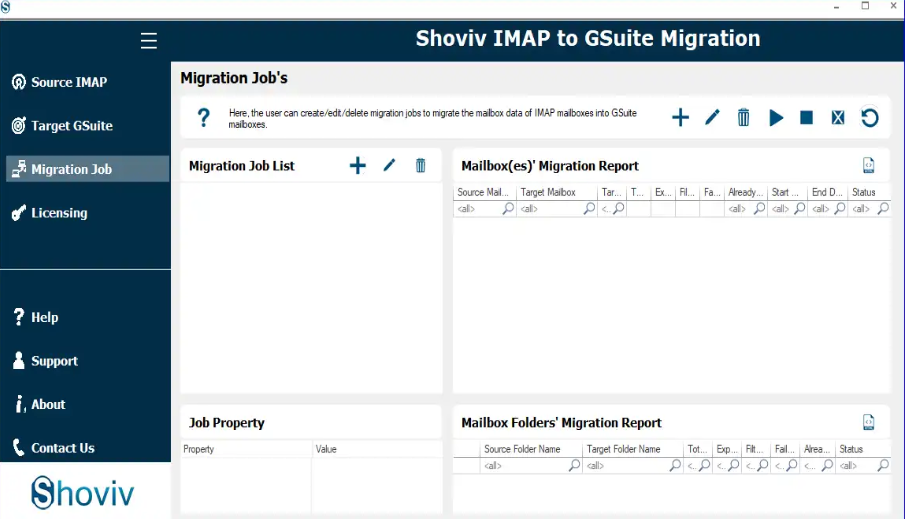
- Go to the Migrations Job section and then click on the Create Job from the ribbon bar.
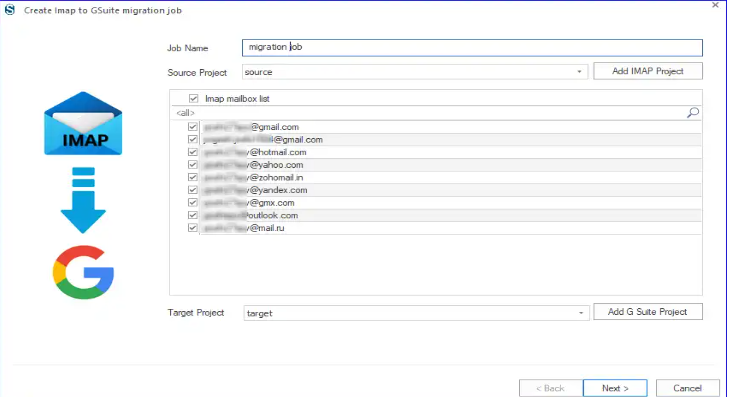
- Enter the Job Name, add the Source IMAP Project, and then select the Target Google Workspace Project.
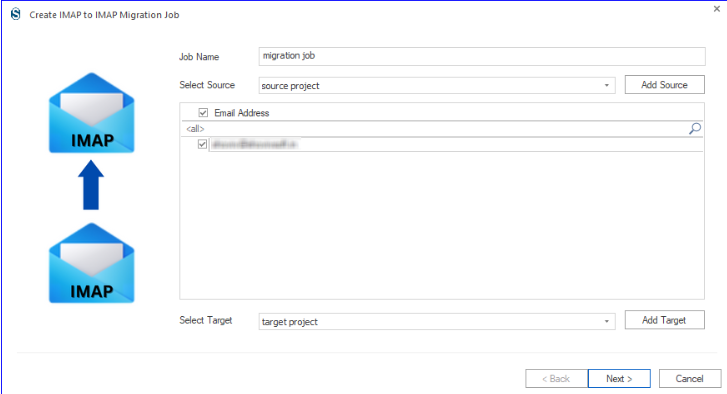
- Choose the mailboxes that you want to migrate and then tap on the Next button.
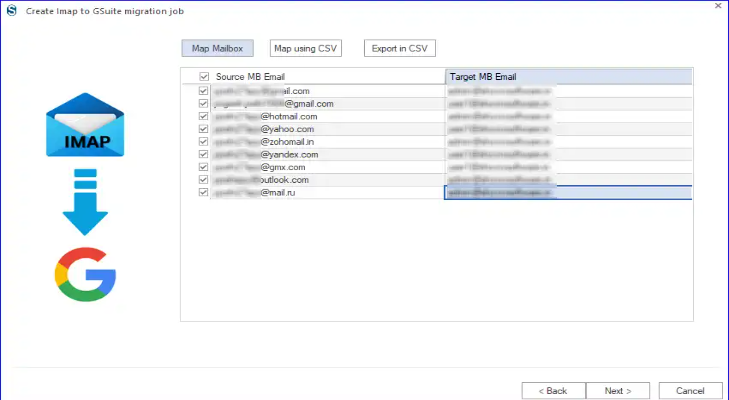
- Map the Source mailboxes with the Target Mailboxes manually or by importing a CSV file.
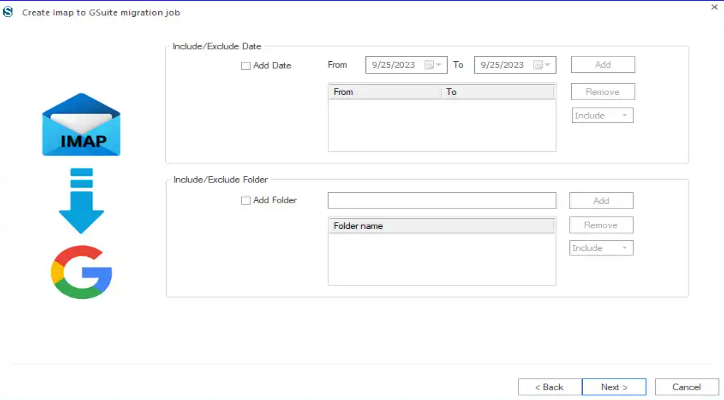
- Apply filters to refine your migration process.
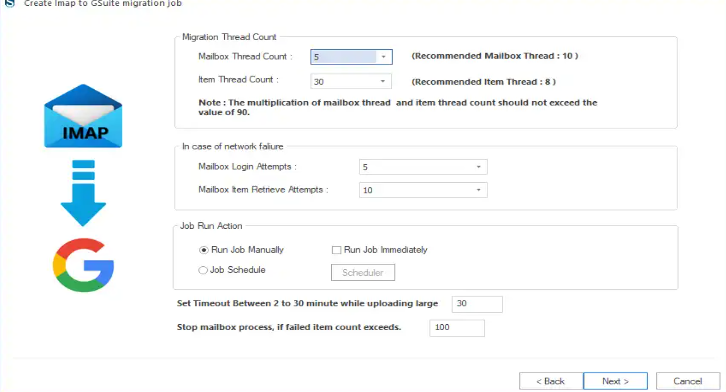
- Configure advanced settings such as thread count, login attempts, item retrieval attempts, bad items count, and timeout settings to optimize the migration process.
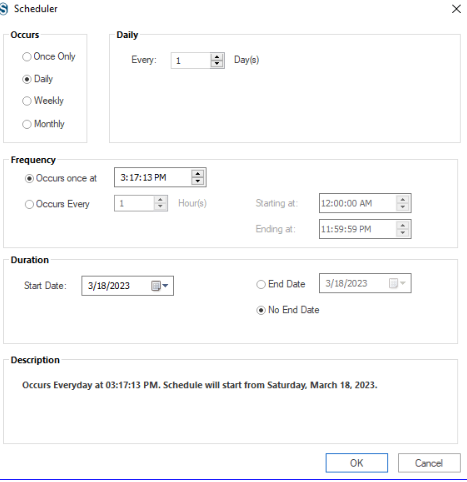
- Set the scheduler to run the job manually, immediately, or automatically on a daily, weekly, and monthly basis.
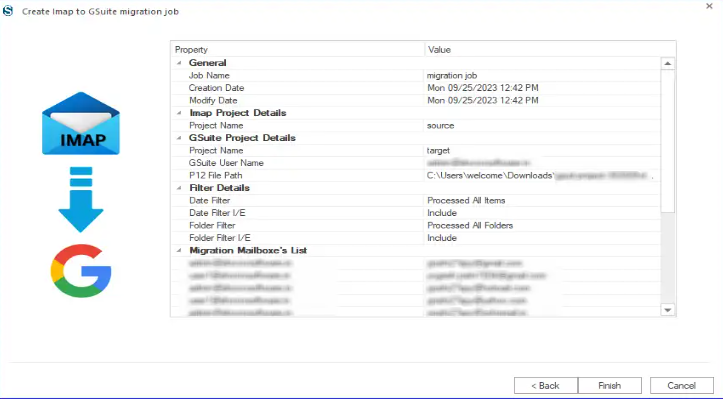
- Click Next to finish the setup and create the migration Job.
Get the professional Google Workspace Migration Solution
1- Shoviv Microsoft 365 to Google Workspace Migration – Move your Microsoft 365 data to the Google Workspace in just a few simple steps.
2- Shoviv IMAP to Google Workspace Migration – Migrate IMAP emails to Google Workspace with a professional tool. It allows the transfer of data securely from various IMAP-supported platforms in a secure and accurate environment.
3- Shoviv Google Workspace to Amazon WorkMail Migration – Migrate Google Workspace to Amazon WorkMail with a trustworthy tool. Move mailbox data quickly and securely with advanced features like selective migration, job scheduling, and others.
4- Shoviv Google Workspace to Office 365 Migration – For an accurate and seamless migration with a dependable G Suite to Office 365 solution. This tool supports multiple mailboxes and drives data quickly and safely with advanced features such as filtering, scheduling, incremental processing, and others.
Conclusion
Ultimately, Google Workspace migration failures can significantly impede organizational productivity. Factors such as inconsistent connectivity and unresolved authorization discrepancies are primary contributors to these operational setbacks. While basic troubleshooting can resolve the minor problems, large-scale migrations often require a more reliable solution. Using a professional tool like the Shoviv IMAP to IMAP Migration Tool helps ensure secure, efficient, and error-free migration between different IMAP platforms, making the overall process smoother and more manageable for the organizations.
Frequently Asked Questions
Ans: Migration failures are common issues mainly due to authentication errors, unstable internet connections, insufficient permissions, disabled services like Gmail, or firewall restrictions blocking the path of the migration process.
Ans: Some common migration errors include 400, 401, 403, 409, and 429. These errors are often related to permission issues, authentication problems, or excessive API requests.
Ans: You can resolve many issues by verifying account credentials, stabilizing the internet connection, enabling Gmail and the services of Drive, and temporarily turning off the firewall or conflicting browser extensions.
Ans: Manual methods work well for limited sizes, but they are not efficient for large organizations with multiple mailboxes. Large migrations often require automated solutions to handle data safety and large data migrations in a quick manner.
Ans: A professional solution like the Shoviv IMAP to IMAP Migration Tool can simplify large-scale migrations by supporting multiple mailboxes within one job, maintaining folder hierarchy, and providing incremental export to avoid data duplication.