Summary: Google Drive offers 15 GB of free storage and lets users easily upload, access, and share files via multiple methods, including drag-and-drop and saving files directly from Chrome. However, most users face issues when they upload files to Google Drive. For bulk or large data transfers, tools like Shoviv Google Drive Migrator provide a faster and more reliable solution for the migration.
Frequently, the most searched questions on the internet are about how to upload files to Google Drive, and you can find answers to your queries here.
How do I Upload Files to Google Drive?
Google Drive Website
To upload files to Google Drive is simple. You can do it directly from your system through the website of the drive.
- Begin by opening your browser and typing drive.google.com.
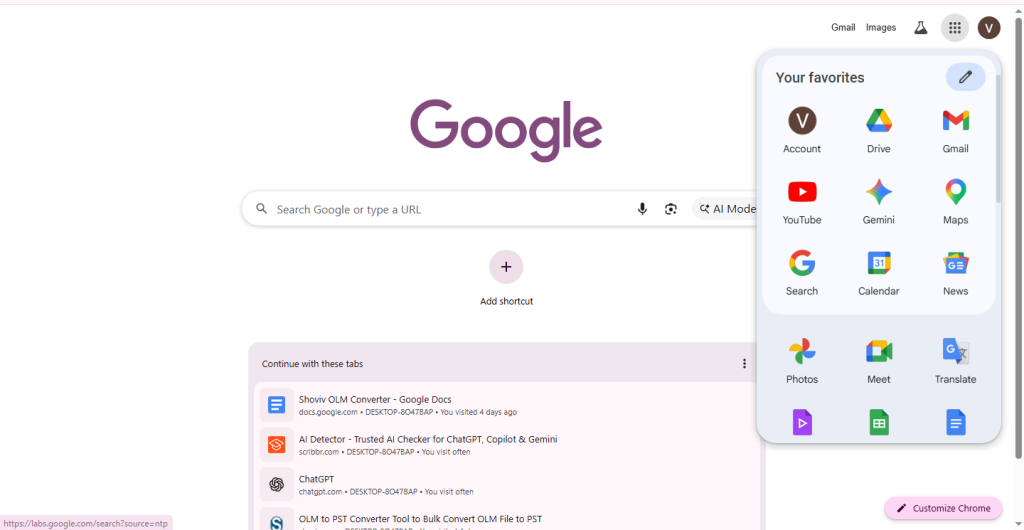
- You will find a New button in the top-left corner of the page.
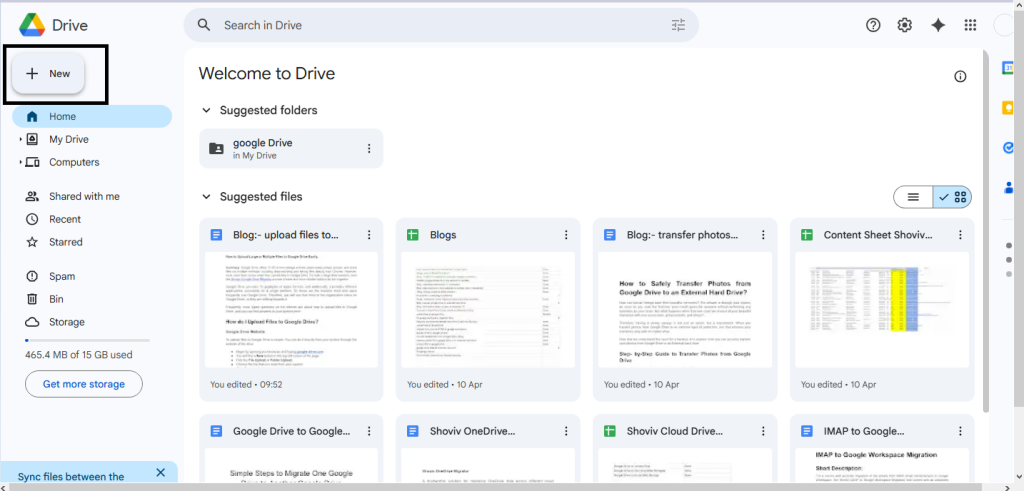
- Pick the File Upload or Folder Upload.
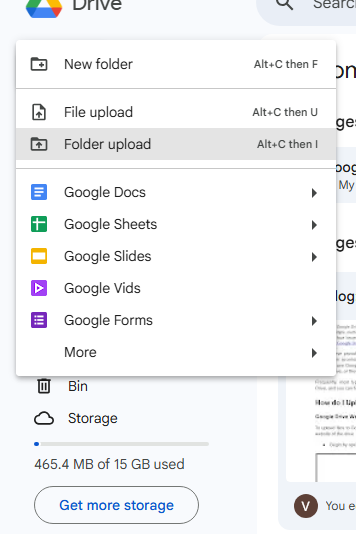
- Choose the file that you want from your system.
- Click Upload to start the process of uploading.
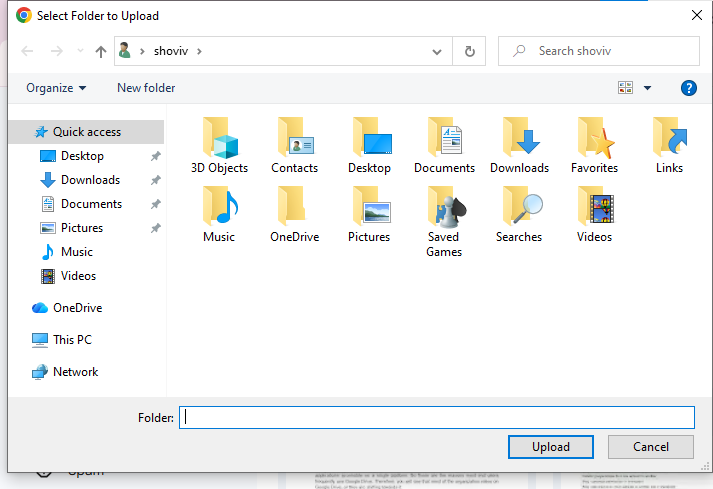
Your files will automatically appear in your drive after the process is complete.
Note: When you upload a file to Google Drive:
- There is Creation Time, which refers to when the file was uploaded to the drive, and Modification Time is defined as the last time the file was edited on your device.
This means the modification time will remain uncertain, and occasionally it shows earlier than the creation time.
Drag and Drop Files into Google Drive
There is another method that is easier and faster than the above method:
- Firstly, Open Google Workspace.
- Next, After that, open your existing folder or create a new one.
- Drag files or folders from your system.
- Drop them directly into your drive.
After that, you will find that the files are uploaded just immediately after the process creation is done.
Safe PDFs from Chrome Directly to Google Drive
Google Chrome allows you to save PDFs directly from Chrome without downloading them, saving memory on your system.
- Run Google Chrome.
- Click on the Open button of the PDF file in the browser.
- In the top-right corner of the PDF viewer, click on the Save to Drive.
- Choose the Google account that you want to use.
- Click on the save.
Once the upload is complete, the file will be available in the Saved From Chrome folder in your Google Drive.
Note: This facility will not work if you are browsing in the Incongito mode or Guest mode.
Save Web Pages or Images to Google Drive Using Print
With this method, you can save the pages or images directly to Google Drive using the print feature.
- Install the Save to Google Drive Chrome Extension.
- Open the page or image that you are required to save.
- Click the file and then print.
- Choose ” Save to Drive ” as the destination and then tap on the print option.
The file will automatically upload to your drive securely.
Note: By understanding these methods, you can make your Google Drive experience smooth to upload, share, and access files from any device with automatic syncing and support for many file types. However, it offers limited uploading storage of 15 GB.
Why are Files Not Uploading to Drive?
Sometimes, most of the users face the issue in the uploading files to Google Drive due to technical or account-related issues. Below are most of the common scenarios and how you can fix them.
- Slow or unstable internet connection.
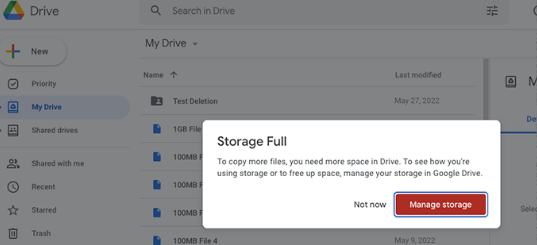
- The storage of Google Drive is full.
- Large File Size.
- Browse or problems of Cache.
- The file’s format is unsupported.
- Temporary server issues.
A Better Way to Upload Files to Google Drive with a Hassle-Free Environment:
If you are maintaining the bulk files, you can use a professional tool such as Shoviv Google Drive Migrator, which can simplify this process for you. This tool helps you to securely migrate files to Google Drive without facing any failures. This tool supports bulk data migration and reduces the risk of damage caused by the manual method.
The Shoviv Google Drive Migrator is the one-stop solution for fast and seamless Google Drive Migration with an advanced algorithm and a user-friendly interface. It allows users to migrate data from the Google Drive and upload their data into the drive. For increased speed, you can use this tool to run multiple files in a single job. The demo version supports 500 MB per user and processes files up to 20 MB.
Step-by-Step Instructions to Upload Files to Google Drive.
- Install and run the Shoviv Cloud Drive Migrator.
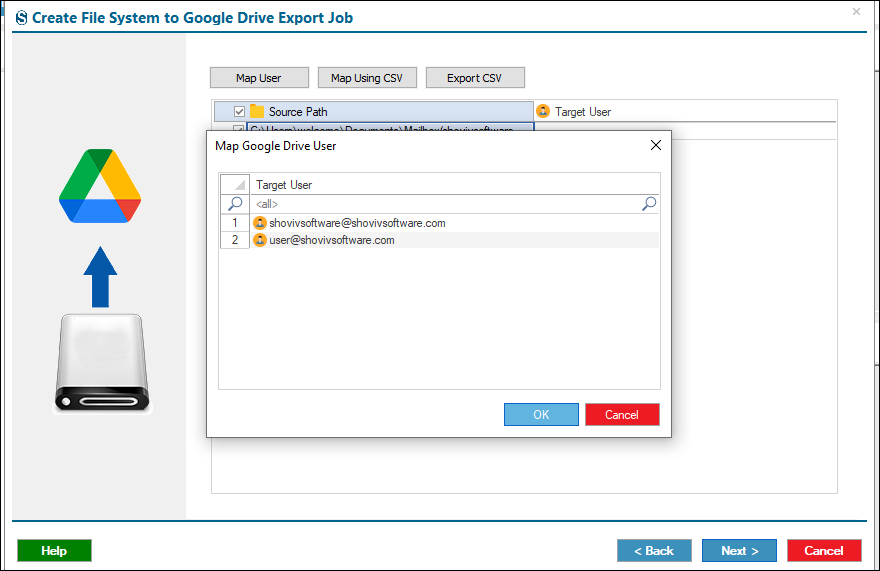
- Select File System and Google Drive as the Source and Target, respectively.
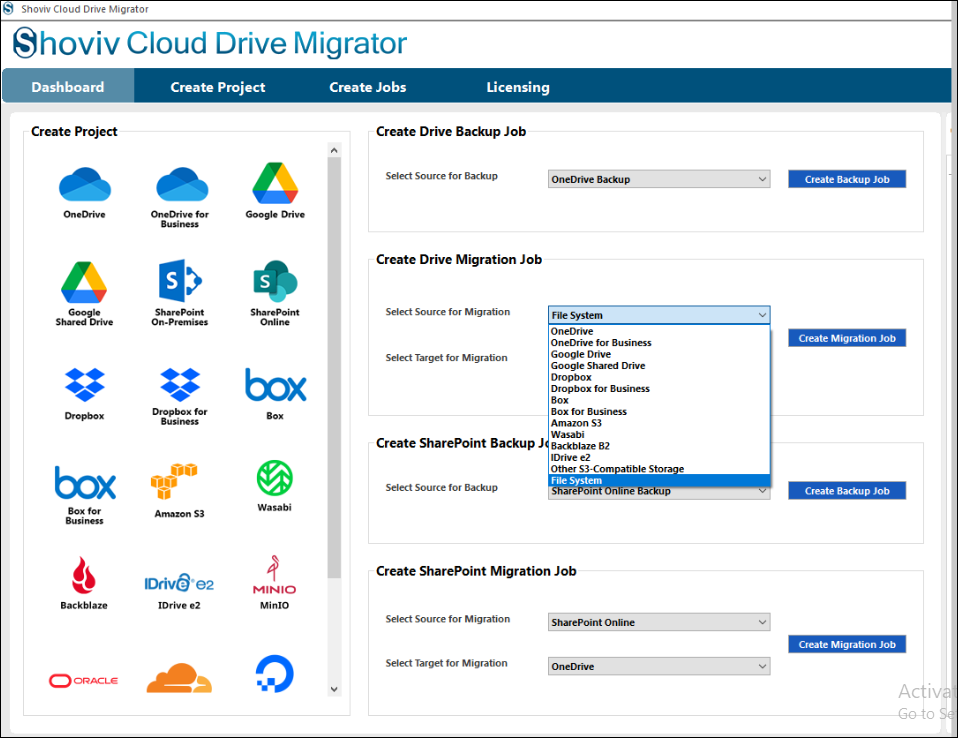
- Enter the Job Name.
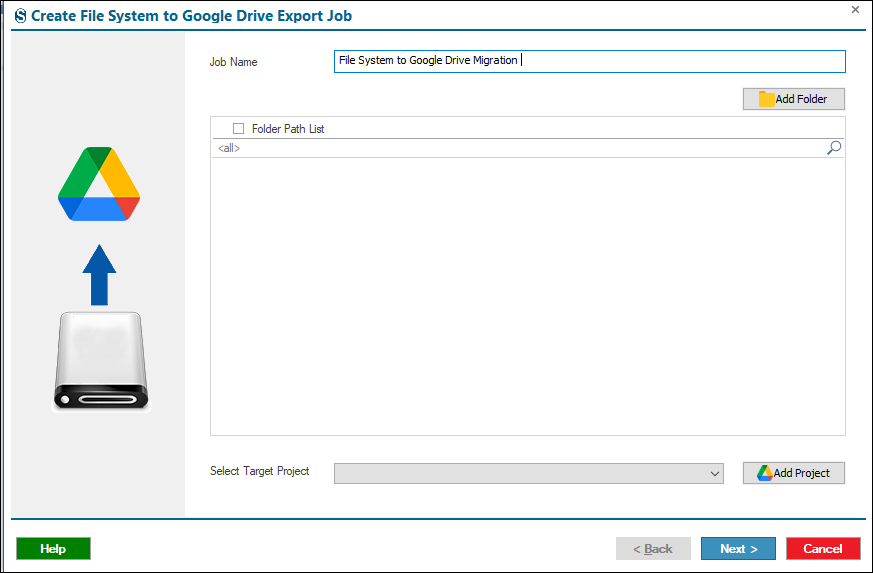
- Next, connect with the Source and Target Project.
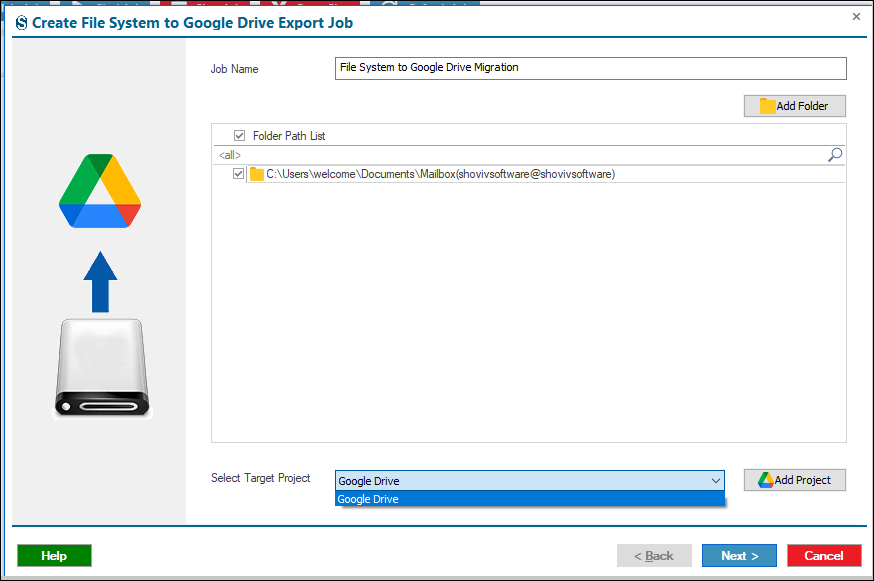
- Now match the source folder to the target drive with the help of the mapping facility.
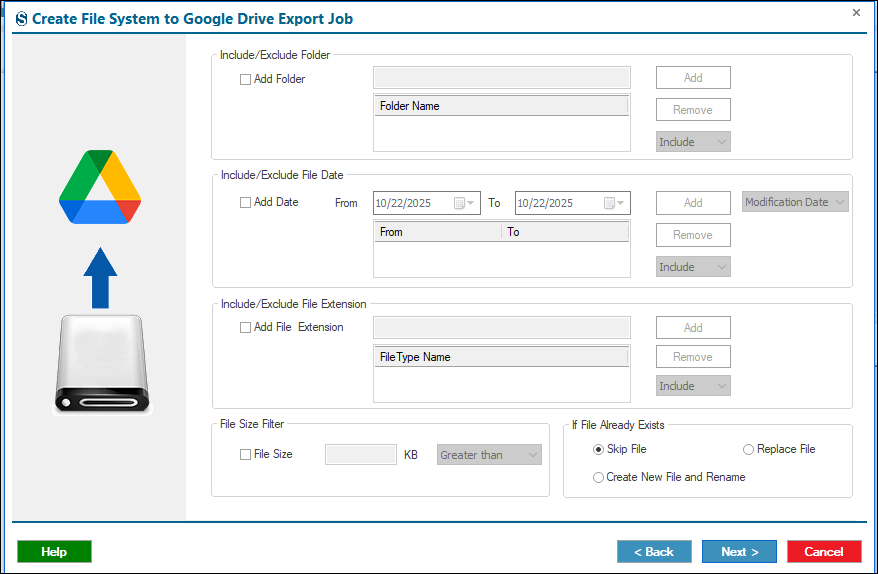
- At this point, you can set up the filters to refine your migration process.
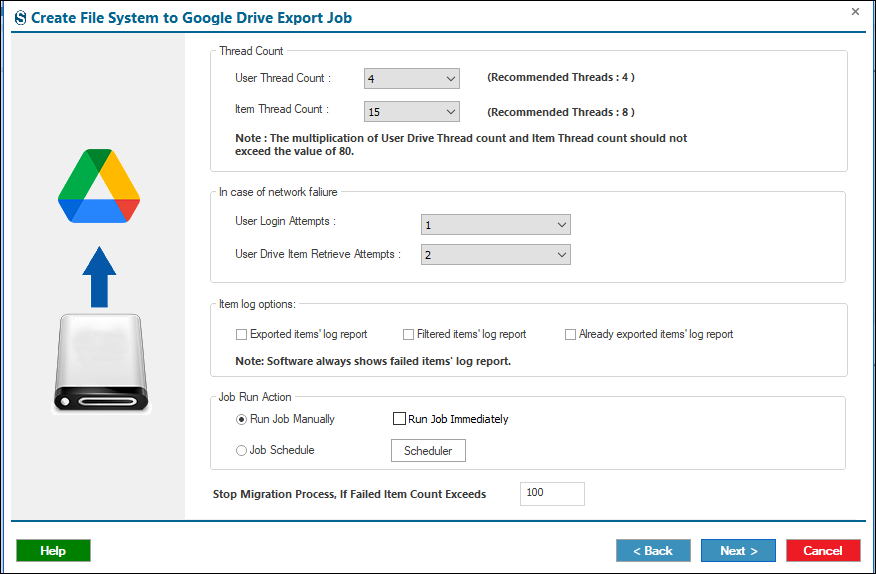
- With the advanced settings, you can strictly control your migration process.
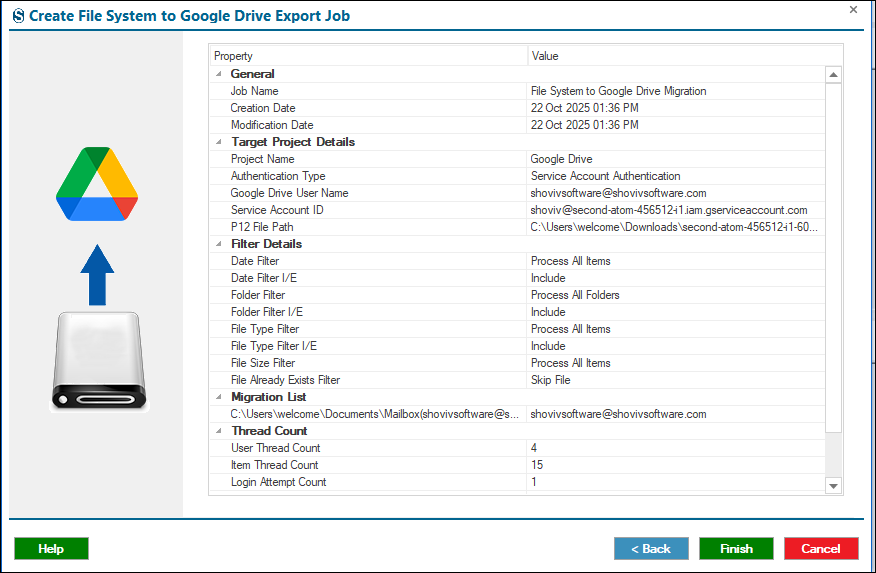
- Review the job carefully and then click on the Finish button.
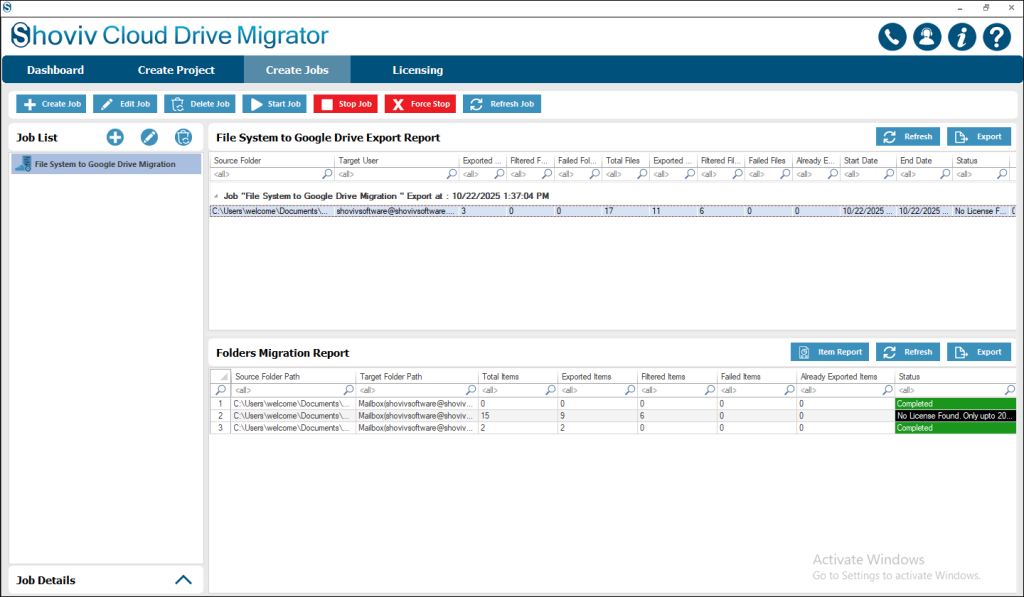
- The job runs according to the options you have chosen in the filters and settings.
Most of the users asked the question, “Can I upload large files to Google Drive manually?”
Of course, you can upload the large files to your drive manually, but they are not perfect. There are several limitations that you need to keep in mind. Individual files can be large, but the process of uploading is frustrating and time-consuming, and it also depends on the internet connection and available storage. Large uploads can sometimes fail due to network interruptions or issues with the browsers.
End-users who need to transfer or migrate data in bulk can use Shoviv Google Drive Migrator. This tool allows you to migrate files from Google Drive or upload files to Google Drive.
Conclusion
In conclusion, Google Drive is widely used because it offers simple file storage, sharing, and collaboration, with 15 GB of free storage. Users can upload files in several ways for personal and professional use. However, issues like large file uploads, storage limits, or network interruptions may occur. To handle bulk data uploads, storage limits, or network interruptions easily, use Shoviv Google Drive Migrator to upload faster without compromising security.
Frequently Asked Questions:
Ans: To upload documents into your drive, you need to open Google Drive in your browser, then click on the New button and choose File upload. Select the documents that you want to upload and then click on the open button. The file will start uploading and will appear in your drive once the process is complete.
Ans: Google Drive offers 15 GB of space for free with every account. This storage is shared across Google Drive, Gmail, and Google Photos. In case of more storage, you can upgrade your plan through Google’s paid storage options.
Ans: You can upload multiple files at once while using the Shoviv Google Drive Migrator, or by using the File Upload option, or by dragging and dropping multiple files into the window of the drive. You can also upload an entire folder using the Folder Option.
Ans: Yes, Google Drive allows users to upload files in large sizes. However, the speed of file uploads relies on your internet connection speed and the available storage space. Use professional tools like Shoviv Google Drive Migrator for bulk uploading files.