Summary: Users planning to migrate Qmail to Office 365 often face difficulties due to compatibility issues and the absence of a direct migration method. Since Qmail is a legacy mail server and Microsoft 365 is a modern cloud platform, performing a smooth Qmail to Exchange Online migration requires the right approach. To migrate Qmail to Microsoft 365, you can use IMAP synchronization via Outlook, the Exchange Admin Center for batch moves, or a professional migration tool like Shoviv for automated mapping and data integrity.
This blog provides a simple and effective process to migrate Qmail to Microsoft 365. It covers both manual and professional methods to help users choose the most suitable option based on their requirements and ensure a successful migration without complications.
A Gist of Qmail and Microsoft 365:
Qmail is a well-known mail transfer agent (MTA) widely used on Unix and Linux-based systems for managing and delivering emails. It gained popularity due to its lightweight architecture, security-focused design, and reliability in handling email communication. However, as business requirements have evolved, many organizations now require advanced collaboration, scalability, and cloud accessibility features that Qmail does not natively provide.
On the other hand, Microsoft 365 (formerly Office 365) is a cloud-based productivity platform that offers services like Exchange Online, Outlook, Teams, OneDrive, and SharePoint. It enables users to manage emails, collaborate in real time, and access data securely from anywhere. Due to these capabilities, many users and organizations are planning to migrate Qmail to Office 365 to modernize their communication systems.
Since both platforms work on different architectures, performing a Qmail to Exchange Online migration is not straightforward and requires a proper approach to ensure data is transferred safely and accurately.
Reasons to Migrate Qmail to Office 365
There are several practical reasons why users and organizations decide to migrate Qmail to Office 365. As business needs grow, relying on a legacy email system becomes challenging, especially when compared to modern cloud platforms like Microsoft 365.
- Cloud-Based Software as a Service– Microsoft 365 allows users to access emails, contacts, and other data from anywhere with an Internet connection. This flexibility is a major advantage over Qmail, which is typically limited to server-based access.
- Advanced Security Features – Security remains a vital priority for every organization. Microsoft 365 provides built-in protection such as spam filtering, anti-phishing policies, encryption, and multi-factor authentication. These features make the Qmail to Exchange Online migration essential for better data protection.
- Centralized Management – With Microsoft 365, administrators can manage users, permissions, and data from a single dashboard. This centralized control simplifies email management compared to Qmail’s manual configuration.
- Better Collaboration Tools – Microsoft 365 integrates with tools like Outlook, Teams, OneDrive, and SharePoint. These tools enable real-time collaboration, file sharing, and communication, which are not available in Qmail environments.
- Automatic Updates and Maintenance – Unlike Qmail, where administrators must handle updates and maintenance manually, Microsoft 365 is fully managed by Microsoft. It reduces IT workload and ensures access to the latest features.
- Scalability for Growing Businesses – As organizations expand, managing email systems becomes more complex. Microsoft 365 offers easy scalability, allowing businesses to add users and storage without infrastructure changes.
- Compliance and Data Governance – Microsoft 365 includes features like eDiscovery, data retention policies, and compliance tools. These are essential for organizations that must meet regulatory requirements.
Manual Methods to Migrate Qmail to Office 365
There is no direct native method to migrate Qmail to Office 365. However, users can still perform the migration using standard IMAP-based techniques and email clients. These methods are generally suitable for small-scale migrations or limited mailboxes.
Method 1: Migrate Qmail to Office 365 Using IMAP (Outlook Method)
It is the most commonly used manual approach for Qmail to Exchange Online migration.
Steps:
- Open Microsoft Outlook on your system.
- Go to File and click on Add Account.
- Enter your Qmail email credentials and choose manual setup.
- Configure IMAP settings:
- Incoming server: imap.yourdomain.com (Port 993, SSL)
- Outgoing server: smtp.yourdomain.com (Port 465 or 587, SSL/TLS)
- Once the Qmail account is added, add your Office 365 account to the same Outlook profile.
- After both accounts are visible, select emails or folders from the Qmail mailbox.
- Drag and drop the selected data into the corresponding Office 365 folders.
- Wait for synchronization to complete and verify the migrated data.
Method 2: Using Exchange Admin Center (IMAP Migration)
Microsoft 365 provides an IMAP-based migration option through the Exchange Admin Center (EAC).
Steps:
- Log in to the Microsoft 365 Admin Center.
- Open the Exchange Admin Center
- Create user mailboxes for all users in Microsoft 365.
- Set up a migration endpoint using IMAP server details.
- Upload a CSV file containing user credentials.
- Create and start a migration batch.
- Monitor the migration process and verify completion.
- Update MX records after migration is completed.
Method 3: Export and Import via Outlook (PST Method)
Another way to migrate Qmail to Microsoft 365 is by exporting emails to a PST file and importing them.
Steps:
- Configure your Qmail account in Outlook using IMAP.
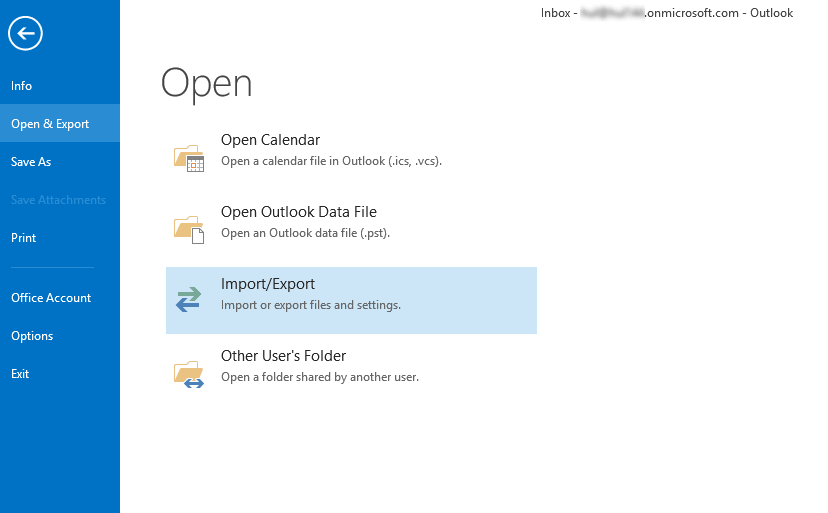
- Go to File > Open & Export >Import/Export.
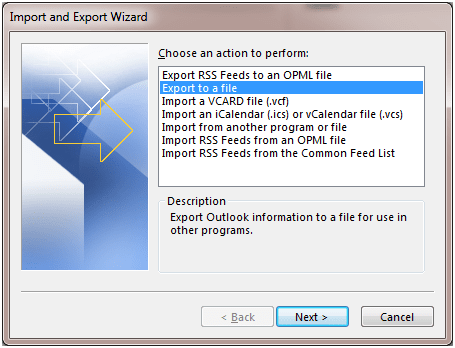
- Choose Export to a file.
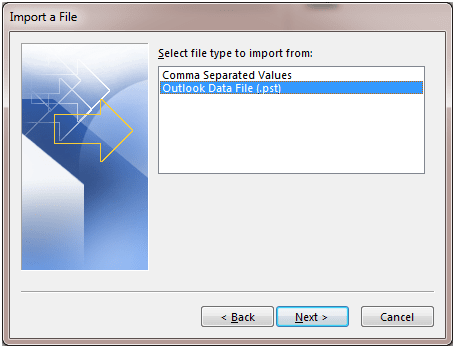
- Then select Outlook Data File (.pst).
- Save the PST file to your system.
- Add your Office 365 account to Outlook.
- Use the Import/Export option to import the PST file into Office 365.
- Verified that all emails are successfully migrated.
Drawbacks and Shortcomings of Manual Methods:
- The process takes a lot of time, especially for large mailboxes.
- You cannot migrate many accounts at once. Each mailbox needs to be handled separately.
- Emails, attachments and folders may be missed during the migration.
- Users need proper knowledge to configure IMAP, Outlook, or admin settings.
- There is no proper way to monitor migration status or errors.
- Some methods only work if Outlook is installed and configured correctly.
Professional method to migrate Qmail to Office 365
A professional solution provides a more reliable way to migrate Qmail to Microsoft 365, especially when dealing with large or multiple mailboxes. The Shoviv IMAP to Office 365 Migration Tool helps perform a smooth Qmail to Exchange Online migration by connecting IMAP-based Qmail accounts directly with Microsoft 365. It ensures that mailbox data is transferred accurately while maintaining the original structure.
This method is suitable for both small and large environments and reduces manual effort. It also helps users manage the migration process more efficiently compared to traditional methods.
Steps to Migrate Qmail to Office 365 Using the Shoviv Tool
Follow the simple process to migrate Qmail to Office 365:
- Install and open the Shoviv IMAP to Office 365 Migration Tool.
- Click on Source IMAP and add your Qmail account using IMAP details.
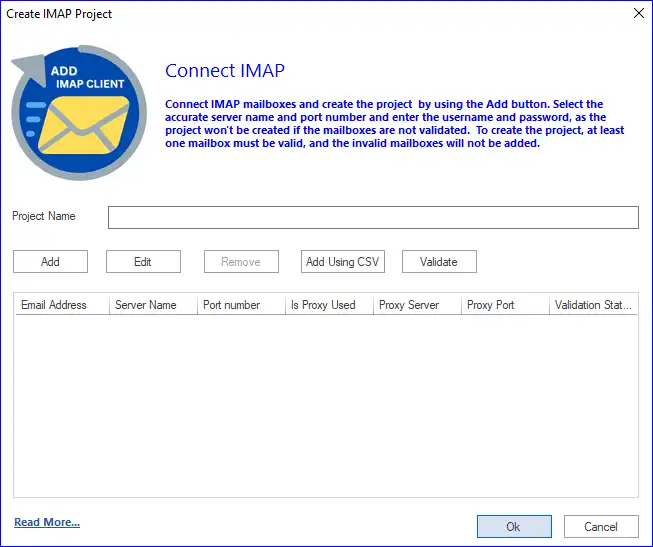
- Click on Target Office 365 and connect your Microsoft 365 account.
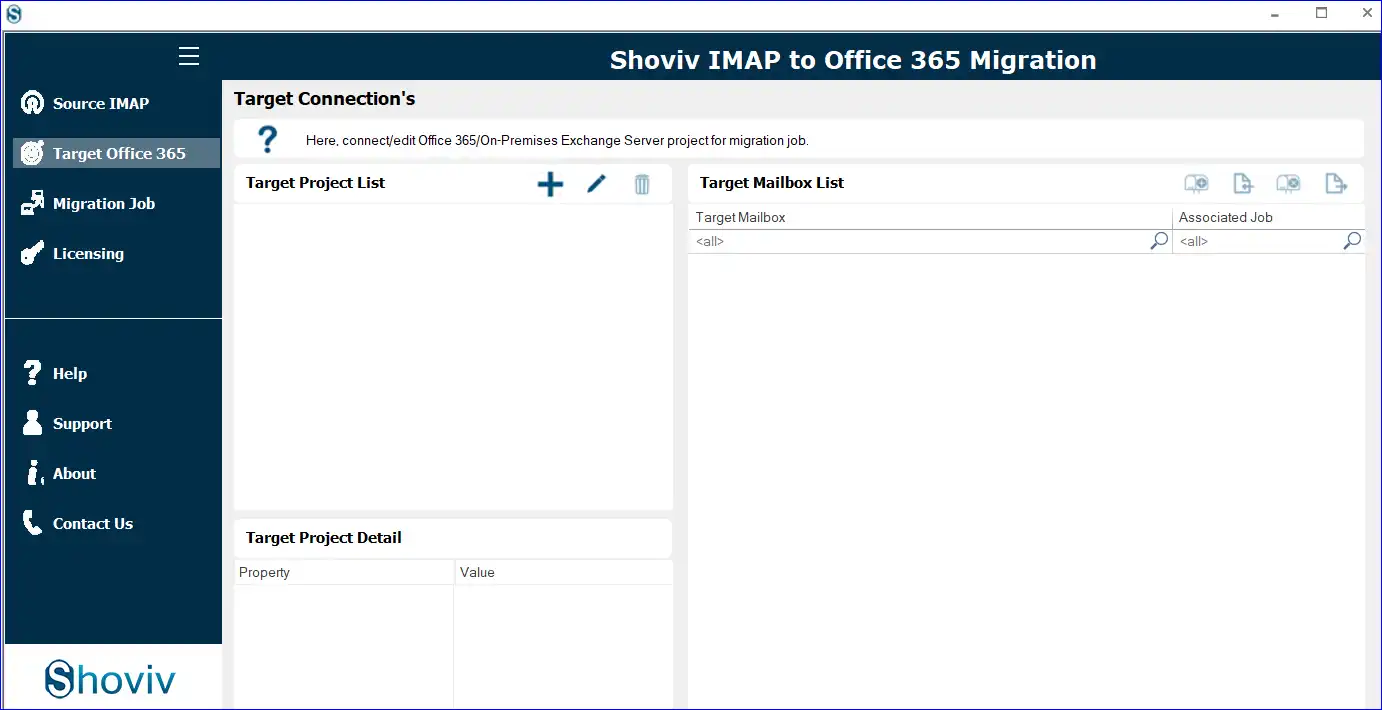
- Go to the Migration Job tab and click on Add Job.
- Enter a job name and select the source and target mailboxes.
- Map Qmail mailboxes with Office 365 mailboxes.
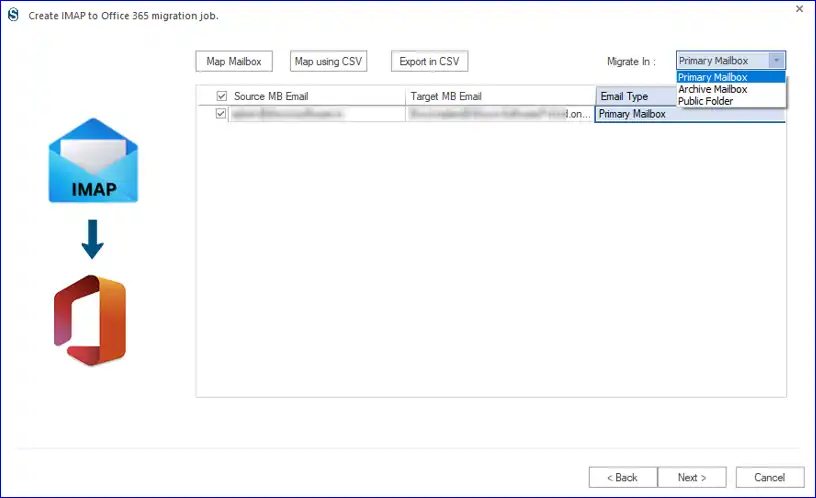
- Apply filters if needed (date range or folder selection).
- Choose migration settings and start the process.
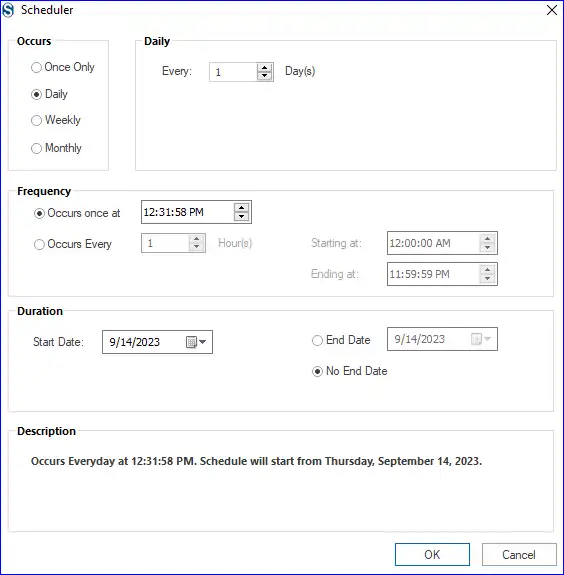
- Monitor the job and verify the migrated data after completion.
- Once confirmed, complete the migration and start using your Office 365 mailbox normally.
Conclusion
Migrating to a modern platform is essential for improving performance, security, and accessibility. This blog explained a clear process to migrate Qmail to Office 365 using both manual and professional approaches. While manual methods can work in limited cases, a well-planned Qmail to Exchange Online migration ensures better accuracy and smoother results. Choosing the right approach helps users transfer their data efficiently and start using Microsoft 365 without complications.
Frequently Asked Questions
Yes, you can migrate Qmail to Office 365 manually using IMAP configuration or Outlook. However, it is suitable only for small mailboxes and limited users.
No, manual methods mainly migrate emails. Data like contacts, calendars, and permissions are not fully transferred during Qmail to Exchange Online migrations.
Yes, selective migration is possible. You can choose specific emails or folders when you migrate Qmail to Microsoft 365 while using Shoviv IMAP to Office 365 Migration Tool.
The migration time depends on mailbox size, number of users, and network speed. Large data migrations may take more time.
Yes, with a professional solution, you can migrate multiple mailboxes in one go, making the Qmail to Office 365 migration faster and more efficient.
Yes, by following the correct process, you can ensure safe migration. Using a reliable method like Shoviv IMAP to Office 365 Migration Tool helps maintain data integrity while you migrate Qmail to Office 365.