Summary: Users looking to migrate IDrive e2 to OneDrive often face confusion due to limited direct methods and a lack of clarity around the right approach. Whether the goal is better collaboration, improved accessibility, or simplified file management, moving data between these platforms requires careful planning. This blog explains how to transfer IDrive to OneDrive using both manual and professional methods. It also introduces an efficient solution using the Shoviv S3-compatible Storage Migration Tool, helping users complete the migration process with accuracy and minimal effort.
Overview of IDrive e2 & OneDrive
Cloud storage platforms play a vital role in managing and accessing data efficiently in today’s digital environment. Different services are designed for different purposes, which is why understanding their core functionality becomes important before performing any data transfer.
About IDrive e2
IDrive e2 is an S3-compatible object storage service built to handle large volumes of data with scalability and cost-efficiency. It is commonly used for backups, archiving, and storing unstructured data. With its flexible storage structure and support for S3 APIs, it is suitable for users who need reliable Storage for bulk data management.
About OneDrive
OneDrive is a cloud storage platform developed by Microsoft that focuses on productivity, accessibility and collaboration. It allows users to store, sync, and share files across multiple devices while integrating seamlessly with Microsoft applications. Features like real-time collaboration and easy file sharing make it a preferred choice for both personal and professional use.
Due to these differences in functionality and usage, many users look for ways to migrate IDrive e2 to OneDrive to benefit from enhanced accessibility and collaboration features.
Reasons to Migrate IDrive e2 to OneDrive
There are several practical reasons why users prefer to migrate. IDrive e2 to OneDrive, especially when their storage needs shift toward accessibility and collaboration. Below are the key reasons behind this transition:
- Limited collaboration in IDrive e2 – IDrive e2 is mainly designed for storage and backup purposes. It does not offer advanced collaboration features, which can make teamwork and file sharing less efficient.
- Need for Better Integration – OneDrive integrates seamlessly with Microsoft applications like Word, Excel, and Teams. It makes it easier to manage and work on files directly with a connected ecosystem.
- Improved Accessibility Across Devices – While I drive e2 focuses on backend storage, OneDrive provides a more user-friendly experience with easy access to files from desktops, mobiles and browsers.
- Simplified File Management – Managing files in OneDrive is more straightforward due to its clean interface and organized structure, which helps users quickly locate and manage their data.
- Enhanced Sharing Options – OneDrive allows users to share files using secure links with permission controls, making it more flexible compared to IDrive e2.
Preparation Before You Migrate IDrive e2 to OneDrive
Before you migrate IDrive e2 to OneDrive, a few simple preparations can help avoid interruptions and keep your data organized during the transfer.
1. Backup Important Data
- Create a backup of your IDrive e2 data on a local drive or another storage location. It acts as a safety layer in case anything goes wrong during the migration.
2. Check Available Storage in OneDrive
- Make sure your OneDrive account has enough space to store all the data you plan to transfer. Upgrade the plan if required.
3. Organize Files in IDrive e2
- Arrange your files into folders and remove unnecessary data. It helps in maintaining a clean structure after the migration.
4. Verify Account Access
- Ensure that both your IDrive e2 and OneDrive accounts are active and accessible to avoid delays during the process.
Manual Method to Migrate IDrive e2 to OneDrive
One of the simplest ways to migrate IDrive to OneDrive is by using the manual approach. The method involves downloading data from IDrive e2 and uploading it to OneDrive. It works well for small amounts of data and gives full control over the process.
Steps to Transfer IDrive to OneDrive Manually:
1. Download Data from IDrive e2
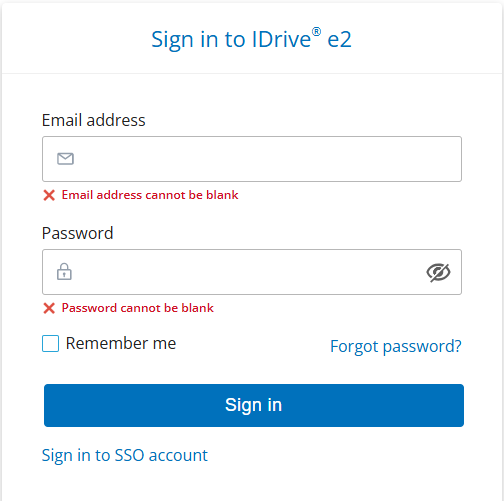
- Sign in to your IDrive e2 account.
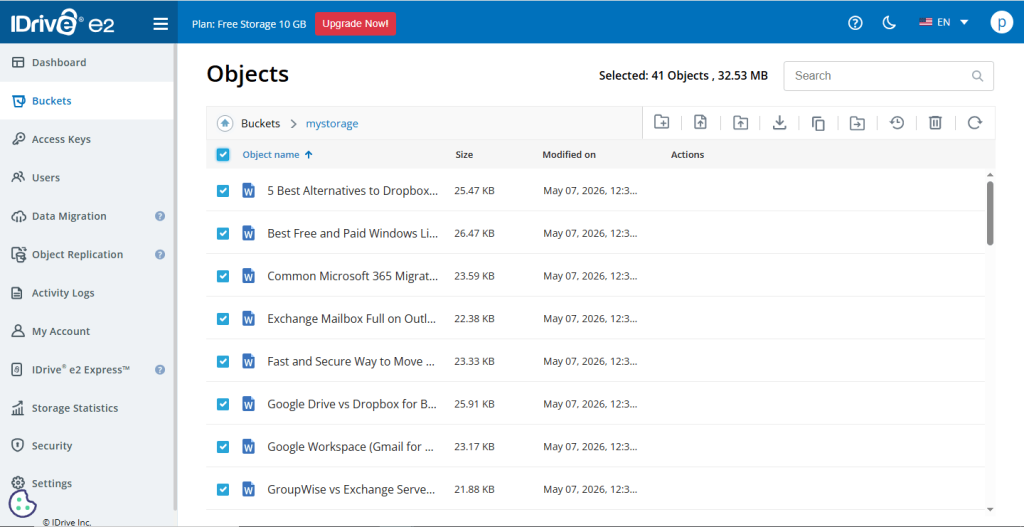
- Select the files or folders you want to transfer.
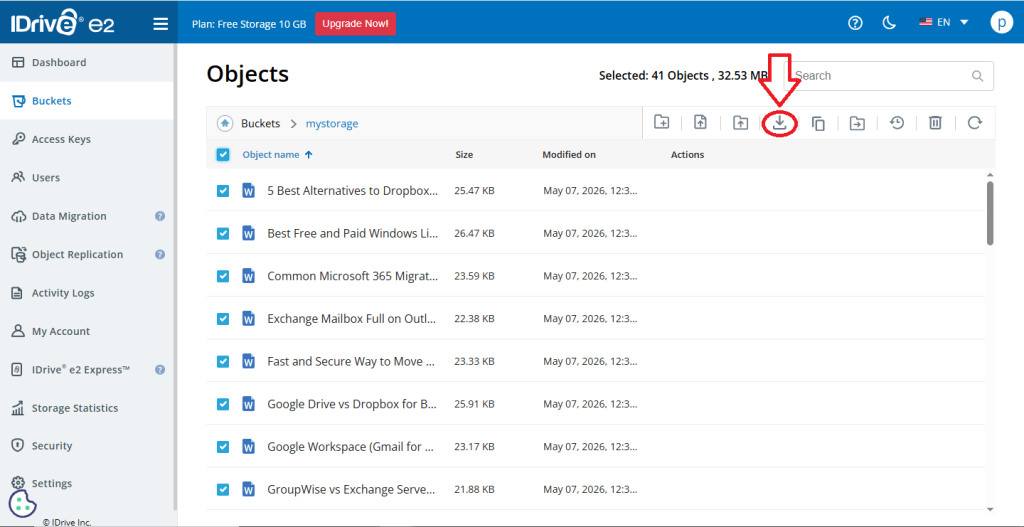
- Download them to your local system.
2. Access Your OneDrive Account
- Open OneDrive in your browser or application.
- Log in using your account credentials.
3. Upload Files to OneDrive
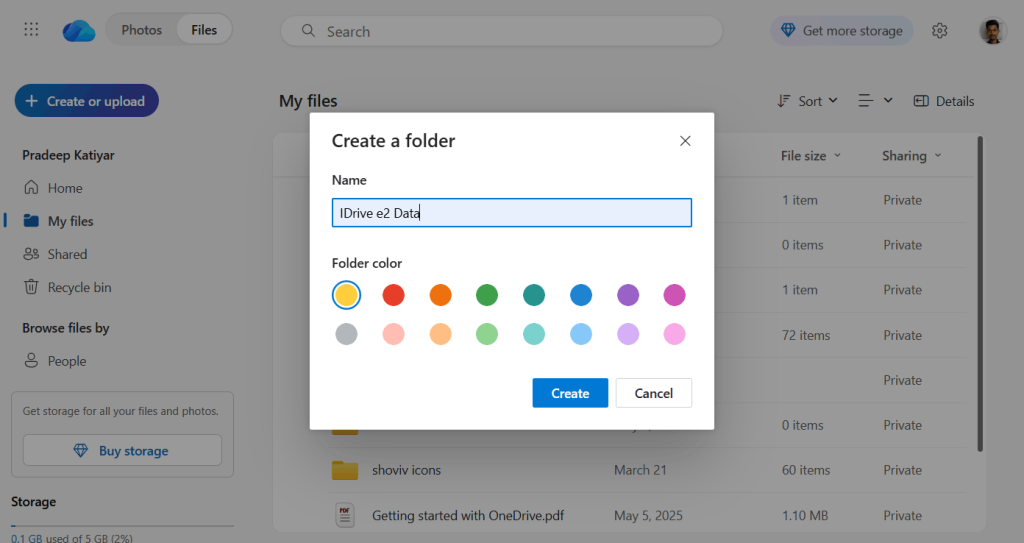
- Create a new folder in OneDrive.
- Select the download files from your system.
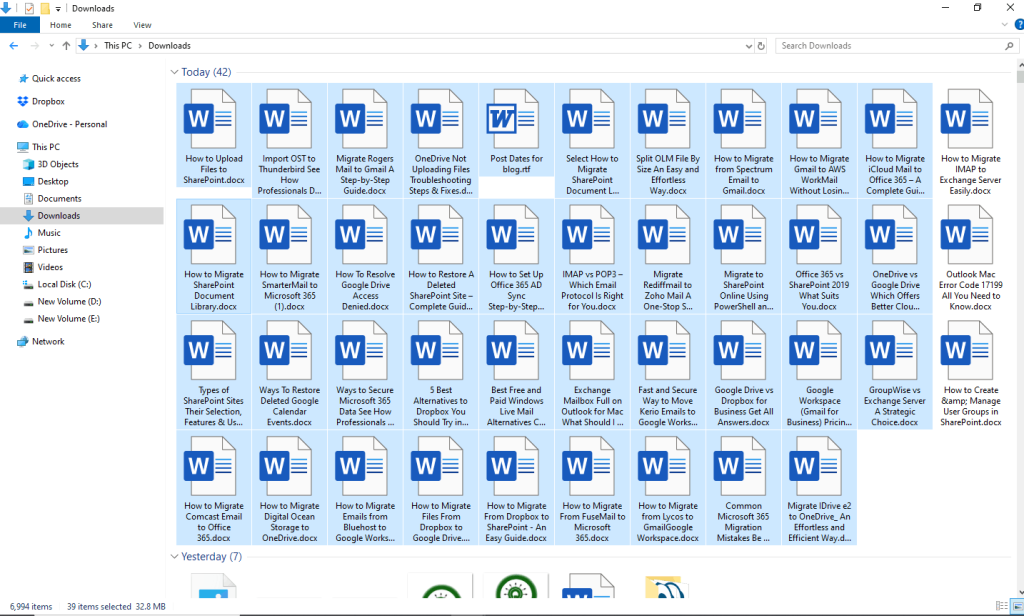
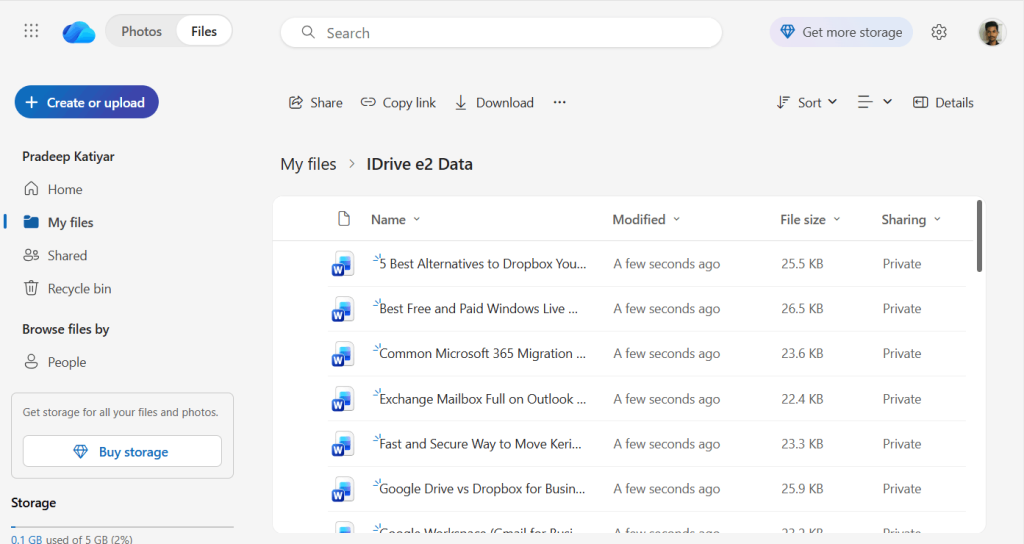
- Upload them to your OneDrive account.
Drawbacks of the Manual Method
While the manual approach to migrating IDrive e2 to OneDrive is simple, it comes with several limitations, especially when dealing with large or complex data.
- Takes longer when handling large amounts of data.
- Increases the chances of missing or misplaced files.
- Requires temporary storage on the local system.
- Becomes difficult to manage for bulk transfers.
- Can be affected by network interruptions.
An Effortless and Efficient Way to Migrate IDrive e2 to OneDrive
Handling large-scale data across different cloud platforms often requires a more structured and reliable approach. Instead of relying on manual efforts, using a dedicated solution helps simplify the process and ensures better accuracy. The Shoviv S3-compatible Storage Migration Tool, AKA Shoviv Cloud Drive Migrator, is designed to transfer IDrive e2 data directly to OneDrive without the need for downloading and re-uploading files, making the migration faster and more efficient.
Key Features of Shoviv S3-compatible Storage Migration Tool
- Supports all S3-compatible storage like IDrive e2.
- Direct cloud-to-cloud migration without manual download.
- Multiple job processing for parallel migration.
- Option to add multiple buckets/users in one job.
- Advanced filter options (file type, date range, etc.).
- Maintains folder hierarchy and data integrity.
- Handles duplicate files efficiently; incremental export facility.
- Generates detailed migration reports.
- Allows creating a source-based folder structure in the target.
Step-by-Step Process to Migrate IDrive e2 to OneDrive:
- Install and run the tool.
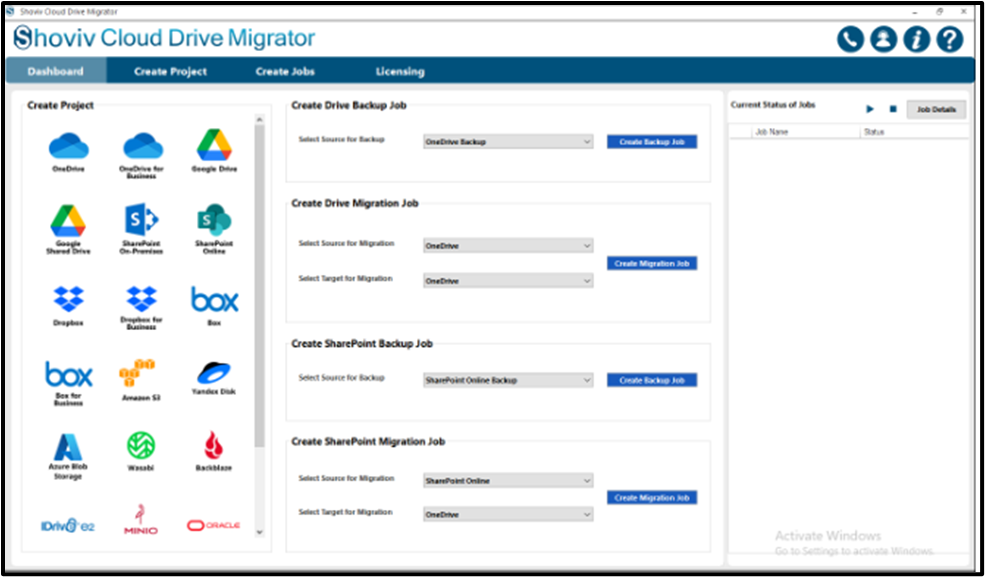
- Select the Source and Target.
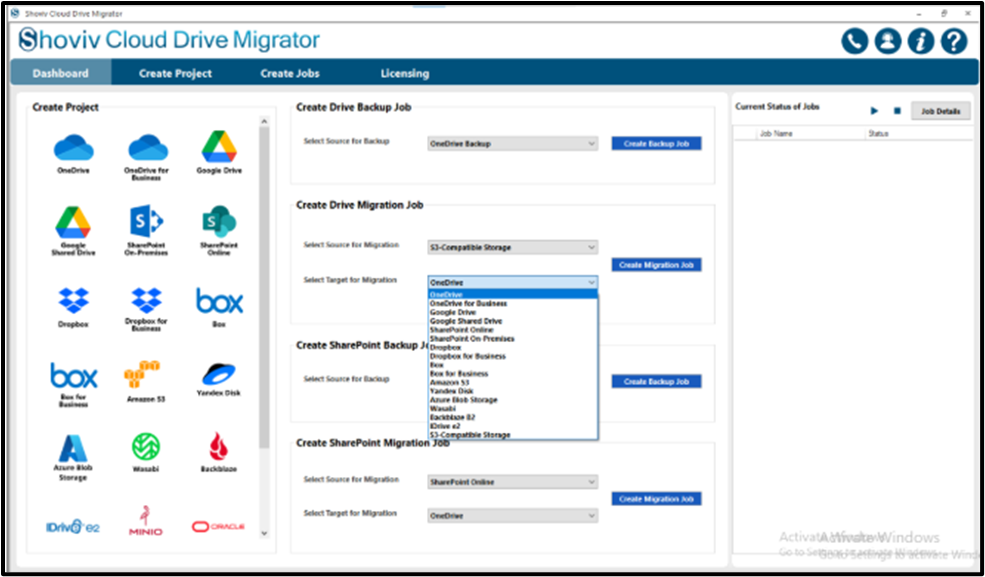
- Connect with a source and target (create and add project).
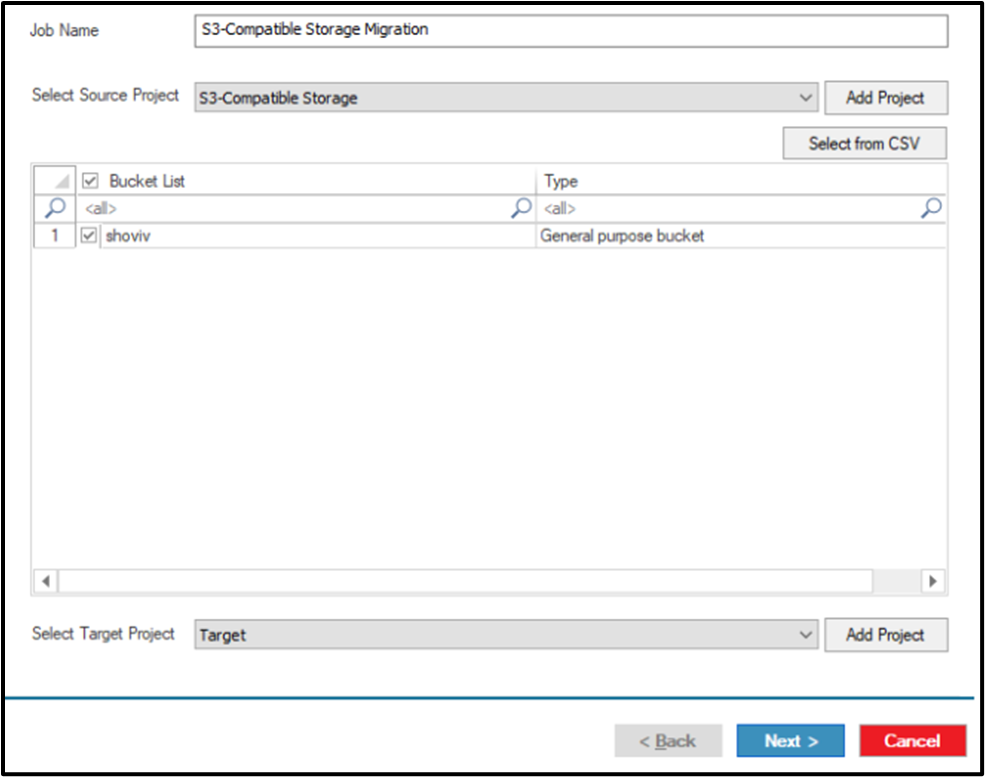
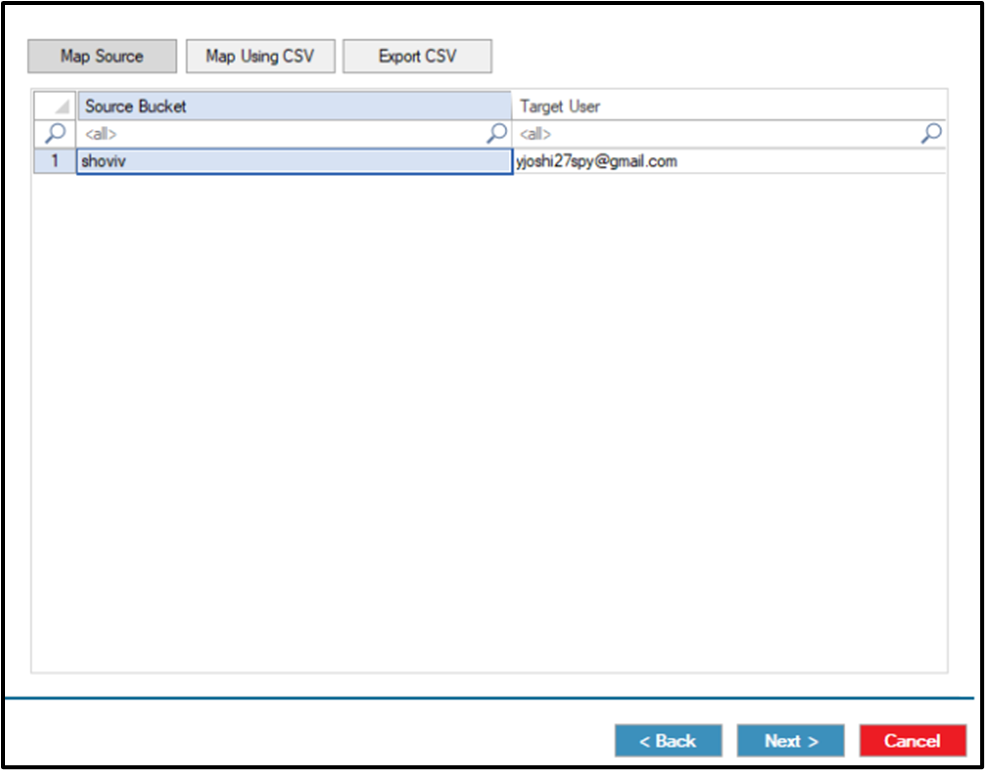
- Map the source and target to each other.
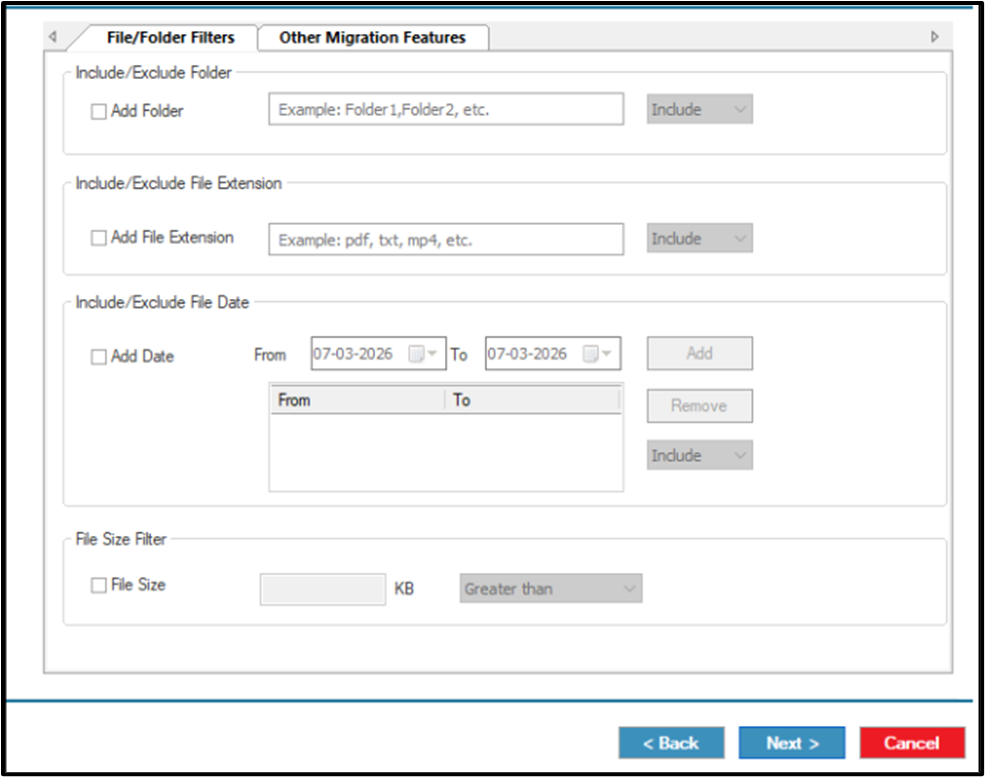
- Apply the filters.
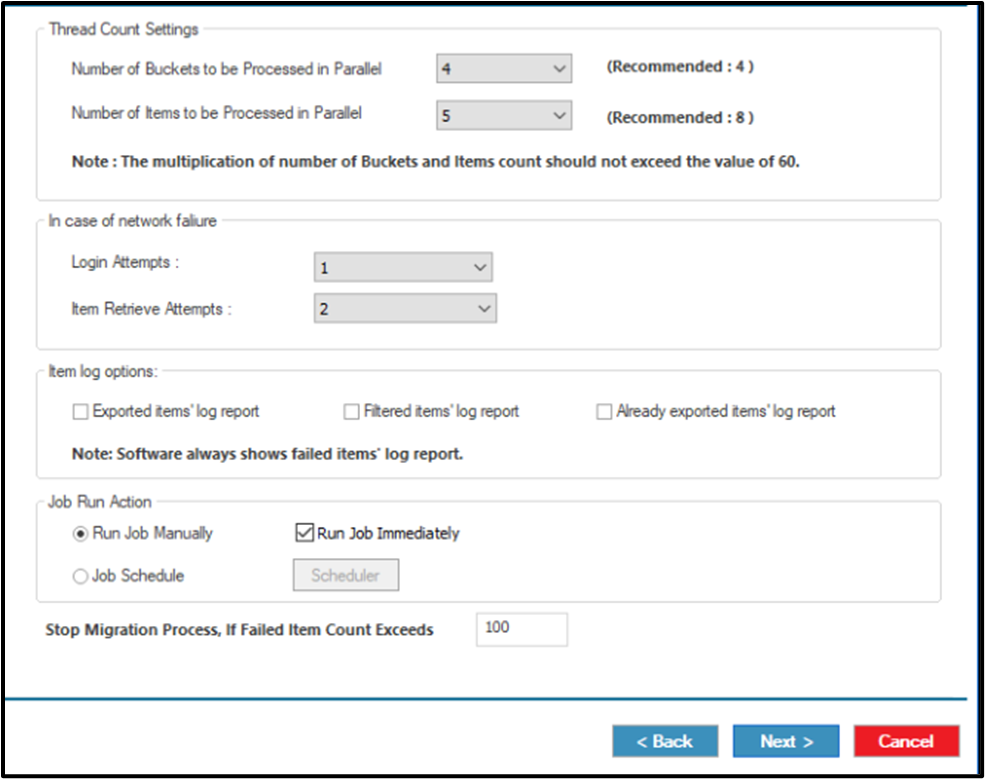
- Set the settings.
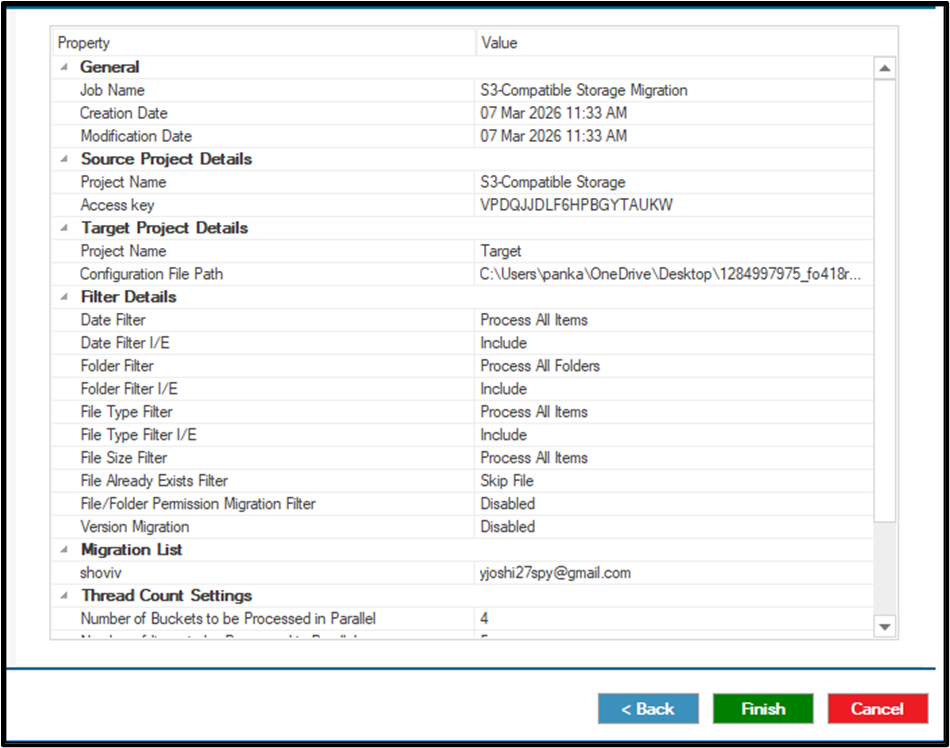
- Review the job details.
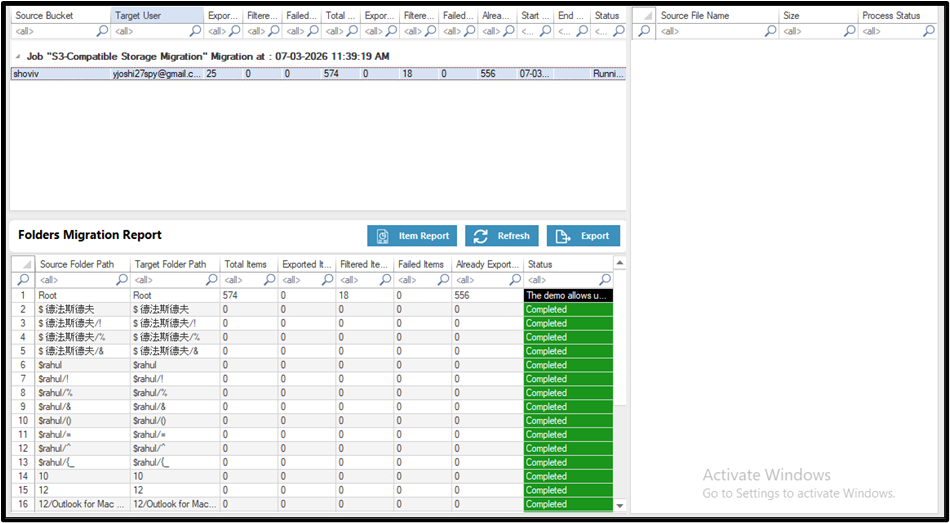
- Run the migration job.
Final Verdict:
Migrating data between cloud platforms can seem complex, but with the right approach, it becomes manageable. In this blog, we explained how to migrate IDrive e2 to OneDrive using both manual and professional methods. While the manual approach works for small data, it comes with several limitations when handling larger or critical files. Using a reliable solution like the Shoviv S3-compatible Storage Migrator provides a more efficient and structured way to transfer IDrive to OneDrive with better accuracy and control.
Choosing the right method depends on your data size and requirements. Still, a professional tool offers a more practical and time-saving option.
Frequently Asked Questions
Yes, you can manually migrate IDrive e2 to OneDrive by downloading files from IDrive e2 and uploading them to OneDrive. But, for this, you have to execute the task time and again.
No, the manual method becomes difficult and time-consuming when handling large amounts of data.
The manual method is suitable for small data, while a professional tool is better for large or complex migrations.
There can be risks in manual transfer due to interruptions or errors, while professional tools help reduce such risks.
Yes, using the Shoviv S3-compatible Storage Migration Tool, you can perform direct cloud-to-cloud migration.
Yes, it is designed to handle large data efficiently with features like multiple job processing and filtering options.