Summary: Are you looking to transfer SiteGround email to Exchange Online (Microsoft 365) but unsure where to begin? Many users struggle to find a clear and reliable method for this process. This blog will guide you through the complete SiteGround to Office 365 migration step by step. We will explain both manual (Outlook Sync) and professional (IMAP to Office 365 Migration) solutions to help you transfer SiteGround email to Microsoft 365 without confusion. By the end, you will be able to choose the right method based on your needs and complete the migration efficiently.
SiteGround is a web hosting provider founded in 2004 and headquartered in Bulgaria. It offers services like web hosting, cloud hosting, and email hosting. Users can create domain-based email accounts and manage them through webmail clients such as Roundcube and Horde. Small businesses and website owners widely use it for basic email communication.
On the other hand, Exchange Online (Microsoft 365) is a cloud-based email platform that helps users manage their mailboxes and email data in an organized environment. It is designed to handle email communication with centralized access and management.
Reasons to Transfer SiteGround Email to Exchange Online (Microsoft 365)
- Better Mailbox Handling – Exchange Online provides a more structured way to manage emails, users, and storage compared to SiteGround email.
- Integration with Microsoft Services – It works smoothly with tools like Outlook and SharePoint, making communication more organized.
- Improved Reliability – Exchange Online ensures stable email access, which is important for business communication.
- Advanced Administrative Control – it allows better management of users, permissions, and email settings.
- Scalability – Exchange Online can handle growing data and user requirements without affecting performance.
Manual Method to Transfer SiteGround Email to Microsoft 365
You can transfer SiteGround to Office 365 manually by using an email client like Outlook with IMAP configuration. This method helps move emails from SiteGround accounts to Microsoft 365.
Steps to perform SiteGround to Exchange Online migration manually:
- Open Outlook > Go to File > Add Account.
- Enter your SiteGround email address and choose Manual setup (IMAP).
- Provide the IMAP server details:
- Incoming Server: mail.yourdomain.com (Port 993, SSL)
- Outgoing Server: mail.yourdomain.com (Port 465/587. SSL/TLS)
- Enter your SiteGround credentials and complete the setup.
- Now, add your Exchange Online (Microsoft 365) account to the same Outlook profile.
- Once both accounts are added, select emails from the SiteGround mailbox.
- Drag and drop emails into the Exchange Online mailbox folders.
- Wait for the synchronization process to complete.
- Verify that all emails are available in the Exchange Online account.
Limitations of the Manual Method
- Time-consuming for large SiteGround mailboxes.
- Not suitable for multiple user accounts.
- Requires manual configuration and technical knowledge.
- Risk of missing emails or attachments during transfer.
- No proper support for bulk or selective migration.
Professional Method to Transfer SiteGround Email to Exchange Online (Microsoft 365)
You can also transfer SiteGround email to Microsoft 365 using a professional IMAP-based solution like Shoviv IMAP to Office 365 Migration Tool. It provides a more direct and simplified way to complete the migration with better control over the data transfer.
Steps to Migrate SiteGround Email to Exchange Online
- Install and launch the Shoviv IMAP to Office 365 Migration Tool.
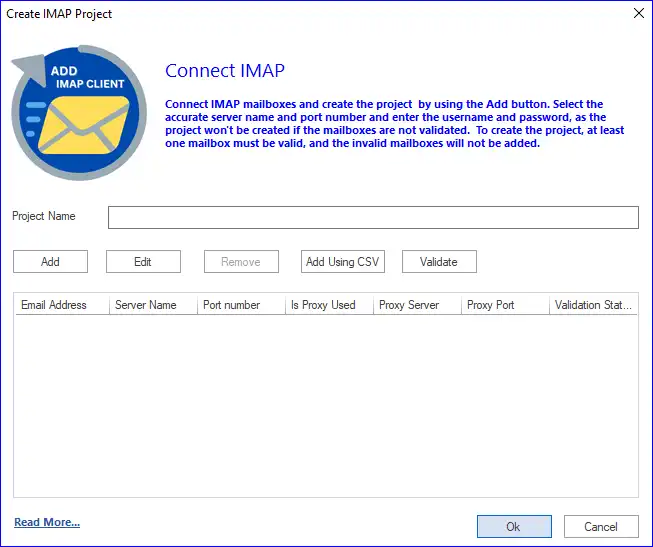
- Click on Source IMAP and enter your SiteGround email account details.
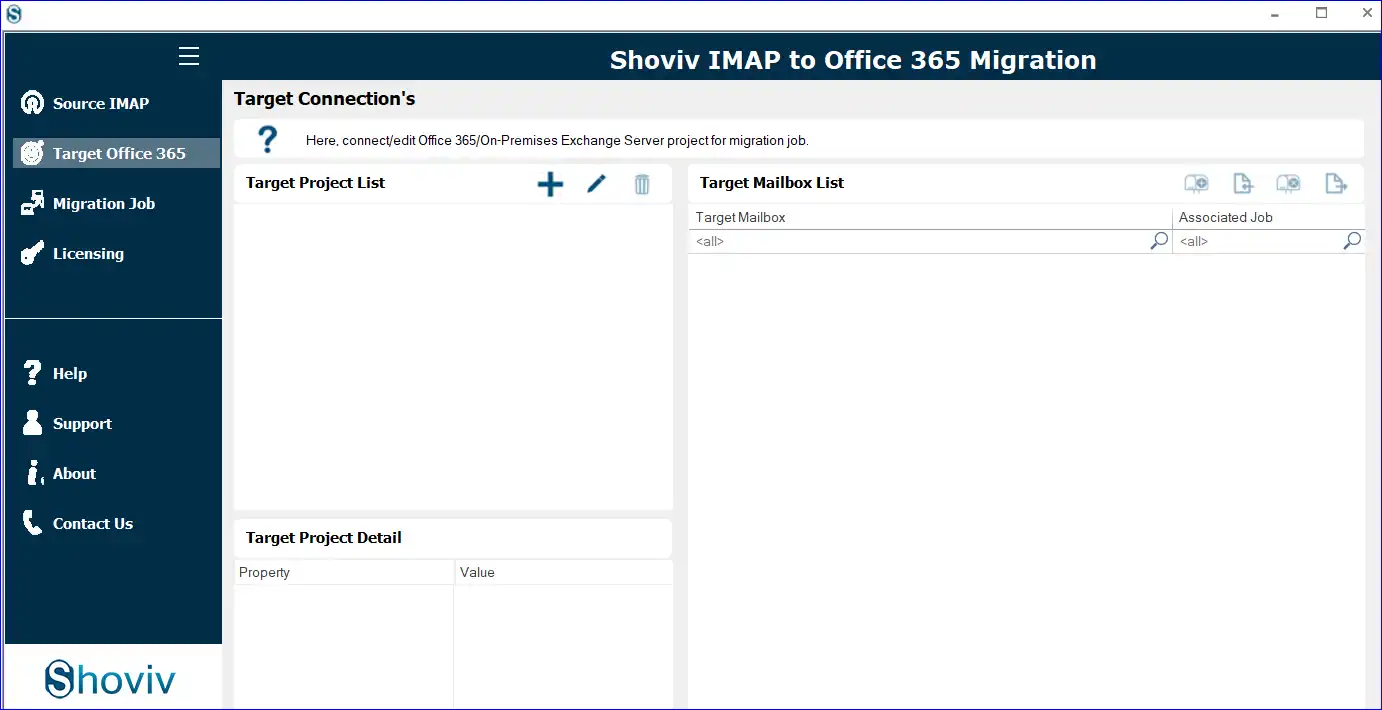
- Now, click on Target Office 365 and add your Exchange Online account.
- Create a new migration job by clicking the Add (+) button.
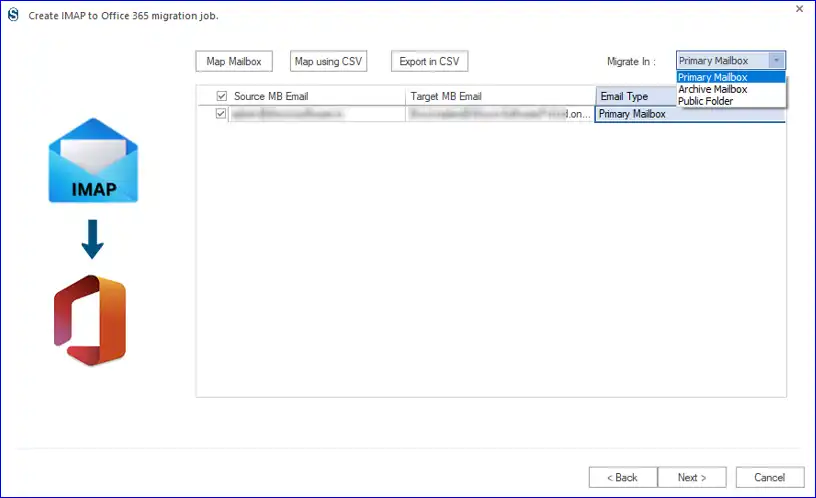
- Select the source (SiteGround) mailbox and target mailbox.
- Map the mailboxes between SireGround and Microsoft 365.
- Apply filters if required and proceed further.
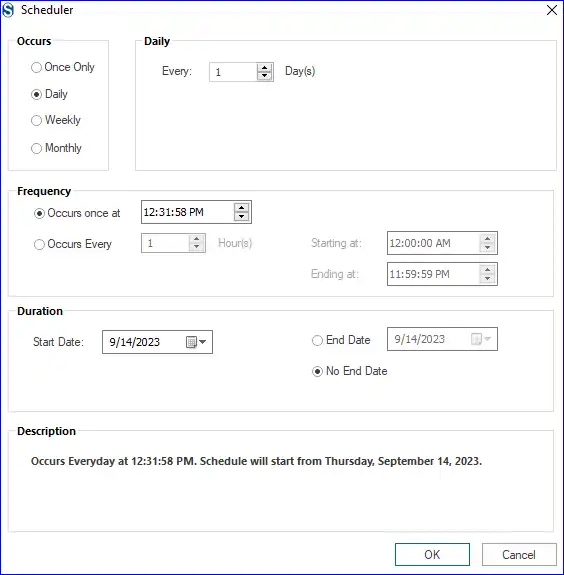
- Configure the migration settings as needed. You can also schedule this migration.
- Review the job summary and click Finish to start the migration.
- Monitor the migration process until it completes.
- Finally, log in to your Exchange Online (Microsoft 365) account and verify the migrated emails.
Conclusion:
In this blog, we explained how to transfer SiteGround email to Exchange Online (Microsoft 365) using both manual and professional methods. The manual approach can be used for basic migration needs, but it may create challenges during the process.
For a smoother and more reliable experience, using a professional solution like Shoviv is a better option. It simplifies the migration process and helps complete the transfer properly without unnecessary complications. Users can choose the method based on their requirements and complete the SiteGround to Exchange Online migration accordingly.
Frequently Asked Questions:-
Yes, you can use an email client like Outlook with IMAP configuration to move emails from SiteGround to Exchange Online. However, it can take time and only if you have only a few emails.
No, the manual method does not support bulk migration. Each mailbox needs to be transferred separately.
Yes, attachments can be transferred, but manual methods may sometimes miss certain data if not handled carefully.
Manual methods are suitable for small data, but for a smooth and reliable process in bulk, a professional approach is preferred.
Yes, using a professional solution like Shoviv IMAP to Office 365 Migration Tool, you can transfer only the required emails based on your needs.
There can be some risk in manual methods if the process is not performed properly, while a professional method helps reduce such risks.