Summary: Planning to move your business communication from Gmail to Amazon WorkMail? Whether you are driven by security needs, data residency compliance, or better enterprise-level control, Gmail to AWS WorkMail migration has become a common requirement for many users and organizations. This blog offers a complete walkthrough on how to migrate Gmail to Amazon WorkMail without losing emails, folders, or attachments. You will explore manual migration methods and a reliable professional solution that ensures safe, accurate, and efficient migration, even for large mailboxes.
As organisations grow and data governance becomes more critical, many users look for ways to migrate Gmail to Amazon WorkMail. If you are still uncertain about moving from Gmail to AWS WorkMail, reviewing the advantages of WorkMail can help you make an informed decision.
Reasons to Migrate Gmail Email to AWS WorkMail
Below are some of the most common and practical reasons users choose Amazon WorkMail over Gmail:
- Enterprise-Grade Security – AWS WorkMail provides strong encryption, spam filtering, and multi-factor authentication backed by AWS security infrastructure.
- Data Residency Control – Users can select a specific AWS region to store email data, helping organizations comply with regional data protection laws.
- Business-Focused Platform – WorkMail is designed for enterprises and integrates smoothly with other AWS services.
- Scalability & Reliability – The platform grows with your organization, handling increased mailboxes and performance issues.
- Flexible Storage Options – Unlike Gmail’s fixed 15 GB limit, WorkMail offers higher storage options depending on the subscription.
- Administration Control – Centralized mailbox management through the AWS Management Console simplifies administration.
- Backup & Disaster Recovery – AWS provides robust recovery options for accidental deletion or unexpected data loss.
These benefits clearly explain why organizations and professionals prefer migrating emails from Gmail to AWS WorkMail. Let’s explore how this migration can actually be performed.
Manual Method to Transfer Gmail to AWS WorkMail:
Method 1: Using Mozilla Thunderbird (IMAP Method)
This method allows you to copy emails manually by configuring both Gmail and AWS WorkMail in Thunderbird.
- Sign in to Gmail and open Settings.
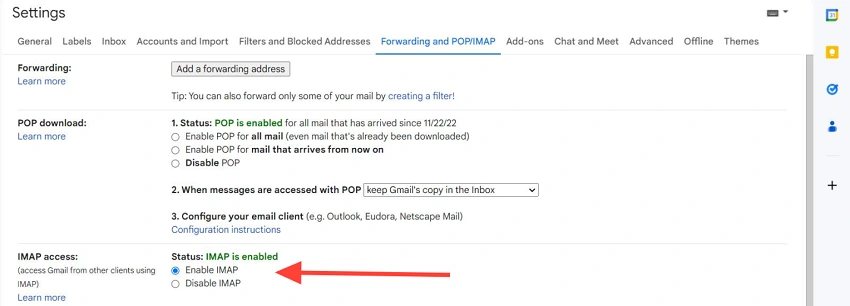
- Navigate to Forwarding and POP/IMAP and enable IMAP.
- Download and install Mozilla Thunderbird.
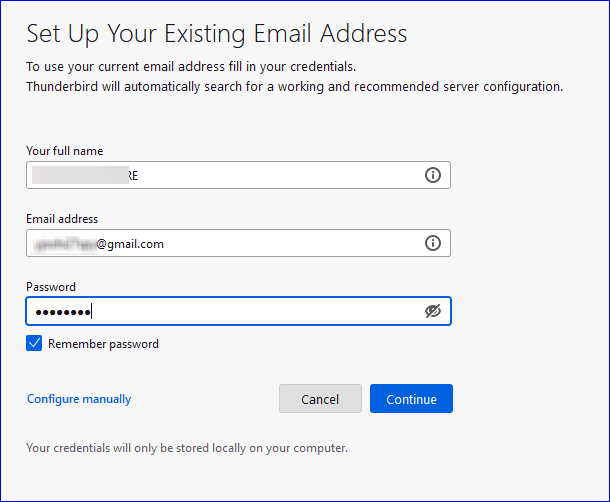
- Add your Gmail account using automatic server detection.
- Add your AWS WorkMail account using IMAP and SMTP details.
- Once both accounts appear, drag emails or folders from Gmail to AWS WorkMail.
- Thunderbird syncs and copies the selected emails.
This method works best for small mailboxes with limited folders.
Method 2: Manually Transfer Gmail to Amazon WorkMail Using MS Outlook
- Open Outlook and go to File > Add Account.
- Add your Gmail account and complete authentication.
- Again, select Add Account and configure your Amazon WorkMail account.
- Use IMAP or auto-configuration settings.
- Drag emails from Gmail folders to the AWS WorkMail mailbox.
This approach is suitable when users already rely on Outlook for email management.
Method 3: Forward Gmail Emails Manually
- Open Gmail and select the email you want to move.
- Click Forward.
- Enter the AWS WorkMail email address.
- Send the email.
It is the simplest method and is only practical for transferring a small number of emails.
Drawbacks of the Manual Method:
Although manual methods may seem cost-effective, they come with several limitations that make them unsuitable for long-term or large-scale Gmail email to Amazon WorkMail migration. Let’s know more about it.
- Manual migration is extremely time-consuming, especially when dealing with large mailboxes or multiple accounts.
- There is no guarantee of data integrity; emails may be skipped, duplicated, or partially transferred.
- Folder hierarchy, Gmail labels, and metadata are often not preserved accurately.
- Manual methods do not support contacts, calendars, rules, or filters, resulting in incomplete migration.
- Any internet interruption or sync failure can cause data loss without error notifications.
- These methods lack automation, scheduling, and reporting, making the process slow, error-prone, and inefficient.
Professional Solution to Migrate Gmail to AWS WorkMail
Manual migration often struggles with large mailbox sizes, incomplete transfers, and technical interruptions. To overcome these challenges, the Shoviv IMAP to Amazon WorkMail Migration Tool offers a fast, secure, and error-free way to migrate Gmail to AWS WorkMail without data loss. This professional solution directly migrates emails via IMAP while preserving folder hierarchy, attachments, and metadata. It is ideal for both individual users and enterprises handling multiple mailboxes.
Key Features of Shoviv IMAP to Amazon WorkMail Migration Tool:
- No size limitations on Gmail mailbox migration.
- Supports multiple mailbox migrations in one project.
- Advanced folder and date-based
- Incremental migration/ export to avoid duplicate emails.
- Preserves folder structure and email properties.
- Complete with all IMAP-based platforms.
- Schedule option for automated migration tasks.
- Simple interface requiring no technical expertise.
Steps to Gmail Email to AWS WorkMail Migration:
- Download and launch the Shoviv IMAP to Amazon WorkMail Migration Tool.
- Configure the Source Connection using Gmail IMAP server details.
- Set up the Target Connection with Amazon WorkMail credentials.
- Please create a new migration job and name it.
- Map source Gmail mailboxes with target WorkMail mailboxes.
- Apply filters if required (folder or date range).
- Use the scheduler option if needed.
- Verify settings and start the migration process.
Conclusion
Migrating Gmail to AWS WorkMail is an important step for organizations seeking better security, scalability, and compliance. While manual methods may work for limited data, they often fail to maintain folder structure and are prone to errors. For a smooth, secure, and efficient Gmail email or AWS WorkMail migration, using a professional tool like Shoviv is the most reliable option–especially for large or business-critical mailboxes.
Evaluate your requirements, compare the methods, and choose the approach that ensures data safety with minimal effort.
Frequently Asked Questions:
Yes, you can use free IMAP-based email clients like Thunderbird or Outlook, but this works best only for small mailboxes and requires a stable internet connection. Moreover, manual limitations will always be there.
Not completely. Gmail labels are converted to folders, and the original structure or metadata may not be preserved correctly.
Yes, Attachments are transferred, but manual methods may miss some, while professional tools ensure complete migration.
Yes, Shoviv supports bulk migration of multiple Gmail mailboxes in one process.
Yes, It allows filtering by folders or dates and offers scheduling options for automated migration.
Yes, Professional tools ensure data integrity, preserve metadata, and support incremental migration to prevent duplicates.
No, for contact & calendar migration alongside email, you can use Shoviv Google Workspace to Amazon WorkMail Migration. It uses modern API-based authentication (JSON/Service Accounts) to securely migrate multiple mailboxes, calendars, and contacts while preserving folder hierarchy. This software is best for Gmail’s business email migration.