Many users prefer migrating from Fastmail to Google Workspace for better collaboration, improved email management, and access to Google services such as Gmail, Drive, Calendar, and Meet. This guide explains reliable methods for transferring Fastmail emails with attachments to Google Workspace while preserving mailbox data and email structure.
Reasons to Migrate Fastmail to Google Workspace
- Google Workspace offers better collaboration tools like Gmail, Google Drive, Docs, and Meet.
- Users get more cloud storage than Fastmail.
- It provides advanced security features, including two-factor authentication and spam protection.
- Google Workspace easily integrates with a wide range of third-party applications and business tools.
- Users can manage emails, calendars, meetings, and files from a single platform.
- Gmail offers a user-friendly interface with powerful search and email management features.
Professional Method to Migrate Fastmail to Google Workspace with Attachments
While manual migration works for simple email transfers, it becomes complex with large mailboxes and attachments. Automated solutions like the Shoviv tool offer a secure, efficient, and less error-prone alternative for maintaining email structure and data integrity during migration.
The Shoviv IMAP to Google Workspace Migration Tool ( Shoviv Migrator) helps users perform a Fastmail to Google Workspace migration smoothly, with a simple, user-friendly interface.

Steps to Transfer Emails from Fastmail to Google Workspace Account
- Install and launch the Shoviv IMAP to Google Workspace Migration Tool.
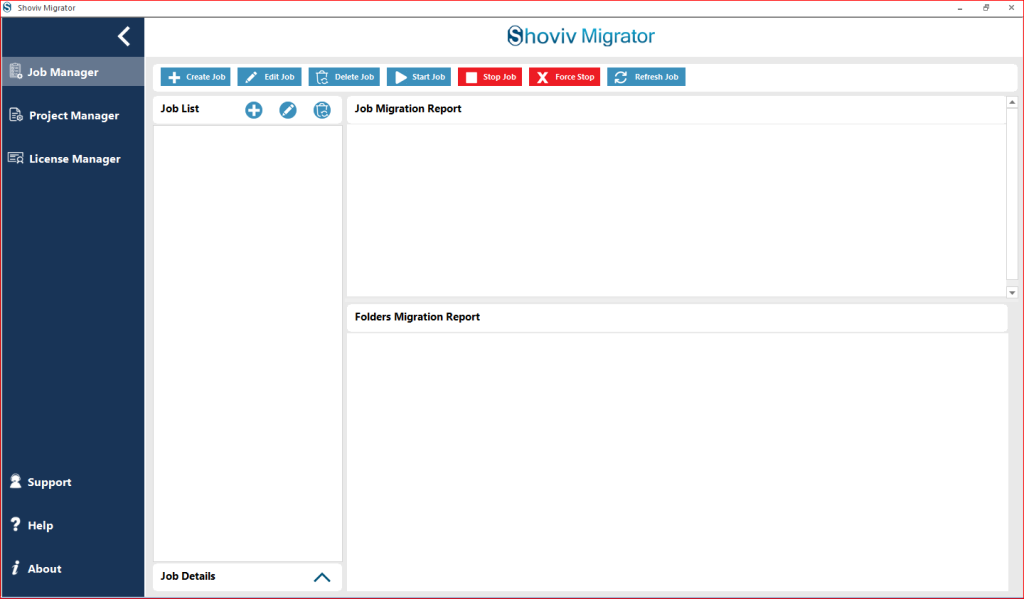
- Select IMAP as the source and Google Workspace as the target. Connect the Fastmail account as the source by providing the required credentials, and do the same with the target Google Workspace.
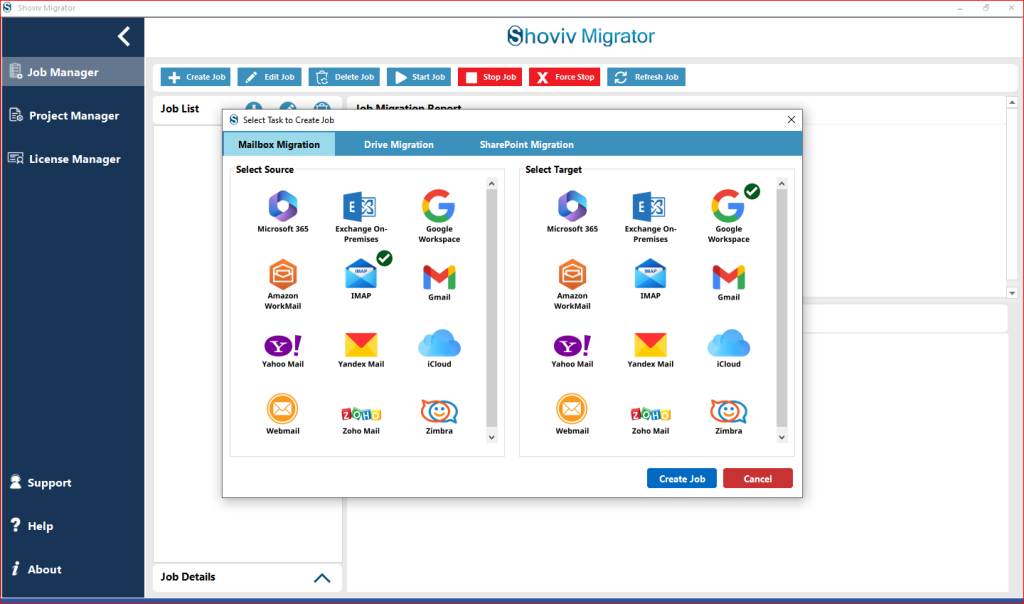
- Enter a suitable job name and choose the connected Fastmail account as the source.
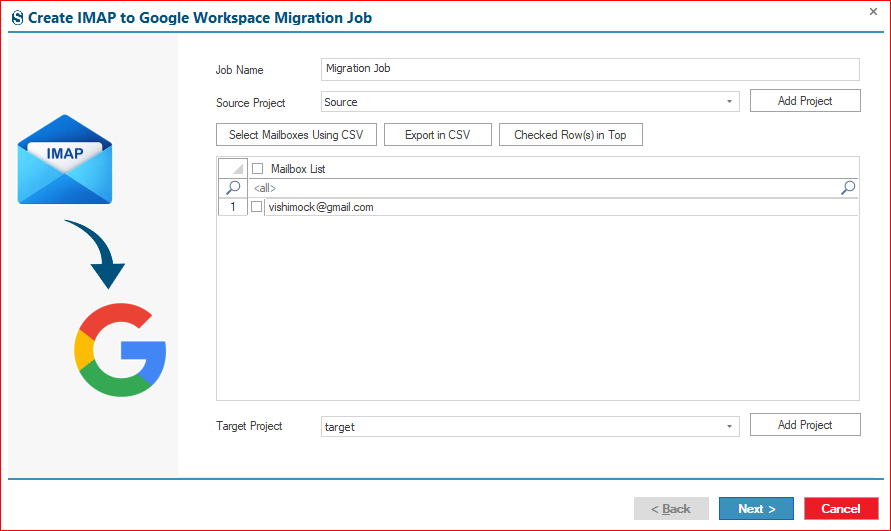
- Select the Fastmail mailboxes you want to migrate to Google Workspace.
- Map the Fastmail mailboxes with the target Google Workspace mailboxes.
- Go to the filter option and apply filters as needed.
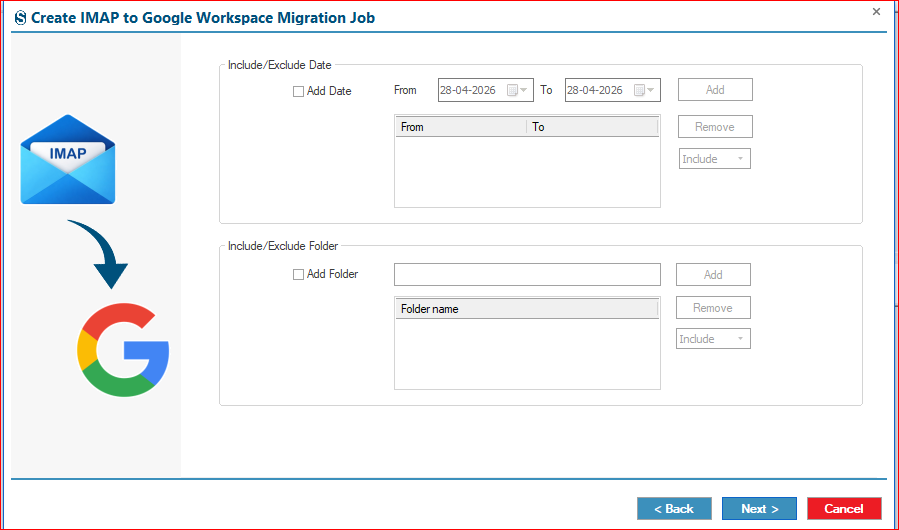
- Open the settings tab and configure the migration settings.
- Choose whether to start the Fastmail to Google Workspace migration immediately or schedule it for later.
- Preview the migration job details and click Finish to continue.
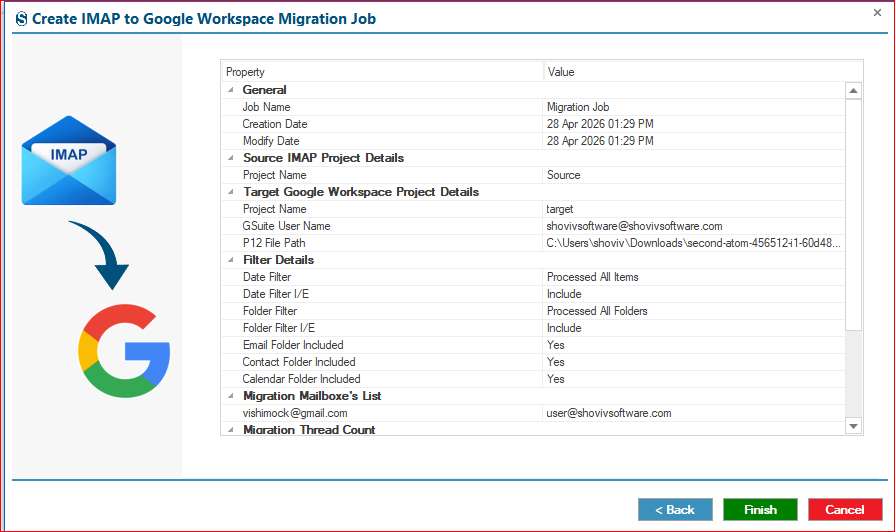
- The software will start migrating Fastmail emails to Google Workspace and generate a complete migration report after completion.
Features of Shoviv IMAP to Google Workspace Migration Tool
- Supports migration from Fastmail and other IMAP-based email services to Google Workspace.
- Maintains folder hierarchy and email integrity during migration.
- Allows users to migrate multiple Fastmail mailboxes without size limitations.
- Provides filter options for a selective Fastmail-to-Google Workspace migration.
- Includes scheduling and incremental migration options.
- Offers a simple interface for both technical and non-technical users.
Manual Method to Migrate Fastmail to Google Workspace
Users can manually migrate their Fastmail data to Google Workspace using the Google Data Migration Service via IMAP. Below is the provided step-by-step process:
- Log in to your Fastmail account.
- Go to settings and make sure IMAP is enabled.
- Create an App Password if required.
- Now, log in to the Google Admin Console.
- Navigate to Data Migration.
- Choose Other IMAP Server as the migration source.
- Enter the following Fastmail IMAP details:
- IMAP Server: imap.fastmail.com
- Port Number: 993
- Security: SSL
- Enter your Fastmail email credentials.
- Select the mailboxes and data you want to migrate.
- Click on Start Migration to begin the Fastmail to Google Workspace migration process.
Drawbacks of the Manual Method
- The manual method is time-consuming for large mailbox migrations.
- Users may face issues while migrating emails with attachments.
- It does not properly migrate contacts, calendars, and other mailbox items.
- There is a risk of duplicate emails and missing folder hierarchy.
- Large email data migration may take several hours or days.
- The process can be difficult for non-technical users.
- Users do not have access to advanced filters or scheduling options during migration.
Final Thought:
Migrating Fastmail to Google Workspace helps users manage emails, collaboration, and cloud data more efficiently on a single platform. Using a professional tool like the Shoviv IMAP to Google Workspace Migration Tool ensures a secure, accurate transfer that preserves mailbox data and folder structure, giving users confidence in the process.
Frequently Asked Questions:-
No, manual methods may not properly maintain the original Fastmail mailbox hierarchy during migration.
Yes, using a professional solution like Shoviv Migrator allows you to migrate multiple Fastmail mailboxes to Google Workspace simultaneously.
Yes, users can apply filter criteria to migrate only selected Fastmail emails and attachments.
A professional migration solution maintains email formatting, attachments, and mailbox data integrity throughout the Fastmail to Google Workspace migration.
For securely and efficiently migrating large mailboxes with attachments, the Shoviv IMAP to Google Workspace Migration Tool (Shoviv Migrator) is recommended over manual methods, ensuring data integrity and saving time.
Yes, users can migrate Fastmail to Google Workspace with Attachments by using manual or professional migration methods.