Overview: Are you planning to migrate Comcast email to Microsoft 365? If yes, then you are not alone. Many users and businesses are moving away from ISP-linked email services like Comcast due to storage limits, dependency on internet subscriptions, and lack of collaboration features. In this blog, we explain why users prefer Comcast to Office 365 migration, discuss manual and professional methods, and guide you step by step to choose the right approach based on your needs. Whether you want a free manual solution or a fast automated tool, this guide will help you make an informed decision.
Comcast Corporation is a major American telecommunications provider offering internet, cable, and email services under the Xfinity brand. Its email service (Comcast.net) is bundled with internet plans and accessed using an Xfinity ID. While suitable for basic email usage, Comcast email lacks modern collaboration, scalability, and enterprise-level security.
On the other hand, Microsoft 365 (Office 365) is a cloud-based productivity suite that includes Exchange Online, Outlook, Teams, OneDrive, and SharePoint. It provides advanced security, anywhere access, and seamless collaboration.
Before starting the Comcast to Office 365 migration process, it is important to understand why the migration is necessary.
Reasons to Migrate Comcast Email to Office 365
Below are the most common reasons users switch from Comcast to Microsoft 365:
- Better Collaboration – Shared mailboxes, public folders, and centralized admin control.
- Integrated Productivity Tools – Access Outlook, Teams, OneDrive, Word, Excel, and SharePoint in one platform.
- Professional Email Domains – Create custom domain-based email addresses for business branding.
- ISP Independence – Comcast email is tied to your internet subscription, whereas Office 365 works independently.
- Advanced Security – Microsoft 365 offers encryption, anti-phishing, and enterprise-grade threat protection.
- Saclability and Reliability – Hosted on Microsoft’s secure cloud infrastructure.
- Anytime, Anywhere Access – Work securely from any device without location restrictions.
Due to these advantages, many individuals and organizations now prefer to migrate their Comcast email to Microsoft 365 for better reliability, independence from ISPs, and long-term productivity. Now, let’s explore how to perform the migration.
Stop being tied to your ISP! Effortlessly migrate Comcast Xfinity to Microsoft 365 using Shoviv IMAP to Office 365 Migration Tool. Preserve folder hierarchy, metadata, and attachments with zero data loss or downtime.
Manual Approaches to Migrate Comcast Email to Office 365
Approach 1: Drag and Drop Using Outlook (IMAP)
This method uses Outlook configured with both Comcast and Office 365 accounts via IMAP.
- Install and open Microsoft Outlook.
- Add your Comcast email account using IMAP settings.
- Add your Office 365 email account.
- Wait for both mailboxes to sync.
- Drag emails from Comcast folders and drop them into Office 365 folders.
Limitations:
- Suitable only for small mailboxes
- Time-consuming and manual
- High risk of human error
Approach 2: IMAP Migration Using Microsoft 365 Admin Center
This method is suitable for small businesses migrating multiple mailboxes without Outlook.
- Log in to Microsoft 365 Admin Center.
- Create Office 365 mailboxes for all users.
- Enable IMAP for Comcast accounts.
- Prepare a CSV file mapping Comcast and Office 365 mailboxes.
- Open Exchange Admin Center > Migration > Migration Batches.
- Select IMAP migration and upload the CSV file.
- Enter Comcast IMAP server details and start migration.
Limitations:
- Contacts and calendars are not migrated
- Sync errors may occur with large mailboxes
- Dependent on the internet speed
Approach 3: Export and Import via PST
This approach involves exporting Comcast emails to a PST file and importing them into Office 365.
- Configure Comcast email in Outlook.
- Export mailbox data to a PST file.
- Remove the Comcast account.
- Sign in with an Office 365 account in Outlook.
- Import the PST file into Office 365.
Limitations:
- Requires technical knowledge
- Folder hierarchy may not be preserved
- No guarantee of error-free migration
Manual methods can work for limited data, but they become inefficient and risky when handling large, multiple, or business-critical mailboxes. That is where an automated solution is recommended.
Professional Solution to Migrate Comcast Email to Office 365
As we know, manual migration methods are often suitable only for small mailboxes. Still, they become complicated and unreliable when users deal with multiple mailboxes. Additionally, manual methods demand technical knowledge and constant monitoring, making them impractical for organizations.
To overcome these challenges and ensure a smooth Comcast to Office 365 migration, professionals recommend using a dedicated automated solution like Shoviv IMAP to Office 365 Migration Tool. This tool supports migration from Comcast and all IMAP-based email services (Gmail, Yahoo, iCloud, etc.). Additionally, it has a user-friendly interface suitable for both technical and non-technical users.
Advanced Features of Shoviv IMAP (Comcast) to Office 365 Migration Tool
- No limitation on mailbox size or number of mailboxes.
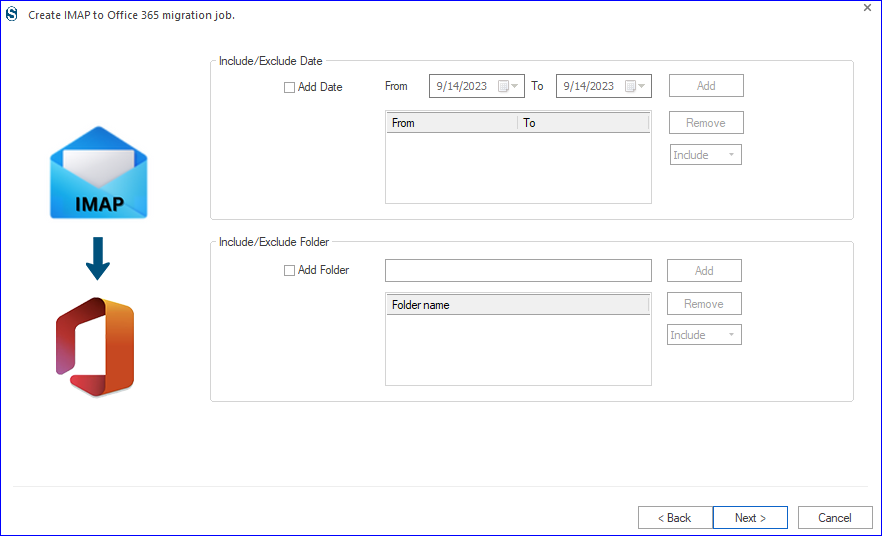
- Advanced filter options to migrate emails based on date range or folder selection.
- Preserves original folder hierarchy, email properties, and attachments.
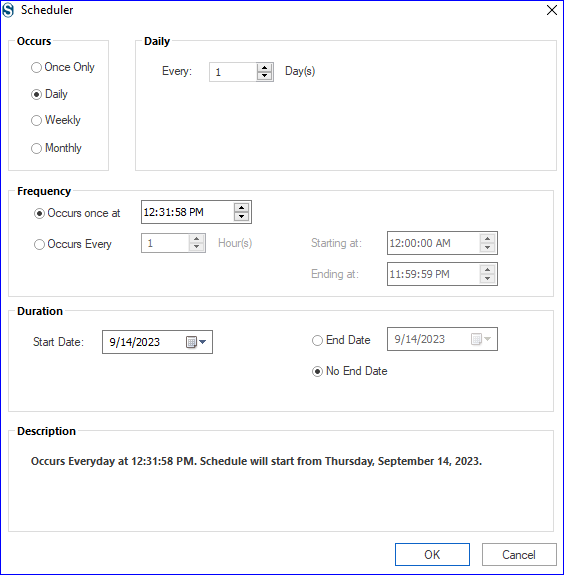
- Scheduling options for automated and periodic migration.
- Incremental migration features avoid duplicate data and resume interrupted jobs.
- Job-based processing allows running multiple migration tasks simultaneously.
- Compatible with all Windows operating systems.
Step-by-Step Process of Comcast to Office 365 Migration
- Install and launch the Shoviv IMAP to Office 365 Migration Tool on your system.
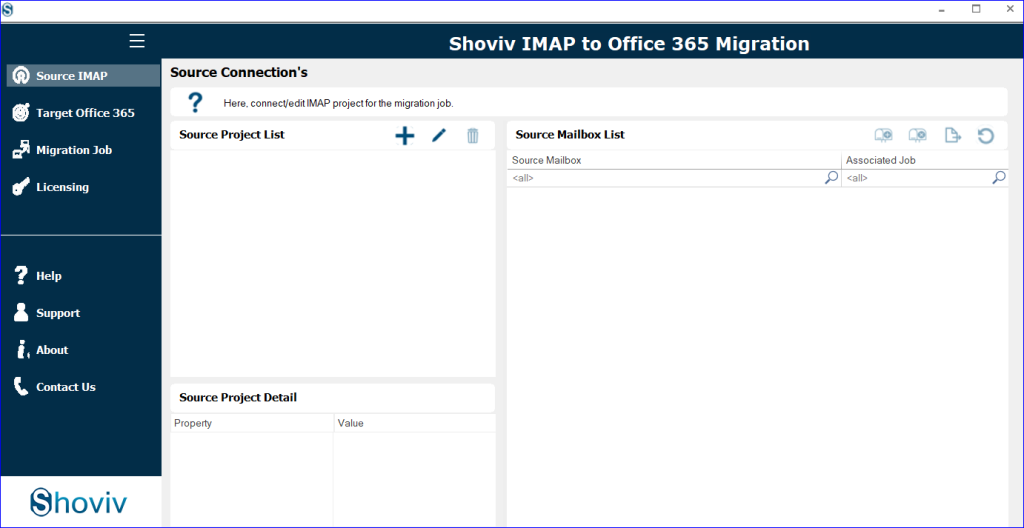
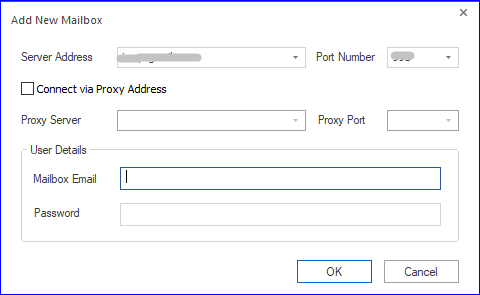
- Connect your Comcast email account using the Source IMAP option.
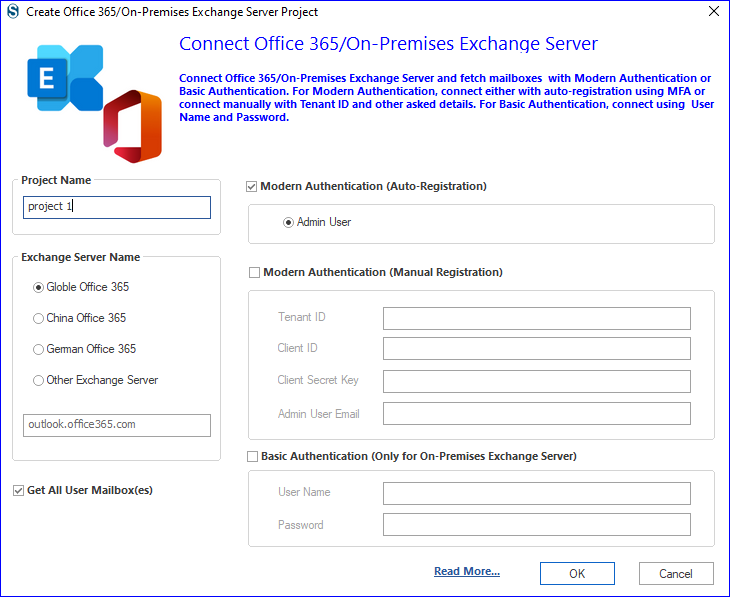
- Add and authenticate your Office 365 account as the target.
- Create a new migration job and select the required Comcast mailboxes.
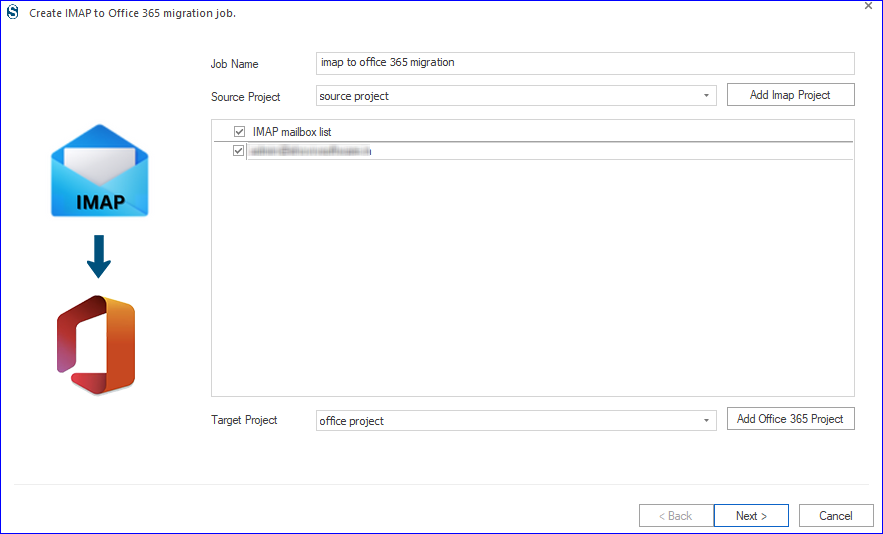
- Map source with Office 365 mailboxes and choose the migration destination.
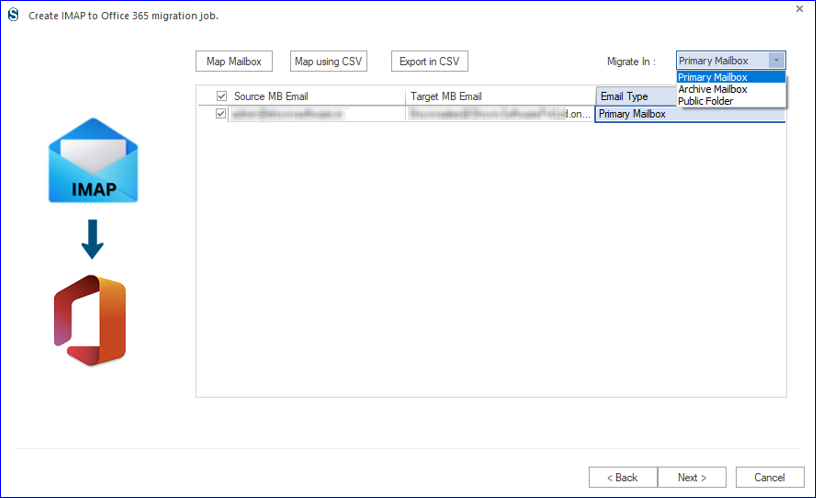
- Apply filters such as date range or folder selection if required.
- Configure job settings, including retry attempts or scheduling options.
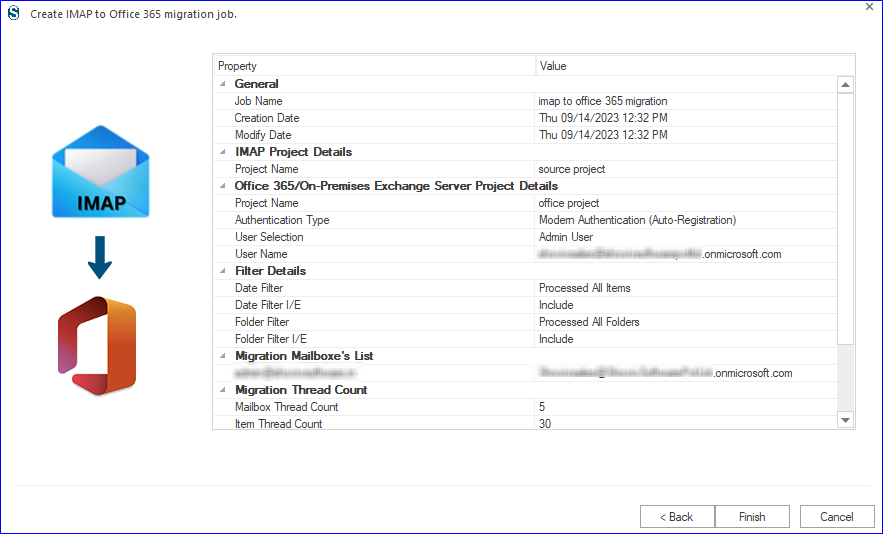
- Review the job summary and start the migration process.
Final Word
In this blog, we discussed why users migrate from Comcast email to Microsoft 365, explored manual migration approaches, which highlighted their limitations and provided a reliable automated professional solution. While manual methods can work for small data volumes, they are not reliable for large or business-critical migrations.
For a secure and time-efficient Comcast to Office 365 migration, using an automated solution like Shoviv IMAP to Office 365 Migration tool is the best choice. It ensures accuracy, preserves mailbox structure, and saves valuable time.
Also, the software provides a free trial version that migrates up to 50 items per folder.
Frequently Asked Questions:-
Yes, you can migrate Comcast emails manually using Outlook drag-and-drop, IMAP migration, or PST export/import methods. These options are suitable only for small mailboxes and require technical effort.
No, most manual Comcast to Office 365 migration methods focus only on emails. Contacts, calendars and tasks are usually not migrated.
Yes, attachments can be migrated using both manual IMAP methods and professional tools. However, automated tools ensure better accuracy and data integrity.
Yes, you can migrate selected emails by folder or date range. This option is limited in manual methods but fully supported in professional migration tools.
Using a professional migration tool is the safest option, as it supports bulk mailboxes, preserves folder structure, and minimizes errors.
Yes, professional tools like Shoviv support unlimited mailbox sizes and offer incremental migration to handle large data efficiently.