Are you looking to transfer BigPond emails to Gmail without losing important messages or attachments? This guide explains the available methods to migrate BigPond emails to Gmail (Google Workspace). It helps users choose the most suitable approach. We will cover both manual and professional approaches, along with a reliable IMAP-based migration tool that enables secure and efficient email migration while maintaining mailbox data integrity.
Overview
BigPond is an email service from Telstra that allows users to send, receive, and manage email. Personal and business users have widely adopted it for day-to-day email tasks. Bigpond supports IMAP connectivity, making it easier to access mailbox data across different email platforms and devices.
Gmail is Google’s email service that offers advanced email management, strong security features, spam protection, and seamless access across multiple devices. Individuals and organizations widely use it for efficient email communication and management.
Reasons to Transfer BigPond Emails to Google Workspace
There are several reasons why users choose to transfer BigPond email to Gmail. Some of the most common reasons include:
- Advanced Email Management – Gmail offers powerful search options, email organisation features, and an intuitive interface that help users manage their mailboxes efficiently.
- Improved Security – Gmail includes advanced security features such as spam filtering, phishing protection, and two-factor authentication to help protect email data.
- Access from Anywhere – Users can access their Gmail accounts on desktops, laptops, tablets, and mobile devices, ensuring continuous email access.
- Better Storage Capacity – Gmail provides ample cloud storage, allowing users to store and manage large volumes of emails and attachments.
- Integration with Google Services – Gmail works seamlessly with Google Drive, Google Calendar, Google Meet, and other Google applications, improving productivity and collaboration.
- Suitable for Personal and Business Use – Gmail provides a reliable email environment that can meet the requirements of both individual users and organisations.
Manual Method to Migrate BigPond Email to Google Workspace
Users can use Gmail’s built-in import functionality to transfer mailbox data from a BigPond account. This method is suitable for users with a smaller mailbox who want to migrate BigPoind emails to Gmail (Google Workspace) without using third-party software.
Follow the steps below:
- Log in to your Gmail (Google Workspace) account.
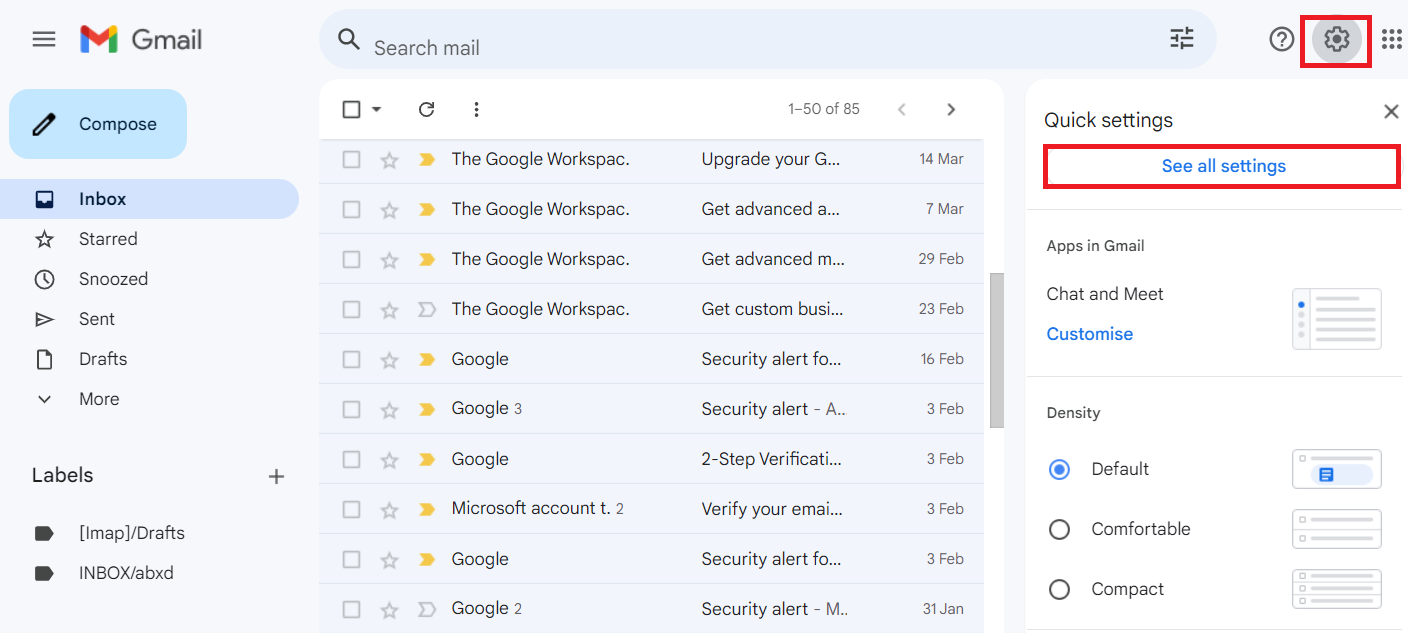
- Click the Settings icon and select See all settings.
- Open the Accounts and Import tab.
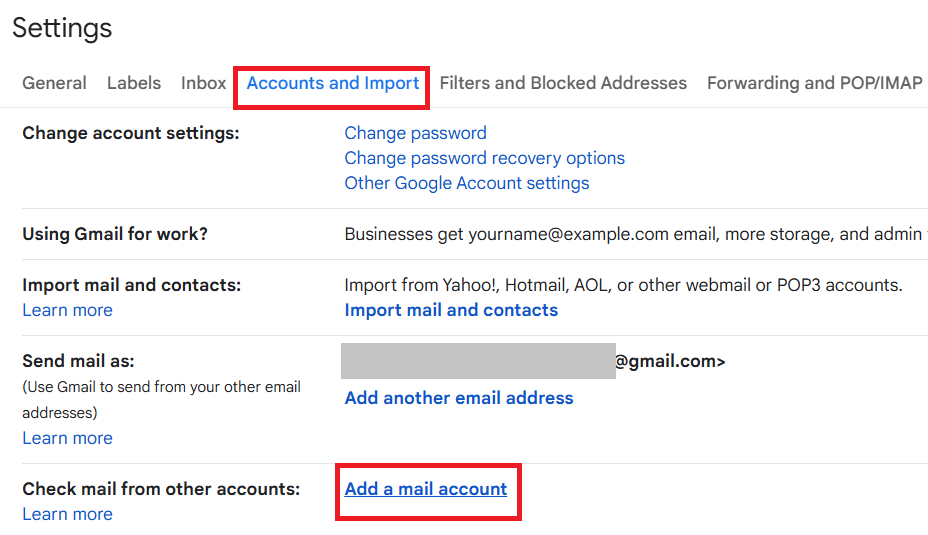
- Click Import mail and contacts.
- Enter your BigPond email address and click Continue.
- Sign in using your BigPond account credentials when prompted.
- Grant the necessary permissions and complete the authentication process.
- Select the data you want to import, such as emails and contacts.
- Click Start Import to begin the migration process.
- Wait for the import process to complete.
Once the process is finished, your BigPond emails will be accessible from your Gmail (Google Workspace) mailbox.
Drawbacks of the Manual Method
Although the manual approach can help migrate BigPond emails to Gmail, it has several limitations that users should consider before starting the migration:
- The migration process is not immediate and can take several hours or even days to complete, depending on the mailbox size.
- Users cannot easily migrate only specific folders, emails, or date ranges. In most cases, the entire mailbox is imported.
- Network interruptions, authentication issues, or severe connectivity problems may result in incomplete data transfer.
- The manual method provides very few options for managing the migration process, monitoring progress, or handling large mailboxes.
- Migrating a large volume of emails and attachments can be slow and may affect the overall migration experience.
- Organisations that need to migrate multiple BigPond mailboxes may find the manual approach difficult and time-consuming.
Professional Method to Transfer Emails to Google Workspace:
The manual method is suitable for basic migrations, but it may not be practical for large mailboxes. Since both BigPond and Gmail support IMAP, users can migrate mailbox data between the platforms using an IMAP-based migration solution.
In such cases, the Shoviv IMAP to IMAP Migration Tool provides a straightforward way to migrate BigPond email to Gmail without the limitations of manual approaches. The software establishes a secure IMAP connection between the source and destination accounts, allowing users to migrate emails and attachments while preserving the mailbox hierarchy. Moreover, for BigPond to Google Workspace email migration, Shoviv IMAP to Google Workspace Migration Tool is a one-stop solution.
Additionally, the tool supports multiple mailbox migrations, folder-based selection, filtering, and job scheduling. Its simple interface makes it suitable for both individual users and organizations seeking a secure, efficient migration process.
Steps to Migrate BigPond Emails to Gmail (Personal):
- Download, install, and launch the Shoviv IMAP to IMAP Migration Tool on your device.
- Click Source Connection and add your BigPond account using its IMAP server details and login credentials.

- Add your Gmail account as the Target Connection.

- Create the new migration job and select the source and target mailboxes.
- Choose the required mailbox folders for migration.
- Apply filters to migrate only specific emails.
- Configure additional migration settings as needed.

- Click Finish, and the migration process will start as per the job-run action.

- Monitor the migration status from the job dashboard.
Once the migration is completed, sign in to your Gmail account and verify the migration data.
Conclusion:
Migrating BigPond emails to Gmail /Google Workspace enables users to move their mailbox data to a secure, reliable email platform. In this guide, we discussed both manual and professional methods to complete the migration process.
While the manual approach can work for small mailbox migrations, it comes with several limitations when handling large amounts of data. Alternatively, the professional tool offers a more efficient way to transfer emails, attachments, and mailbox folders while maintaining data integrity. Users can also evaluate the software through its free demo version before proceeding with the complete migration.
Frequently Asked Questions:
Yes, you can use Gmail’s built-in import feature to migrate BigPond emails. However, the process may take considerable time depending on the size of your mailbox.
For large mailboxes, a professional solution is generally more suitable because it offers better control, faster processing, and reduced chances of incomplete migration.
Yes, attachments can be migrated along with emails. However, migration speed and completeness may depend on factors such as mailbox size, internet connectivity, and server response time.
Yes, multiple BigPond mailboxes can be migrated. While managing several accounts manually can be difficult, professional migration tools make it easier to migrate multiple mailboxes in a single project.
Yes, the software provides filtering options that let users migrate specific emails or mailbox folders based on their requirements.
Yes, users can download and evaluate the free demo version of the software to understand its features and migration process before purchasing a license.