Summary: Facing difficulty in finding or viewing attachments in Gmail is a common issue, especially when emails are scattered across a large inbox. Many users struggle to access important files quickly or manage them efficiently. In this blog, we will explain simple and effective methods to view all attachments in Gmail, along with the reasons behind this issue and a reliable way to access attachments more easily.
The problem arises when the number of emails increases over time, making it difficult to locate specific attachments when needed. Since Gmail does not store attachments in a separate section by default, users often have to search through multiple emails to find a particular file. Therefore, understanding how to view attachments in Gmail properly can help users save time and manage their data more efficiently.
What is the Need to Show Attachments in Gmail?
- Quick Access to Important Files – Users often receive essential documents such as reports, invoices, presentations, and images through Gmail. Being able to view attachments quickly helps in saving time and avoids the need to search through multiple emails.
- Requirement for Offline use – Many users need to access attachments without an Internet connection. In such cases, viewing and saving attachments becomes necessary so that files can be used anytime on a local system.
- Handling Multiple Attachments Efficiently – When a mailbox contains a large number of emails, attachments get scattered across different conversations. Viewing all attachments in one place helps users manage and organise files more effectively.
- Data Safety and Backup Purpose – Important attachments like financial documents, bills, or official records should be safely stored. Users often need to view and save these attachments to prevent data loss in case of account issues.
- Easy Sharing and Reuse of Files – Sometimes users need to resend or share previously received attachments. Being able to locate and view these files quickly makes the process faster and more convenient.
Why Can’t Users Find All Attachments in Gmail?
Below, we have discussed some common situations that users face while trying to view or find all attachments in Gmail. Understanding these issues will help you identify why attachments are difficult to access and why proper methods are required.
1. Attachment Won’t Open or Download
- Many users face issues while opening or downloading attachments in Gmail. Sometimes files fail to load properly or do not download due to browser issues, unsupported formats, or temporary errors, making it difficult to access important data when needed.
2. Need to See Attachments in Offline Mode
- Users often require access to Gmail attachments without an internet connection. However, downloading multiple attachments from different emails is not easy, and managing them locally becomes a complex and time-consuming task.
3. Nothing is Safe Over the Web
- With increasing cyber threats, email accounts are not always completely secure. Important attachments like invoices, bank statements, or official documents may be at risk. Hence, users prefer to keep a secure copy of their data.
4. Attachment Scattered Across Emails
- Attachments are stored within individual emails and conversations, not in one central location. That makes it difficult to find a specific file, especially when the inbox contains a large number of emails.
In such situations, users often struggle to locate or access important attachments in Gmail, which makes it necessary to use proper methods to view and manage them efficiently.
How to See All Attachments in Gmail?
There are several manual methods available in Gmail that help users find and view attachments easily without using an external tool. These methods use Gmail’s built-in search and filter options to locate files.
Method 1: Using Gmail Search Bar (has: attachment)
- Open your Gmail account.
- Go to the search bar at the top.
- Type has: attachment and press Enter.
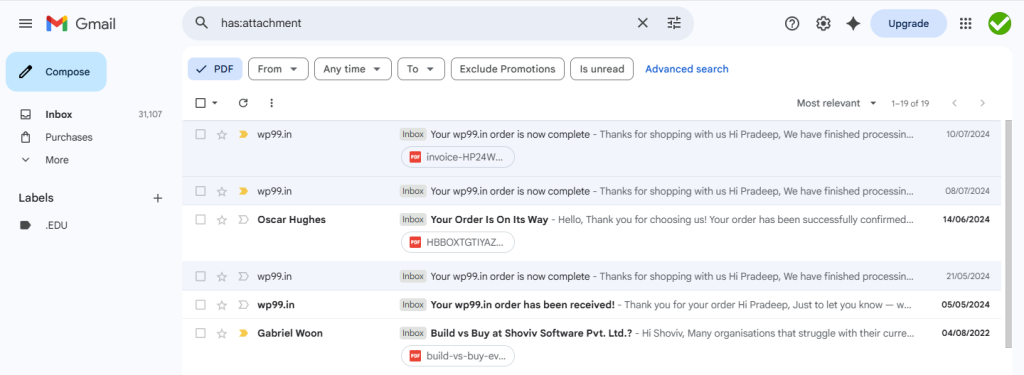
- Gmail will display all emails that contain attachments.
- Open any email to view or download the attachment.
Method 2: Search by File Name or File Type
- Click on the Gmail search bar.
- Type filename: pdf, filename:docx, or any file format.
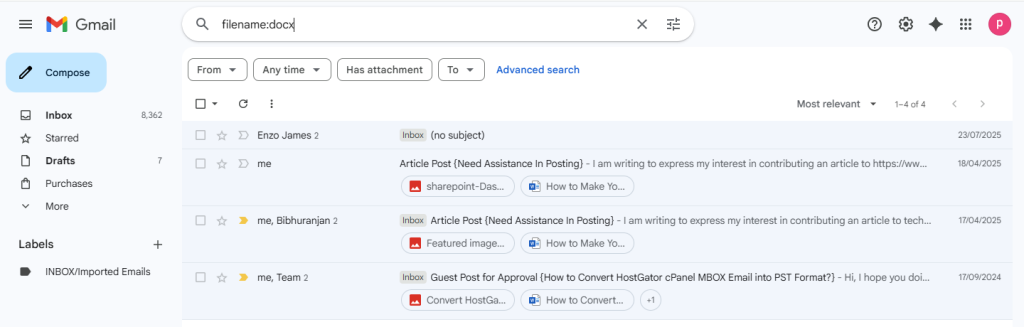
- Press Enter.
- Gmail will show emails that contain that specific type of attachment.
- Open the email to access the file.
Method–3: Find Attachments from a Single Email
- Open Gmail and go to your inbox.
- Select the email that contains multiple attachments.
- Open the email.
- Click on the ‘Download all attachments‘ option.
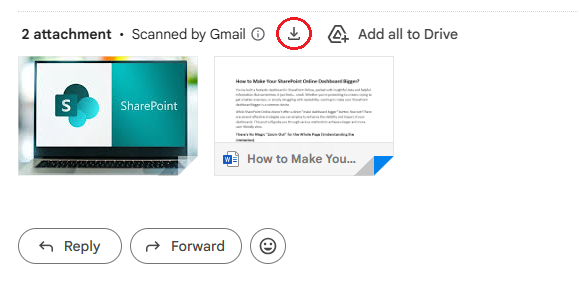
- All files will be saved to your system.
Method 4: Use Filters like Sender or Subject
- Go to the Gmail search bar.
- Enter the sender’s email or subject keyword.
- Combine it with an attachment if needed.
- Press Enter.
- Open the relevant email to view attachments.
Method 5: Use Google Takeout
- Open Google Takeout.
- Click on Deselect All.
- Select Mail and proceed.
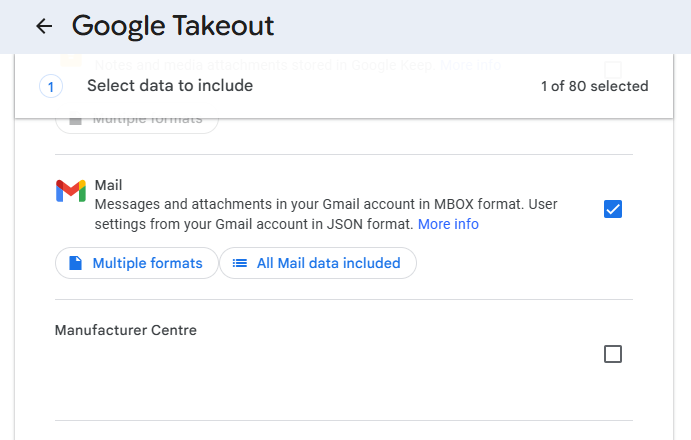
- Choose file type and delivery method.
- Click Create Export and download the archive when ready.
Although these manual methods are helpful for finding attachments, they can be time-consuming and difficult to manage when dealing with a large number of emails or attachments.
Best Way to View All Attachments in Gmail
When manual methods become difficult due to a large number of emails or scattered attachments, using a professional solution is a more efficient option. A reliable tool like the Shoviv Gmail Backup Tool allows users to access and manage all attachments in a more organised way by downloading Gmail emails along with their attachments to a local system. It makes it easier to view files anytime without depending on Gmail search or internet connectivity.
Conclusion
Finding and viewing attachments in Gmail can become challenging when emails are scattered across a large inbox, and users search the internet for how to view attachments in Gmail. However, by using the right manual methods like search operators and filters, users can easily locate their required files.
While these methods work well for basic needs, they may not be efficient for handling a large volume of attachments. In such cases, using a professional solution such as Shoviv Gmail Backup Tool provides a more reliable and organised way to access attachments anytime.
Frequently Asked Question
You can type has: attachment in the Gmail search bar to display all emails that contain attachments.
Yes, you can use filename: pdf, filename:docx, or other file formats to find specific attachments.
It may happen due to incorrect search methods, a large inbox size, or attachments being spread across multiple emails.
Yes, you can open an email with multiple files and use the Download all attachments option.
Yes, the Gmail app allows you to search, preview, and download attachments easily on mobile.
You need to download the attachments to your system or save them to Google Drive for offline access.
Check your internet connection, file compatibility, or try downloading the file again. You may also need proper software to open it.
Manual methods can be difficult for large amounts of data, so using a professional solution like Shoviv Gmail Backup Tool helps in better organization and easy access.
Popular Posts:
- Gmail Archive vs. Delete: Which Should You Choose & When?
- What should you do if Gmail Forwarding is not working?
- How to Transfer Email from GoDaddy to Gmail Account?
- Outlook vs Gmail: An Email Comparison [2026]
- How to Migrate Gmail to AWS WorkMail Without Losing Data?
- How to Migrate Emails from Gmail to Another Gmail Account?