In case Outlook starts acting up in a dumb way right after you download the latest version of Windows 11 (KB5074109), you are not alone in facing this problem. But the best part is that here is the solution.
Microsoft Outlook is the most powerful tool for end-users who want to manage their emails, calendars, events, and other tasks in the most organised way. However, since the latest Windows version, many users have experienced crashes, syncing errors, and performance issues, affecting daily communication.
In this blog, we will walk through the different questions in a detailed manner, such as how to fix Outlook Freeze/Hang/Stuck on Loading Profile issues in Windows 11 or in other versions. Etc.
Windows 11 Updates Freeze Outlook:
Meanwhile, the update of Windows 11 KB5074109 causes problems in the classic version of Outlook, in such a way that it changes the way to handle the security and memory. After the update, end-users face problems such as a failure to open, crash, freeze, or show very frustrating errors. This issue appears in some Outlook files or add-ins that become incompatible with the new version of Windows.
Other Reason for the Outlook Stuck on Loading Profile Issue:
- There may be an issue with the Outlook data file.
- Outlook add-ins also create issues while loading Outlook profiles.
- Users may get this issue if using the old Outlook profile, which might have an issue.
- A corrupt Outlook data file is a common issue in most cases.
Workarounds to fix Outlook Stuck at Loading Profile Issue:
- Run Outlook as an Administrator
You may face issues in loading Outlook Profile if you lack Administrative privileges. Must open Outlook with the administrative privileges (Run as Admin).
- Reset Navigation Panel
- Press the Windows + R together.
- Enter the “Outlook.exe/resetnavpane” and click “Ok”. (while doing this task, the Outlook application must be closed).
- By doing these steps, Outlook’s navigation panel will go into the default state.
- Shut Office-Related Tasks
- Open Task Manager in your system.
- Identify if any Microsoft Office-related tasks are running in the background. If yes, then identify them and end the task.
- Create a New Outlook Profile
- Firstly, go to the Control Panel in your system.
- Click on the Mail, then Show Profiles>>Add. It is to add a new profile.
- Name the new profile and click OK.
- Now, add the email account that you want to add to this profile.
- Select the option as per the need for the default use of Profile and click on Apply.
- Disable Outlook Add-ins
- Firstly, make sure that the Outlook application is closed. Now, enter “Outlook.exe/safe” and click OK to open.
- Make the selection for your profile and click on the OK.
- Follow: File>>Options>>Add-ins and Go.
- Here, un-check all Add-ins and click OK.
When all is done, restart Outlook.
- Disable Antivirus
In many scenarios, antiviruses become incompatible with other applications. The same applies to the situation whenever Outlook stuck on loading profile.
- Open your Antivirus and disable it temporarily to check if it is the problem.
- Disabling applications might also affect Outlook’s working.
- Repair Outlook PST Files
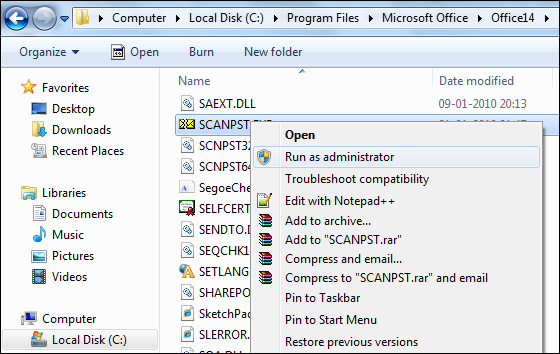
Corrupted Outlook files are a common cause related to Outlook. To rectify/repair it, Microsoft has provided an inbuilt utility called Scanpst.exe.
Follow the steps:
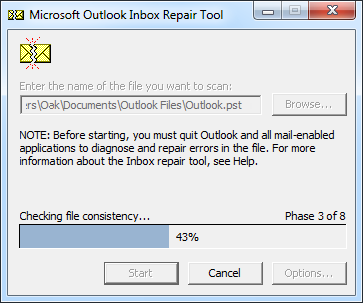
- Close Outlook and type “Scanpst.exe” in the search box. (SCANPST location may vary depending on the Outlook versions).
- As it opens, Browse the PST file that you want to repair. Click on the Start after adding the file.
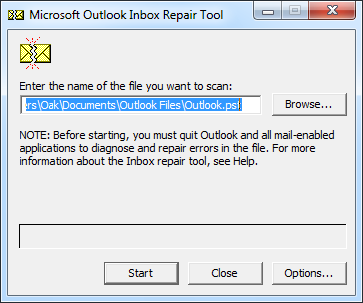
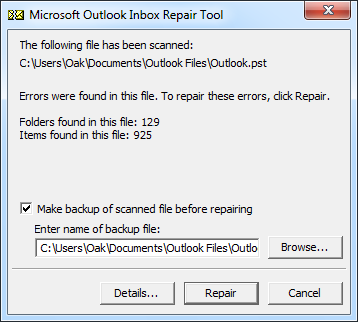
- The utility will scan the added PST file and show the report.
- Finally, click on the Repair button to start repairing. Must check the box asking to have a backup.
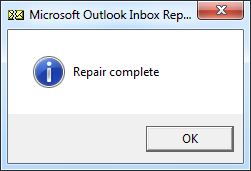
- Within a while, you will get the “Repair Complete” status.
But What if the Above Methods Don’t Work and Scanpst.exe fails to repair?
Scanpst.exe is not an absolute utility; it fails to repair severely corrupted files. Moreover, it doesn’t work on the large PST files. If it doesn’t work, you should opt for a professionally developed third-party tool to repair your damaged Outlook data file. Shoviv Software has developed an advanced utility called “Shoviv Outlook PST Repair Tool” to repair severely corrupted PST files proficiently. Let’s know more about it:
- The software can repair PST files with any corruption issues. Moreover, it allows users to add multiple PST files of any size.
- It also recovers hardly deleted PST file items.
- Along with the PST file, it offers some other file formats too for saving recovered PST file items. E.g. EML, MSG, RTF and HTML.
- Shoviv Outlook PST Repair Tool properly maintains data structure and folder hierarchy.
- This software is compatible with all versions of Windows OS.
- It is boosted with the incremental export facility that resumes the process from the last stop.
See How Simple It Is to Repair PST Using Shoviv Outlook PST Repair Tool.
- Firstly, install and launch the Shoviv Outlook PST Repair Tool.
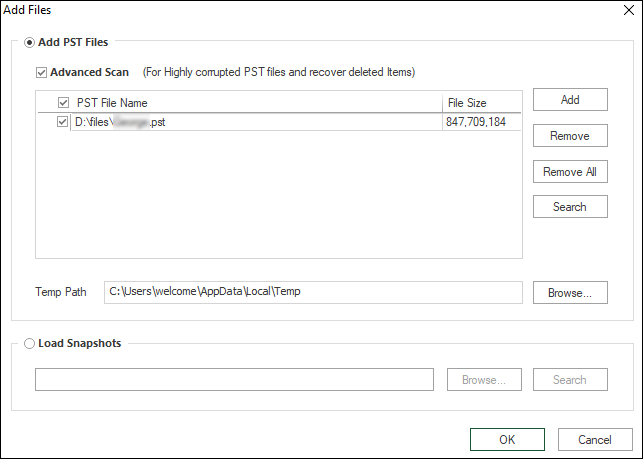
- Click on the Add PST Files button present on the ribbon bar.
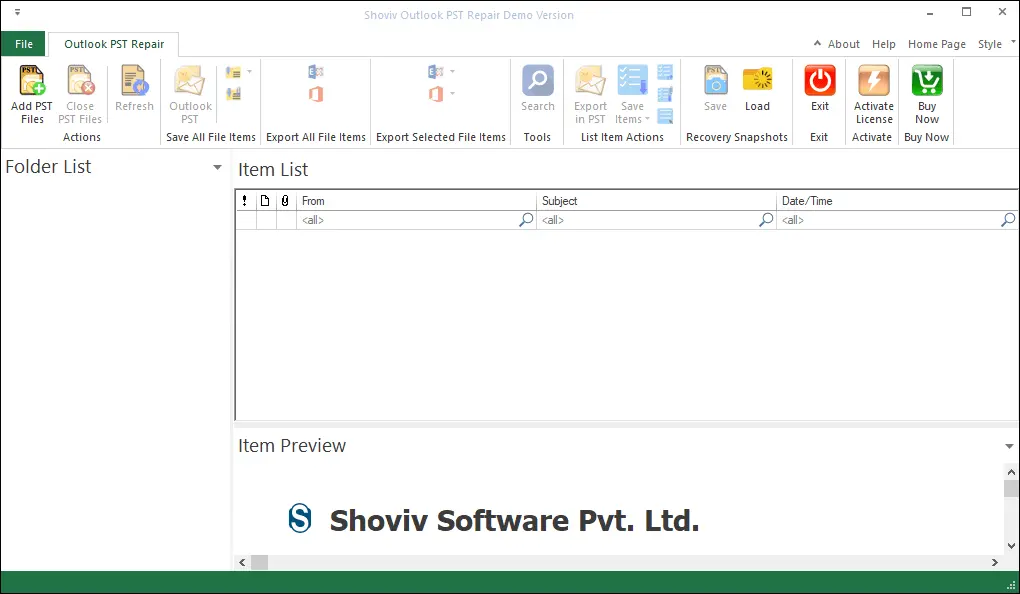
- Must check the Advanced Scan button and click on OK.
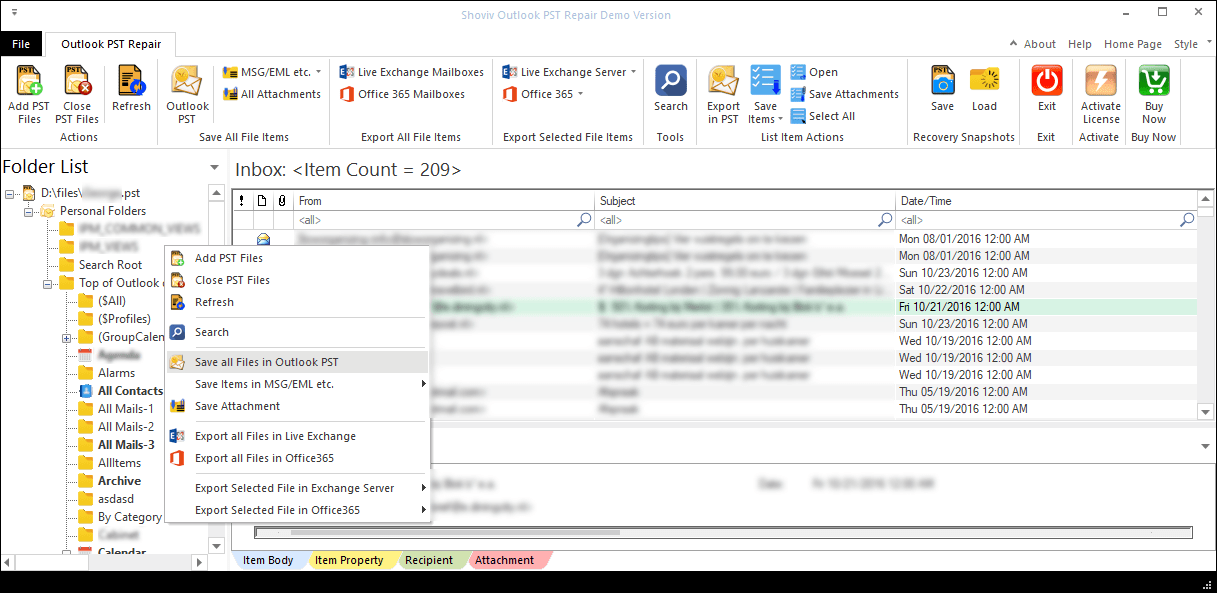
- The software will scan and repair the PST file and show all the data with the maintained folder hierarchy.
- Now, select the Outlook PST option to save the recovered data; users can save it in other file formats.
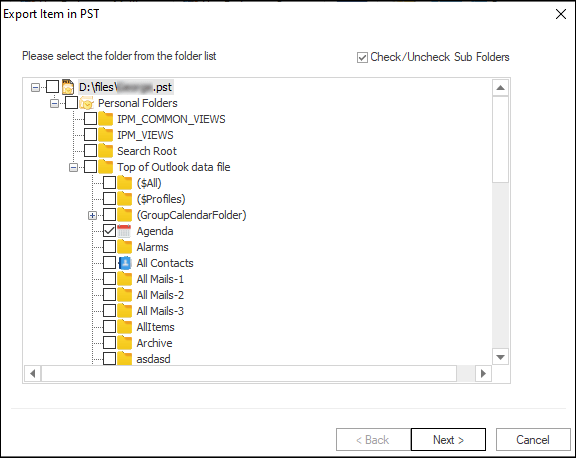
- Check subfolders to include and provide settings for the resultant PST file. You can set passwords, filters, and sizes for the healthy PST file.
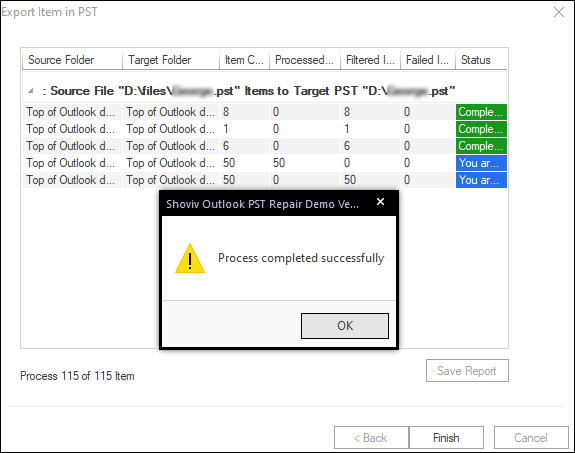
- When all is done, then click OK, and the process will start and be completed soon.
The Gist of the Blog:
Outlook getting stuck on the Loading of the Profile screen in Windows 10 and 11 can be frustrating, especially after the recent update, like KB5074109. This issue may occur due to the corrupted PST files, faulty add- ins, profile systems, or conflicts of the system. While basic troubleshooting methods such as resetting profiles, disabling adds- ins, or repairing PST files often help, server corruption may require an advanced repair solution. Shoviv Outlook PST Repair Tool offers a reliable solution to fix Outlook profile freezing issues and restore seamless email access.
Frequently Asked Questions:
Ans. The software provides options to split the resultant PST file. You can set the size for the PST file, and the software will split it after recovery.
Ans. Shoviv Software provides 24*7 technical support with Shoviv’s utility. If you need any assistance in running the utility, then contact our technical support team and we will schedule a remote session to assist you.
Ans. A free demo version of the software is available to download. You just need to install the software and you are all good to run the software. With the demo version itself, you can recover and see the recovered data. To save it you need a license.
Ans. Yes, the new Outlook works with Windows 11, but recent updates like KB507419 may cause profile and performance issues.