Summary: To repair an inaccessible Outlook data file, it is important to identify the underlying cause of the issue. Problems may result from file corruption, oversized PST files, damaged Outlook profiles, or other data integrity issues. For minor corruption, Microsoft’s built-in Inbox Repair Tool (ScanPST.exe) can often restore access to the file. However, when the damage is severe or the PST file cannot be repaired using native methods, a specialized solution such as the Shoviv PST Repair Tool can help recover mailbox data and rebuild the file into a healthy, accessible PST format.
Whether you are a Microsoft Outlook, Exchange or Office 365 user, you may come across or encounter the PST files. These Outlook data (PST) files store user’s data, including email messages, calendars, tasks, journals, etc. Due to the sudden rise of some unavoidable reasons, the PST file can get corrupted or become inaccessible, and users need to fix Outlook data files (.pst) to prevent critical disruptions.
In addition, it turns into leading Outlook errors, which might affect overall productivity and efficiency and can increase downtime. Therefore, users should put some effective solutions into action to deal with inaccessible or damaged PST files as soon as they encounter Outlook issues.
No Problem! This guide will elaborate on the manual and professional approaches for repairing or fixing Outlook data (.pst) files. So, the time is yours now; kindly read this guide and know the best way to repair PST files.
Common Outlook Data File Error Messages
When Outlook cannot access or read a PST file properly, it usually displays an error message. These messages may appear while opening Outlook, importing a PST file, sending or receiving emails, or trying to access mailbox folders. Understanding these errors can help you identify whether the issue is caused by corruption, file size limits, permission problems, or an incorrect file location.
“Errors have been detected in the file Outlook.pst“
This is one of the most common messages, which means the PST file structure is damaged or corrupted. Outlook may stop opening the file, freeze while loading folders, or fail to display emails correctly. In most cases, this error requires repairing the PST file before it can be used again.
“The file Outlook.pst cannot be found“
This message appears when Outlook cannot locate the PST file at its saved path. It may happen if the file was moved, renamed, deleted, or stored on an external drive that is no longer connected. To fix this, you need to locate the correct PST file and reconnect it to Outlook.
“Outlook.pst is not a personal folders file“
This error usually indicates that Outlook does not recognize the PST file format. It can occur if the file is severely corrupted, incomplete, or created by an unsupported application. In such cases, Outlook may refuse to open the file until it is repaired.
“Cannot start Microsoft Outlook. Cannot open the Outlook window“
The message is also related to PST file issues, especially when the default data file is damaged. If Outlook depends on a corrupted PST file during startup, the application may fail to launch properly.
“The data file was not closed properly“
This warning often appears after Outlook crashes, the system shuts down unexpectedly, or the PST file is disconnected while Outlook is still running. Although Outlook may repair minor inconsistencies automatically, repeated warnings can indicate deeper PST file corruption.
“The file has reached the maximum size“
Large PST files may trigger this error. Older Outlook versions have stricter PST size limits, and even newer versions may become slow or unstable when PST files grow too large. Oversized PST files are more likely to become corrupted, especially if they are stored on network drives or external storage devices.
The Golden Rule:- These error messages should not be ignored. If Outlook continues to show PST-related errors, you should stop using the affected file, create a backup copy, and run a repair process. Fixing the problem early can help prevent permanent data loss and restore access to important emails, contacts, calendars, and attachments.
Common causes for leading the Outlook PST file corruption
Each user can have particular reasons for corrupting their PST files. But, in some cases, a few common reasons are usually present behind Outlook data file corruption.
- Sudden Outlook closing: The abrupt shutdown of the Outlook program or system or sudden system crash can cause the PST file corruption problem.
- Extensive size Outlook PST: The large size of the PST file can also be a reason for damaging it. Some years back, Outlook’s older versions supported ANSI PST, with a size limit is 2 GB. Besides, the earlier versions of Outlook primarily support Unicode PST, a 50 GB size limit and can also open ANSI PST files.
- Unexpected Power cut: Due to the surprising power outage, the system gets stopped or crashes, which can affect PST files, mainly when working on Outlook.
- Virus threats: The most common and big reason behind highly corrupted Outlook PST files. Also, the virus can easily enter your device through unsafe websites or unauthorized links.
Users now should be mindful of the common causes why users need to fix Outlook data files (PST). We will be delving into exploring the powerful methods to fix Outlook PST files in the following paragraph.
Before you hit “Repair” on a broken Outlook PST file, take a breath. Diving straight into a recovery tool without prepping can actually worsen the corruption or lead to permanent data loss.
Taking five minutes to run through these essential preliminary checks ensures a safe, smooth, and successful recovery process.
The Pre-Repair Checklist: 7 Steps to Take First
1. Close Outlook in the Background
If Outlook is running—even silently in the background—it locks the PST file. A locked file cannot be repaired properly.
Open Task Manager (Ctrl + Shift + Esc) and look for OUTLOOK.EXE. If it’s there, select it and click End Task before moving forward.
2. Verify the Actual File Path
Sometimes, Outlook throws an error not because the file is corrupted, but because it simply isn’t where it belongs.
Ensure the PST file hasn’t been accidentally renamed, deleted, or moved. If you store your archive on an external drive, double-check that the drive is properly connected and accessible.
3. Create a Copy (Your Safety Net)
If a repair process fails halfway through, it can completely shred the remaining data. Copy the PST file and paste it into a secure backup folder. If the repair goes sideways, you still have the original data to try an alternative recovery method.
The Golden Rule: Never run a repair tool on your only copy of a PST file.
4. Check the File Size
Size matters when it comes to PST stability. Extremely large files take significantly longer to repair and are inherently unstable.
If your file is pushing up against or exceeding Outlook’s size limits (typically 20 GB to 50 GB in modern versions), keep in mind that you may need to split, compact, or archive the data immediately after you get it open.
5. Strip the “Read-Only” Attribute
If a file is marked as read-only, neither Outlook nor your repair utilities can write the necessary fixes to it.
Right-click your PST file, select Properties, and look at the bottom of the General tab. Ensure the Read-only checkbox is completely unchecked.
6. Diagnose Your Hard Drive Health
Repeated PST corruption is often a symptom of a deeper issue: a failing hard drive. If the file is sitting on bad sectors, a repair tool won’t fix the root cause.
Run a quick disk check (like the chkdsk command in Windows) to ensure your storage drive is healthy before attempting to rebuild the database.
7. Confirm Outlook Version Compatibility
Older versions of Outlook (2002 and earlier) use an entirely different file format (ANSI) that caps out at a strict 2 GB and cannot read newer, larger Unicode PST files.
Make sure you are using a modern, updated version of Outlook to handle and access the data file.
Ready to Repair?
Once you have closed the app, secured your backup copy, verified the location, and cleared any system roadblocks, you are officially ready. You can now safely run your repair utilities knowing your underlying data is protected.
Proven techniques to fix corrupted Outlook PST files
Two methods, manual and professional will be explained here along with their stepwise working procedure to fix Outlook data files or Personal Storage Table (PST). The manual solution will uncover the step by step guide on the Inbox Repair Tool. Let’s start learning from the basics of how to fix corrupted Outlook PST files.
1. The ScanPST.exe utility
This is an in-built utility from Microsoft to overcome the Outlook PST file corruption issues. Users can fix Outlook PST files using this utility, but firstly you need to locate the in-built utility in their system. We are going to share a table below with the default location of this utility for different Outlook versions, like Outlook 2010, 2013, or 2019.
| Outlook Editions | Operating Systems (32 or 64-bit) | Location of the Inbox Repair Tool (ScanPST.exe) |
|---|---|---|
| Outlook 2007 | 32- bit | C:\Program Files(x86)\Microsoft Office\Office12 |
| Outlook 2007 | 64- bit | C:\Program Files\Microsoft Office\Office12 |
| Outlook 2010 | 32- bit | C:\Program Files\Microsoft Office(x86)\Office14 |
| Outlook 2010 | 64- bit | C:\Program Files\Microsoft Office\Office14 |
| Outlook 2013 | 32- bit | C:\Program Files (x86)\Microsoft Office\Office15 |
| Outlook 2013 | 64- bit | C:\Program Files\Microsoft Office\Office15 |
| Outlook 2016 | 32- bit | C:\Program Files (x86)\Microsoft Office\Office16 |
| Outlook 2016 | 64- bit | C:\Program Files\Microsoft Office\Office16 |
| Outlook 2019 or Outlook 365 | 32- bit | C:\Program Files (x86)\Microsoft Office\Office16 |
| Outlook 2019 or Outlook 365 | 64- bit | C:\Program Files\Microsoft Office\Office16 |
Once your task is done of locating the ScanPST.exe tool, kindly head to follow the below-given steps to fix Outlook data files (PST).
Steps to resolve corrupted PST files:
- Double-tap on the ScanPST.exe utility after locating it in your system.
- Then, tap the Browse button to find and add the PST file to conduct the repairing task.
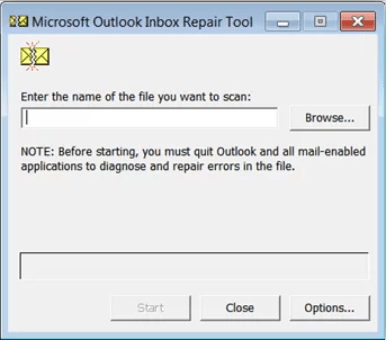
- After that, click Start to begin the scanning process of the Outlook PST file.
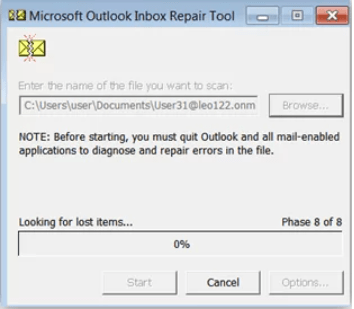
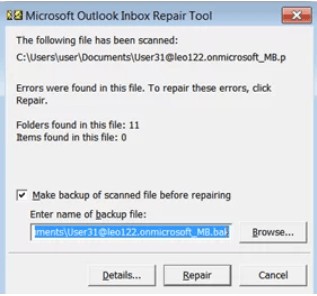
- The tool will display if there is any error in the Outlook PST. Next, you need to hit the Repair button to fix Outlook data files (.pst).
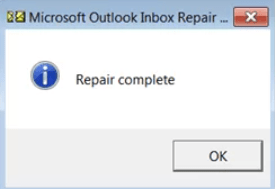
- You will see a dialogue on completing the repairing process; click the OK button.
These easy steps will help users fix Outlook data files or PST folders using a manual solution. This process seems simple, but users may face a few limitations when repairing their Outlook PST files that we are going to discuss.
Shortcomings of the Inbox Repair Tool
This utility is not the professionals’ recommendation, as it comes with a lot of drawbacks. Before implementing this method to fix Outlook PST files, read its limitations for more insight.
- It needs to be run multiple times to fix Outlook data file corruption issues accurately.
- For some users, it can be a nightmare as they can lose their specific data of the PST files permanently.
- This tool may create problems in handling huge Outlook data files; it permits only up to 2 GB of files to repair for older Outlook editions and larger for earlier ones.
- It won’t have the ability to fix all issues if the Microsoft Outlook data file (PST) is highly corrupted or damaged.
If you want to fix PST files using this tool, make sure to have a proper backup of the Outlook PST before processing. Otherwise, this task will end up poorly.
Method 2: Create a New Outlook Profile
If Outlook continues to show PST file errors even after basic checks, the problem may not always be with the PST file itself. Sometimes, a damaged Outlook profile can prevent Outlook from opening the data file correctly. In this case, creating a new Outlook profile can help fix the issue.
Note: if you configured your Outlook via POP, then creating a new profile won’t help.
An Outlook profile stores your email account settings, data file settings, and configuration details. If this profile becomes corrupted, Outlook may fail to start, display data file errors, or repeatedly ask for account credentials. Creating a fresh profile gives Outlook a clean configuration and allows you to reconnect the PST file.
Follow these steps to create a new Outlook profile:
- Close Microsoft Outlook completely.
- Open Control Panel on your computer.
- Search for Mail and open Mail (Microsoft Outlook).
- Click Show Profiles.
- Click Add to create a new profile.
- Enter a new profile name and click OK.
- Add your email account by entering the required account details.
- After the account setup is complete, select Always use this profile.
- Choose the newly created profile from the drop-down menu.
- Click Apply and then OK.
- Open Outlook again and check if the error is resolved.
If you need to access an existing PST file, you can add it to the new profile manually. Open Outlook, go to File > Open & Export > Open Outlook Data File, and select your PST file. Outlook will then display the file in the folder pane.
Note: Creating a new profile is useful when Outlook errors are caused by incorrect profile settings, damaged account configuration, or problems with the default data file path. However, if the PST file itself is severely corrupted, creating a new profile may not be enough.
Method 3: Repair Microsoft Office
If creating a new Outlook profile does not fix the issue, the problem may be related to the Microsoft Office installation itself. Outlook depends on Office program files, system components, and shared settings to work properly. If any of these files are damaged, missing, or outdated, Outlook may fail to open PST files or display repeated data file errors.
Repairing Microsoft Office can help fix problems with Outlook without deleting your emails, accounts, or personal files. This method checks the Office installation and replaces damaged or missing program files.
Follow these steps to repair Microsoft Office:
- Close Outlook and all other Office applications.
- Open Control Panel on your computer.
- Go to Programs > Programs and Features.
- Find Microsoft Office or Microsoft 365 in the list of installed programs.
- Right-click it and select Change.
- Choose Quick Repair first.
- Click Repair and wait for the process to complete.
- Restart your computer.
- Open Outlook and check whether the PST file error is fixed.
If Quick Repair does not solve the problem, repeat the same steps and select Online Repair instead. Online Repair is more thorough and can fix deeper Office installation issues, but it may take longer and usually requires an internet connection.
Note: This method is useful when Outlook crashes, freezes, fails to start, or shows errors even with a healthy PST file. However, repairing Office will not fix a severely corrupted PST file directly.
Method 4: Run SFC and DISM Commands
If Outlook is still showing PST file errors, the problem may be connected to damaged Windows system files. Outlook depends on several Windows components to open, read, and manage data files. If these system files are missing or corrupted, Outlook may crash, freeze, or fail to access the PST file correctly.
You can use the built-in SFC and DISM commands to scan and repair Windows system files. SFC checks protected system files and replaces damaged files with correct versions. DISM repairs the Windows system image, which helps SFC work properly if deeper Windows corruption exists.
Follow these steps to run SFC and DISM commands:
- Close Outlook and all running Office applications.
- Click the Start menu.
- Type Command Prompt.
- Right-click Command Prompt and select Run as administrator.
- First, run the DISM command below:
DISM /Online /Cleanup-Image /RestoreHealth
- Wait for the process to complete. It may take several minutes.
- After DISM finishes, run the SFC command:
sfc /scannow
- Wait until the scan reaches 100%.
- Restart your computer.
- Open Outlook and check whether the PST file error is resolved.
Running DISM before SFC is recommended because DISM repairs the Windows image that SFC uses to replace corrupted files. If SFC finds and fixes problems, Outlook may start working normally again.
Method 5: Disable Faulty Add-ins
Faulty or incompatible Outlook add-ins can also cause PST file errors. Add-ins are extra tools that extend Outlook’s features, such as antivirus plugins, CRM integrations, calendar tools, or email management extensions. However, if an add-in is outdated, damaged, or not compatible with your Outlook version, it can interfere with Outlook data files and cause crashes, freezing, slow performance, or file access errors.
To check whether an add-in is causing the problem, start Outlook in Safe Mode. Safe Mode opens Outlook with add-ins disabled, which makes it easier to identify whether one of them is responsible for the issue.
Follow these steps to open Outlook in Safe Mode:
- Press Windows + R to open the Run dialog box.
- Type the following command:
outlook.exe /safe
- Press Enter.
- If Outlook opens normally in Safe Mode, a faulty add-in may be causing the error.
Now disable add-ins by following these steps:
- Open Outlook.
- Go to File > Options.
- Select Add-ins from the left menu.
- At the bottom, next to Manage, choose COM Add-ins.
- Click Go.
- Uncheck suspicious or unnecessary add-ins.
- Click OK.
- Restart Outlook normally.
If Outlook works properly after disabling add-ins, enable them one by one to find the problematic add-in. Once you identify the faulty add-in, keep it disabled, update it, or remove it completely.
Note: This method is useful when Outlook crashes during startup, freezes while opening folders, or shows PST-related errors only after loading normally. However, disabling add-ins will not repair a damaged PST file directly.
6. Fix Outlook data file with Professional Repair Tool
The best solution to avoid manual challenges and complete this task effectively is the Shoviv PST Repair Tool. It offers various facilities to the users, allowing them to complete the process smoothly and confidently. In addition, this software has a straightforward GUI, so every user will be able to fix PST files without hassle. Users can process many Outlook data files (.pst) in single go using this professionals’ recommended tool. It also has no restrictions on adding oversized PST files to resolve corruption.
Moreover, this tool can quickly recover email messages, calendars, tasks and other data from corrupted PST files. It also offers a filter option; users can filter items using different criteria when they want to have only the desired items to process. So, learn how to fix corrupted Outlook data files (PST) without the ScanPST.exe tool.
Step by step guide to fix PST files
- Install and Run the software.
- Then, the next step is selecting the Add PST files option.
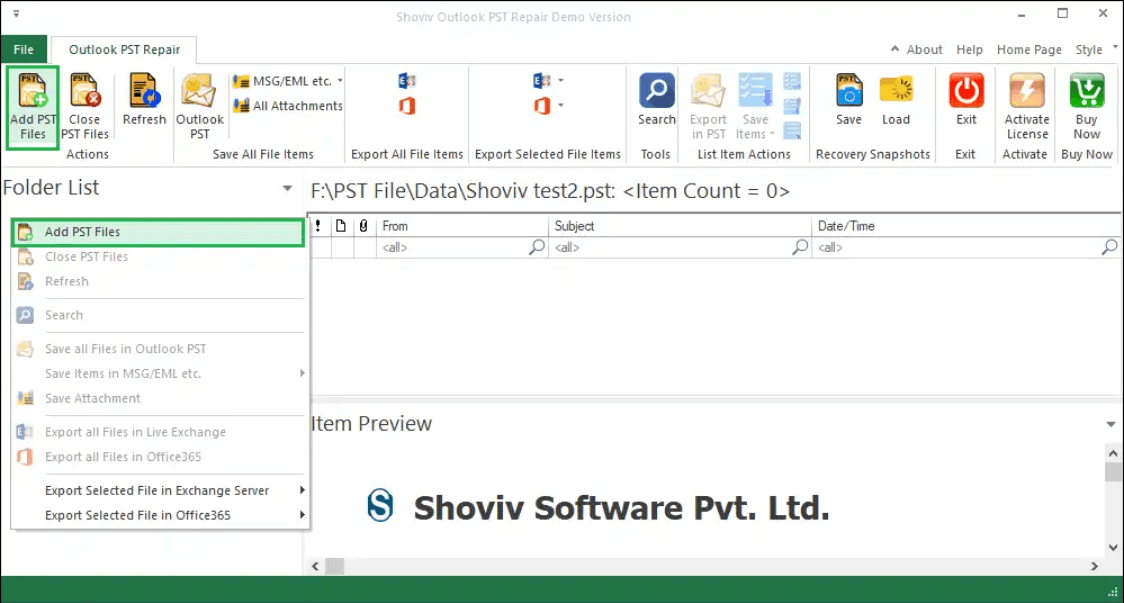
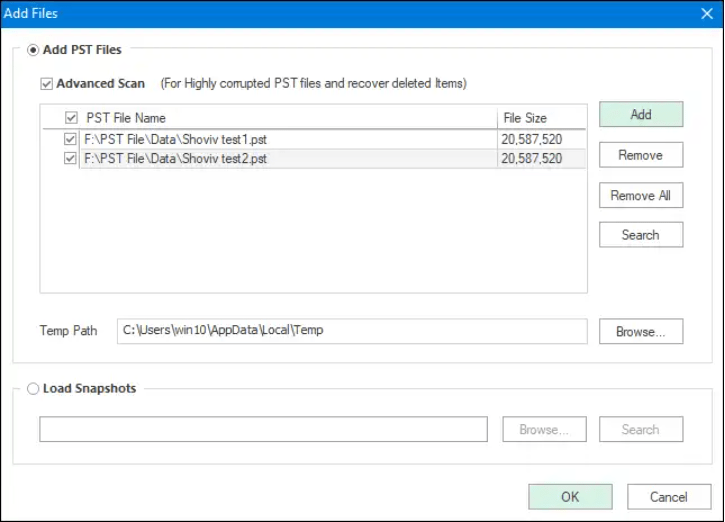
- After that, check the Advanced Scan option, add the desired PST files to repair and click the OK button.
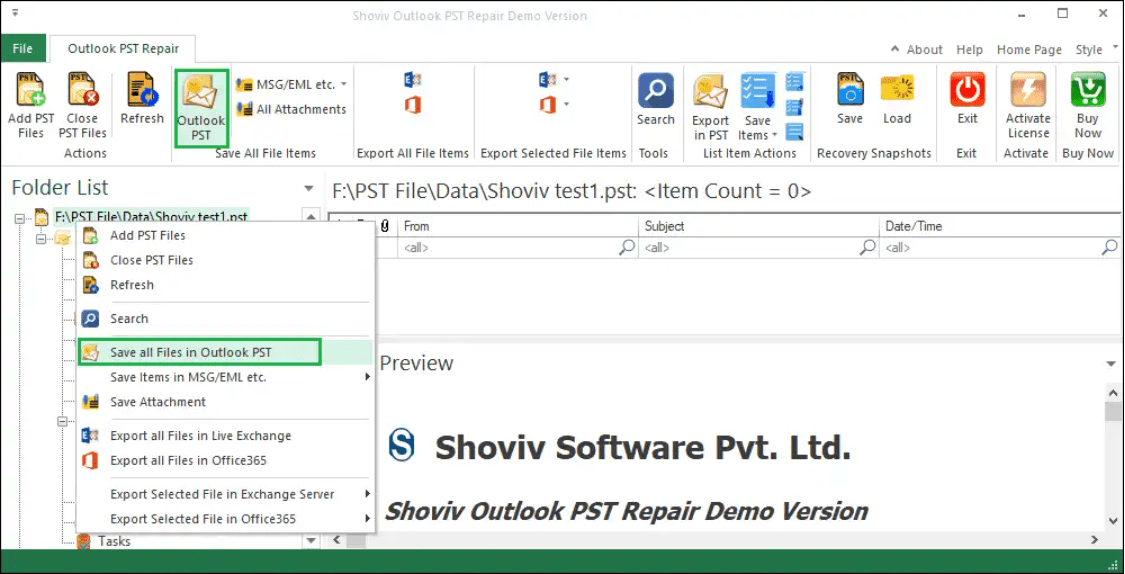
- Now, find the Outlook PST option in the ribbon bar and tap on it.
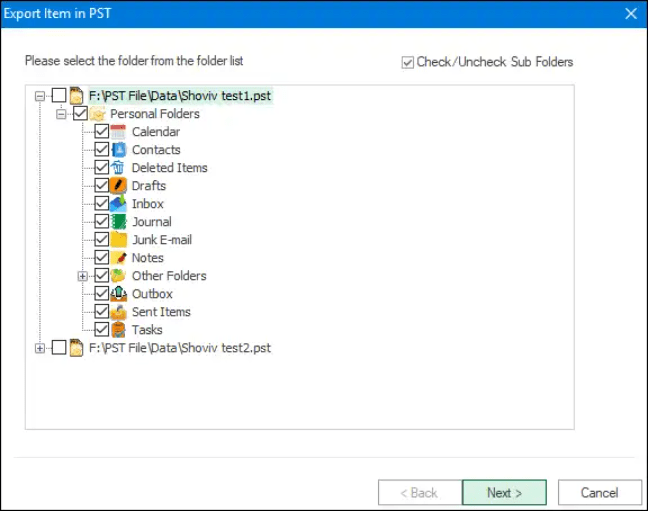
- Thereafter, uncheck or check the subfolders from the displayed list and continue with the Next button.
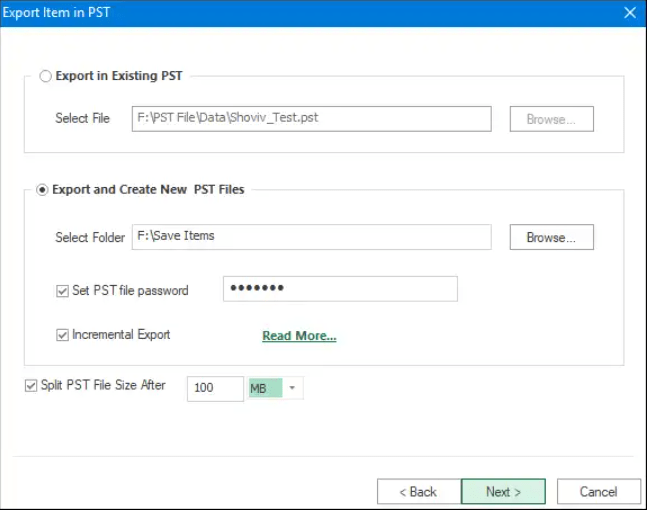
- Here, you will have the option to save the resulting repaired data into an existing PST file or a new one; choose accordingly and click Next.
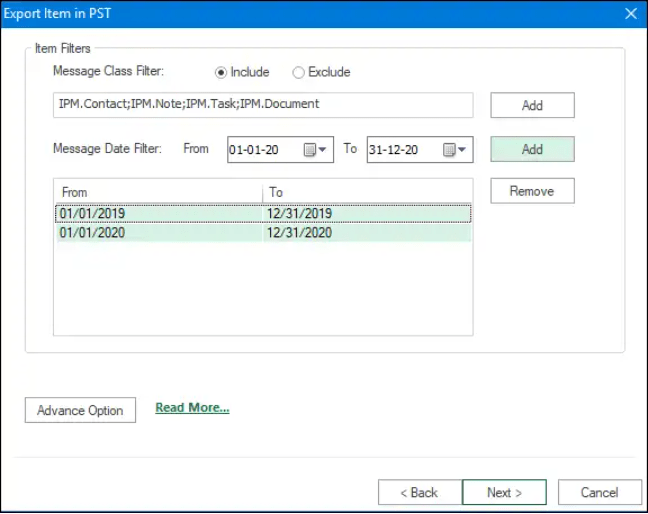
- Then, filter the desired items using the message class and date range criteria. Next, select the Advance Option if you want to map a specific folder from the source to the target.
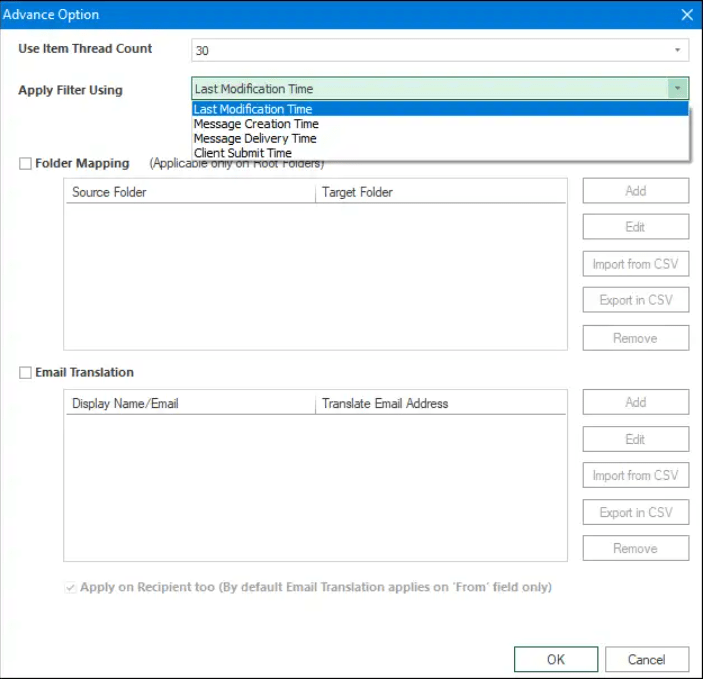
- Once done with the folder mapping, email translation and setting up thread count, hit the OK and Next buttons.
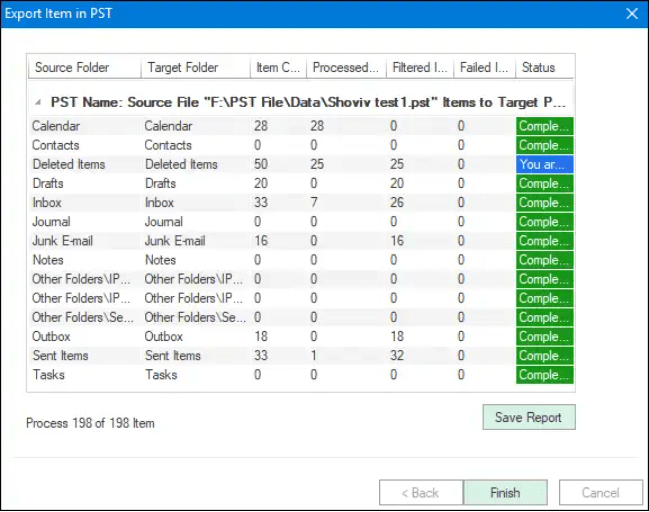
- The tool will begin fixing Outlook data files; click the Finish button and save report after completing the PST file repair process.
It’s your move now!
We have shared everything on the manual and professional ways to fix Outlook data files or Personal Storage Table (PST) in this blog. Also, we go over the stepwise working procedure of both solutions and the reasons behind PST file corruption issues. The Inbox Repair tool is not a convenient way because of multiple restrictions.
Hence, rely on the professional Tool to fix corrupted Outlook PST files is a safe and hurdle-free way to repair PST files. Additionally, this tool’s demo version can be accessed freely to get deeper clarity on its features and functionality. Besides that, its free edition can process up to 50 items from each folder, making it easy for users to understand tool’s working.