Summary: If you are a Microsoft Office 365 user and suddenly encounter the Office Error Code 0x426-0x0, it can prevent you from opening, upgrading, or using Office applications like Word, Excel, PowerPoint, or Outlook. It can be frustrating, especially when you are in the middle of work or study. This guide explains why this error occurs, provides detailed manual fixes, and offers a professional approach. With this guide, you can quickly resolve the problem and restore Office functionality on your PC.
About Microsoft 365
1. What is Microsoft Office 365?
Microsoft Office 365 is a cloud-based productivity suite combining classic Office applications with online services. It includes Word, Excel, PowerPoint, Outlook, OneDrive, and Teams. Office 365 allows users to create documents, manage emails, collaboration on projects, and store files in the cloud. Its integration ensures access from multiple devices, real-time collaboration, and improved productivity for students, professionals, and businesses.
2. How does it work?
- Connects desktop applications with online services.
- Installs on PC/laptop while Microsoft servers manage updates and licenses.
- Click-to-Run technology allows apps to run during background updates.
- Provides the latest features and security updates without interrupting work.
3. Why is Microsoft Office 365 Important for Users?
Office 365 is widely used because it ensures efficiency and productivity. Its importance can be summarised as follows:
- Accessibility – Use Office apps from desktop, mobile, or web without compatibility issues.
- Collaboration – Real-time editing and cloud sharing enable teamwork across locations.
- Security – Built-in security and compliance features protect data and sensitive files.
- Automation – Tools like Power Automate and macros reduce repetitive tasks.
- Regular Updates – Continuous updates improve features and fix bugs automatically.
Microsoft Office 365 Error Code 0x426-0x0: What Does It Mean?
The Microsoft Error Code 0x426-0x0 appears when an Office application fails to launch. It can happen while opening Outlook, Excel, Word, PowerPoint, or other Office programs. When this error occurs, you might see a message like:
“Something went wrong. We couldn’t start your program. Please try starting it again. If it won’t start, try repairing Office from ‘Programs and Features.’ Error Code 0x426-0x0.”
This error typically prevents users from installing, updating, or using Office applications. It can occur on Windows 7, 8.1, 10, and 11, and is usually caused by service, installation, or software conflicts.
Understanding this error is important because it sets the context for the troubleshooting steps that will follow in the blog.
Reasons Behind Microsoft Error Code 0x426-0x0
There are multiple causes of the 0x426-0x0. Understanding them helps in applying the right solution and preventing future issues. Here’s a detailed explanation of the main causes:
1. Disable Click-to-Run Service
Microsoft Office relies on the Click-to-Run service to launch applications and stream updates in the background. If this service is disabled, Office apps may fail to start. It is one of the most common reasons behind the 0x426-0x0 error. Users may not even realize the service has been disabled after system changes or updates.
2. Corrupted Office Installation
A corrupted Office installation is another frequent cause of this error. Corruption can occur due to:
- Interrupted installation – sudden shutdown during installation.
- Filed updates – Office updates stopped due to internet issues or system restarts.
- File corruption – essential program files may be damaged due to software conflicts or system errors.
When the installation is corrupted, Office applications may open partially or fail to launch entirely.
3. Conflicting Old Office Versions
Having multiple Office versions on the same PC often leads to registry conflicts. The newer Office installation may attempt to use the same registry keys as the older version, causing errors when opening apps. For example, Office 365 may conflict with Office 2016 or 2019, triggering 0x426-0x0.
4. Antivirus or Firewall Interference
Antivirus programs or Firewalls may block Office processes, mistaking them for threats. Windows Defender or third-party security software can sometimes interfere with Office updates, preventing applications from launching.
5. Background Office Processes
Sometimes, Office applications continue to run in the background without the user noticing. These running processes can prevent new instances from opening, leading to error 0x436-0x0.
6. Corrupted Registry Keys
Registry keys store low-level configurations for Windows and Office applications. Corrupted or leftover registry entries from previous Office installations may stop Office apps from functioning correctly. Without proper registry maintenance, Office may fail to launch.
7. System File Corruption
Operating system corruption can also impact Office functionality. Missing or damaged system files can prevent Office apps from starting, especially if the files responsible for application launch and updates are affected.
8. Third-party Software Conflicts
Other programs running on your PC can interfere with Office apps. Utility tools, system optimizers, or incompatible applications may cause conflicts, stopping Office from opening or updating.
Understanding these causes provides insight into why the error occurs and helps in applying the most effective fix.
Fixes for Microsoft Office 365 Error Code 0x436-0x0
Here are manual solutions to fix the error, presented step-by-step:
Fix 1: Disable Antivirus and Windows Defender Firewall
Security software can block Office apps from accessing required system resources. Temporarily disabling them may resolve the error.
Steps:
- Open Control Panel > System and Security > Windows Defender Firewall.
- Click Turn Windows Defender Firewall on or off.
- Disable for both Private and Public networks.
- Test if Office applications open correctly.
Tip – If disabling fixes the error, add Office to the firewall exclusion list.
Fix 2: Perform an SFC Scan
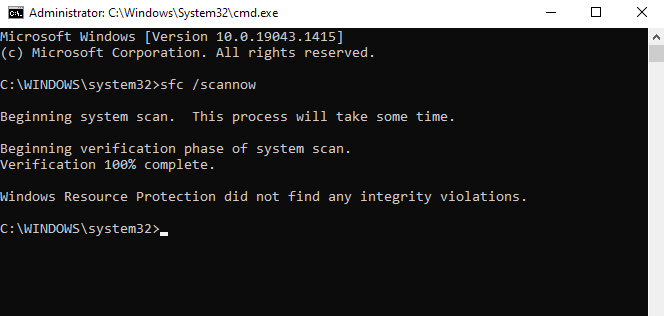
Corrupted system files can stop Office applications from starting. Use the System File Checker (SFC) to repair them.
Steps:
- Search cmd > Right-click > Run as administrator.
- Type: sfc / scannow
- Press Enter and wait for the scan to complete.
- Restart the PC and check Office functionality.
Fix 3: Repair the Registry
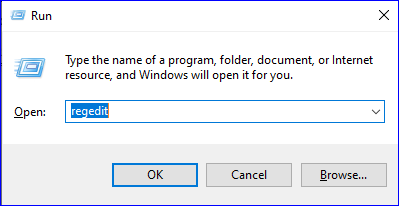
Corrupted registry keys can prevent Office from launching.
Steps:
- Press Windows + R, type regedit, and press Enter.
- Delete these keys if they exist:
- HKEY_CURRENT_USER\Software\Microsoft\Office\11.0
- HKEY_CURRENT_USER\Software\Microsoft\Office\12.0
- HKEY_CURRENT_USER\Software\Microsoft\Office\14.0
- HKEY_CURRENT_USER\Software\Microsoft\Office\15.0
- HKEY_CURRENT_USER\Software\Wow6432Node\Microsoft\Office\11.0
- HKEY_CURRENT_USER\Software\Wow6432Node\Microsoft\Office\12.0
- HKEY_CURRENT_USER\Software\Wow6432Node\Microsoft\Office\14.0
- HKEY_CURRENT_USER\Software\Wow6432Node\Microsoft\Office\15.0
- Restart the PC and test Office apps.
Fix 4: Close Office-Related Processes
Background Office processes may block new instances.
Steps:
- Press Ctrl + Shift + Esc > Open Task Manager.
- Locate Microsoft Office processes like Click-to-Run, Word, or Excel.
- Right-click > End Task.
- Launch Office again.
Fix 5: Set Microsoft Office Click-to-Run Service to Automatic
Click-to-Run service must be enabled.
Steps:
- Press Windows + S, type Services, and open it.
- Locate Microsoft Office Click-to-Run > Double-click.
- Set Startup type > Automatic > Click OK.
- Restart Office applications.
Fix 6: Repair Microsoft Office Installation
Corrupted installation files may stop Office apps from opening.
Steps:
- Press Windows + R, type appwiz.cpl, press Enter.
- Locate Microsoft Office > Right-click > Change.
- Choose Quick Repair > Follow prompts.
- If the error persists, select Online Repair.
- Restart PC and test Office apps.
Fix 7: Uninstall Old Office Versions
Conflicts between old and new Office versions can trigger the error.
Steps:
- Press Windows + R, type appwiz.cpl, press Enter.
- Locate older Office versions > Right-click > Uninstall.
- Reboot the PC.
- Optional: Run SetupProd_OffScrub.exe from the Office troubleshooting page to remove leftover files.
Fix 8: Reinstall Microsoft Office
If all else fails, a clean reinstall resolves corruption issues.
Steps:
- Uninstall all Office versions.
- Delete leftover files from Program Files and Program Files (x86).
- Remove registry keys under HKEY_CURRENT_USER\Software\Microsoft\Office.
- Reinstall Microsoft Office and log in.
Final Thought
The Microsoft Office error 0x426-0x0 disrupts workflow by preventing apps from launching. A disabled Click-to-Run service, corrupted installation, old Office versions, registry issues, background processes, or antivirus/firewall interference can cause it.
By following the manual fixes above—disabling firewall/antivirus, performing SFC scans, repairing the registry, ending background processes, enabling Click-to-Run, repairing Office, uninstalling old versions, and reinstalling—you can restore Office functionality.
However, it is always recommended to have a backup of your Microsoft 365 mailbox so you can access your data whenever needed. Shoviv Office 365 Backup and Restore tool is an advanced automated solution to back up your Office 365 mailbox. A free demo version of this software is also available.
Frequently Asked Questions
It is an error that occurs when one or more Office applications fail to start due to issues like service problems, corrupted files, or registry conflicts.
Outlook is commonly affected, but Word, Excel, and PowerPoint can also encounter the 0x426-0x0 error.
Yes, conflicts between old and new Office versions can trigger the 0x426-0x0 error, as they may share registry keys or system files.
No, it only tests if antivirus interference is causing the error. And the Office is on the exclusion list to maintain security.
Yes, if Office applications are running in the background, they can prevent other instances from launching, resulting in the ox426-0x0 error.
Often, corrupt registry keys left from previous installations contribute to the error, so repairing or cleaning them can help resolve the issue.
If all manual troubleshooting fails, consider using a Shoviv Tool, which efficiently restores Office applications and ensures they run without corruption.