If you’re searching for the simple and most reliable way for NSF to EML conversion, this guide is made for you. Many users struggle to access Lotus Notes data in modern email clients. NSF files are not widely supported. We are providing a clear explanation of all workable solutions—manual and professional—so you can export NSF mailboxes to EML without data loss, as well as an automated approach. Whether you want a quick free method or a powerful professional NSF to EML Converter, this guide walks you through the best options to ensure a smooth conversion.
What are the Methods to Export/Convert NSF to EML?
There are mainly two ways to perform NSF to EML conversion:
- Manual methods using built-in Lotus Notes features.
- Automated professional conversion using Shoviv NSF Converter.
We will cover each approach so you can choose the one that suits your workflow and technical comfort. Let’s start with the Manual solution first.
Manual techniques to convert NSF to EML
Lotus Notes offers two built-in options for manually saving emails as EML files. These methods are suitable for small-scale or occasional conversions: the Drag & Drop method and the Save As method. Here are the steps for both:
Drag & Drop Method
- Open Lotus Notes (HCL Notes).
- Go to File >
- Select Basic Notes Client Configuration.
- Under Additional Options, enable Drag & Drop to save as an EML file.
- Choose the required emails (or press CTRL+A).
- Drag the selected emails and drop them into any folder on your system.
Each selected email is saved as an individual EML file.
Save As Method
- Launch HCL Notes.
- Choose and open the email you want to export.
- Navigate to File > Save As.
- Select a target location to save the mail.
- Choose EML from the Save as type dropdown.
- Click Ok.
The selected email will be saved as an EML file.
Limitations of Manual Techniques
- Can export only one email at a time; no true batch or bulk conversion support.
- Extremely time-consuming for large mailboxes or multiple NSF files.
- Requires Lotus Notes installation (usually version 8.5 or later).
- Risk of data loss, corruption, or inconsistency if the process is interrupted.
- Needs basic technical knowledge to perform correctly.
- May not preserve complete metadata or formatting in some cases.
Because of the limitations, users and organisations handling large or multiple NSF files often prefer an automated NSF to EML converter.
Technical Considerations: NSF to EML Migration Architecture
Converting from HCL Notes (formerly IBM Lotus Notes) to the EML format is more than a simple file change; it is a fundamental shift in data structure. Understanding these technical hurdles is essential for ensuring a complete, lossless migration.
Key Technical Challenges
➔ De-encapsulation of Data:
Unlike standard mail formats, an NSF (Notes Storage Facility) is a complex object-store database. Every email, attachment, and metadata point is “encapsulated” within this database structure. Exporting to EML (a plain-text MIME file) requires a precise “de-encapsulation” process to extract binary attachments and re-render them as independent MIME parts without corruption.
➔ Metadata & DocLink Mapping:
NSF files utilize proprietary elements like DocLinks and Custom Notes Items that do not have a native equivalent in the RFC 822 (EML) standard. Without a sophisticated conversion engine, these items become “orphaned,” leading to broken internal links and missing header information. A professional migration strategy ensures these data points are mapped to custom X-headers or converted into accessible plain-text references.
➔ Notes Rich Text vs. MIME/HTML Encoding:
HCL Notes uses a unique Notes Rich Text format for email bodies. Converting this to the MIME/HTML standard used by EML files is a common failure point in manual exports. If the encoding is handled incorrectly, the resulting EML will suffer from broken CSS, lost inline images, and distorted layouts.
Migration Impact Analysis: NSF vs. EML
When planning your migration, it is important to look past basic features and focus on how the structural change affects your long-term data health.
| Factor | NSF (Source Architecture) | EML (Target Format) | Migration Impact |
| Structure | Multi-item Database: All data is stored in one large .nsf file. | Single Message File: Each email is a standalone .eml file. | Data Integrity: Individual file corruption in an EML archive won’t ruin your entire database, unlike a large NSF file. |
| Encryption | Notes ID-based: Requires a specific User ID and password. | Standard MIME: Open-standard encryption or plain text. | Accessibility: You must remove Notes-level encryption before export; otherwise, the resulting EMLs will be unreadable in other clients. |
| Attachments | Embedded Objects: Stored deep within the database layers. | MIME Parts: Stored as distinct sections within the text file. | Visual Quality: There is a high risk of “Inline Image” loss during the export unless the converter specifically re-links image tags to MIME parts. |
Best Way to Export NSF File to EML Format Professionally
For users who need secure and bulk NSF to EML conversion, Shoviv NSF Converter is an excellent professional solution. Although primarily known for NSF to PST conversion, the tool also supports direct export of NSF to EML format with full data integrity.
Advanced Features of Shoviv Lotus Notes to Outlook Converter (NSF to PST/EML)
- Converts NSF emails, contacts, calendars, tasks, journals and other mailbox items.
- Supports export to multiple formats, including EML, MSG, PST, and more.
- Allows bulk conversion of NSF files in a single process.
- Maintains complete data integrity, folder hierarchy and original formatting.
- Includes advanced email filtering based on date range, item type,
- Offers folder mapping and email translation options.
- Preview NSF mail items before exporting.
- Compatible with all versions of Lotus Notes, Domino Server, Windows OS, and Outlook.
Steps to Export Shoviv NSF to PST/EML Converter
- Install and launch Shoviv Lotus Notes to Outlook Converter.
- Click Add NSF File on the ribbon bar.
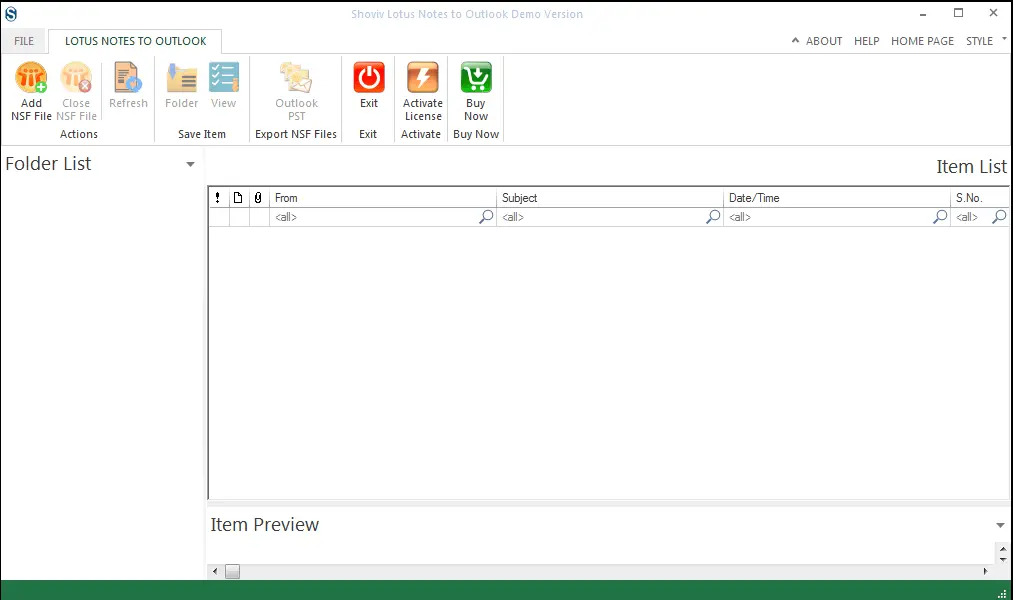
- Browse and select one or multiple NSF files.
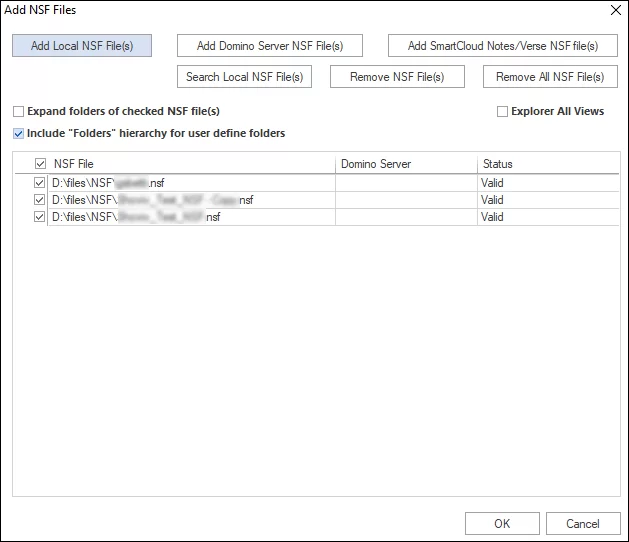
- The selected files will appear in the preview pane.
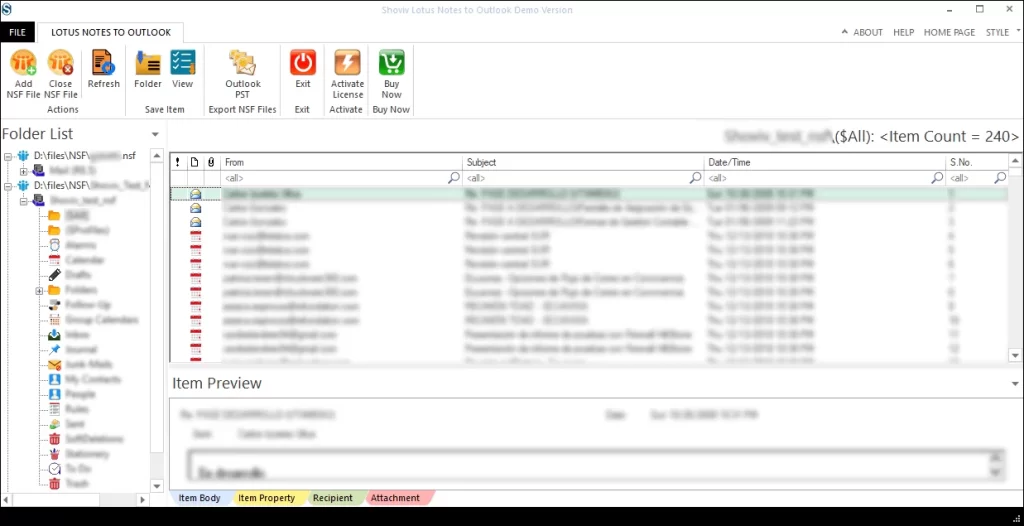
- Choose Export > EML as the output option (select EML as Save Type from the ribbon bar).

- Select folders to convert and apply filters if needed.
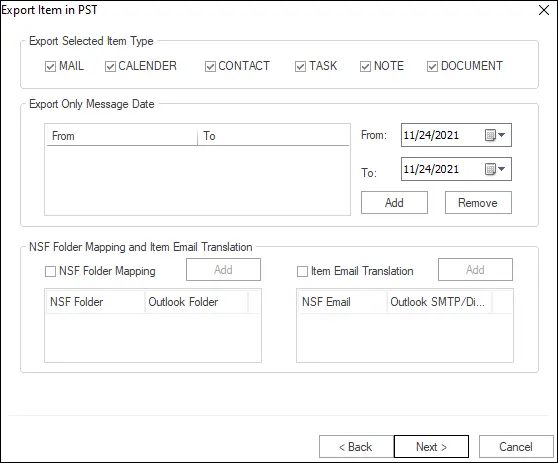
- Browse and choose the destination folder to save EML files.
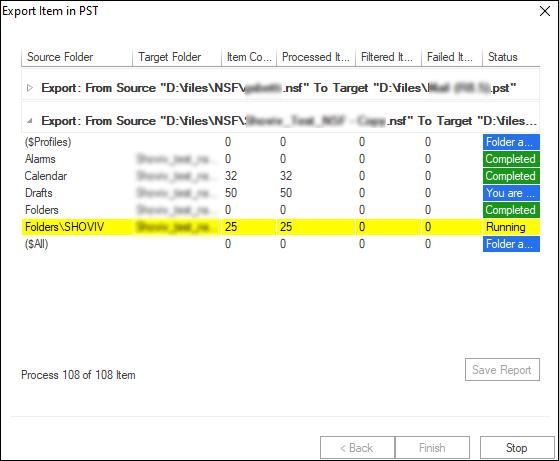
- Click Next to begin the conversion.
- Save the final conversion report and click Finish.
Closing Remark:
This blog has covered the best ways for NSF to EML Conversion using both manual and automated methods. While Drag & Drop and the Save As option work for a very small number of emails, they are not suitable for large mailboxes, multiple NSF files, or enterprise-level migration. For efficient, accurate, and secure NSF to EML conversion, a professional tool like Shoviv Lotus Notes to Outlook Converter is highly recommended. It ensures complete data protection, supports batch conversion, and simplifies the entire process—even for non-technical users.
Frequently Asked Questions:-
There is no fully free tool, as many utilities—including Shoviv NSF to PST/EML Converter—offer demo versions allowing limited NSF to EML conversion for testing (e.g., first 50 items per folder).
Yes, EML files can be opened in Windows Live Mail, Mozilla Thunderbird, Outlook Express, Apple Mail, and several other email clients.
Yes. The Shoviv NSF to PST/EML tool provides a preview panel where you can inspect emails, attachments, and folders before exporting to EML.
Yes, the Shoviv Lotus Notes to Outlook Converter exports NSF files to EML along with all attachments and metadata.
Yes, Shoviv business and Enterprise versions support Lotus Notes NSF migration to Office 365 with the appropriate license.