Microsoft 365 is very well known to all of us; it is a line of subscription services offered by Microsoft. Its Software as Services products are giving all-time access to the work hence increasing the productivity of businesses. Despite being an advanced and secured product, users remain curious about Microsoft Office 365 backup and recovery policy.
Microsoft Online Services comes with 99% uptime and also offers a service level agreement. Microsoft has also set up multiple data centers to deal with any unfortunate events. Having multiple data centers also helps to counter outage issues. Moreover, technologies like Database Availability Group (ADG) and eDiscovery boost security and capabilities to handle these issues.
So, Microsoft has lauded its policy about safety, retention, and recovery; still, users have queries regarding this. Hence, here, in this blog, we will cover all points you need to know about O365 backup and recovery policy. Let’s dive into deep:
Why M365 Backup and Recovery Policy is the Talk of the Town?
Retention and recovery of the data always remain a hot topic. When, from where, and how we can recover our data are the primary questions when data loss happens. Know-how of Microsoft 365 backup and recovery policies assures you about data status. Let’s point out the conditions when you need these policies and try to prevent these conditions.
- Human error: accidental deletion of utmost essential data.
- Intentionally deleting the data by an employee leaving the organization (human behavior).
- If someone conquers unauthorized access and deletes it.
- If your Microsoft 365 plan expires and you are not aware of that.
- You may also need backup in case of software failure/ hardware failure and outage.
A Glance of O365 Backup and Recovery Policy:
- Each Microsoft 365 service has its retention and recovery policies, and these can be modified and used as per the need. It also depends on the free hands provided by Microsoft.
- SharePoint Online: Data gets backed up in every passing 12 hours. It retains the data for the 14 days, and deleted items get stored in Recycle Bin for the 93 days.
- Exchange Online: In this, by default, deleted mailbox gets retained for the 30 days and individual items for 14 days.
- OneDrive: Its retention policy allows retaining for 30 days.
Microsoft Retention vs Backup
| Category | Retention(Keep or delete on a schedule) | Backup(Copy data for recovery) |
| Purpose | ➟ Compliance & legal hold ➟ Preserve or purge data by policy | ➟ Disaster recovery & accidental loss ➟ Restore data to a prior state |
| How it works | ➟ Marks items “retain” or “delete” ➟ Keeps hidden copies in Preservation Hold ➟ User still sees original item | ➟ Creates a separate point-in-time copy ➟ Stored independently from live data ➟ Restore replaces or adds items back |
| Protects against | ➟ Premature deletion ➟ Compliance gaps ➟ Litigation risk | ➟ Ransomware ➟ Accidental deletion ➟ Data corruption |
| Microsoft tools | ➟ Microsoft Purview – Retention Policies ➟ eDiscovery & Legal Hold ➟ Litigation Hold (Exchange) | ➟ Microsoft 365 Backup (preview/GA) ➟ Azure Backup ➟ Third-party: Shoviv, Weeom, Veeam |
| Key limitation | ➟ Cannot restore to a previous version — only preserves the item from deletion | ➟ Not designed for compliance holds — focus is recovery speed, not legal audit |
The difference between retention and backup is intentional and obvious.
Compliance Strategy vs Recovery Strategy
Retention is a compliance strategy. The primary purpose of retention is to make sure data stays accessible for legal obligations, regulations, or business needs. Users may delete data, but retention policies will keep a copy for the retention period. Retention answers, “Do we still have this data for compliance purposes?”
Backup is a recovery strategy. The primary purpose is to allow a business to restore data that has been deleted or lost from a malicious attack, corruption, or other unplanned incidents. Backup strategies will answer, “Can we recover our data and return to a previous state if something goes wrong?”
A frequent misconception in Microsoft 365 is retention policies serve the same purpose as backups. This is not true. While retention does preserve data for compliance, it does not serve a recovery purpose. Retention policies also do not provide a quick way to restore an entire SharePoint library, OneDrive, or an entire mailbox.
According to Microsoft’s shared responsibility model, it is the customer’s responsibility to protect and restore their data. This means that relying on retention policies alone will not protect your data.
For most organizations, using both strategies is the best approach. Microsoft Purview retention policies provide compliance with legal obligations, while retention policies provide recovery from risks.
Microsoft 365 Shared Responsibility Model
The Shared Responsibility Model describes the security requirements for the customer, and the management tasks Microsoft will complete. Although Microsoft 365 offers a secure cloud option, the organization still needs to manage their users and access controls.
In general, Microsoft manages the security and the cloud infrastructure, and the customer manages the cloud data and the access control.
Customer Responsibilities
There are a number of responsibilities that remain regardless of the Microsoft 365 subscription.
Data Protection and Governance
All of your organization’s data, whether it is email, files, or Teams data, belongs to the organization. If any of this data is lost or damaged, it is the responsibility of the organization to ensure that this is recovered.
User Accounts and Identity Security
The organization is responsible for ensuring that user accounts are secure. This includes utilizing strong passwords, MFA, and monitoring for unusual sign in activity. Microsoft 365 security incidents are often due to identity-based attacks.
Endpoint Security
The organization is also responsible for ensuring that the Microsoft 365 access points, whether tablets, laptops or desktops, are secure.
Shared Responsibilities
In some areas, collaboration is required between Microsoft and the customer.
Identity and Access Management
Microsoft manages the base Entra ID (formerly Azure Active Directory) and the customer manages the security policies, user permissions, and external access.
Applications and Third-Party Connections
Microsoft is the only entity that can configure or modify Microsoft 365 services and applications. Customers have the responsibility of configuring application permissions, third-party connections, and API access.
Tenant-Level Security
Microsoft builds security into its infrastructure worldwide. However, customers must configure sharing policies, external collaboration policies, controls on email security, and other tenant-specific security options.
Microsoft’s Responsibilities
Microsoft has a considerably broad obligation for the security and maintenance of the:
- Physical data centers
- Data center facilities
- Data center networks
- Data center servers
- Data center storage
- Physical and logical security of the data center
- Keeping the services up and running
Per their obligations, Microsoft makes the Microsoft 365 services available, secure, and reliable. Microsoft makes the Microsoft 365 platform available in a secure and reliable manner. You make the data on the platform secure and reliable.
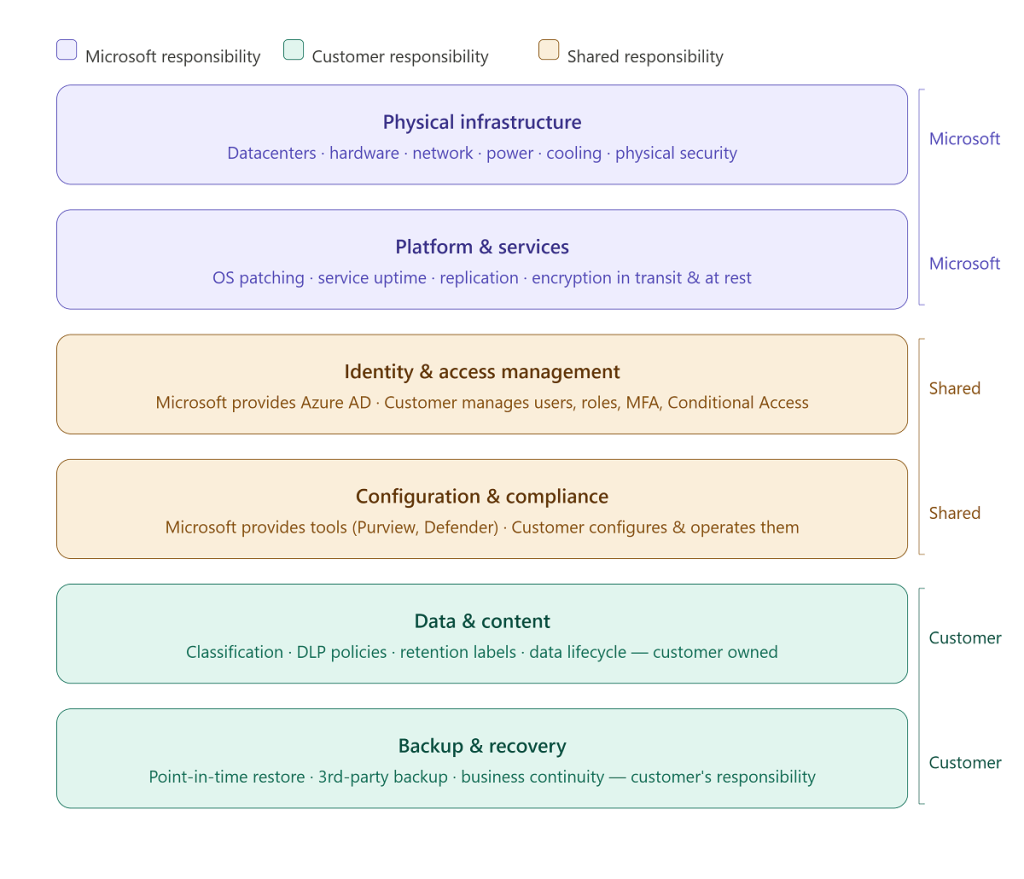
The absence of security controls and retention and backup methods shows that customers have the most responsibility for security. Although Microsoft safeguards the infrastructure, customers have the responsibility for data governance, access management, compliance, and recovery to ensure the continued operation of their business and protection of their data.
Exchange Online Retention Policy: Explore and Learn
- If you have lost your items from the mailbox, check for the Deleted Items folder.
- Here, you will find all the deleted items; search and make sure.
- Move your items to the inbox or any other folder by using the “Move” option.
- Office 365 Administrator can modify default MRM policy by going to Office365 Admin>> Exchange Admin Centre>> Compliance management>> Edit Retention Policy.
- If your items have been permanently deleted from the Deleted Items Folder, you must find them in the Recoverable Items Folder.
- The Recoverable Item Folder can retain Outlook 365 deleted items for 14 days by default.
- Only Microsoft Office 365’s global administrator with eDiscovery permission can retrieve deleted items from the recoverable items folder.
- Users are advised to read and go through the M365 backup and recovery policy from time to time. It is subject to change over the period.
Retention and recovery features are both important for data protection in Microsoft 365. People tend to mix these terms up, but they are quite different.
SharePoint and OneDrive Recovery Policy
A retention policy decides the duration data needs to be kept to comply with legal or business needs. The focus of retention policy is making sure data is not permanently deleted before the retention period is over.
A recovery policy focuses on restoring data to its original state following accidental deletion, unauthorized modification, or malicious destruction. Rather than operating in opposition to a retention policy, it serves as its operational counterpart—specifically defining the protocols, timelines, and tools required to fully recover access to data once an incident has occurred.”
When designing a robust data protection policy, it is fundamental to know the recovery capabilities that Microsoft offers for SharePoint OneDrive.
SharePoint Online Recovery
SharePoint Online has a number of built-in recovery features that offer the capability to recover data that has been accidentally deleted from files, folders, lists and libraries.
Two-Stage Recycle Bin
When content is deleted from a SharePoint site, that content is not cleared immediately. It passes through two stages of recovery.
First-Stage Recycle Bin
The content that has been deleted is first-stage removed to the Recycle Bin of the respective SharePoint site. It can be viewed and restored by the site users who have the necessary permissions without needing help from the site’s administrators.
Second-Stage Recycle Bin
When an item is removed from the First-Stage Recycle Bin, that item is moved to the Second-Stage (Site Collection) Recycle Bin. The restoration of data from this Recycle Bin is the responsibility of SharePoint administrators or Site Collection administrators.
What Happens After 93 Days?
SharePoint holds deleted data for 93 days split between the two recycle bins. That means during this time, users and admins can recover the data via the SharePoint portal.
After 93 days, that data is gone from the recycle bins with no option for users to recover it. The data is permanently deleted.
Microsoft’s Extended Recovery Time
The 93-day period is the time Microsoft allows the data to remain in the recycle bin. After that timeframe, Microsoft allows limited internal backups for some time. There are situations when admins can reach out to Microsoft support and will be able to restore a site if it is in the recovery period.
This is not meant to be a routine data recovery request though. It’s not a good option for recovering data at a file level or for recovery in relation to a specific point in time.
Caution: While native recovery options in SharePoint do offer some protection against deletion, they do not safeguard against the need for backups. To guard against ransomware attacks and for protection and recovery requirements not supported by Microsoft, organizations should look at dedicated SharePoint backup solutions while Microsoft recovery options are in place.
OneDrive Recovery Policy
Since OneDrive for Business is built with SharePoint Online tech, its recovery process is similar to SharePoint’s. OneDrive also has special retention controls designed for user accounts and settings in the employee lifecycle.
Deleting Files
When OneDrive users delete files or folders, OneDrive doesn’t delete them. Instead, they get moved to a Recycle Bin with a two-step process. This Bin has an overall retention period of 93 days.
First Recycle Bin
When files or folders are first deleted, they’re moved to the users’ Recycle Bin. Users are able to restore their files directly from the Recycle Bin without help from an admin.
Second Recycle Bin
If users step deletes files from their first step Recycle Bin, those files are then stored in the second step Recycle Bin. Admins are then able to restore the files if they need to.
OneDrive Retention When Users Leave
OneDrive retention becomes particularly important when users leave the organization and their accounts in Microsoft 365 are deleted.
When an Admin deletes an account, OneDrive also does not delete the files. The OneDrive retention period allows organizations to recover or even legally claim business-critical data.
Retention Period
OneDrive defaults to retaining the content of the deleted business user for 30 days. During this time, files and information can be transferred to other business users.
Retention Period Customization
OneDrive Admin settings allow organizations to customize the retention period in the OneDrive system. Depending on varying types of requirements, the retention period can be lengthened.
Final Deletion
When a certain time passes, private data on OneDrive is permanently deleted. This limits recovery options. It’s important to protect necessary data before the retention time is up.
Microsoft’s retention policies and OneDrive Backup features are a way to protect against accidental deletion and give support during the offboarding process, but they are not a full backup protection policy. If organizations want long-term data protection and recovery, restoration from ransomware, or something not as personal, they should use a dedicated Microsoft 365 Backup and recovery tool. To get a comprehensive step-by-step breakdown on how these safety rules intersect, explore Shoviv’s guide to understanding SharePoint and OneDrive retention policies.
Microsoft Teams Data Recovery
Unlike Exchange Online, SharePoint Online, or OneDrive for Business, Microsoft Teams has a different data storage methodology. Teams functions as a collaboration layer and utilizes multiple Microsoft 365 services for data storage. Microsoft 365’s ecosystem houses Microsoft Teams’ meeting data, chat messages, channel conversations, and files.
Consequently, the recovery process is contingent on the type of data that has been deleted and the ecosystem segment that housed the data.
Recovering Teams Chat Messages
Private, group, and meeting chat messages in Teams are stored in Exchange Online mailboxes. This is to satisfy compliance, retention, and eDiscovery requirements.
Deleted Chat Messages
Unfortunately, Teams does not have a built-in recycle bin to restore deleted chat messages. Once a message is deleted, it is permanently removed from the chat interface.
Retention and eDiscovery
If your organization has established retention policies, retention labels, or litigation holds in Microsoft Purview, messages that have been deleted may be retained for compliance. System admins can search for and export these messages via Microsoft Purview Content Search or eDiscovery; however, the exported content will not be restored to the Teams chat.
Recovering Channel Messages
Channel messages are stored in the Microsoft 365 Group that supports the Team and are stored distinctively from private messages.
Recently Deleted Messages
If a user deletes a message in a channel, the Teams interface will display an Undo option for a limited amount of time. After this option is removed, messages can no longer be restored.
Compliance-Based Recovery
Retention policies can store deleted channels discussions just like chat retention. These stored discussions can be retrieved using Microsoft Purview, but cannot be reinserted to channel discussions.
Teams File Recovery
How a file is shared in Teams determines whether it is saved in OneDrive for Business or SharePoint Online.
Files Shared in Private and Group Chats
Files shared in one-on-one and group chats are saved in the sender’s OneDrive for Business account in the Microsoft Teams Chat Files folder.
To recover a deleted file:
- Go to OneDrive for Business.
- Go to the Recycle Bin.
- Find the deleted file and select Restore.
The file will be restored to its original location with its Teams sharing link.
Files Shared in Teams Channels
Files shared in Teams Channels are stored in SharePoint.
To recover a deleted files in Teams Channels:
- Go to the specific channel in Microsoft Teams.
- Go to the Files tab, and click Open in SharePoint.
- Go to the SharePoint Recycle Bin.
- Find the deleted file and select Restore.
The file will be restored to the original document library in Teams.
Recovering a Deleted Channel
Once a channel is deleted, Microsoft allows Administrators and Team Owners to restore the channel for a limited time.
To restore a a deleted channel:
- Go to Microsoft Teams.
- Go to the specific Team, and select Manage Team.
- Go to the Channels Tab.
- Expand the Deleted section.
- Choose the channel and press Restore.
Recovery Window: Channels that have been deleted can be restored within 30 days. After 30 days, the channel is permanently deleted.
Recovering a Deleted Team
Once a Team is deleted, the associated Microsoft 365 Group, SharePoint site, Exchange mailbox, Planner data, and connected resources are all deleted.
To restore a deleted Team:
- Log in to the Microsoft 365 Admin Center with admin rights.
- Go to the Teams & Groups section and select Deleted Groups.
- Choose the deleted Team.
- Press Restore Group.
Recovery Window: Deleted Teams are in a soft-deleted state for 30 days. Within that timeframe, admins have the opportunity for a complete restore of the Team and the connected services. After the 30-day retention period, the data is deleted permanently.
| Data Type | Backend Storage Location | Recovery Mechanism | Time Limit |
| Chat Files | OneDrive for Business | OneDrive Recycle Bin | 93 Days |
| Channel Files | SharePoint Online | SharePoint Site Recycle Bin | 93 Days |
| Deleted Channel | Teams Architecture | “Manage Team” Settings -> Channels | 30 Days |
| Deleted Team | Microsoft 365 Groups | M365 Admin Center -> Deleted Groups | 30 Days |
| Chat/Channel Text | Exchange (Hidden Folders) | Microsoft Purview Content Search / eDiscovery | Dependent on corporate compliance policy |
Let the Backup and Recovery of Microsoft 365 in Your Terms:
Well, Microsoft has provided all the essentials for the safety and protection of the data. Also, Microsoft has a retention policy and recovery terms of its own. Still, we can easily find users searching to get complete control over their data. Professionals want their data with all-time access and management as per their needs. They want to keep data at their place (local machine) and backup on their own terms. Shoviv Office 365 Backup and Restore Tool come with the best solution to answer their need. This tool surpasses the problem that arises after data loss, for example, in the case of accidental deletion. Let’s have a look at how it comes in very handy to users:
- It takes the fast, effortless backup of the Office 365 mailboxes in the PST file format.
- Users can easily schedule the periodic backup as per their requirements. I.e. Daily/Weekly/Monthly backup.
- It runs on the job-based process, and users can create multiple jobs and run concurrently.
- Advanced filter options like “Date Range”, “Message Class”, and “Folder Filter” make users capable of making a specific choice for the data backup.
- Along with backup, as its name indicates, this tool is also an expert in restoring data to Office 365 mailboxes. Users can easily manage their data between Office 365 and local machines.
- A full report of the process is also provided after completing the task. Users get informed about all the task variables like processed, filtered, and failed items.
Summary:
M365 is growing its services and user base with time. A common question of data security, data recovery, and backup is obvious. Although Microsoft has documented its entire backup, retention, and recovery policies to the users, still, there is a space to be filled. Microsoft 365 backup and recovery policy give a clear cut image of data on the other side, making users baffled about data safety and recovery. A scheduled periodic backup in the .pst files to get saved in the local machine provides an alternative option. It is more focused on the precaution than the remedy. A free trial version of the Shoviv (Exchange Online, OneDrive, SharePoint) Backup and Restore Tools is also available. After being satisfied with the tool, users can easily purchase its full licensed version.
Frequently Asked Questions
It provides retention and replication for availability, not a full independent backup you control.
No — retention holds data inside the service for a window; backup is an independent, restorable copy.
Defaults vary; many mail items use 14–30 days for soft‑delete windows unless admins change settings.
Items outside retention windows may be permanently removed unless under legal hold or another retention policy.
For longer retention, point‑in‑time restores, centralized search, and legal/audit readiness.